
Audacity offers built‑in cross‑fade tools—Crossfade Clips and Crossfade Tracks—that let you blend multiple tracks smoothly.
To cross‑fade audio from two separate tracks, use the Crossfade Tracks effect. Follow these steps:
- Arrange two tracks so they overlap slightly.
- Select the overlapping sections in both tracks.
- Navigate to Effect > Crossfade Tracks.
- Click Apply.
If you need a more pronounced fade, simply apply the effect a second time.
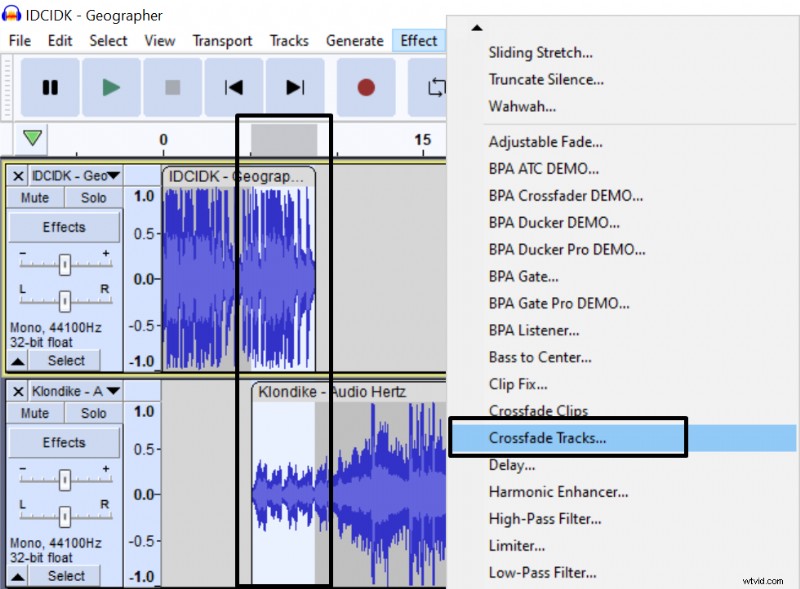
Crossfaded audio from two tracks:
Alternatively, you can blend two clips on the same track using the Crossfade Clips effect. Steps:
- Place the two clips adjacent to one another.
- Select the end of the first clip and the beginning of the second.
- Open Effect and choose Crossfade Clips.
- Repeat if additional blending is desired.

Crossfaded audio from two clips: