
REC

Recommended: Video Production, Editing & Gear Maintenance Guide

 WTVID >> WTVID >  >> Video Editing >> Adobe Audition

OBS Studio: Easily Change Your Recording Folder - A Quick Guide

Search...

inquiries@voiceovertip.com

OBS Studio: Easily Change Your Recording Folder - A Quick Guide

  • Tips
  • Software
  • Gear
  • Exercises
  • Career
  • Recommended Gear

Search...

OBS Studio: Easily Change Your Recording Folder - A Quick Guide

Leave a Comment / Software / By Julius

You can find and change your current recording folder in OBS through Settings:

  • Go to Settings->Output
  • Choose the Recording tab
  • Look at Recording Path within Recording Settings section
  • Click Browse to change the recording folder.
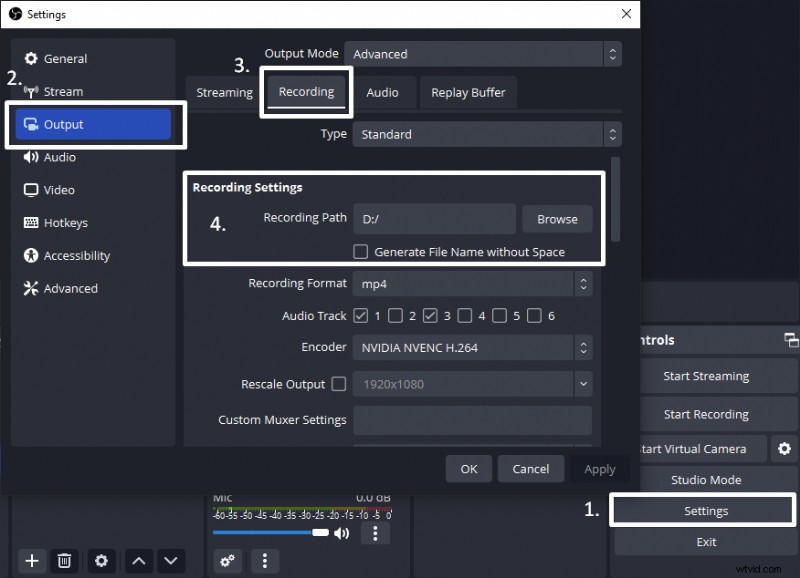
OBS Studio: Easily Change Your Recording Folder - A Quick GuideChanging recording folder (Recording Path) in OBS.

Previous Post

Next Post

Leave a Comment

Your email address will not be published. Required fields are marked *

Type here..

Name

Email

Website

Save my name, email, and website in this browser for the next time I comment.


  1. How to Effortlessly Remove Audio Clicks in Adobe Premiere Pro: Step-by-Step Guide

  2. Premiere Pro: Create a Muffled Audio Effect - Voiceover Tutorial

  3. Boost Audio Volume in Audacity Without Clipping: Proven Step-by-Step Guide

  4. How to Raise Your Voice Pitch in Audacity: Step-by-Step EQ and Change Pitch Guide

  5. Convert Mono to Stereo in Audacity: Easy Step-by-Step Guide

Adobe Audition
  1. Master Photoshop: How to Log Your Workflow for Progress Tracking & Collaboration

  2. How to Stabilize Shaky Video in Final Cut Pro: Step-by-Step Guide

  3. 9 Must-Have Apps to Supercharge Your Android & iPhone

  4. Adobe Express Review 2024: Free Video Editing for Everyone?

  5. 5 Expert Tips to Set Up a Home Studio for Stunning Dramatic Portraits

  6. Craft Stunning Custom Lightroom Presets for Portraits: Expert Step-by-Step Guide

  7. How to Add a Stunning Grunge Effect to Your Portraits in Lightroom: Step-by-Step Guide

  8. Master Portrait Retouching: Lightroom Adjustment Brush Tutorial for Flawless Results