
Premiere Pro is a powerhouse for creators, offering everything from cinematic transitions to motion graphics. One standout visual trick is the handwriting animation, which makes your text appear as if it's written in real time—adding warmth and personality to any project.
This effect is loved for its charm but can be tricky for beginners. In this guide, you'll learn simple ways to create it, discover useful workarounds, and explore easier alternatives for achieving the same handwritten magic.
Part 1. The Classic Write-On Effect in Premiere Pro
Premiere Pro once had a simple built-in tool called Write-On that made text appear as if it was being written by hand. But since the feature is now marked as Obsolete, it doesn't work well with the latest versions.
Before jumping into modern tools, it's interesting to look back at how creators used to achieve this effect. Check out [How To Make Handwriting Write-On Effect in Premiere Pro] to learn about the classic Write-On method.
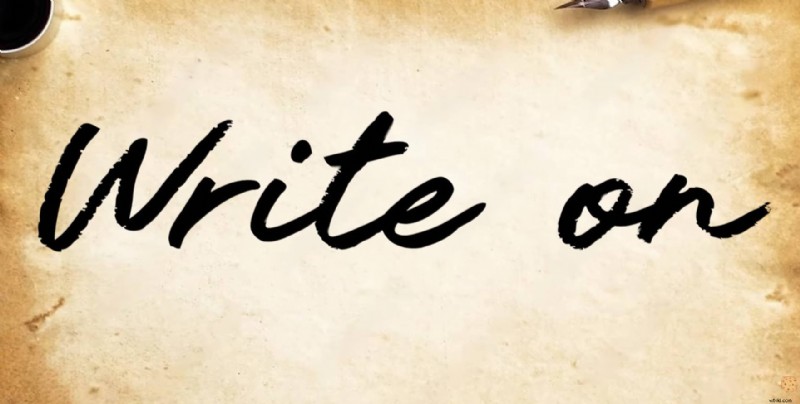
Part 2. No "Write-On"? Here's How to Create the Handwriting Effect in Premiere Pro
So, Adobe has quietly moved the Write-On effect to the Obsolete category. But the problem is, some users say it doesn't even show up anymore, which can be frustrating if you're trying to recreate that smooth handwriting motion.
But the good news is, you're not out of luck. There are still two reliable ways to pull off the handwriting effect in Premiere Pro without relying on Write-On.
1. Using Online Templates (The Smart Way)
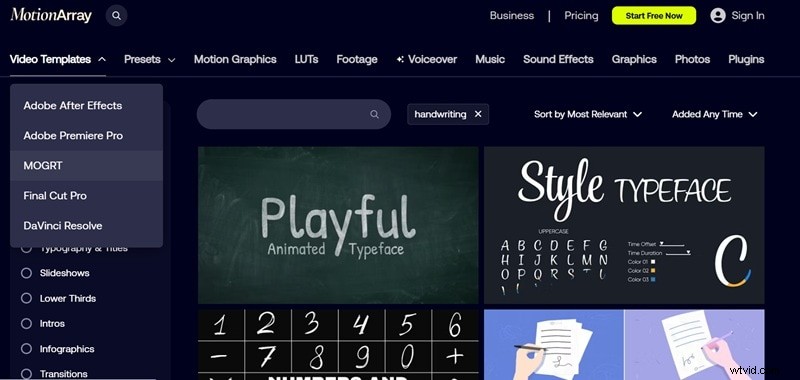
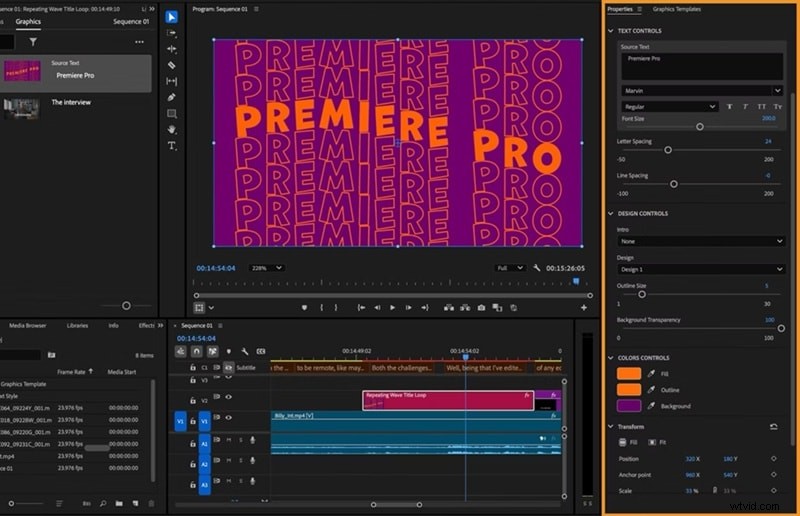
There are plenty of MOGRT templates (Motion Graphics Templates) that let you apply handwriting animation for Premiere Pro instantly. Many of these are built in After Effects and imported into Premiere as templates. To learn how to do that, check out the quick tutorial below:
- Download the MOGRT templates from Motion Array or Envato.
- Open Premiere Pro and head to "Graphics Templates". Under "My Templates", you'll find the one you just downloaded, or you can explore "Adobe Stock" for built-in options from Adobe.
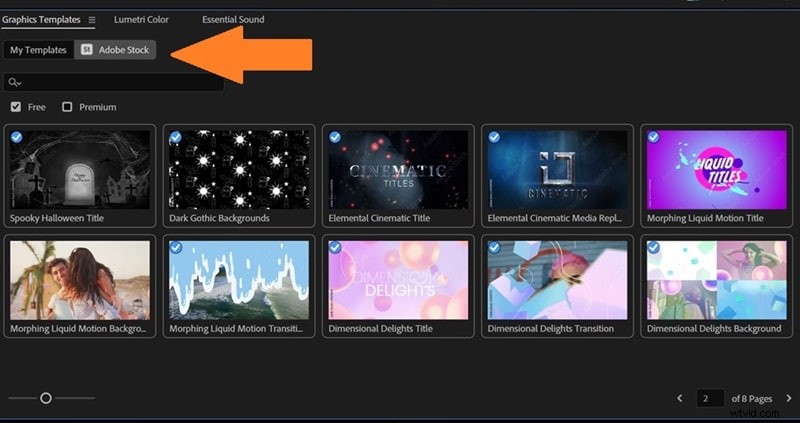
- Drag and drop the template into the timeline. Then, go to the "Properties" to customize the handwriting effect.
2. Doing It Manually (The Old-School Way)
If you like doing things by hand, you can still recreate the handwriting effect Premiere Pro using a few built-in effects. It takes a bit more time, but it gives you full control over how each stroke appears. If that sounds like your style, here's a quick step-by-step tutorial from Adobe Made Simple on YouTube to guide you through it:
1
Create Your Text
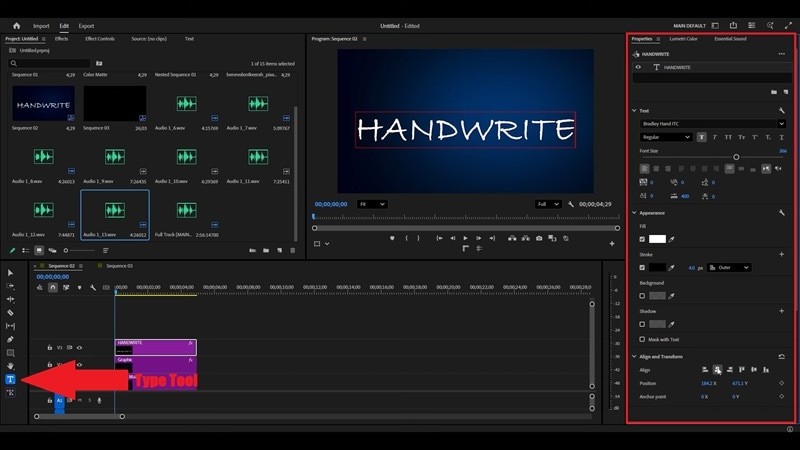
Open Premiere Pro and select the Type Tool. Click anywhere on your timeline and type the text you want to animate. Then, go to the "Properties" panel to adjust the font, size, and color however you like.
2
Add the Shape Flow Effect
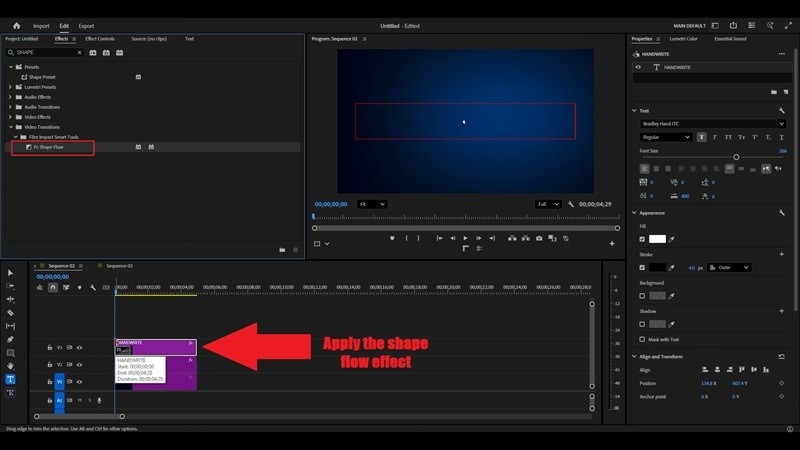
Open the "Effects" panel, search for "Shape Flow", and drag it onto your text layer. This effect is what makes the handwriting motion possible.
3
Adjust the Animation Position
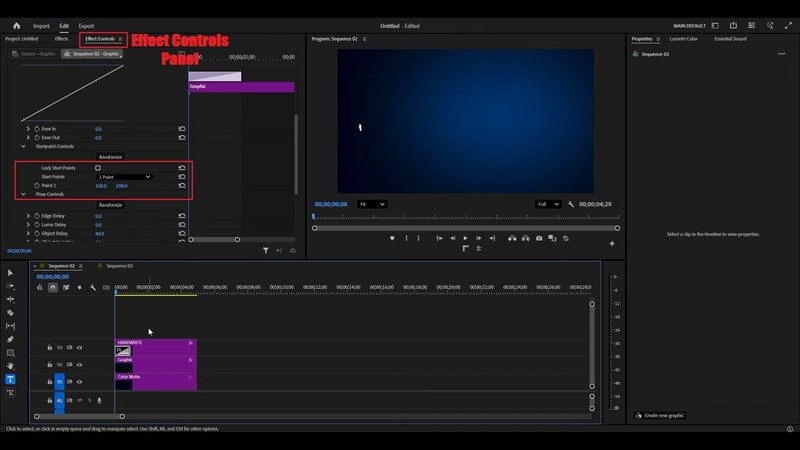
In "Effect Controls", scroll to find "Shape Flow" and tweak the 0.1 position until it sits at the starting point of your first letter. This tells Premiere where the "writing" should begin.
4
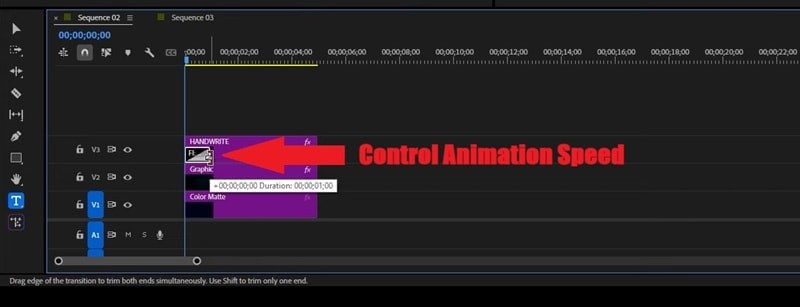
Control the Animation Speed
Click and drag the "Shape Flow" effect clip left or right on the timeline. Moving it left speeds up the animation, and moving it right slows it down.
Note: The classic Shape Flow effect is no longer included as a built-in effect in the latest Premiere Pro versions. However, you can still use it via third-party plugins, such as Film Impact's Shape Flow. Alternatively, you can achieve a similar handwriting effect using Mask Paths or Pen Tool with keyframes.
Part 3. The Easier Route: Create Handwriting Animation Without the Hassle
After trying different ways to create handwriting effects in Premiere Pro, one thing is clear: the software can do it, but the process is not straightforward. The old Write-On effect is now in the Obsolete Effects folder, and using masks with keyframes takes several steps and some technical know-how.
Premiere Pro also lacks the smooth, brush-style controls you find in After Effects. This means creating natural, flowing handwriting animations requires manual keyframing and fine-tuning, which can quickly become tedious for more complex text effects.
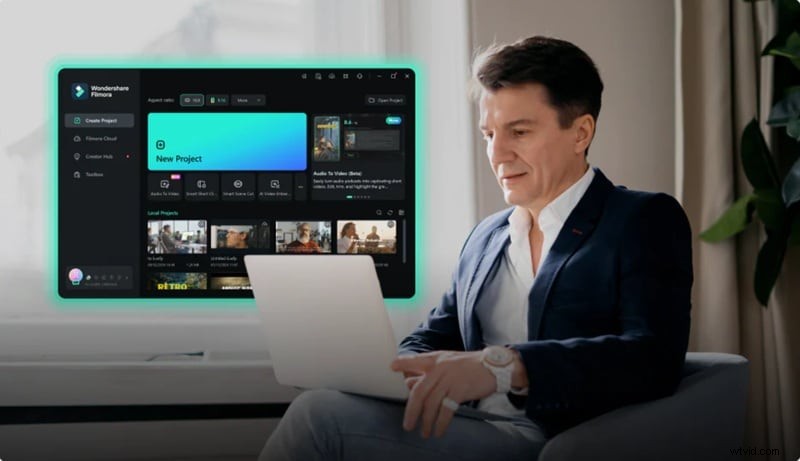
In that case, this is where Wondershare Filmora truly shines. This all-in-one video editor comes packed with ready-to-use handwriting animation presets and templates, so you don't have to build effects from scratch. With its intuitive interface and extensive library of handwriting fonts and animated text effects, you can create professional-looking handwriting animations in just a few clicks—no complicated steps, no steep learning curve.
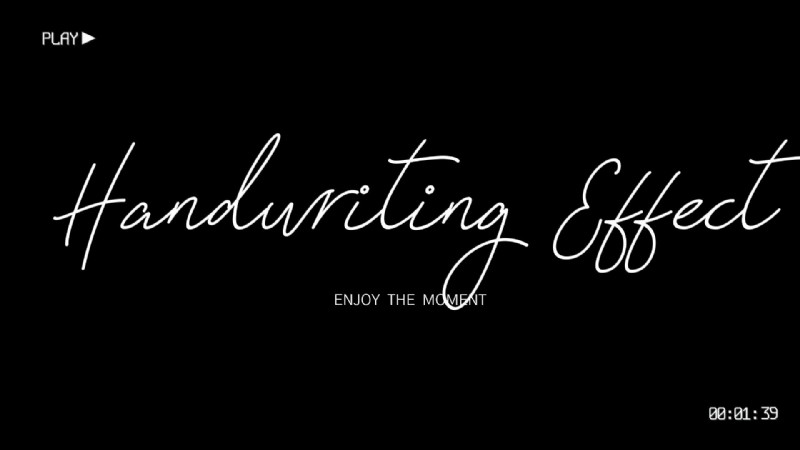
Travel Chic 2024 Title 07
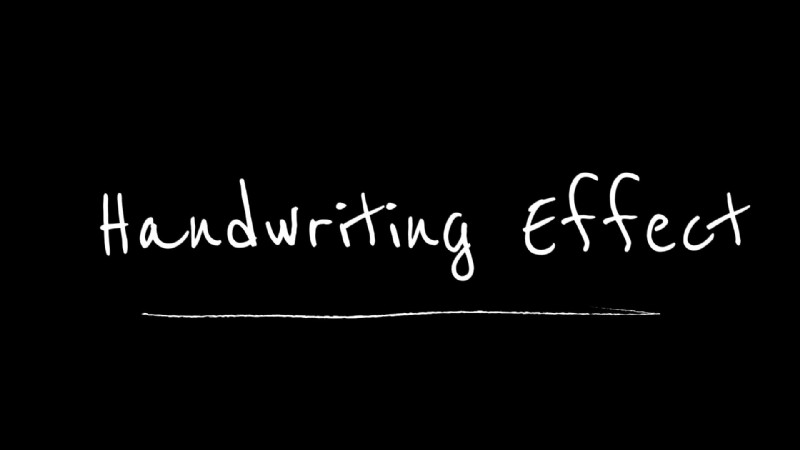
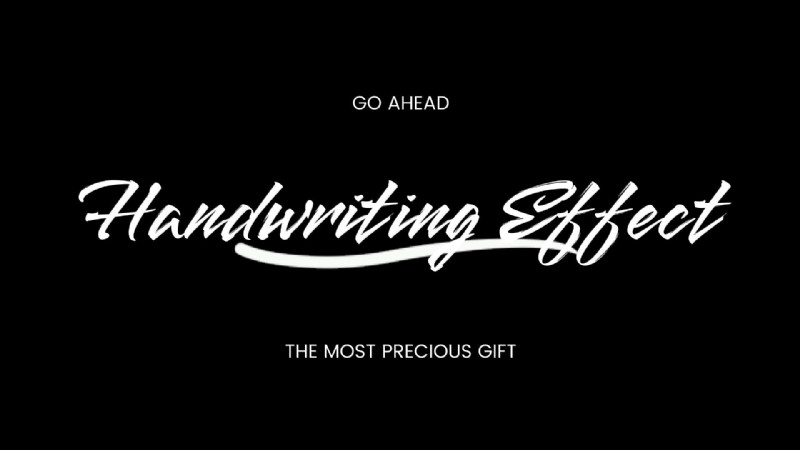
Beautiful Handwriting Title 01
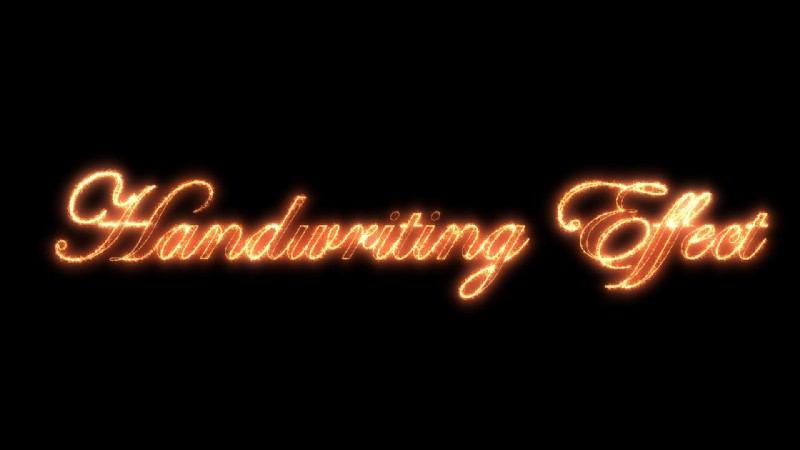
Handwriting Christmas Title
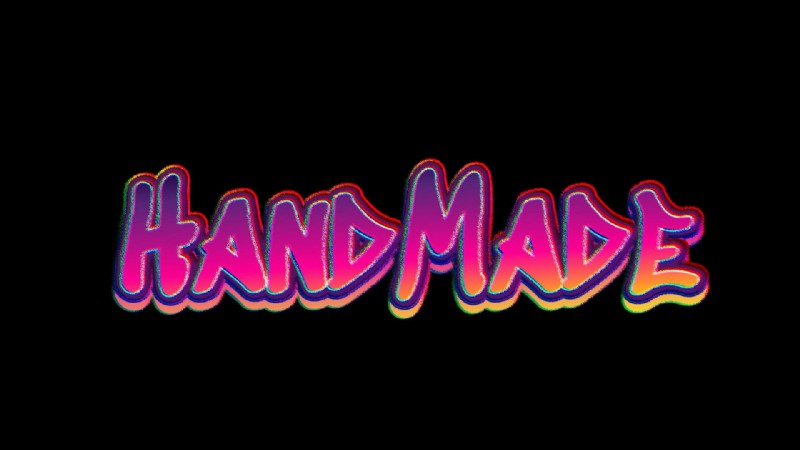
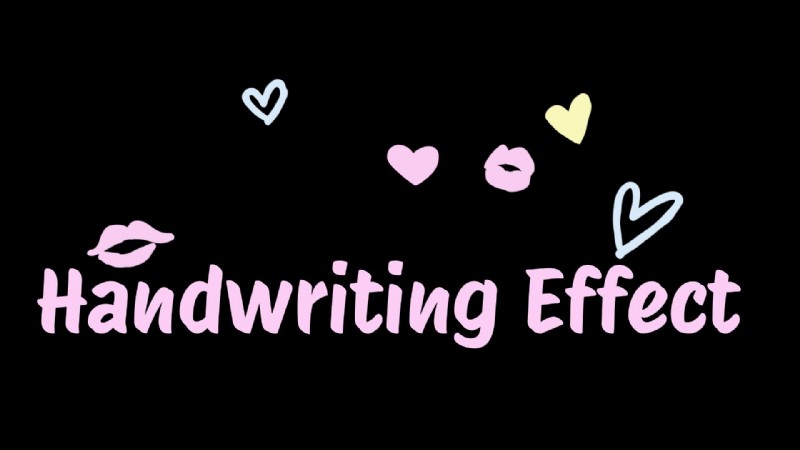
On top of that, the latest Pen Tool in Filmora make the whole process so much simpler:
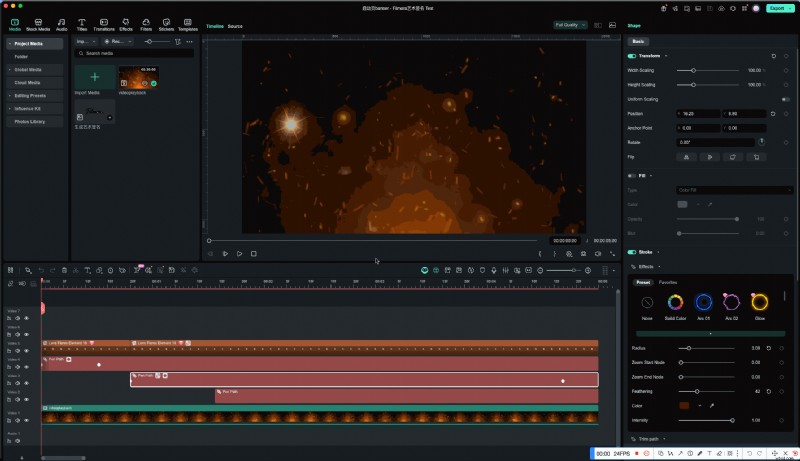
- Simple workflow: Animate handwriting in just a few quick steps with easy controls.
- Built-in presets: Pick from ready-to-use handwriting styles and animations.
- Pro results made easy: Get that clean, professional look without stressing over settings.
- Focus on creativity: Spend your time perfecting your story instead of tweaking technical details.
Filmora takes the pressure off editing so you can bring your handwriting ideas to life quickly and beautifully. Let's break them down!
 Secure Download
Option A: Get Instant Results with Filmora's Handwriting Presets
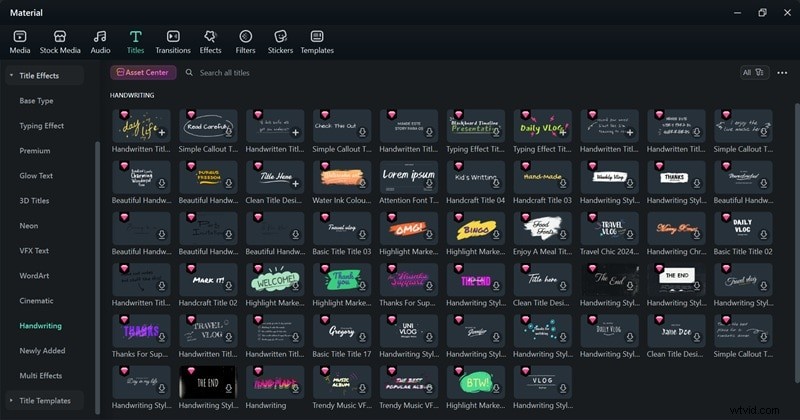
Why It's Great: Filmora makes adding a handwriting effect ridiculously simple. Inside its Titles tab, there's a dedicated Handwriting category filled with pre-made animations that look clean and natural. It's quick, clean, and gives your video that handwritten feel in seconds.
Best For: This method is perfect when you're short on time. It's made for creators who want smooth results without getting tangled in layers or keyframes. You can use it for intros, vlogs, or stylish quotes that need a personal touch.
Quick Steps:
1
Open Filmora and Create a New Project
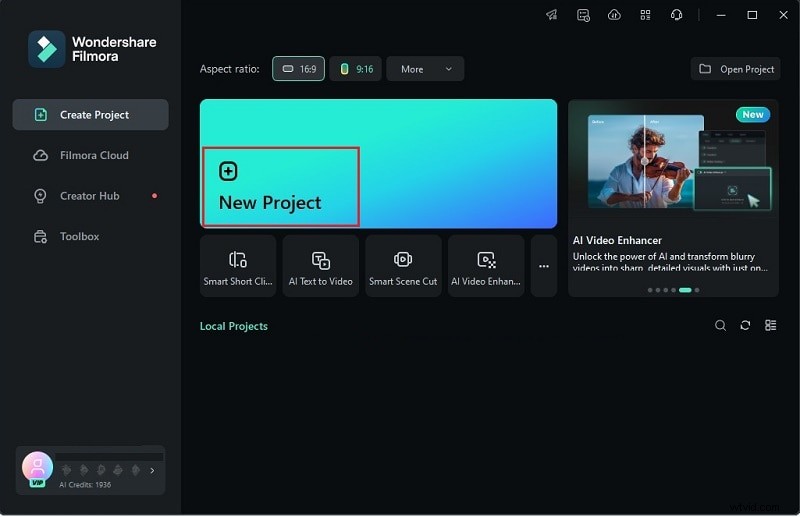
Make sure you've downloaded and installed the latest version of Filmora on your device. Then, open the program and click "New Project" to start with a fresh workspace.
2
Select Handwriting Animation Category
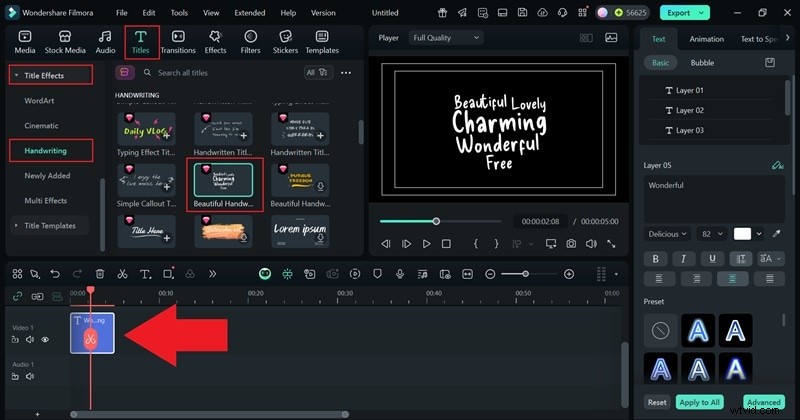
Once you're in Filmora's main editing timeline, go to the "Titles" tab and select "Title Effects". Scroll down until you find the "Handwriting" category. Once you find the one you like, drag it to the timeline below.
3
Customize Your Text and Add Animation
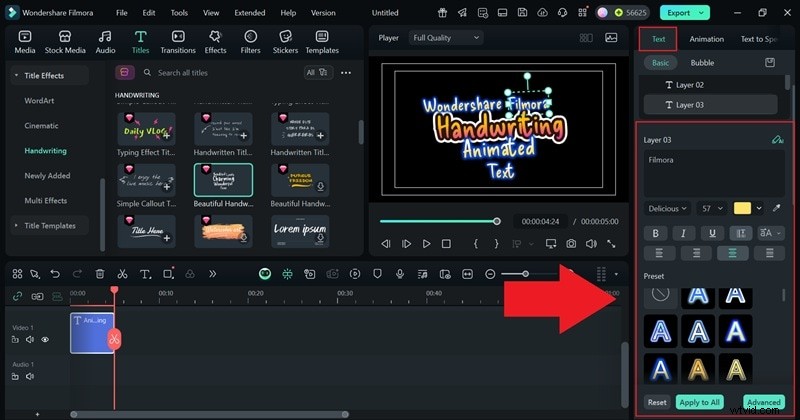
Go to the Properties panel on the right and adjust your text to say exactly what you want. You can change the font, size, and style, or use one of the built-in presets if you want to speed things up.
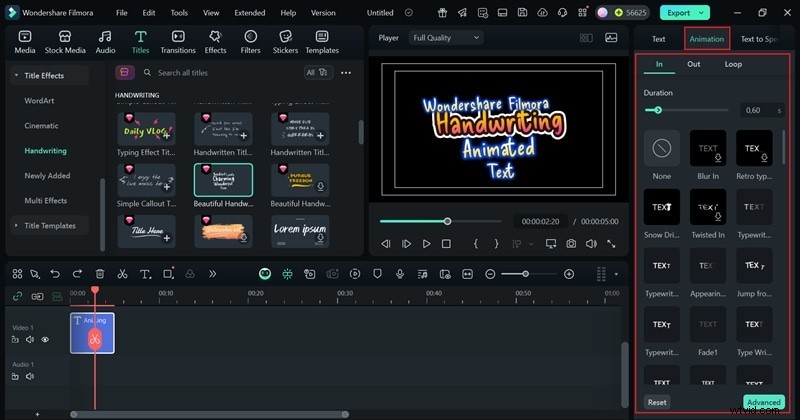
Even though the handwriting templates already come with built-in movement, you can make them more dynamic by adding extra motion. Just head over to the "Animation" tab and pick from a range of animation presets. Once you've added one, tweak the duration until it feels just right for your video.
4
Export Your Project
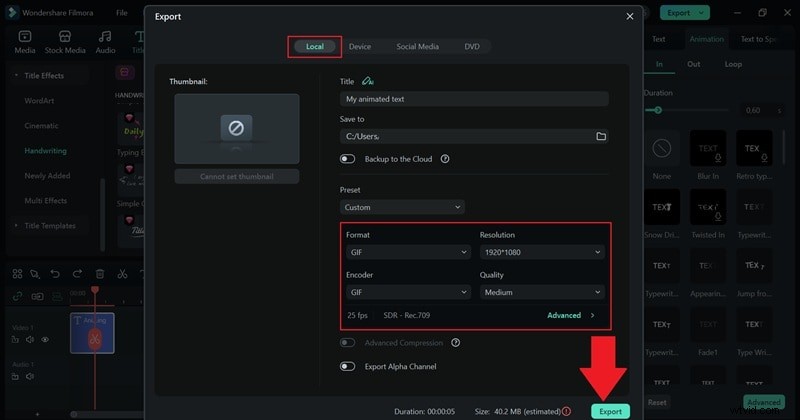
When you're satisfied with your edit, click "Export" to wrap up your project. Select "Local" if you'd like to save the video to your computer, or choose "Social Media" to share it online right from Filmora. Give your project a title, pick the file format and resolution you prefer, decide on a save location, and hit "Export" once more to finalize everything.
Option B: Design Your Own Motion with Filmora's Pen Tool
Why It's Great: Filmora's Pen Tool gives you total creative freedom. There are so many things you can do with it, including:
- Draw and animate your own motion paths.
- Create handwritten signatures.
- Trace logos.
- Make text follow any shape or curve you want.
With these capabilities, you've got another fun and creative way to pull off a handwriting effect with even more control and personality. It's an easy way to make your videos stand out while keeping them polished, natural, and full of character.
Best For: This option is great when you want your text or graphics to move in a specific direction and have that natural, hand-crafted touch. So, it works perfectly for brand intros, storytelling projects, or any video that needs a one-of-a-kind animation style.
Secure Download
Quick Steps:
1
Add Video Background
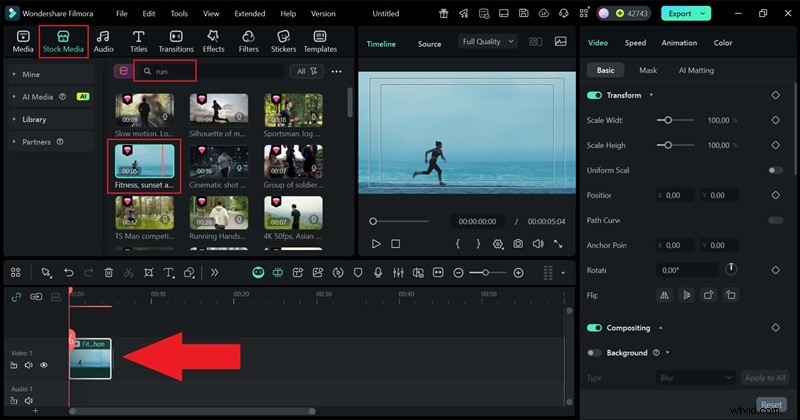
As you can see from the previous steps, by default, your project starts with a plain black background. You can easily change it by uploading your own clip or browsing through Filmora's "Stock Media" tab. Pick something that fits your style, and drag it onto the timeline.
2
Write Your Text
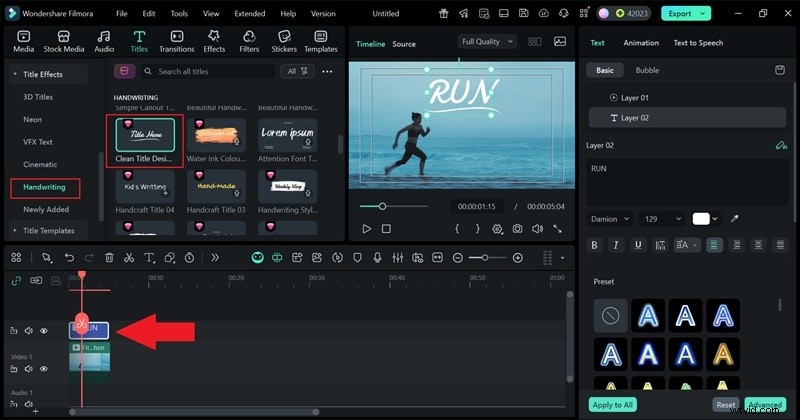
The Pen Tool in Filmora works best for path animation and outlines, giving your text a dynamic handwritten look. So, you need to add your text to the video first. This will serve as your visual guide, helping you trace smoothly and make the handwriting effect look clean and realistic.
3
Access the Pen Tool
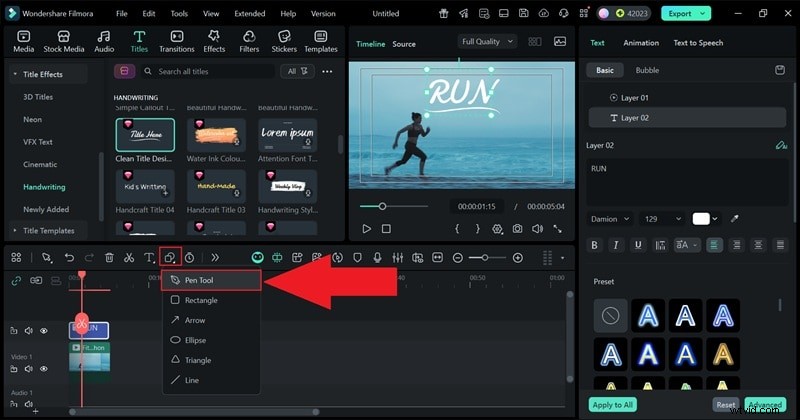
Next, find the pen tool by clicking the shape icon on top of the editing timeline. You should find it next to the text icon. From the option that pops up, select "Pen Tool".
4
Create a Handwriting Path with the Pen Tool
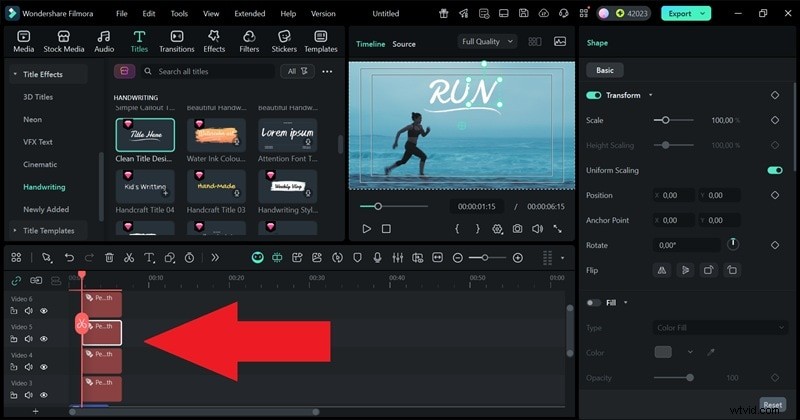
Now, use your cursor to trace over the text you added in your video. Take your time and follow each letter carefully so the path looks smooth and natural. Outlining the text one letter at a time helps the handwriting animation look realistic and clean when it plays back.
5
Delete the Original Text in the Timeline
Once you've finished outlining every letter and detail of your text, the Pen Tool effect will appear on your editing timeline. At this point, you can remove the original text track. You'll notice that your Pen Tool path stays in place, perfectly tracing where your text used to be, leaving behind a smooth, natural-looking handwriting animation.
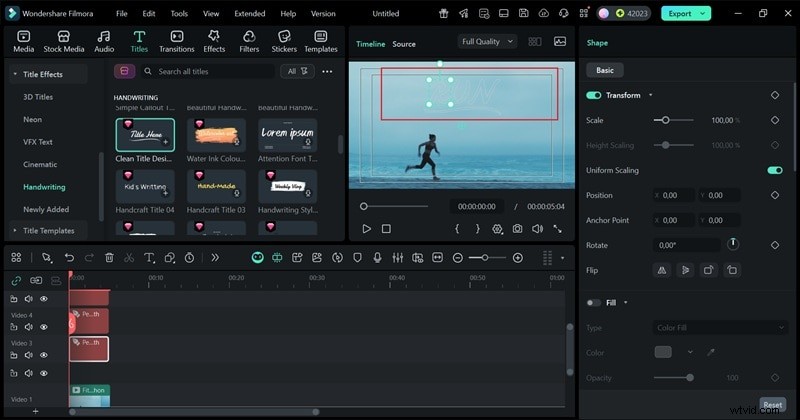
6
Add Effects and Movement
Click one of your pen tool effects on the preview window, and on the property panel on the right, scroll down until you find the "Effects" tab. Feel free to choose from one of Filmora's "Preset" and customize the intensity and other settings below it. Repeat the process until all the letters follow the same settings.
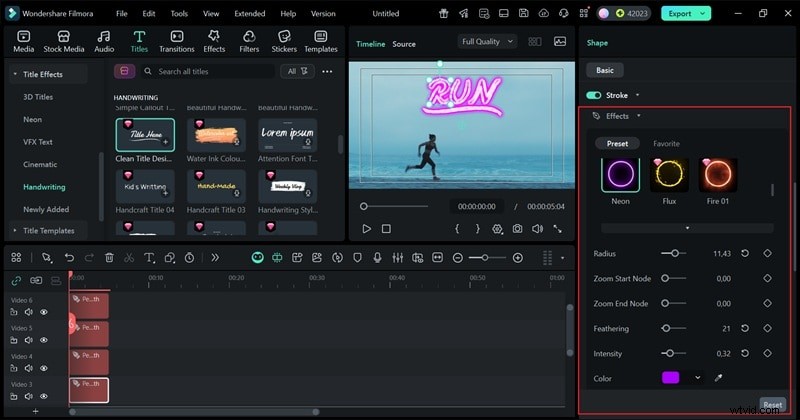
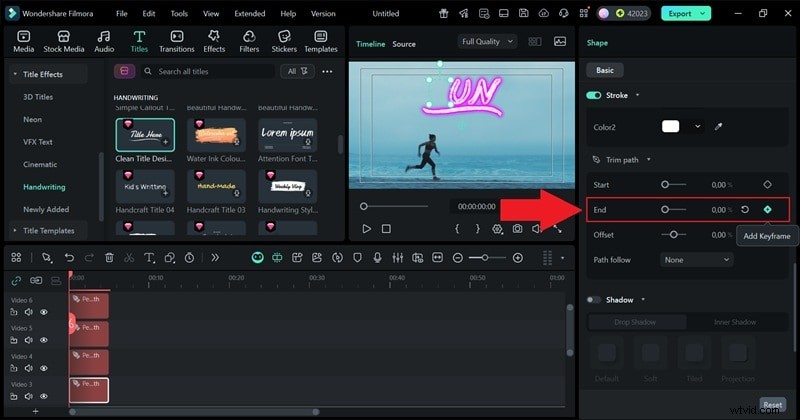
You can make your text look like it's being written in real time by adding a bit of movement. To do this, scroll down and open the "Trim Path" menu. Under it, find the "End" setting, which should be at 0%. Click "Add Keyframe" next to it while your playhead is at the start of the video.
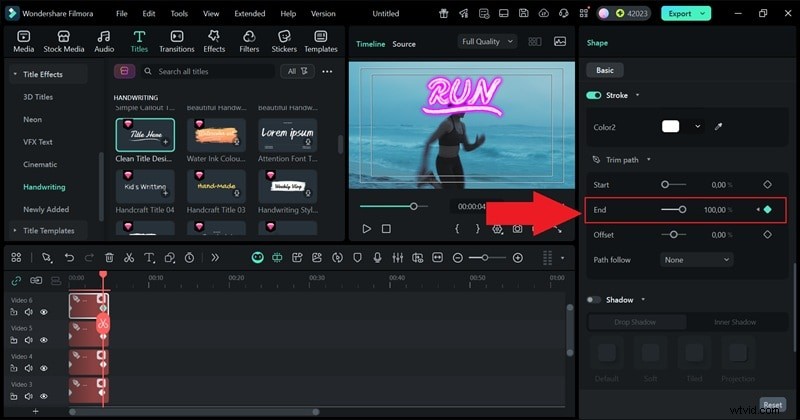
Next, move the playhead to the end of your video and drag the "End" slider all the way to 100%. Click "Add Keyframe" again to lock it in. Now your text will animate smoothly across the screen as if it's being written by hand.
7
Preview and Export
Hit Play to check how your animation moves. If everything looks good, click Export just like you did before to save your final video. And just like that, you're done!
The best part about Filmora's Pen Tool is that this is only the beginning. This feature gives you total creative freedom to draw and animate any path you imagine. You can use it to design motion graphics, trace logos, create handwriting reveals, or build unique visual effects — all directly within Filmora.
Why Filmora Makes It Easier
Unlike creating a handwriting effect in Premiere Pro, Filmora keeps everything simple and beginner-friendly. Everything flows naturally, from adding your text to animating it. Take a look at this side-by-side comparison to see how much smoother and faster Filmora handles the whole process.
| Feature | Premiere Pro | Filmora |
| Plugin Requirement | Often needs third-party plugins for smooth handwriting effects | No plugins required; everything is built in |
| Keyframe Complexity | Heavy keyframing and layer management | Simple path-based animation with smooth control |
| Built-in Presets | Very limited; mostly need to create from scratch | Includes handwriting, signature, and logo animation presets |
| Path Control | Uses complex masking and shape layers | Draw custom paths directly on the canvas with the Pen Tool |
| Preview Workflow | Usually needs rendering to check results | Real-time preview while editing; immediate feedback |
| Creative Flexibility | Works well for basic handwriting only | Ideal for handwritten text, logo outlines, and creative motion paths |
| Workflow Speed | Slower, more technical process | Fast, intuitive, and ready for quick results |
| Learning Curve | Steep learning curve | Intuitive; faster to create polished results |
| Output Quality | Professional results but time-intensive | Professional-looking results in a fraction of the time |
|
Show more Show less |
Conclusion
Creating a handwriting effect in Premiere Pro with the old Write-On feature used to be pretty easy, but since that tool's been phased out, you'll need a few clever workarounds. So, this guide walked you through the basics of how to pull off a handwriting animation in Premiere Pro using motion graphic templates or the Shape Flow effect.
Still, the process can get a bit tiring, especially if you're doing everything manually. That's why it's worth trying something simpler like Wondershare Filmora. It already has a built-in handwriting category, so you can get that same creative look in just a few clicks. Plus, its new Pen Tool lets you draw smooth, natural paths that bring your text to life.

Filmora
AI Video Editing App & Software
Best tool for making videos anywhere for all creators!
Your Perfect First Video Edit Starts Here - No Experience Needed