
Looking to trim your footage with professional precision? The right video‑cutting tool can elevate every clip, whether you’re a content creator, vlogger, or social media enthusiast. Removing unneeded segments keeps audiences engaged across YouTube, Instagram, TikTok, and beyond.
With dozens of options on the market, finding the best app requires a clear set of criteria. A top‑tier editor should be lightning‑fast, intuitively designed, and feature‑rich. In this guide, we examine the 10 best video‑cutting apps of 2026, compare their standout functionalities, and provide a step‑by‑step walkthrough to help you master the art of trimming.
In this article
- Why the Right Video‑Cutting App Matters
- Top 10 Apps in 2026
- Filmora (Top Rated)
- Adobe Premiere Rush
- KineMaster
- InShot
- VN Video Editor
- iMovie
- Splice
- PowerDirector
- Movavi
- Riverside
- Pro Tips for Seamless Cutting
- Conclusion
Part 1. Why the Right Video‑Cutting App Matters
Not every editor delivers the same experience. The best tool should combine speed, simplicity, and advanced features to streamline your workflow. Here’s what to look for:
- Smooth, Lag‑Free Performance: Editors that render quickly and play back without stutter keep your momentum, especially when handling 4K footage.
- Intuitive User Interface: A clean layout with drag‑and‑drop controls helps beginners and pros alike achieve flawless cuts in just a few taps.
- Wide Format Support: From MP4 and MOV to AVI and MOV, a versatile app saves you the hassle of converting files.
- Beyond Basic Trimming: Look for built‑in music libraries, sound effects, AI‑driven tools, transitions, filters, and overlays that elevate your edits.
Part 2. Top 10 Video‑Cutting Apps of 2026
Below is a detailed comparison of the leading editors, highlighting key features, advantages, and limitations.
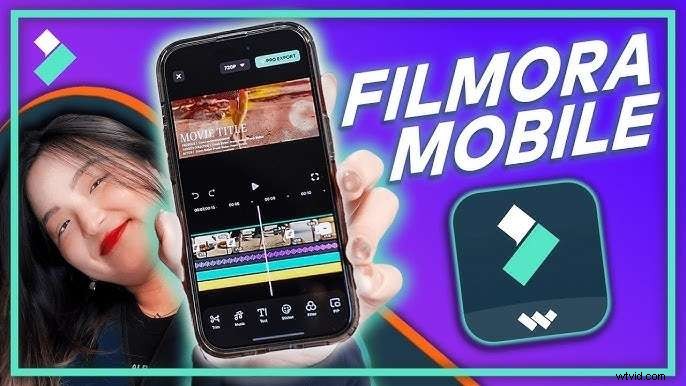
1. Filmora (Top Rated)
Filmora balances power and ease of use, making it ideal for creators who need quick yet polished results. Its AI tools and expansive effects library streamline the editing process.
Key Features:
- Frame‑by‑frame trimming for pinpoint accuracy
- AI Auto Cut that removes filler automatically
- Royalty‑free music, sound effects, and transitions built in
- 4K export with smooth playback
- One‑tap social media sharing
Pros
- User‑friendly drag‑and‑drop interface
- Fast rendering, even with 4K footage
- Smart AI features that accelerate editing
- Multiple aspect ratios for YouTube, TikTok, Instagram, etc.
- Rich library of filters, text, and animations
Cons
- Premium features behind a subscription tier
- Free version adds a watermark
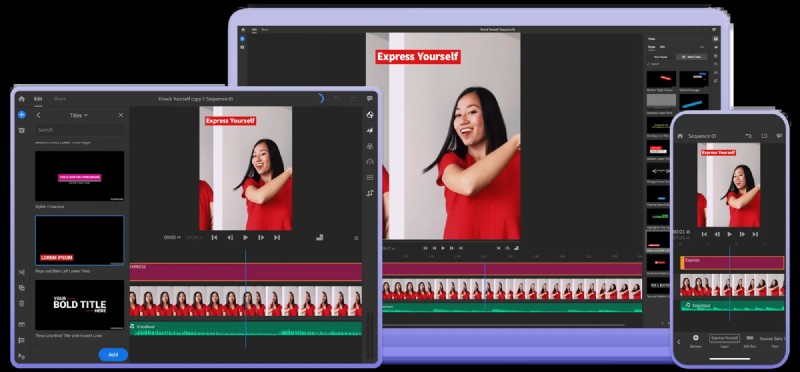
2. Adobe Premiere Rush
For creators who rely on Adobe’s ecosystem, Premiere Rush offers a streamlined, cloud‑connected experience without the full weight of Premiere Pro.
Key Features:
- Multi‑track timeline for complex edits
- Advanced color correction and speed controls
- Cloud sync for cross‑device workflows
- Export in various aspect ratios directly
Pros
- Seamless integration with Creative Cloud assets
- Professional tools accessible on mobile and desktop
- Cloud storage keeps projects available everywhere
Cons
- Requires an Adobe subscription for full access
- Steeper learning curve for newcomers
- Resource intensive on older devices
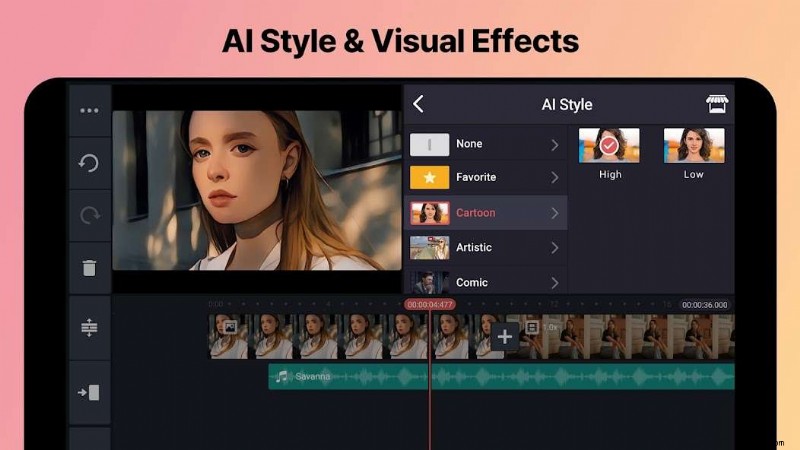
3. KineMaster
Featuring multi‑layer editing on the go, KineMaster is perfect for vloggers who need robust tools on their phone.
Key Features:
- Layered video, image, and audio tracks
- Precision trimming and cutting controls
- Chroma key (green screen) for professional effects
- 4K export quality
Pros
- Mobile‑friendly yet feature‑rich interface
- Customizable effects and transitions
- Ideal for YouTube and vlog content
Cons
- Watermark appears in free version
- Can overwhelm beginners with many options
- Optimal performance requires high‑end devices
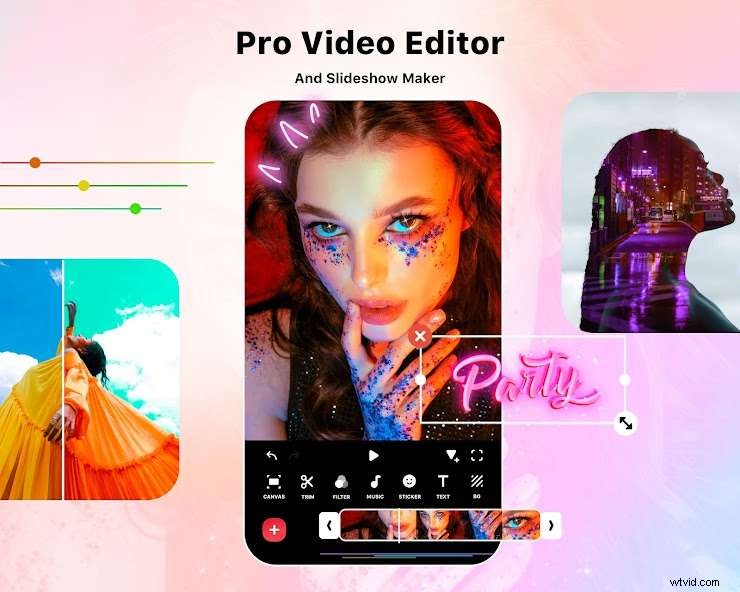
4. InShot
Designed for quick social media edits, InShot delivers a lightweight experience with essential trimming and creative overlays.
Key Features:
- Fast trimming and cutting tools
- Preset aspect ratios for Instagram, TikTok, YouTube Shorts
- Basic transitions and effects library
- Built‑in music and text overlays
Pros
- Very easy to learn for quick edits
- Ready‑to‑share social media formats
- No watermark in free version
Cons
- Lacks advanced tools like chroma key
- No multi‑track editing support
5. VN Video Editor
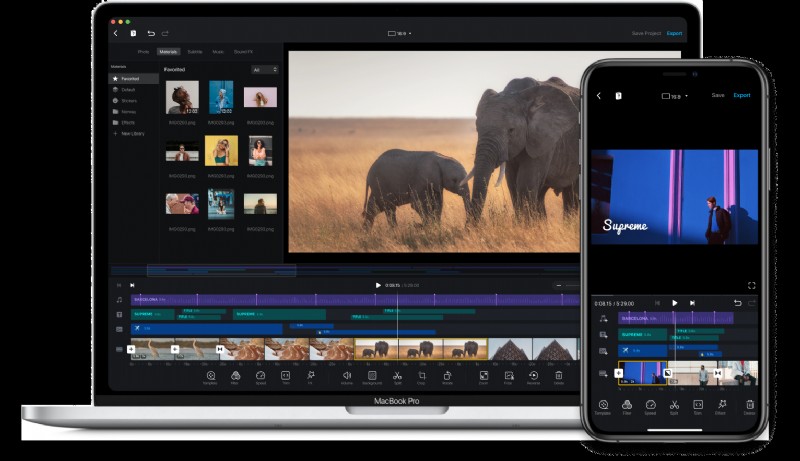
VN offers a clean, watermark‑free experience, making it an excellent choice for beginners who need solid trimming capabilities.
Key Features:
- Timeline‑based editing for precise control
- Keyframe animation support
- Free sound effects and filters
- No watermark on free exports
Pros
- Completely free, no watermark
- Drag‑and‑drop editing that feels natural
- Decent effects and transitions for a free tool
Cons
- Limited professional features
- No cloud syncing across devices
6. iMovie
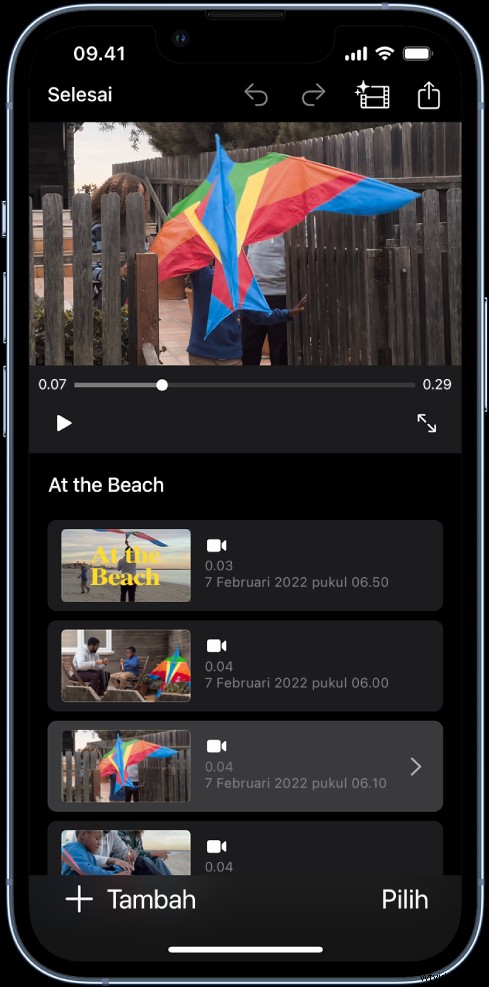
Apple’s native editor provides a polished, no‑cost solution for macOS and iOS users seeking straightforward trimming and high‑quality exports.
Key Features:
- Drag‑and‑drop timeline
- Pre‑made trailers and templates
- Deep integration with Apple ecosystem
- 4K export support
Pros
- Free for all Apple users
- Consistent performance across devices
- Easy sharing to iCloud and other Apple apps
Cons
- Exclusive to Apple hardware
- Lacks advanced editing tools found elsewhere
7. Splice
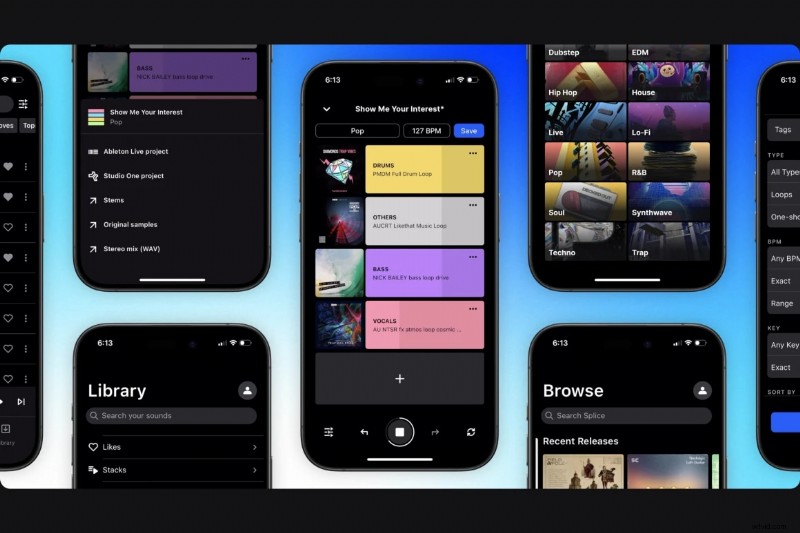
Splice offers a minimalistic interface focused on quick trimming and social media sharing.
Key Features:
- Rapid cutting and trimming tools
- AI‑driven audio syncing
- Built‑in royalty‑free music library
- Direct export to YouTube, Instagram, etc.
Pros
- Intuitive design with minimal learning curve
- Large selection of free music tracks
- Great for short, punchy clips
Cons
- Limited creative options compared to other editors
- Premium tier required for full feature set
8. PowerDirector
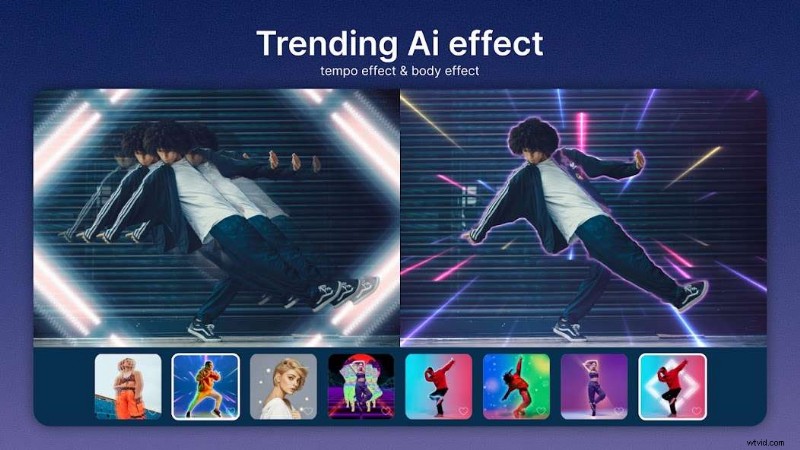
Known for speedy rendering and a suite of professional effects, PowerDirector is a solid mobile option for creators demanding high quality.
Key Features:
- Frame‑by‑frame precision trimming
- AI‑powered transitions and effects
- Chroma key for green‑screen work
- 4K export with smooth performance
Pros
- Lightning‑fast rendering even on mobile
- Advanced tools for professional results
- AI assistance to boost creativity
Cons
- Free version includes ads
- Some features locked behind a paid upgrade
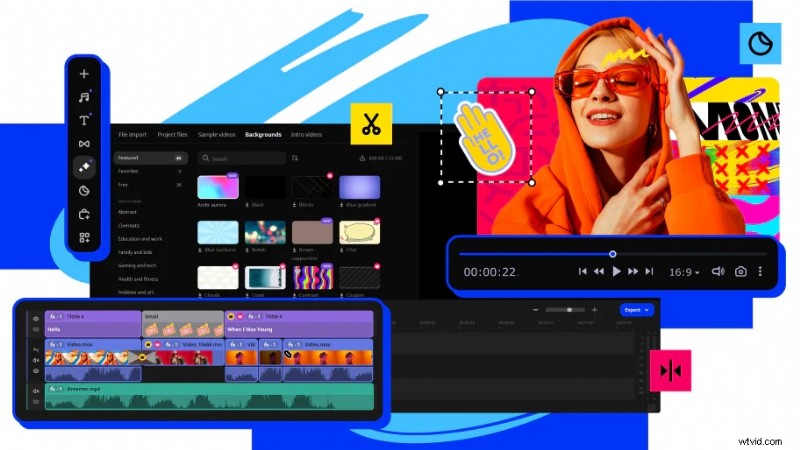
9. Movavi
Movavi delivers a streamlined experience, perfect for users who want polished edits without a steep learning curve.
Key Features:
- Smart cutting and trimming tools
- Automatic audio enhancement
- Text, stickers, and transitions
- Direct sharing to social platforms
Pros
- Consistent and reliable performance
- Fast export with good effects
- Beginner‑friendly interface
Cons
- Premium features require a subscription
- No multi‑track editing capability
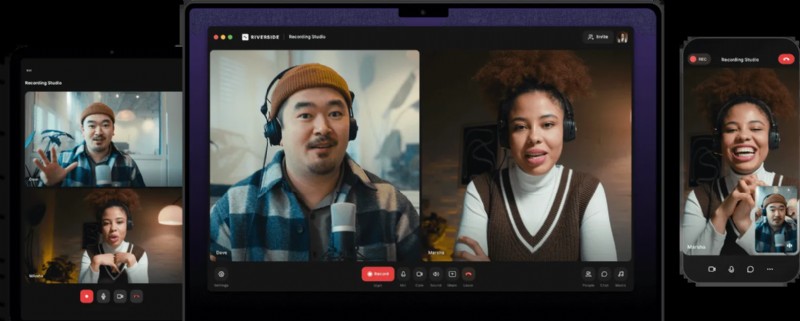
10. Riverside
Riverside specializes in podcast and interview production, offering high‑quality audio‑visual editing and collaborative tools.
Key Features:
- Precise video and audio trimming
- Automatic transcription and subtitles
- Multi‑track editing for multi‑person recordings
- Cloud collaboration for remote teams
Pros
- Excellent for remote podcasting and interviews
- High‑fidelity audio and video output
- AI‑driven transcription simplifies editing
Cons
- Not tailored for conventional video editing
- Limited creative transitions and effects
Part 3. How to Cut Videos Like a Pro with the Best App
While every editor has its strengths, Filmora consistently shines as the most balanced choice for both novices and seasoned creators. Below is a concise workflow that showcases its strengths.
Step 1 – Import Your Footage
Open Filmora, start a new project, and import the clips from your device. Batch‑importing multiple segments simplifies organization and speeds up the next stages.

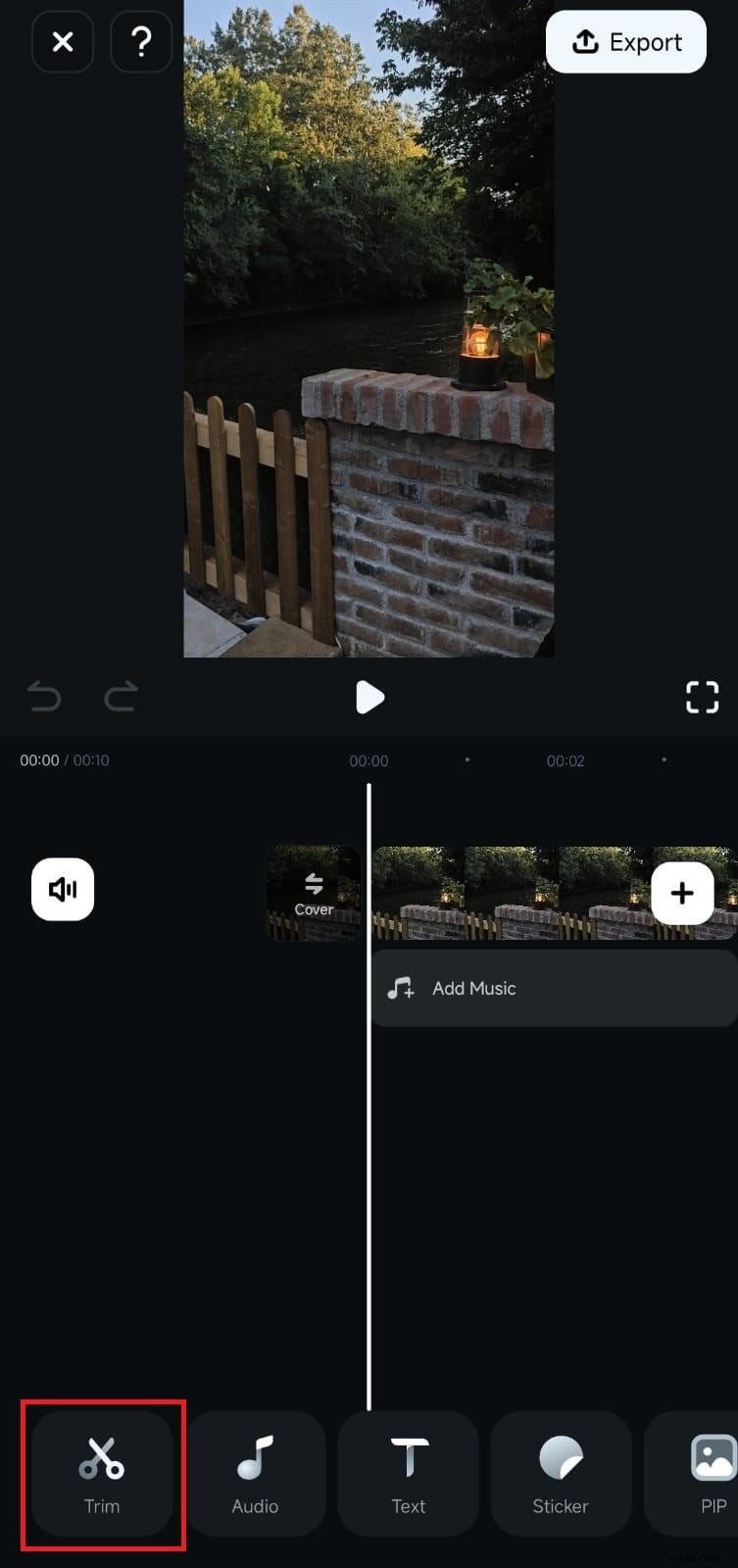
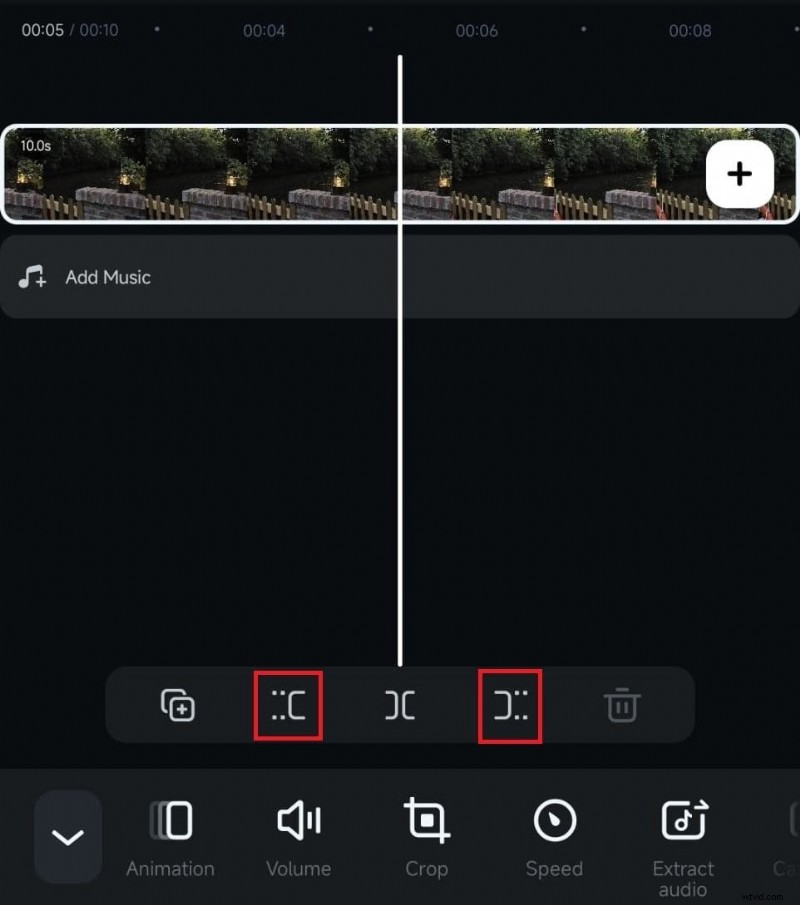
Step 2 – Trim Unwanted Sections
Select a clip on the timeline, then drag the handles to trim the beginning or end. For in‑between cuts, use the split tool (scissors icon) to isolate and delete the segment. Frame‑by‑frame trimming ensures pinpoint accuracy.
Step 3 – Arrange and Refine
Move clips to achieve a natural flow. Re‑trim if necessary to fine‑tune pacing. Filmora’s intuitive timeline makes adjustments quick and responsive.
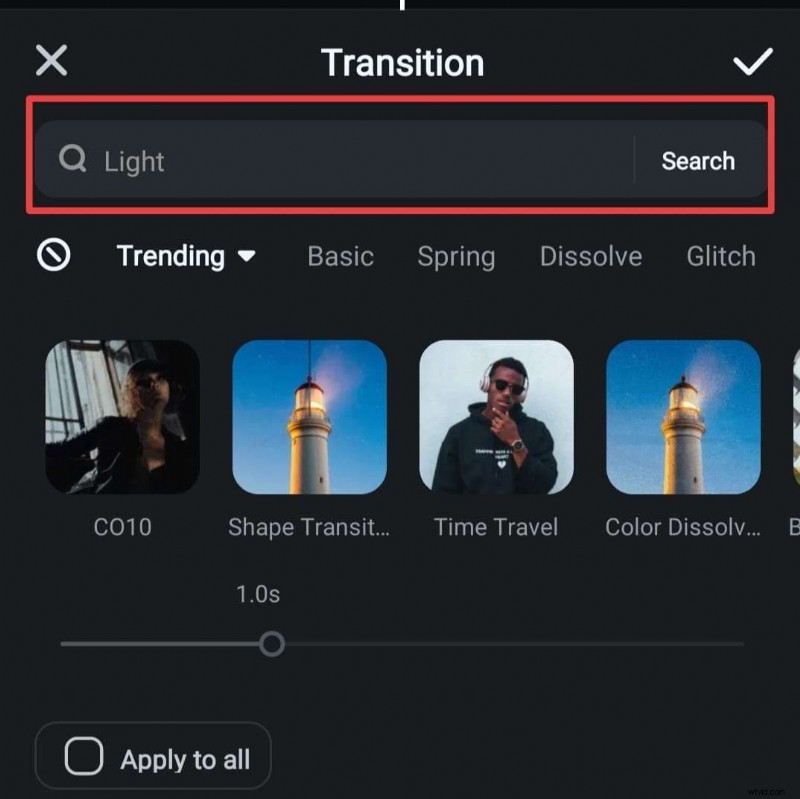
Step 4 – Add Transitions
Insert transitions between clips by tapping the transition icon. Choose from fades, dissolves, or slides to enhance continuity without overwhelming the viewer.
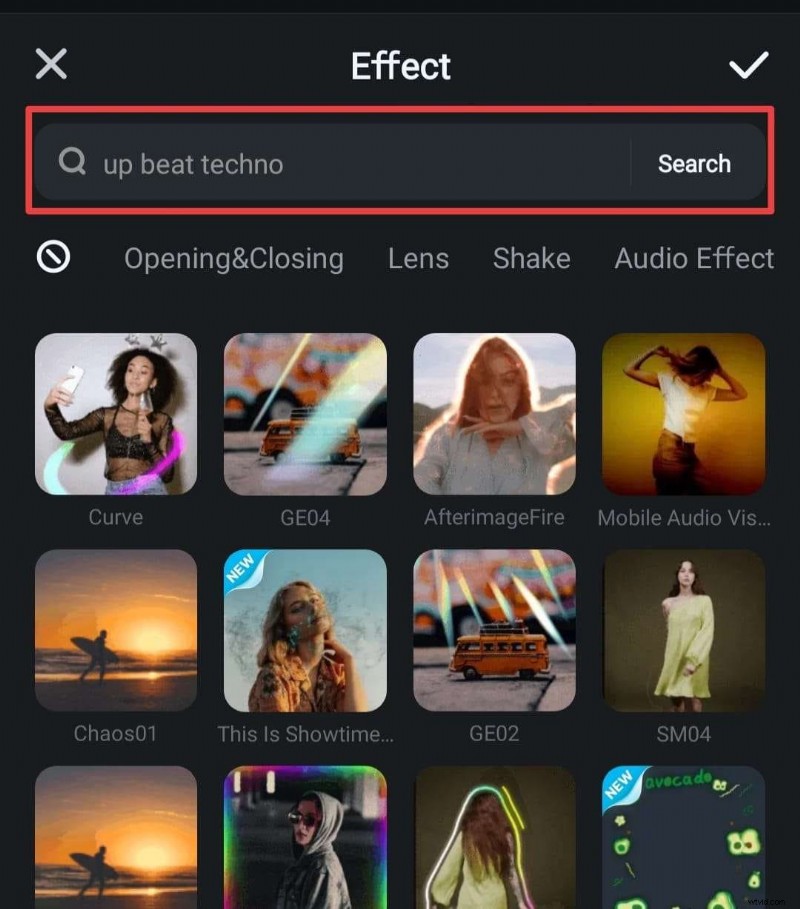
Step 5 – Polish with Filters and Effects
Apply a consistent filter to maintain visual tone, then tweak brightness, contrast, and saturation for the final polish.
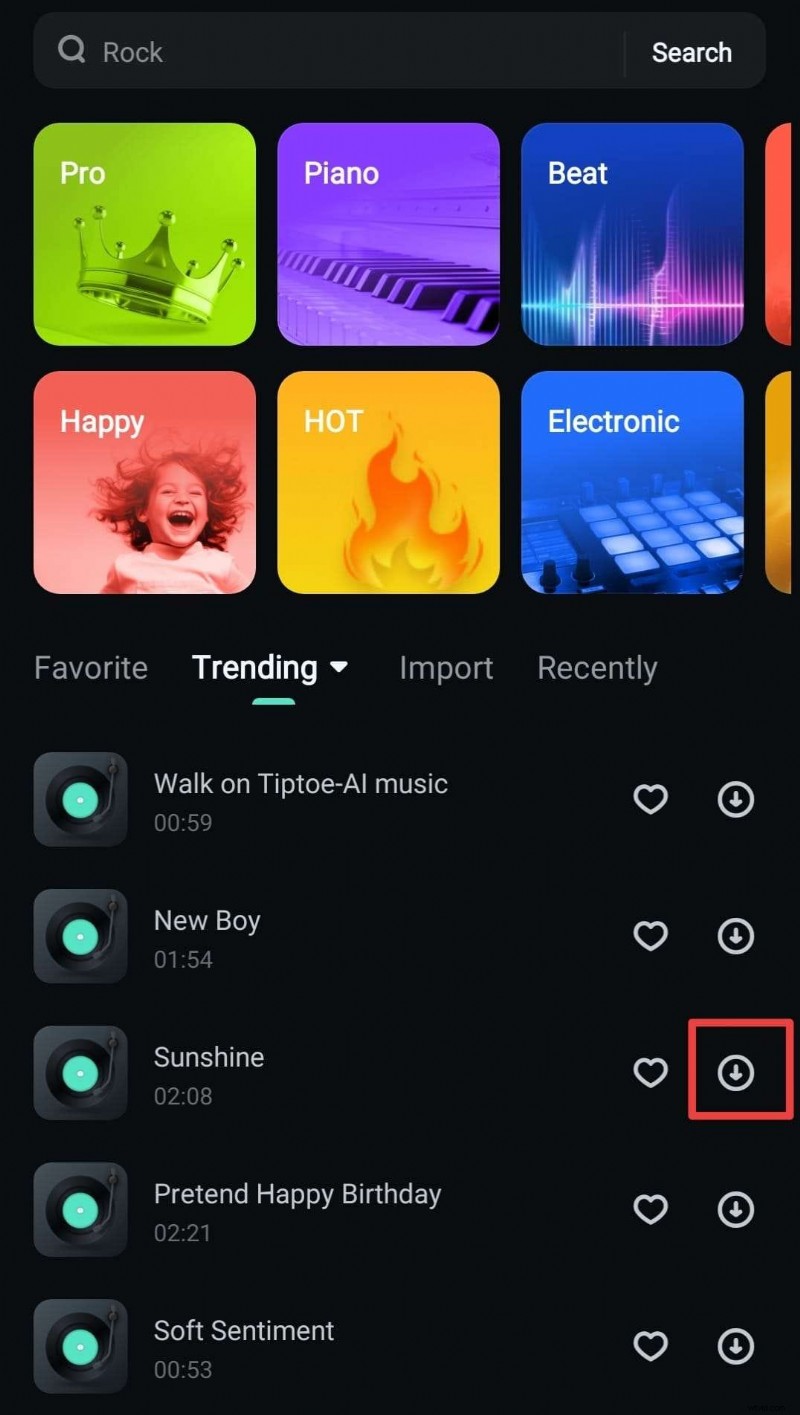
Step 6 – Layer Music and Sound Effects
Add audio from Filmora’s built‑in library, adjusting levels and applying fade‑in/out to keep the soundtrack balanced with dialogue.
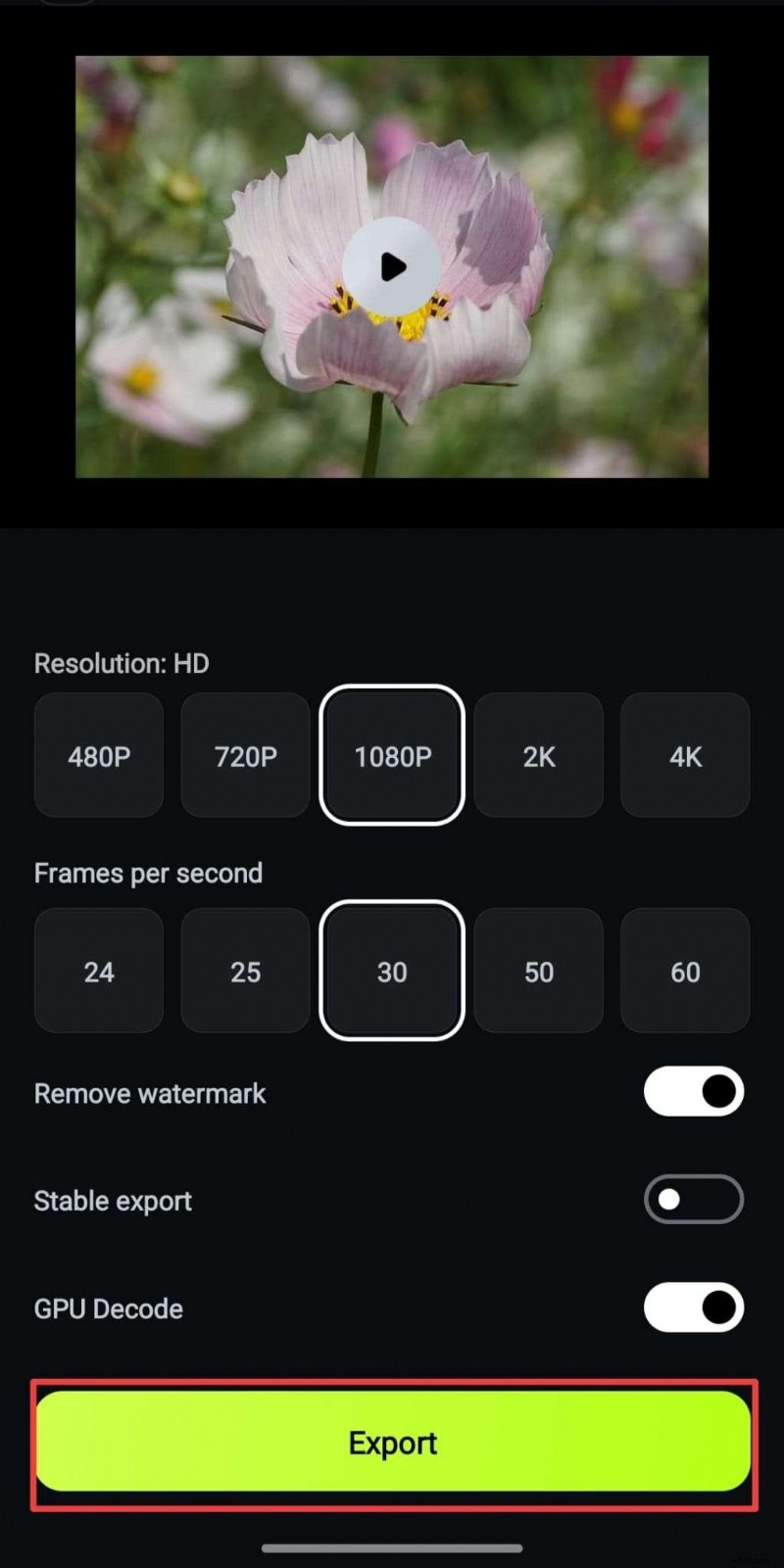
Step 7 – Export and Share
After previewing, export in HD or 4K. Filmora’s direct‑to‑social options let you publish instantly to YouTube, Instagram, TikTok, and more.
Final Tips for Seamless Cutting
- Use transitions sparingly; subtlety beats overload.
- Sync cuts to musical beats for dynamic pacing.
- Experiment with AI tools like Auto Cut for rapid, intelligent trimming.
Conclusion
Choosing the right video‑cutting app can transform your content, keeping audiences engaged and elevating your storytelling. Whether you’re trimming a quick TikTok clip or crafting a polished YouTube series, the right tool saves time and adds professional polish.
Filmora stands out for its blend of precision, AI assistance, and feature breadth, making it a top pick for creators across platforms. Explore the other options above to find the best fit for your workflow, then start editing like a pro today.