Video crop app for Instagram and other social media
Its main advantage – the app works in an offline mode, you don’t need the Internet to edit your video, only to share it. It’s free and, in distinction from the majority of free apps, you don’t even have to bear with endless ads, as there aren’t any.
Our app is designed only for iPhones and other iOS devices. But don’t worry! If you have an Android smartphone or prefer Mac or Windows, you can always make avail of its online version.
Keep on reading and learn how to use the crop video app in 4 simple steps.
Download the app and start a project
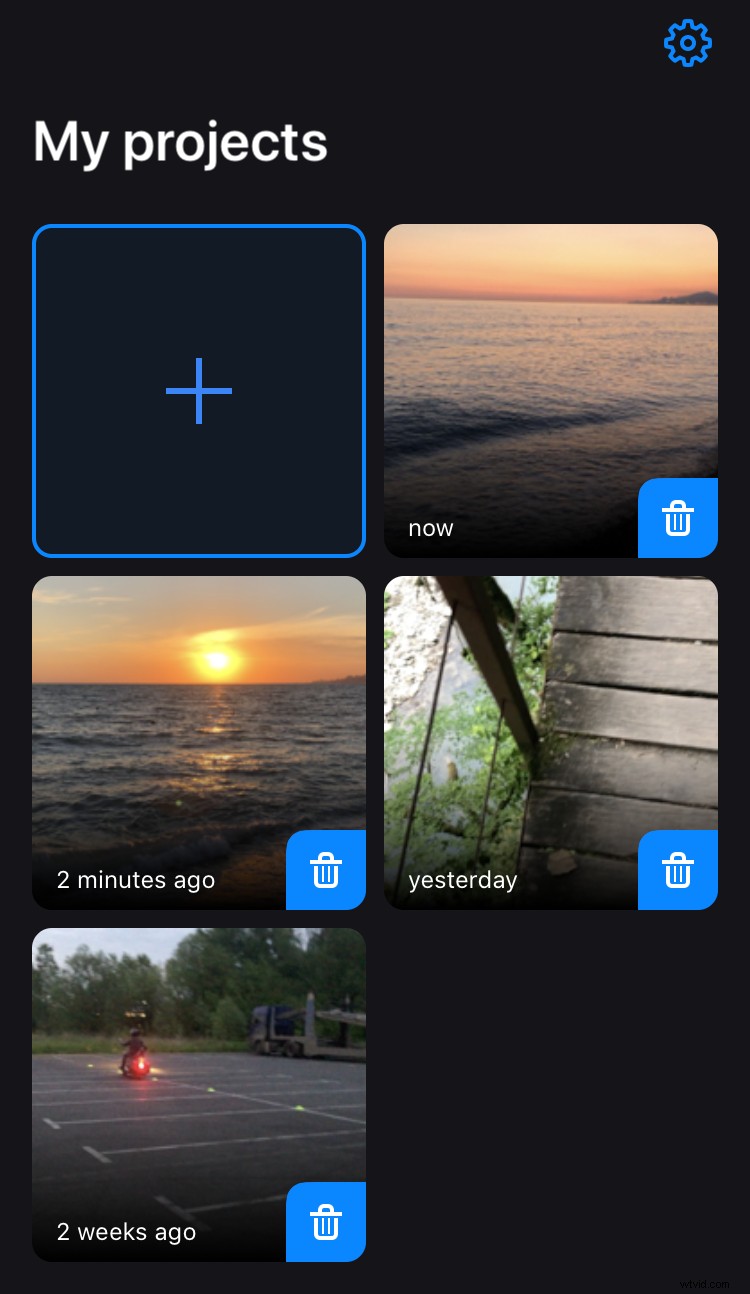
Open App Store in any browser and download the Crop App by Clideo. Open it to find the “My projects” screen, tap the Plus sign on the top left and upload a recording from your camera roll.
Choose a size preset if needed
Clideo’s app for cropping video size allows also resizing it and choosing an aspect ratio.
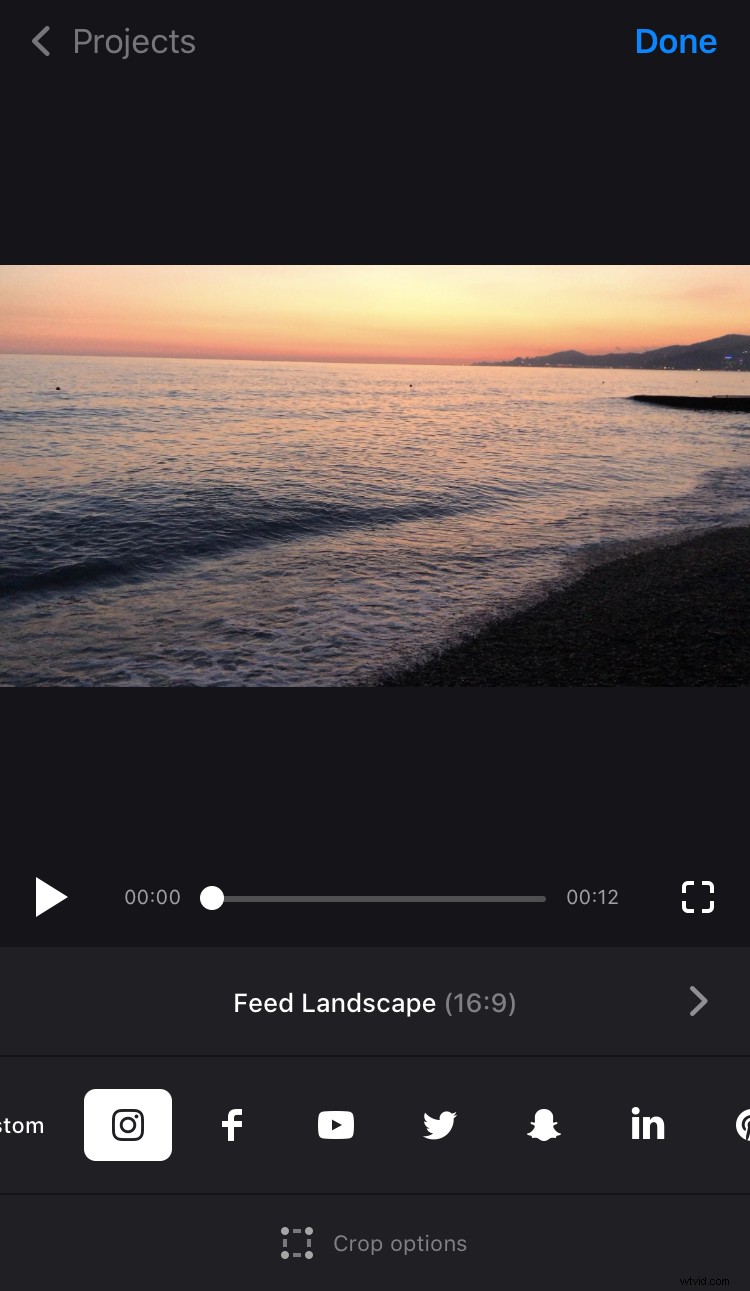
If you have already decided where you are going to post your recording, hit the social media icon below the player and select the post type.
If you haven’t made your mind yet, but you know what video orientation you need, choose the “Custom” option and select the pattern you want: 1:1 for Square, 16:9 for Landscape, 9:16 for Portrait, etc.
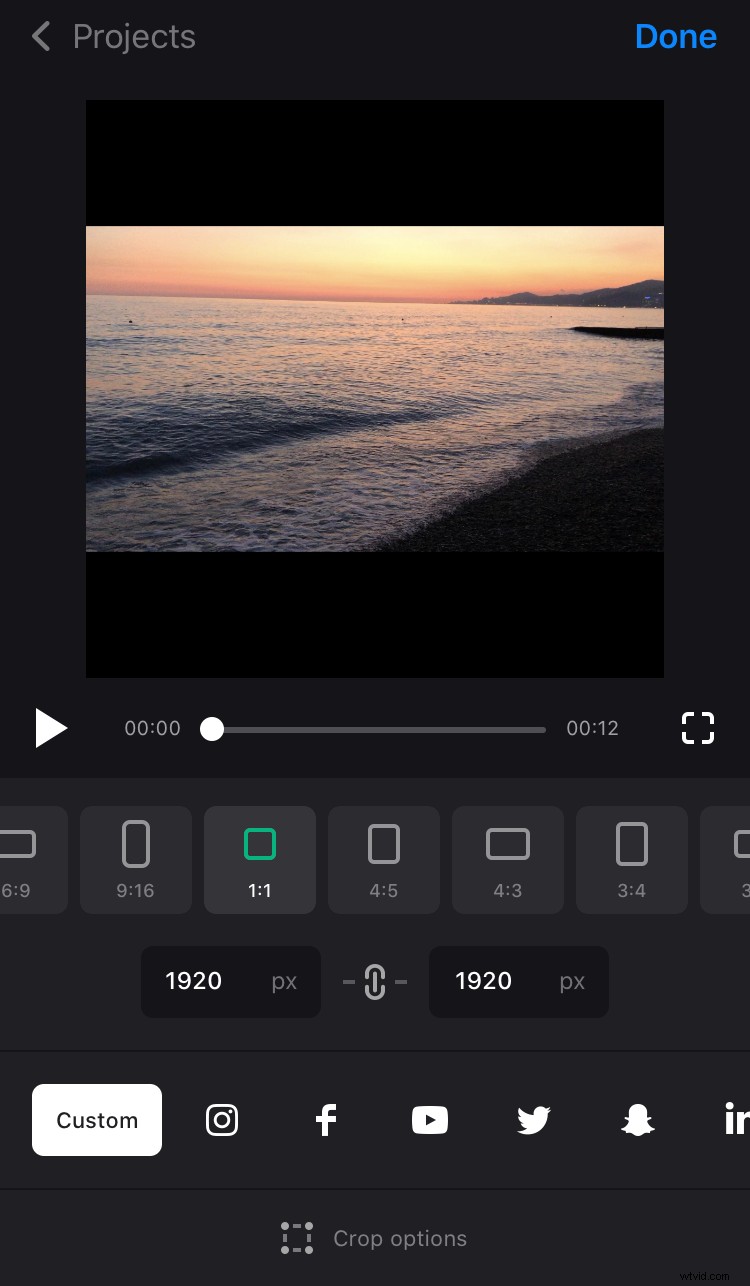
Here you are invited to set a height or a width manually and the second parameter will be set accordingly to the chosen pattern.
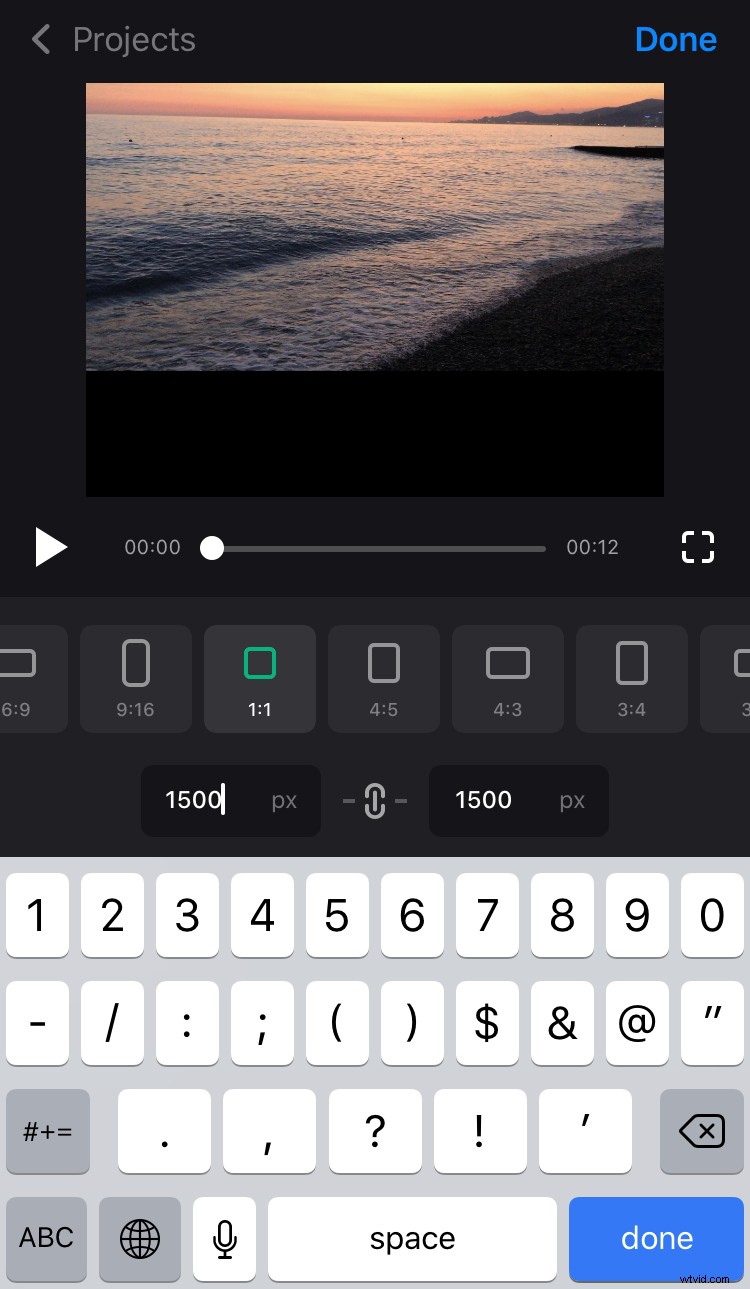
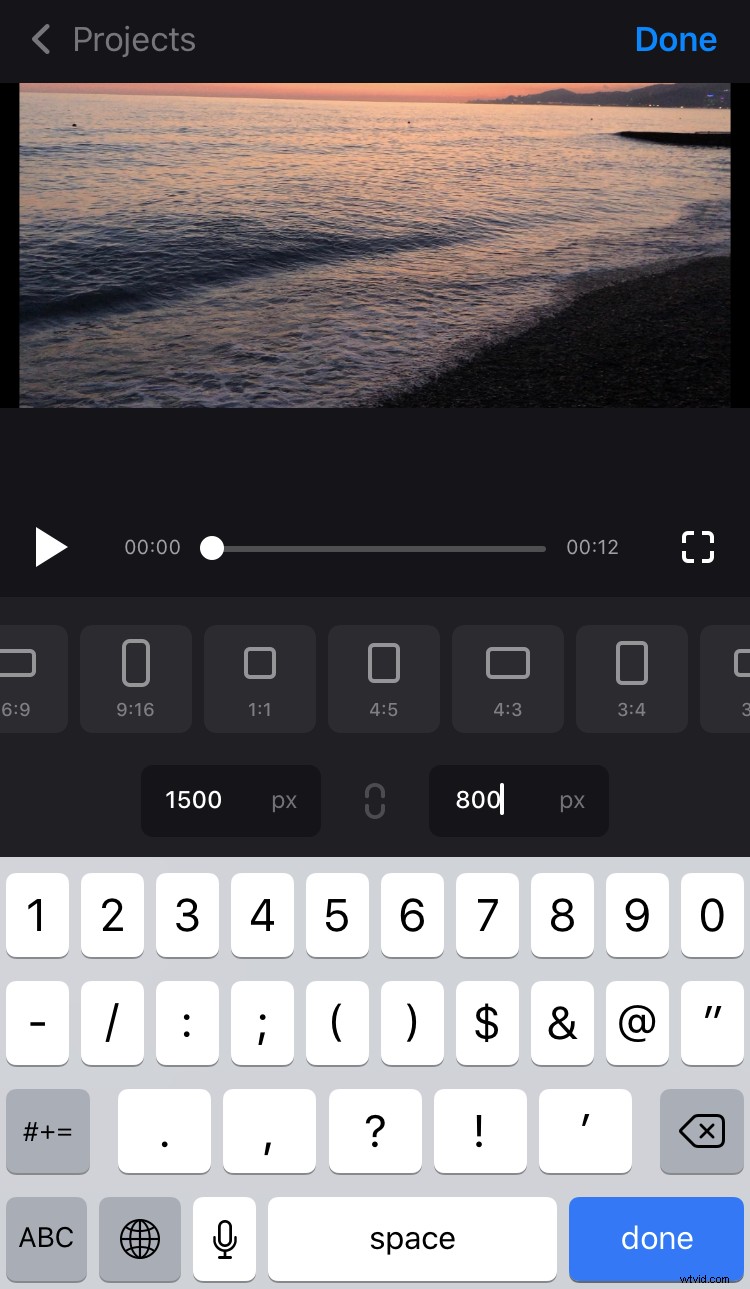
If you want to put both dimensions manually without following any specific aspect ratio, tap the chain sign between the boxes to make it “inactive” and set the values you need.
Crop the video
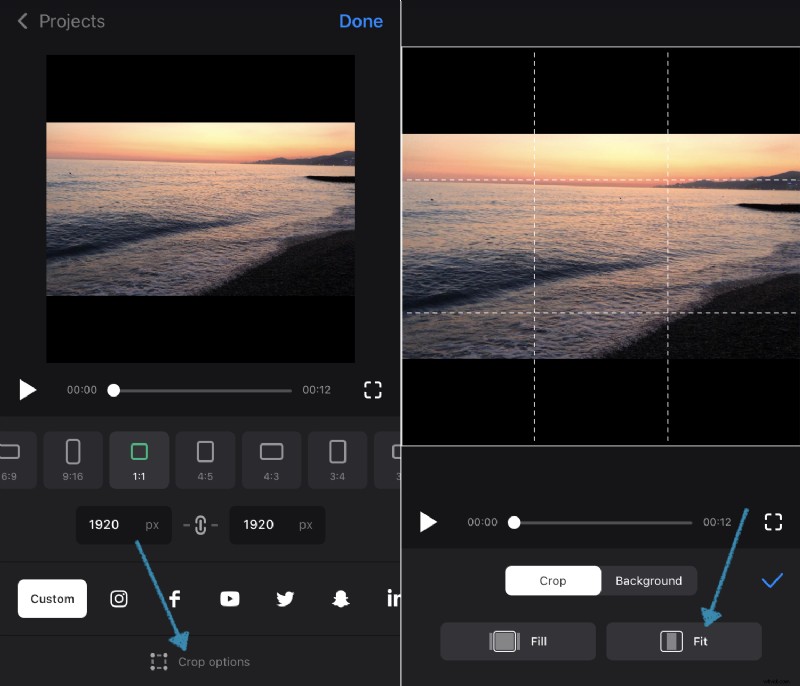
Tap the “Crop options” button at the bottom, and hit “Fit” to expand the video with no crop.
If you want the recording to fill the frame completely, just hit the “Fill” button.
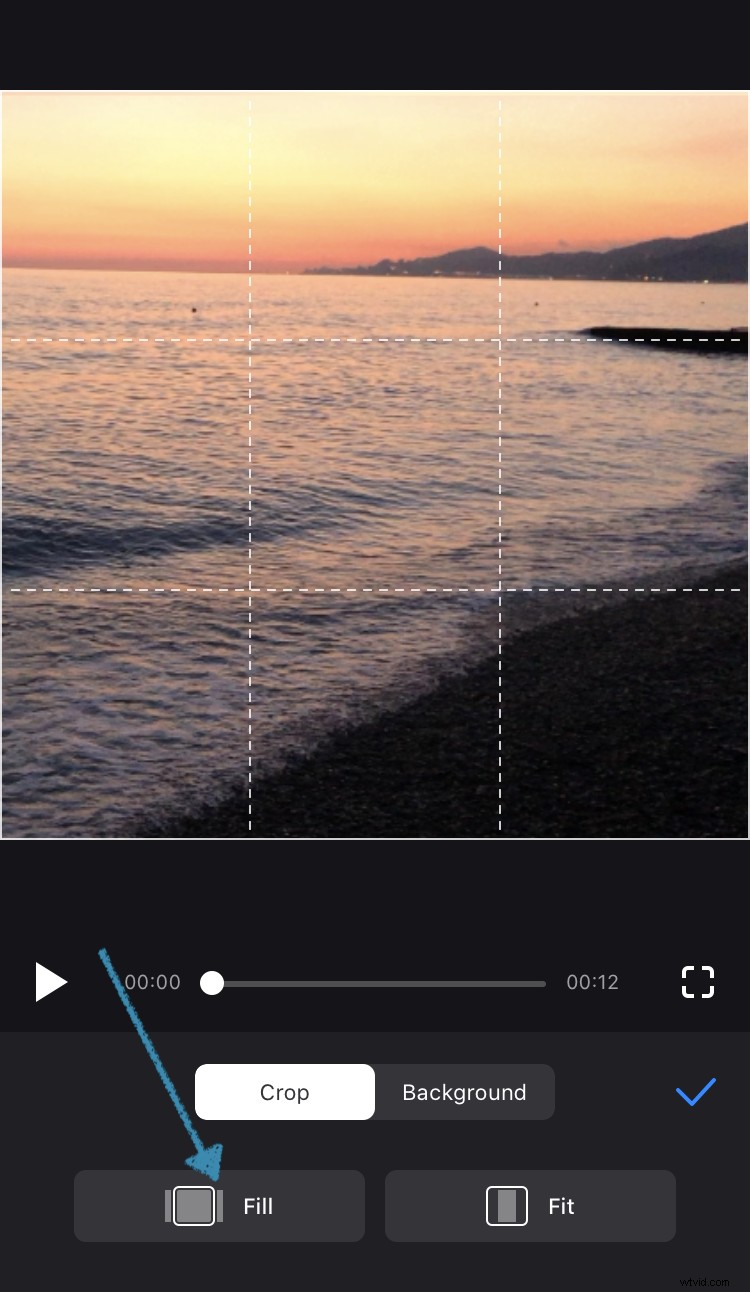
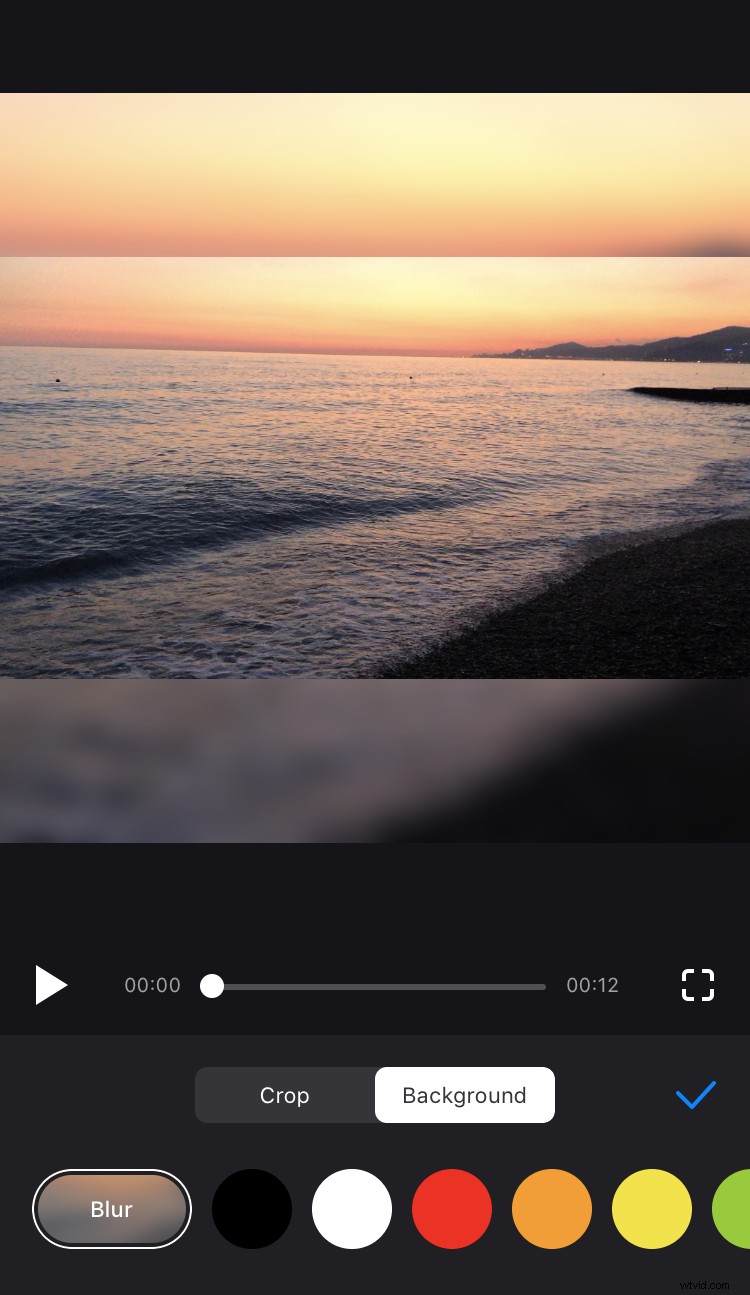
If there are borders, choose their colour or blur them.
Save and share the visual
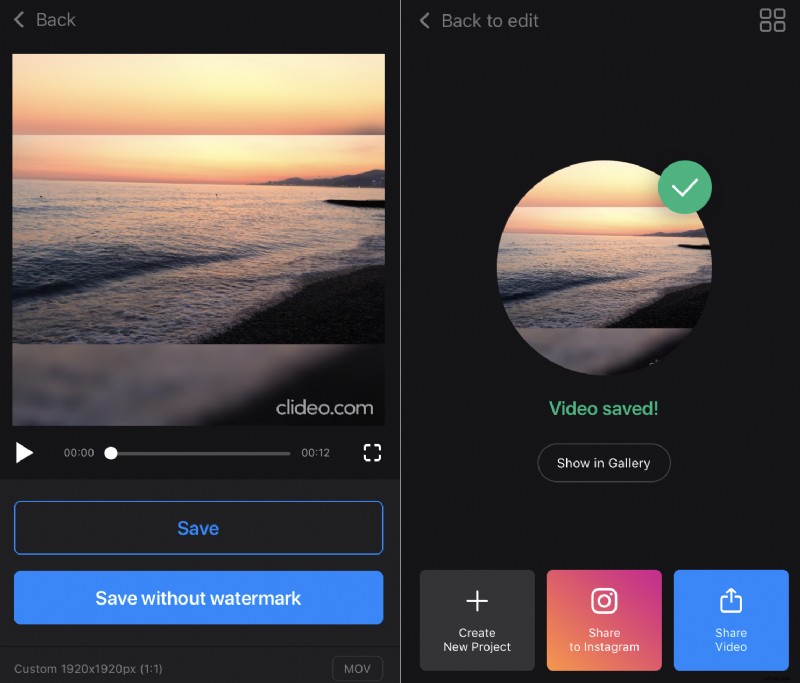
When you are ready hit “Done” and save the cropped video to your personal device, you’ll then be able to post it on Instagram or share via different messengers directly from the app. It will be also automatically saved to your Projects.