
How to compress video files on Mac
It’s becoming increasingly difficult to attach full-size video files on email, messenger services, or social media as most platforms either limit the size of the files you can send or automatically resize them and thus reduce the quality before sending.
However, there is a way to reduce the size of your videos without losing the quality thanks to our super easy-to-use compression tool that works online, from the comfort of your web browser, meaning you don’t need to download any dodgy software or apps.
Best of all, it’s free! Read the following step-by-step guide below to find out how to compress video for emails on Mac computers.
Upload your clip
Open your browser (all major platforms are supported) and navigate over to Clideo’s Video Compressor.
You can upload up to 500MB to compress a video file on your Mac for free, and the good news is the tool works with all popular video formats, such as MP4, WMV, MOV, VOB, and AVI.
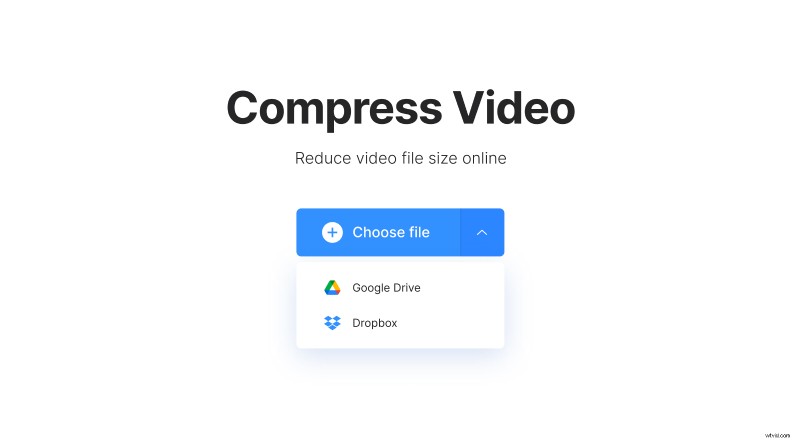
Either click the blue "Choose file" button and search for the clip you’d like to compress from your storage folders, or if you have it saved in the cloud already - tap the downward-facing arrow and select it from a Google Drive or Dropbox account.
Compress video size on Mac
Once you’ve selected the video you want to condense in size, it will automatically begin uploading to Clideo’s servers.

Some holding text will appear while the tool sets up the necessary parameters to compress your clip. How long you need to wait will depend on the size of your video, but hang on in there - it won’t take long at all!
Save your newly-compressed movie
After the short wait, you’ll be taken to the download page where you can preview your newly-compressed clip to make sure it’s to your standards.
If it is, download the video back to your device, or - again - you have the option to save it to your Google Drive or Dropbox cloud storage platforms via the "Download" button.
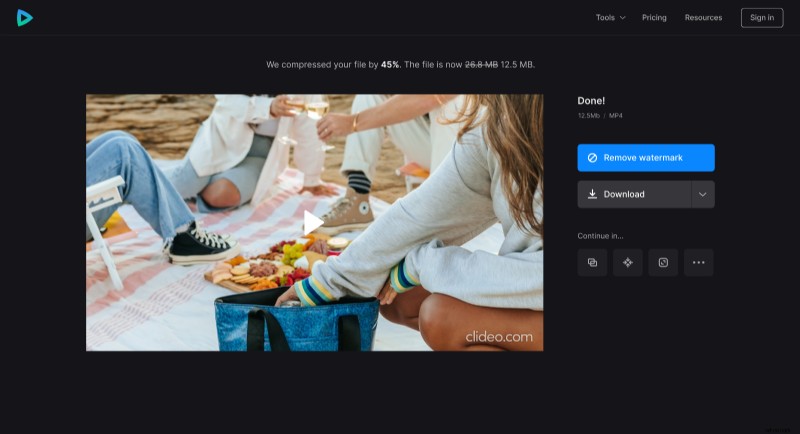
Handy tip: Clideo will tell you the old and new size of the video file you’ve compressed as well as the percentage it has been reduced by at the top of the page, allowing you to check that it’s the perfect size for an email attachment.