
Visual communication has more impactful than communication through text and voice recording. That is why online users prefer watching videos to listening to podcasts and reading on websites. In today’s world of digital communication, people record their video with a webcam and upload them on social media sites and video streaming platforms. In fact, even corporates record video messages and share them with team members and colleagues.
If you want to record video from your Mac, you have to know how to record video with webcam on Mac. You can record a video with your face only as well as record screen and your face together in Picture-in-Picture mode. You will need a screen and video recorder to achieve your objective of MacBook webcam video record. In this article, we will illustrate all the best ways of recording video with webcam on Mac.
Way 1. Record Mac Webcam with QuickTime Way 2. Use Filmora to Capture Facecam on Mac Way 3. Record Mac Webcam with Photo Booth Way 4. How to Record video Face with iMovieWay 1. Use QuickTime Player
QuickTime Player is the default media player on Mac. The application comes pre-installed. However, not many Mac users are aware of the recording features of QuickTime Player. You can record your screen activities as well as record video through your webcam for free. Here are the steps to follow to record video on Mac webcam with QuickTime Player.
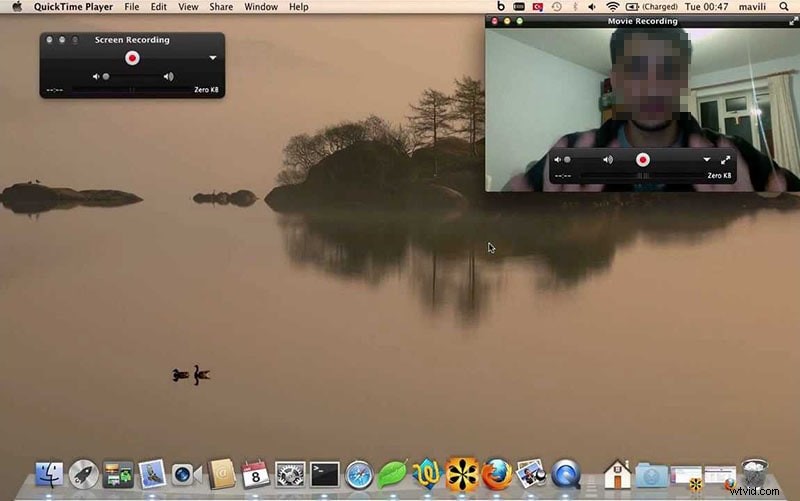
Step 1: Open QuickTime Player from Applications folder.
Step 2: Once QuickTime opens, go to File > New Movie Recording option.
Step 3: On the screen, you will see yourself through the webcam. Once you are ready, click on Record button on the floating bar.
Step 4: When you are done recording, click on the same button. Go to File > Save to save the recorded video.
Even though QuickTime Player is the easiest way of recording video on Mac webcam, it is not the best way. This is because there are limited settings available and there are several glitches reported such as audio not getting recorded.
Way 2. Use Filmora
The best webcam recorder Mac is Wondershare Filmora. It is a professional and premium screen and video recorder as well as video editor. Therefore, you can not only record your webcam video with audio but also edit out the video as per your requirements. In fact, you can record your screen as well as the webcam with audio from microphone simultaneously. That is why professional video creators use Filmora to publish high-quality video after proper editing. Here are the steps to follow for screen recording with webcam Mac using Filmora.
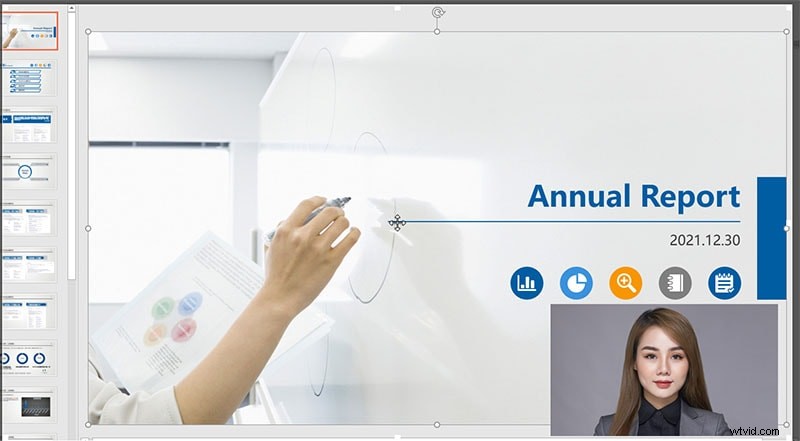
Step 1: Install Filmora for mac and launch the application.
Step 2: Go to Record menu and then to Record from Webcam option.
Step 3: You will see your webcam video live. If not, select the correct video device. Set up the configurations for screen resolution, frame rate and audio source.
Step 4: Once you are ready, click on Record button to start recording your webcam video and you will get a few seconds of buffer time.
When you feel like stopping, you can click on Stop button and export the file to save the video.
Way 3. Use Photo Booth
Photo Booth is another pre-installed application on Mac which is specifically designed to capture photos and videos through webcam. You can create profile pictures, take selfies, and shoot videos with your face through webcam. It becomes easy to shoot anything and share the recording across instantly. Here are the steps to record webcam Mac with Photo Booth.
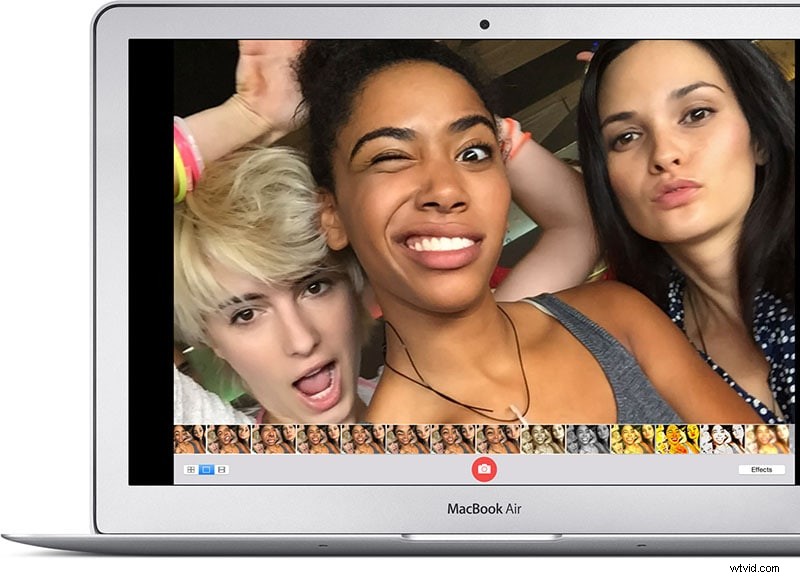
Step 1: Go to Applications folder and open Photo Booth app.
Step 2: Once Photo Booth opens, you must see yourself live through webcam. Click on "Record A Movie Clip" icon.
Step 3: Once you are ready, click on Record button.
Step 4: Once you are done, click on Stop button.
Step 5: Click on thumbnail on the bottom-right corner to open the recorded video and you can share instantly from available options.
Way 4. Use iMovie
iMovie is a great application designed specifically to record video and turn them into a movie. You can capture 4K videos with your webcam depending on the quality of the camera. There are various settings available to ensure that the recording is top-notch to fulfill all your requirements. If iMovie is not pre-installed on Mac, you can download it from App Store. Here are the steps to record video on Mac webcam using iMovie.
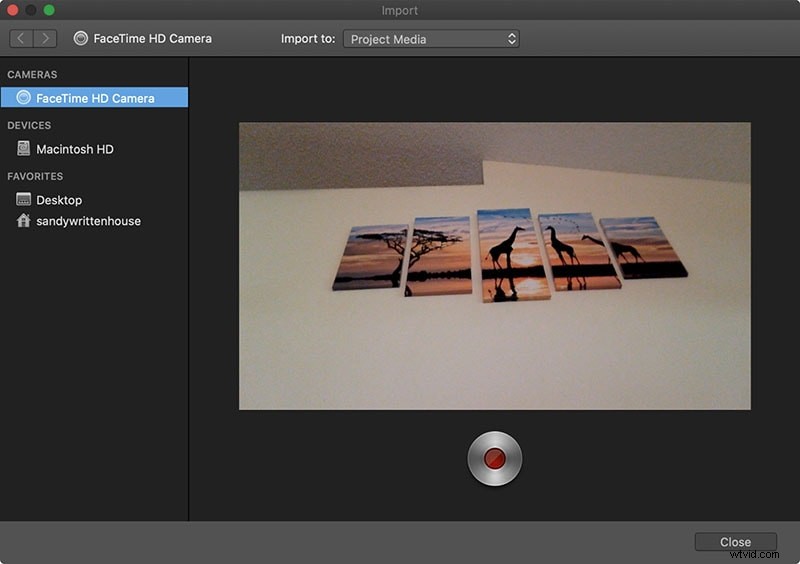
Step 1: Launch iMovie and go to File > New Movie.
Step 2: On the next screen, click on Import icon(downward arrow).
Step 3: Go to Cameras section on the left side and select your connected webcam.
Step 4: Click on Record button present at the bottom of the application window to start recording.
Step 5: To stop recording, click on Close button at the bottom. Go to Projects menu option and save the recorded file.
Conclusion
Hopefully, you have understood how to record video with webcam on Mac for free using QuickTime Player and Photo Booth. iMovie is another great app for Mac users to record webcam. But for the professional-quality recording through webcam, Filmora for Mac should be your first preference. You can do screen recording with webcam Mac with Filmora to publish them on various online platforms.