
How to reduce iPhone video file size
You can choose from three compression modes, you will surely find the one that suits you. One of them is even available offline. The installation of the tool is absolutely free!
Moreover, in our app, you can adjust the compression depending on your needs. You can choose the video resolution, change its format, as well as mute the sound.
At the moment, the app is available only on iPhone, but don't be disappointed if you own a PC, Mac, or smartphone on Android, you can always use the online version. Besides compression, Clideo has a wide range of tools that allow you to transform your clips.
Now, let's see how to reduce the size of the video on iPhone in just a few clicks.
Download the app
Head to the App Store and download our compression app. Once installed, simply open it, click on the plus sign, and select a file from your device's camera.
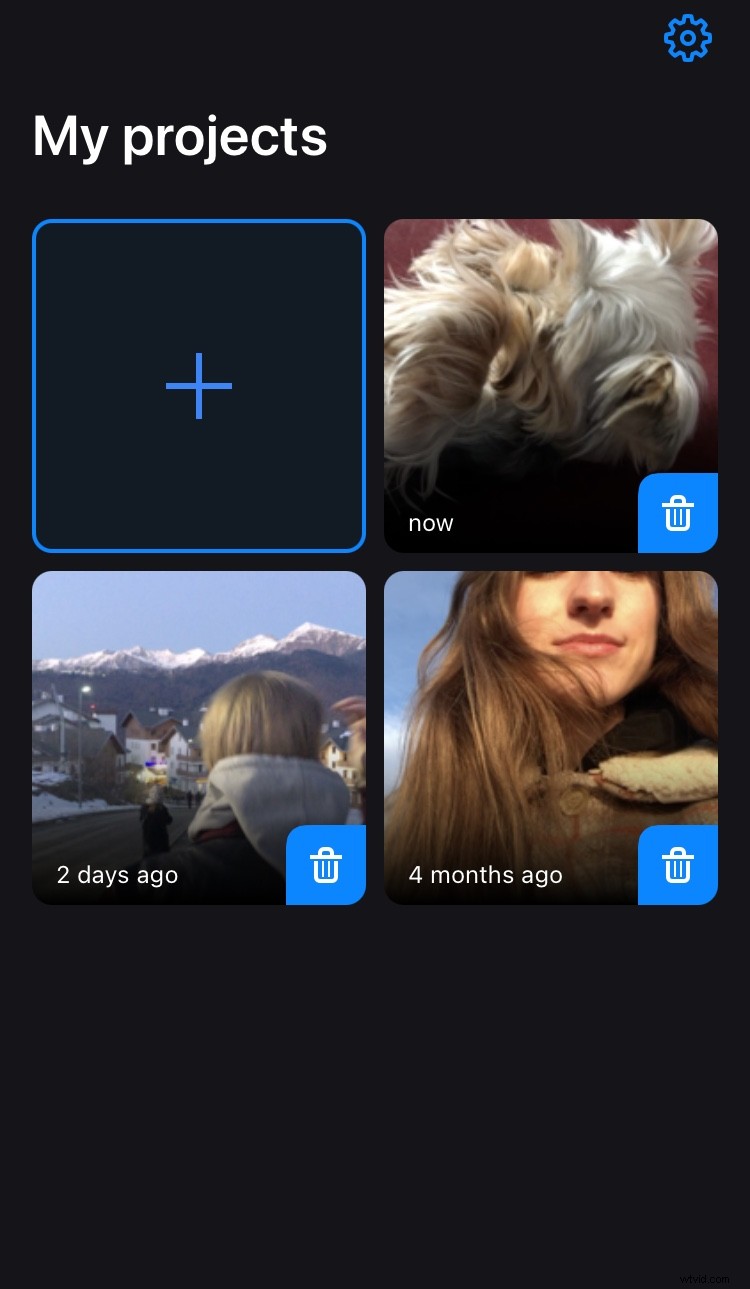
Reduce the video size on iPhone
Check the "Remove Audio" box if you want to get rid of the original background sound. Choose one of the three available modes:
- Basic compression. This mode is always available, even if you have no Internet connection. Its main advantage is high image quality, but the file will be compressed not as much as possible.
- Strong compression. If you want to use this mode, you will need an Internet connection and an active Pro subscription. The result will be a maximum reduction of iPhone video size and a slight loss of quality.
- Custom. Here you can choose your own compression percentage, speed, codec, resolution, and file format. This feature requires an internet connection.
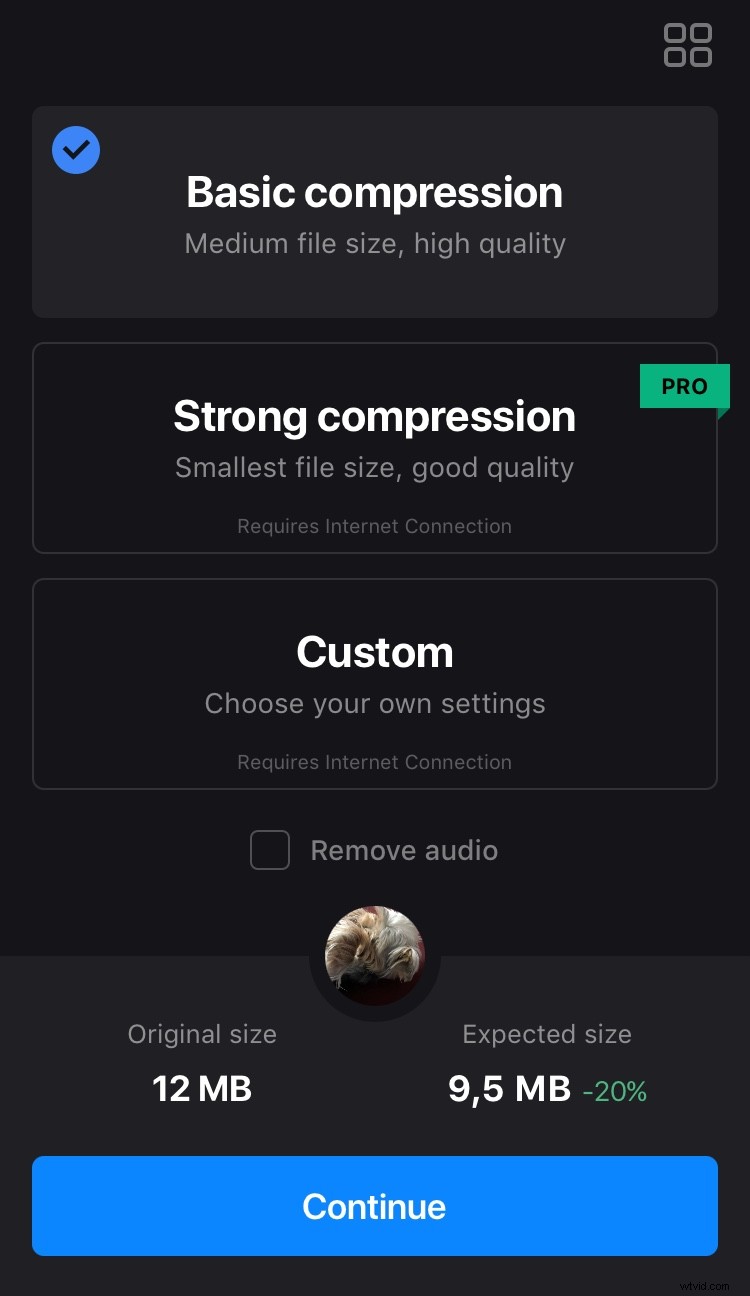
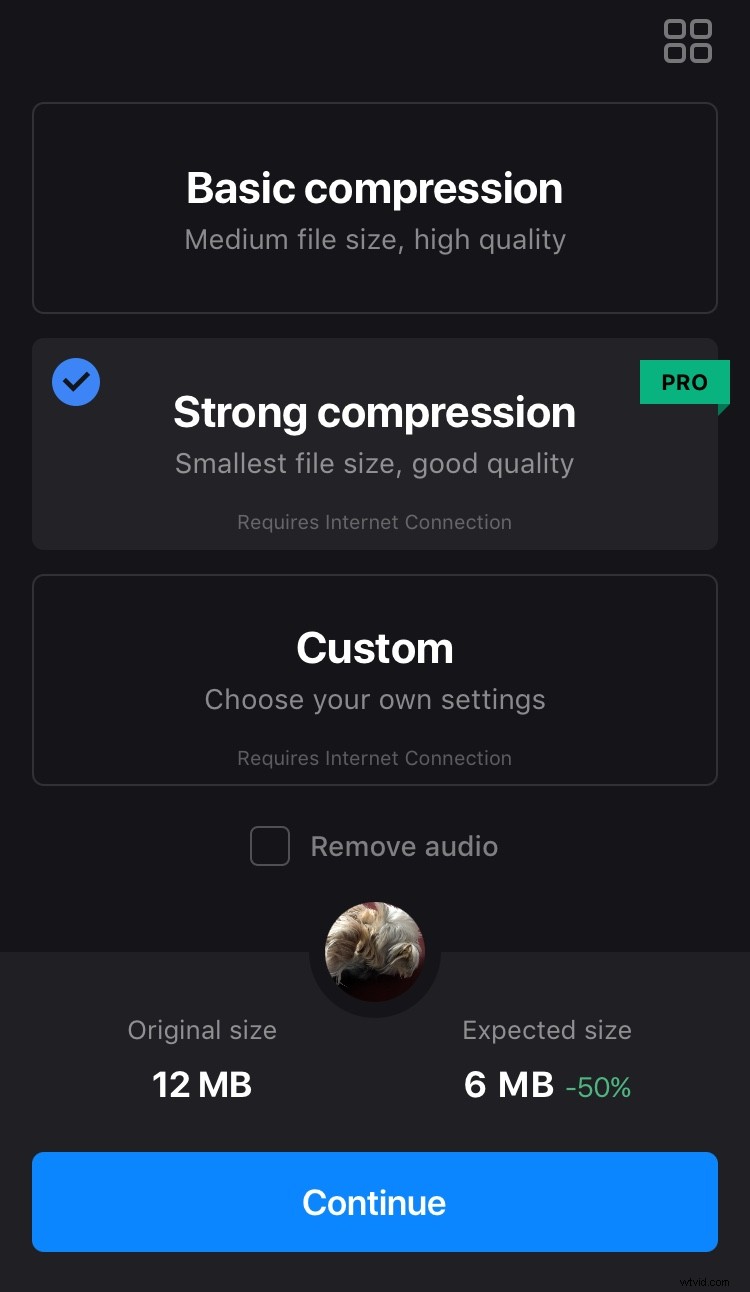
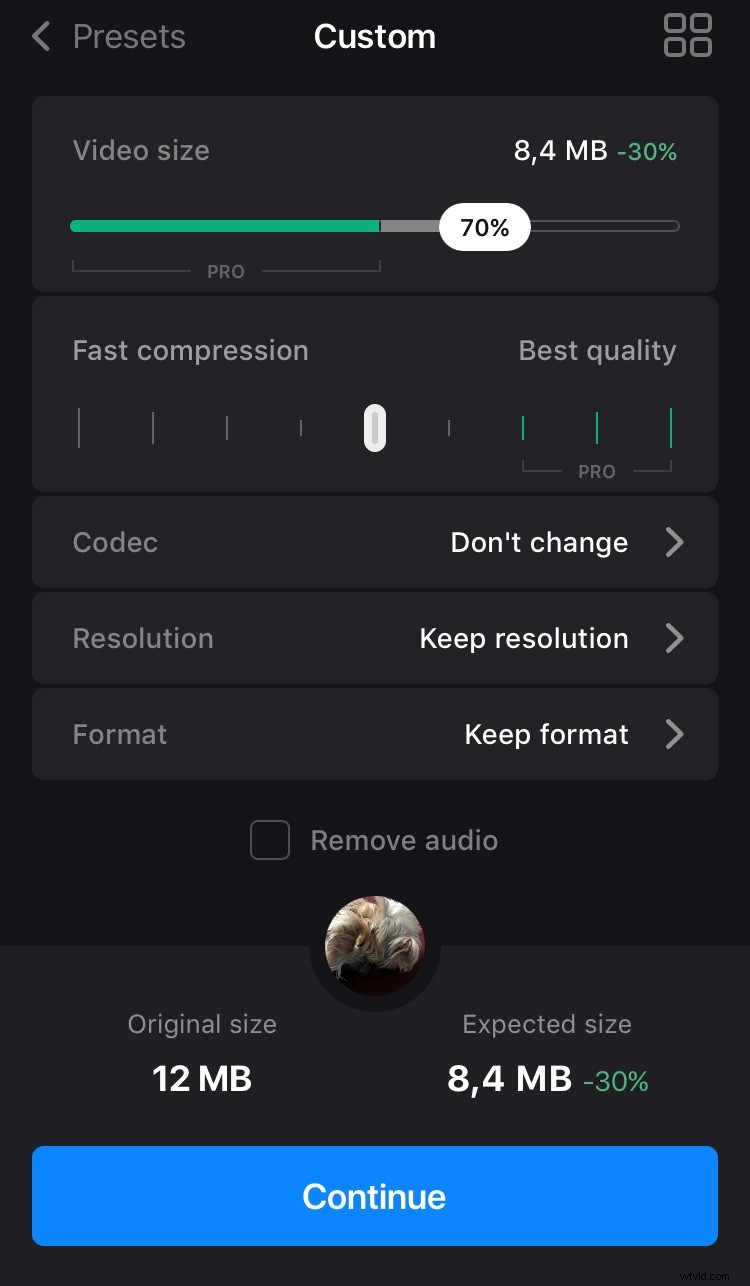
When you click "Continue", you will see the preview of the new file, its size in MB and percentages.
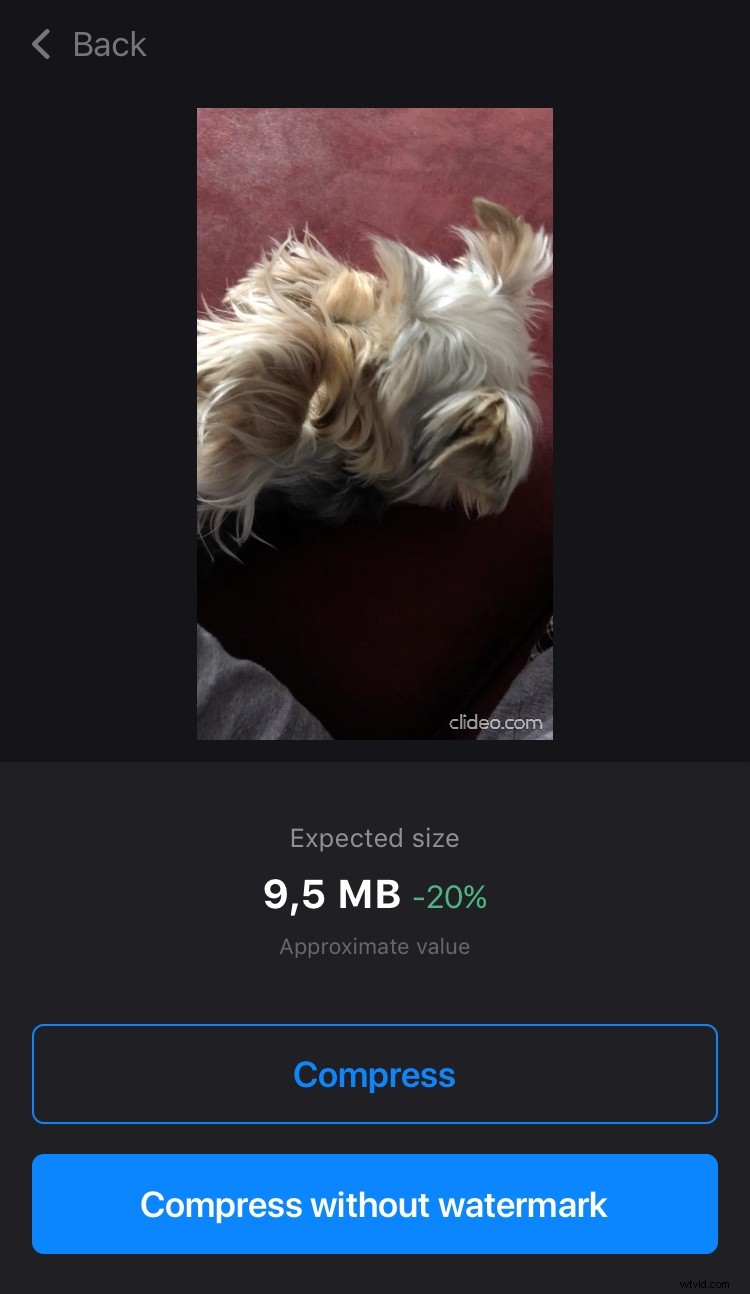
Press "Compress" and the app will do everything else.
Save the video
The file will be automatically saved in your application projects and device.
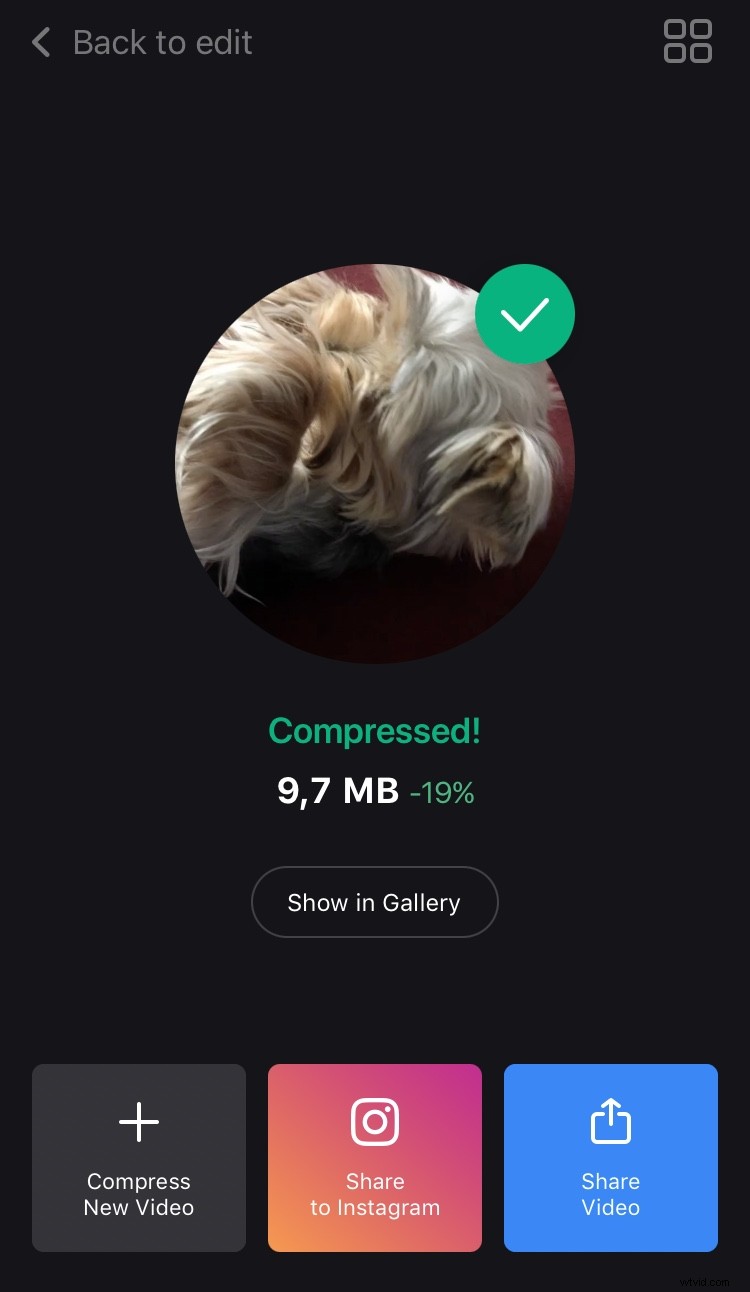
If you're not satisfied with the result, just click "Back to edit", adjust the settings without having to start over!