
Under some circumstances, you need to shrink video file size. For example:
- The video file is too darn big to upload to YouTube. You need to shrink a video for smaller size, so you can share it on YouTube.
- You want to put a video on a small-screen Android phone. But the video resolution is too large to be played on it. You have to shrink it down to fit the size of the screen and make it take up less space.
- A smaller size is easy to email.
So if you want to shrink video files, please try Wondershare Filmora. It can be the best video shrinker in the industry. It supports almost any video and audio format files (Check the supported format list). With it, you can quickly and easily shrink videos that have big size or big resolution to fit the size of your device’s capacity or display screen etc. Now, I’ll show you how to shrink video file size by changing video resolution, bit rate, frame rate etc. You can download the Filmora video editor now and follow.
1Import your original video
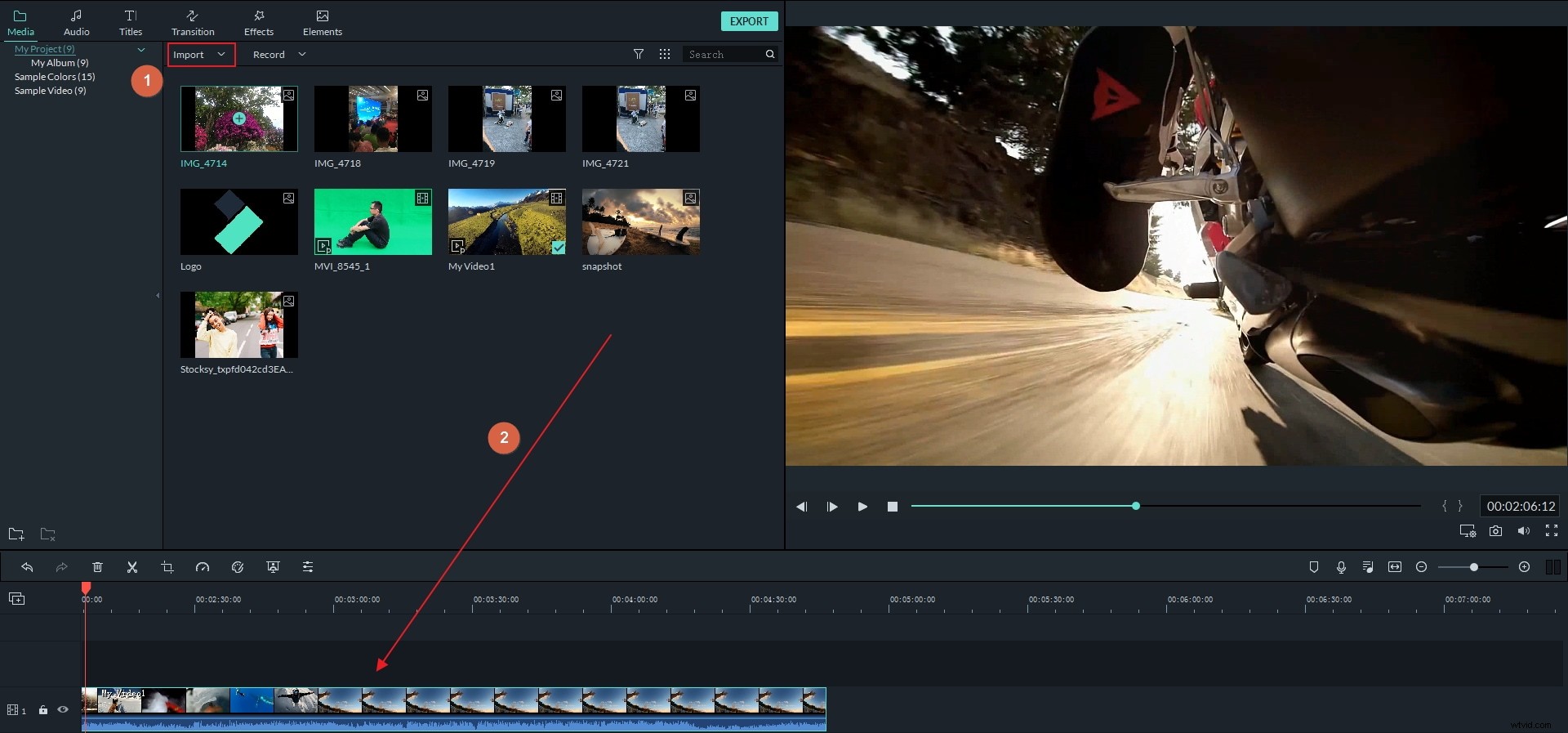
Import the video you want to Filmora by clicking the "Import" button on the top-left corner or directly drag it from the computer to User's Album. Then drag the added video from the User's Album to the video track of timeline.
2 Shrink your file with ease
Click the "Export" button to open the output window of this video shrinker.
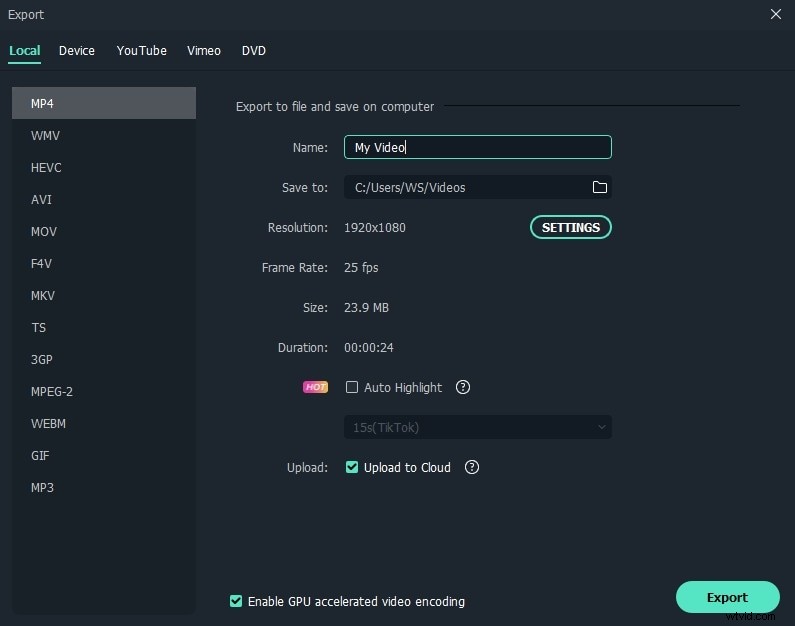
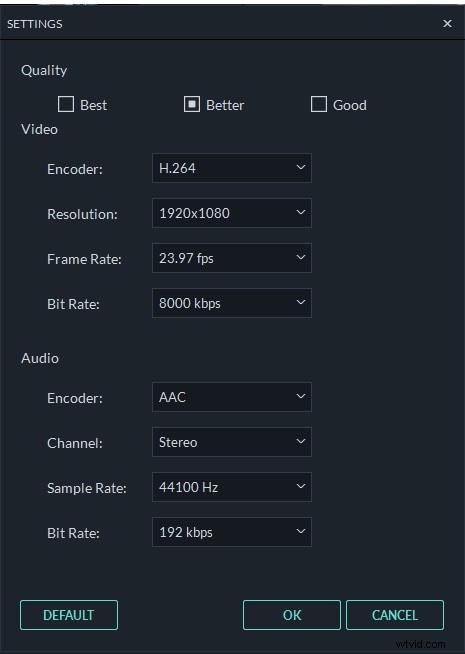
Go to the Format tab and then keep its original video format as the output. Next, click the triangle button below to shrink video in the “Settings” panel by choosing a lower video resolution, frame Rate or bit rate.
If the video format is not your concern, you can also select other formats like FLV, MP4, etc. which usually create smaller size file.
3 Export the shrunk file
Now hit the Export icon to render a much smaller file you want. When it finishes, click "Find target" to get the compressed file, and then you may share it with your friends with no limit.
Learn more about how to export.
Tips: If necessary, you can cut down video length by removing some unnecessary segments. Click the video on the Timeline, drag the top of the red playhead to any position of the video, click scissor-like button to cut it. Repeat the step to cut the video into multiple clips and then delete your unwanted clips.
More tips about Cutting video.
Above is just one method for shrinking video file size at Export. You can also reduce the video size by cropping out the video frame or adjusting the scale of frame. If you want to learn more about how to resize video, you should not miss How to Resize Video for Smaller Resolution and Size.