
How to make a slideshow for YouTube online
However, not to fret. There is one quick and easy alternative and that’s by using Clideo’s Slideshow Maker - a free, online video-editing tool that works from your browser. The other benefit here is that you can add an audio file of choice as the backing track.
So - ready to get started? Here’s how to make a fun and engaging slideshow in three easy steps...
Add your images
Open your browser and head over to Clideo’s Slideshow for YouTube Creator where you’ll be welcomed by a large, blue ‘Choose Files’ icon. Tap this to add the photos and videos you’d like in your slideshow. You can select multiple at a time from any device (as long as it has an internet connection), including Android, iOS, Mac or Windows devices.
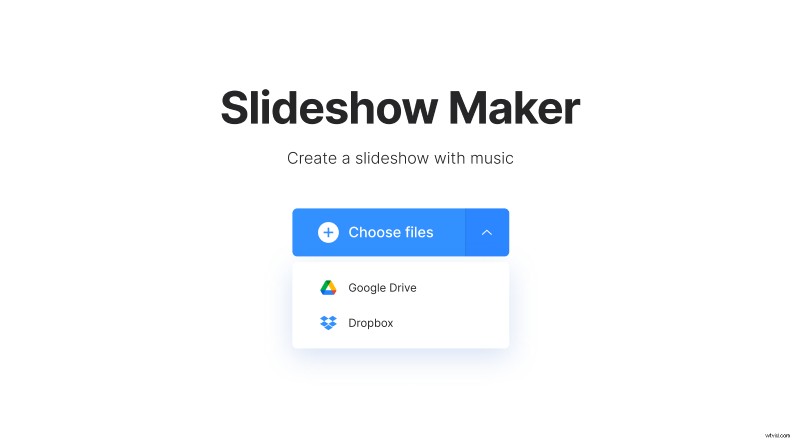
Alternatively, you can upload files directly from your cloud accounts, simply hit the downwards-facing arrow on the right of the button and a drop-down menu will give you the option to select Google Drive or Dropbox.
Please note that you don’t need to worry about compatibility, as YouTube Slideshow Maker by Clideo is compatible with all the popular image formats including JPEG, TIFF, PNG, MP4 and more.
Get creative
Once your files have been uploaded, you’ll be taken to the editor page of the tool where you can create your slideshow clip. Here, you can easily alter the order that the files will appear in the slideshow via the timeline reel at the bottom. You can also add more images here if you like, simply tap the ‘Add more files’ button.
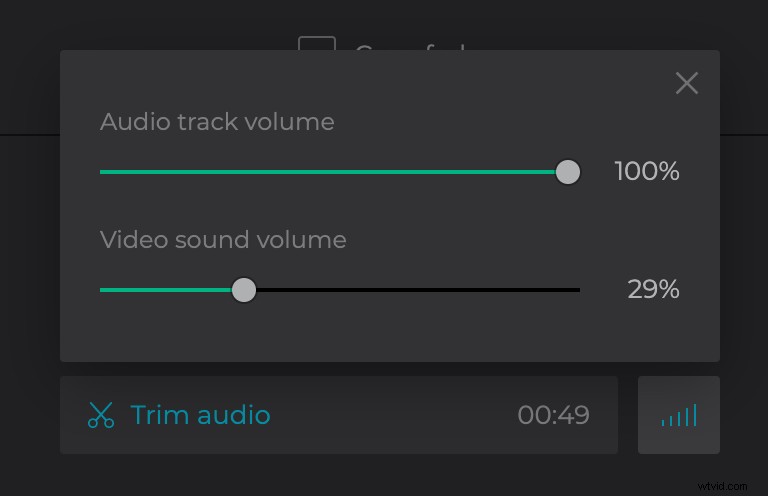
On the right-hand side you’ll find the option to add an audio track of your choice. Trim it and set the desired volume for the audio and the slideshow.
Before heading to the next and final step, ensure that the crop options on the top right are set to the 16:9 ratio so that your clip displays correctly in YouTube. Once you’ve previewed the video and you’re happy, hit the ‘Create’ button on the bottom right and your slideshow will be beamed up to the Clideo servers to begin processing.
Download your slideshow
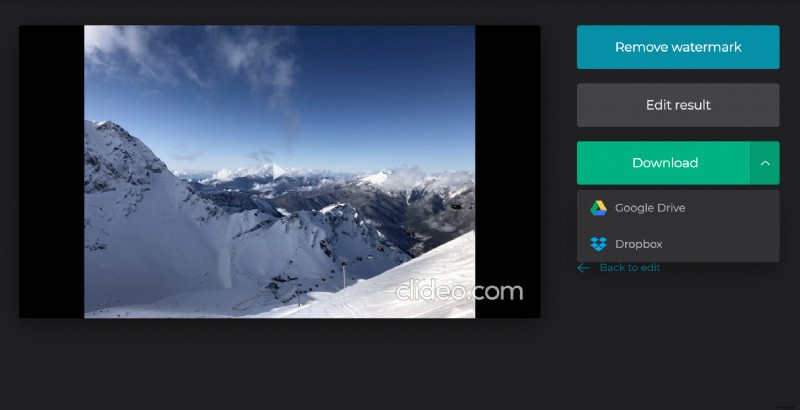
Once finished, your movie file will be ready to download. Preview it one last time and if you’re happy, you can to save to your device, Google Drive or Dropbox cloud accounts, as before. If you’re not quite satisfied, simply click the ‘Back to edit’ link and you can make any changes you like. Just repeat step 3 once you’re finished.
And that’s it: you’re done - it really is that straightforward. With Clideo, you can create as many slideshow videos from your photos - with music - as you like.