
Follow this detailed guide to create beautifully designed Youtube banners that will help to convert one-time channel visitors into subscribers.
A Youtube banner is a large image that appears across the top of your channel page. The YouTube banner (also known as a Channel Header Image) is the largest and most prominent image on your YouTube channel. It helps to set the tone of your channel identity and give visitors a flavor of your videos.
Behaving in a similar way to a fantastic book cover design, a thoughtfully designed banner will help to communicate the mood and style of your videos and brand, while enticing visitors into exploring the video content you have on offer.
Consider this your ultimate guide to creating beautifully designed YouTube banners that will help to convert one-time channel visitors into regular viewers and subscribers. We’ll take a look at best practice for sizing and designing your banner, as well as put forward five creative ideas for making the most of that lucrative banner space.
Don’t miss our complete guide to creating a compelling channel identity for your YouTube channel:
- How to Brand Your YouTube Channel with Channel Art
What Size Should a YouTube Banner Be?
Viewers can access YouTube from a wide range of screen sizes, from large-scale TV screens to mobile devices. So, there’s a fine art to getting the sizing and layout of your banner just right.
YouTube recommends a banner size of 2560 x 1440 pixels, with a minimum dimension of 2048 x 1152 pixels and a file size limit of 6MB.
The recommended size is so large because a visitor to your channel might be viewing YouTube on a smart TV screen. That means the banner will expand to full height and width to fill the available screen space.
That same banner will have to adapt flexibly to a range of other devices, like desktops, laptops, tablets, and smartphones. Smaller screens reduce the height of the banner considerably, cropping off the top and bottom areas of your large image. The width of the image also reduces incrementally as screen size reduces.
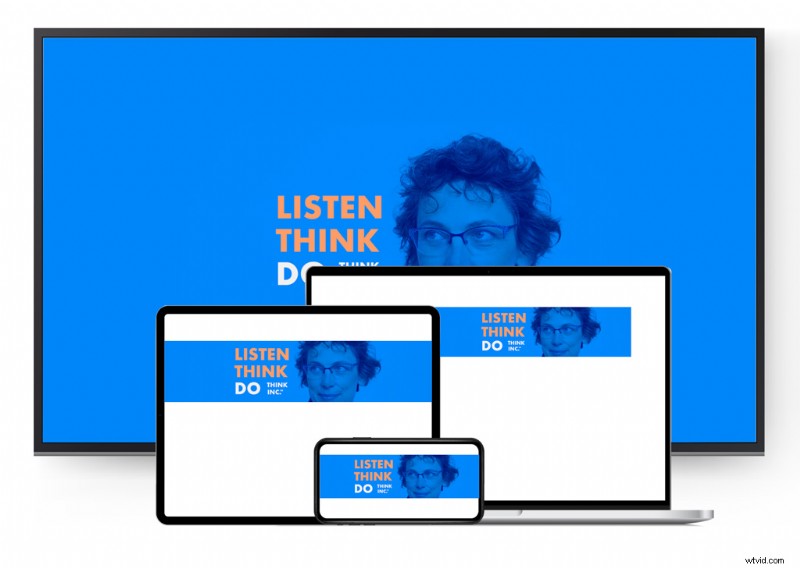
The main things to keep in mind when designing a YouTube banner are that:
- You should always design the banner to its maximum dimensions (2560 x 1440 px) to ensure the image has sufficient height and appears crisp and clear on large screens.
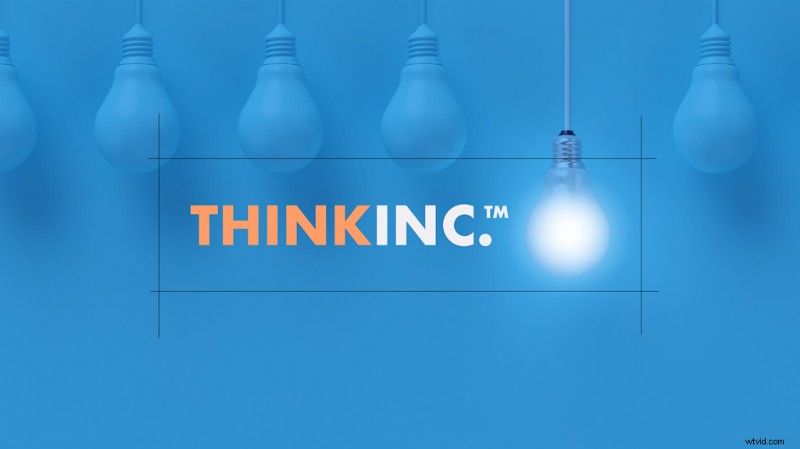
- You should place the key elements of your banner, such as text, logos and the main subject of images, inside the “safe area.“ This is the size the banner will reduce to on the smallest screen size (1546 x 423 px).
How to Design an Effective YouTube Banner: 5 Creative Ideas
Keeping the size limitations of your banner in mind, focus on creating an eye-catching layout with a strong central focus. Combine a photo of the channel’s star, a logo, or channel title with your brand color palette, graphic shapes, or interesting backgrounds to create a professional look quickly and easily.
You can create a banner design using any 2D design software, such as Shutterstock Editor, Adobe Photoshop, or Adobe InDesign. Set the dimension unit to pixels and the color mode to web-friendly RGB, and you’re good to go!
Banner Idea 1: Background Concept
Some channels might have an individual as the focus of video content. However, this might not be the case with channels that host videos featuring a broad range of people or subjects.
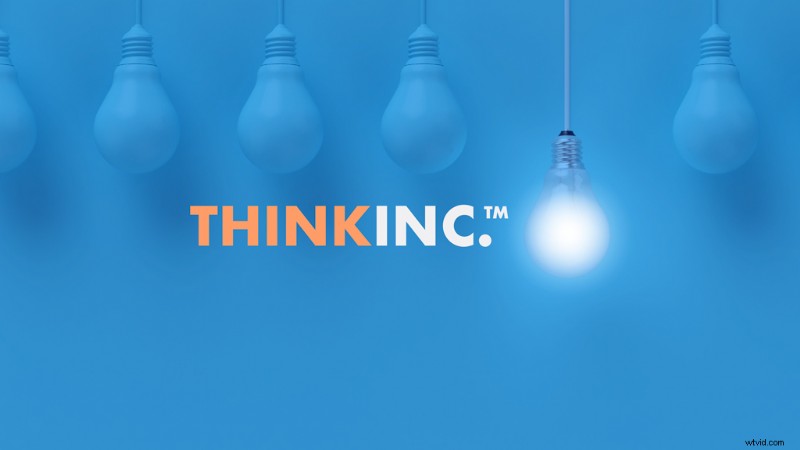
In this example, the logo, brand colors, and an abstract concept form the backbone of a banner design for a lecture-based, business-centric channel.
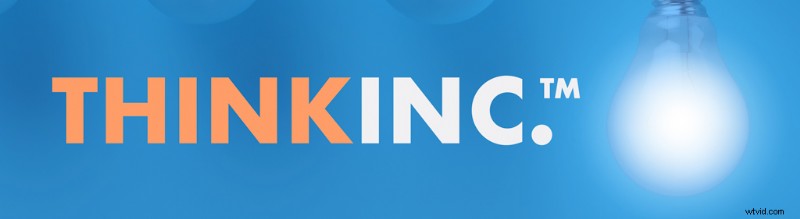
The logo and lit bulb have been placed in the safe area of the banner. The concept of lightbulbs is only emphasized further when viewers see the banner on large TV or desktop screens.
You could also create a similar layout using a seamless background image with an abstract or geometric style. Place your logo or channel name over the top of the background in the safe area. This creates a quick and simple banner design.
- The Best Background Images for All of Your Marketing Needs
- Choosing the Best Background Design for Your Project
Banner Idea 2: Cropped Photo
If your video channel is based around an individual, it makes sense to use a photo of them as part of the banner design.
For example, the photo is positioned to place the face of the subject in the safe area of the banner. Meanwhile the full-height banner expands the reach of the photo.
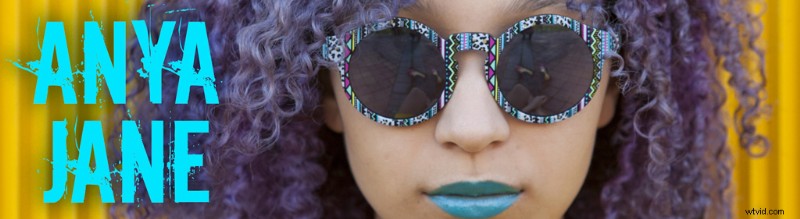
To achieve this style of banner design you need to ensure you have a photo with enough scope to allow it to expand across the whole banner while keeping the subject’s face or head in the central safe area.
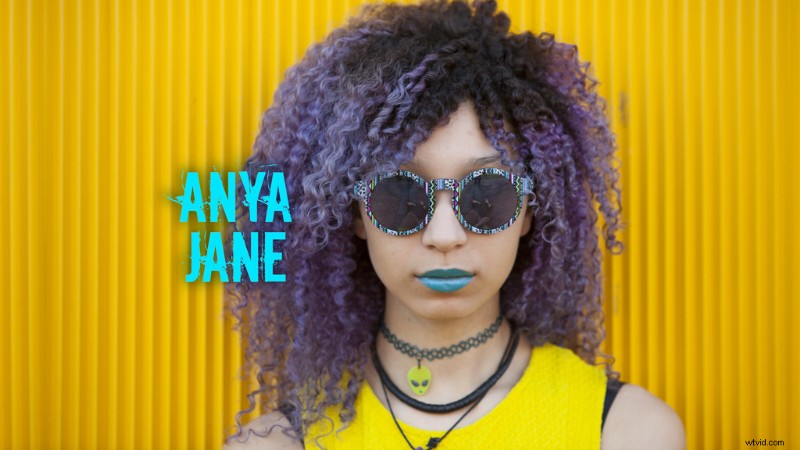
Want to include more of the person’s head or body in the safe area? If so, the photo will need to have a very generous background area. Alternatively. cut out the subject from the background and replace it with a seamless background image or color.
Top tip: You can use the Eyedropper Tool (I) in Adobe programs to pick up color from your chosen photo, before applying it to text or logo elements.
Banner Idea 3: Seamless Pattern
Seamless or repetitive patterns are an easy way to inject style into your banner designs. Choose or create a pattern that works just as well on the full-scale layout as it does on the reduced banner size.
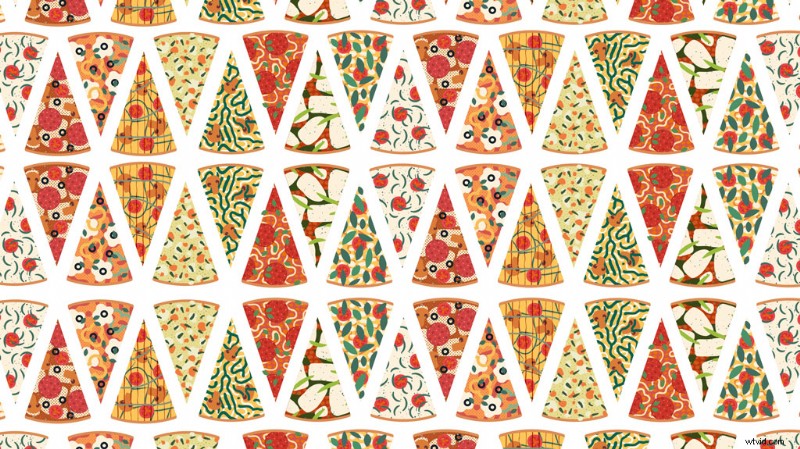
Patterns are also a great way of adding color and dynamism to your channel page. If you opt for a thematic pattern, such as this pizza-themed banner for a cooking channel, you can tie in the content of your videos with the banner content too.
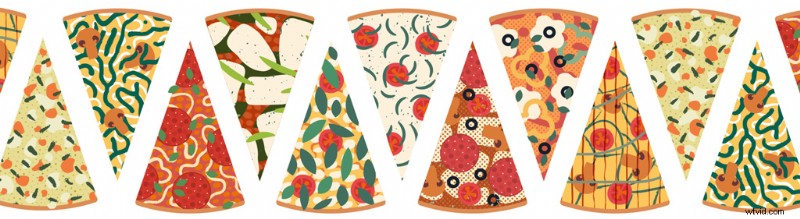
Vector patterns you can edit in Adobe Illustrator or Inkscape are also handy. After all, they offer an easy way to incorporate your brand colors into the design.
- Discover our edit of versatile patterns that every designer needs in their toolkit.
Banner Idea 4: Mirror Image
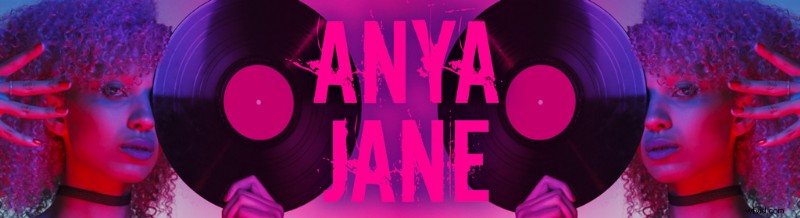
Mirroring an image on your banner design isn’t just a handy way of expanding the reach of a single image. It also results in a pleasing, symmetrical effect on your layout.
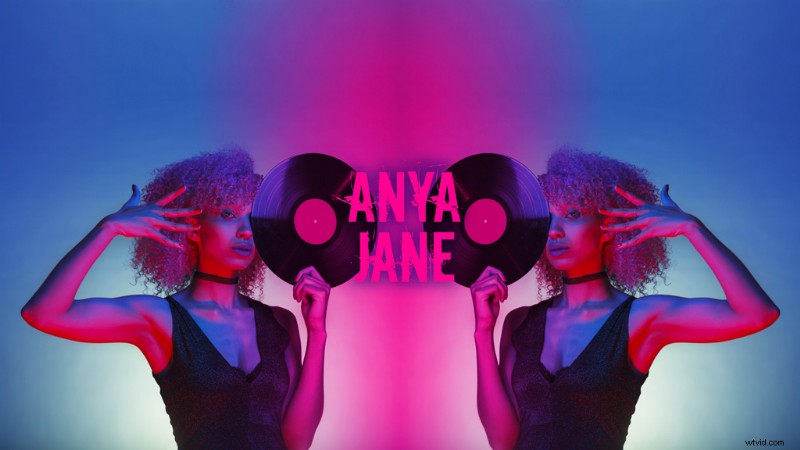
Take this DJ’s YouTube channel, for example. The image is mirrored in such a way that the main subject appears at either end of the safe area. The designer can also place a logo or name centrally on the banner. The advantage of the mirrored style is that its symmetry draws the eye towards the logo.
Banner Idea 5: A Scene in Snapshot
High-resolution images, particularly vectors, make for superior YouTube banners. They will appear crisp, clear, and vivid even on the largest screens.
Select a ready-made image if you don’t want to hand-make a custom banner for your Youtube channel.
Large-format scenes, such as this illustration of runners in a landscape, provide enough detail to allow you to still provide an interesting banner design on small screens.
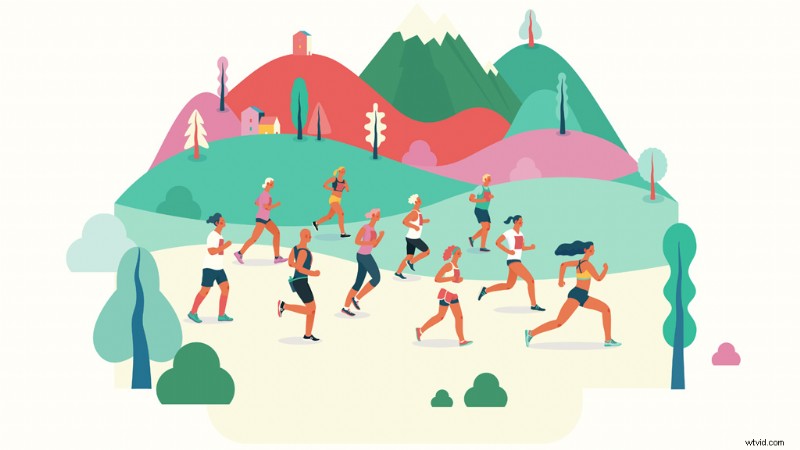
This YouTube channel’s theme is fitness. So the main detail of the image (the runners) is still located in the safe area of the banner. This gives small-screen viewers a thoughtfully-positioned snapshot of the full banner design.
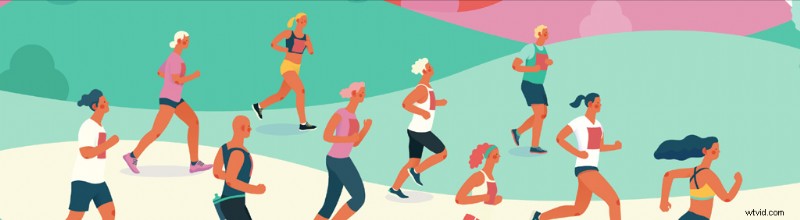
- Discover these illustrated scenes on the Shutterstock library, which give you plenty of flexibility for your banner layouts.
Using a YouTube Banner Template
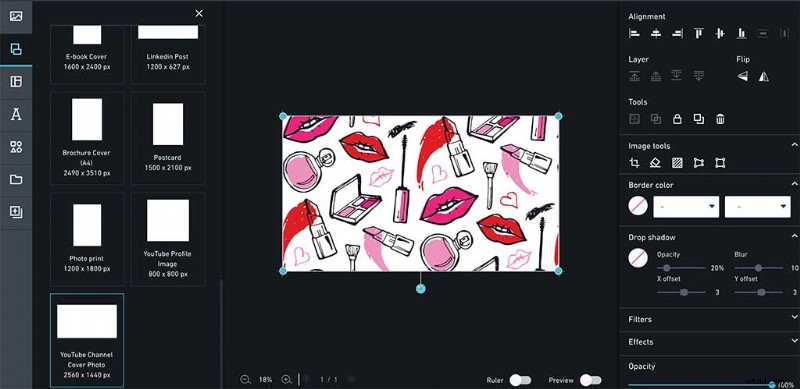
If you’re on the hunt for a simple, alternative editing program, Shutterstock Editor offers a YouTube banner template — for free. Simply click My Designs, then upload your vector or photo to get started. You can add text, crop images, remove backgrounds, and more, all without leaving the application.
Editor also has a pre-made YouTube profile template, so it’s easy to design all of your channel art at once. Coordinating your banner with the other art elements on you channel, such as your thumbnails, will help you establish your channel branding early on.
How to Upload Your Banner to Your YouTube Channel
Once you’ve exported the image as a JPEG, PNG, or GIF file, you’re ready to upload your design to Youtube. Follow the steps below to do so.
First, sign in to your YouTube account. Then click on the thumbnail for the drop-down menu at top-right, and click Your channel.
Click anywhere onto the blank banner area, then upload an image from your computer.
A preview of the banner will appear in a new window showing you how your YouTube banner displays across different screen sizes. If you want to, you can adjust the crop to reposition the image.
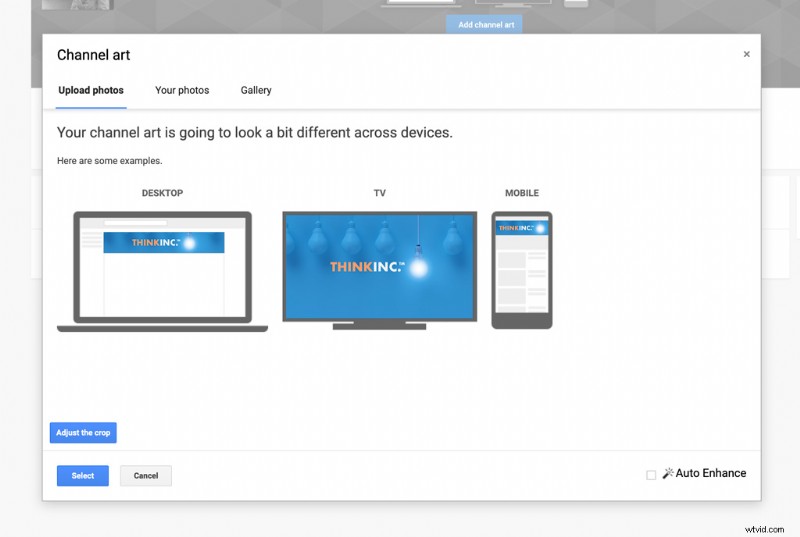
Finally, click Select when you’re happy with your image. YouTube will apply your banner to your channel, and it appear on your channel’s web page.
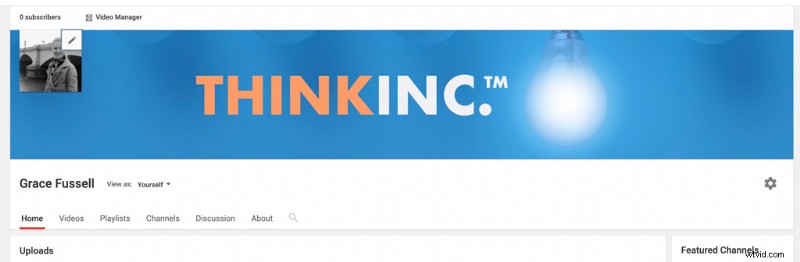
Conclusion: Your Finished YouTube Banner
Your YouTube banner is now standing proudly at the top of your channel, ready to draw in viewers and hopefully contribute to conversions.
If you have aspirations for a YouTube empire, make sure to check out the tutorials and tips available on the Shutterstock blog to make your channel as effective and watchable as possible. We also have a video subscription made just for YouTube creators, so you can get access to fresh, high-quality stock footage clips on demand. Sign up to get 5 clips/month, billed annually or billed monthly with no contract.
- Design Unique and Stylish End Screens for Your YouTube Channel
- Create Captivating Thumbnails for Your YouTube Channel
- Everything You Need to Start a YouTube Channel
- Refresh Your Channel with 10 YouTube Banner Art Ideas
- Supercharge Your Channel with Unlimited Music for YouTube Videos
Cover image via itim2101. Mockups via ART PAL and BoxerX.