
How to create a Windows slideshow with music
That’s where Clideo’s Windows photo slideshow maker can help. The nifty tool simply works from your browser - be it Chrome, Edge, Safari or Firefox - allowing you to easily, completely online, without opening your wallet.
This also means that you don’t have to worry about your privacy being put at risk as the online tool deletes your data from its servers within 24 hours of being used. Oh, and did we mention - it’s free!
Add your media
To get started and make a slideshow on Windows 10, head over to Clideo’s Windows Slideshow Maker. Here you’ll find a large blue ‘Choose files’ button, tap this and you’ll be given the option to select the necessary photos, GIFs, and videos from your device that you want to be in your slideshow.
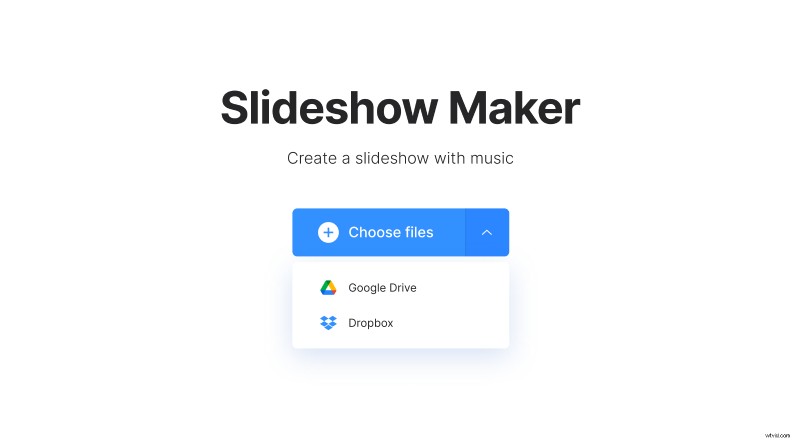
If you've got content on a cloud storage account, you can upload it directly from here, too. Just tap the down-arrow and a drop-down menu will be displayed allowing you to upload from Google Drive or Dropbox.
Create a slideshow with music on Windows
Next, you’ll be taken to the editor page where you can play around with the order of the files you have added to create your slideshow.
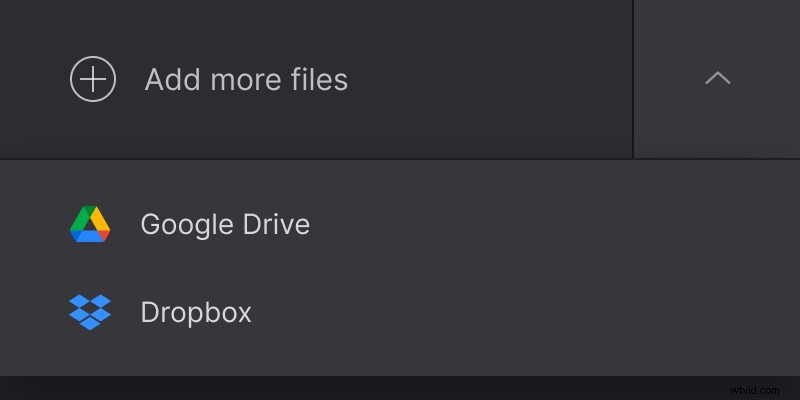
Want to add more? Simply click the ‘Add more files’ button in the top right corner.
Below this, you can crop your slideshow depending on where you plan to display it. For Windows 10, we’d recommend the 16:9 option, which has been optimized for standard video screens such as YouTube.
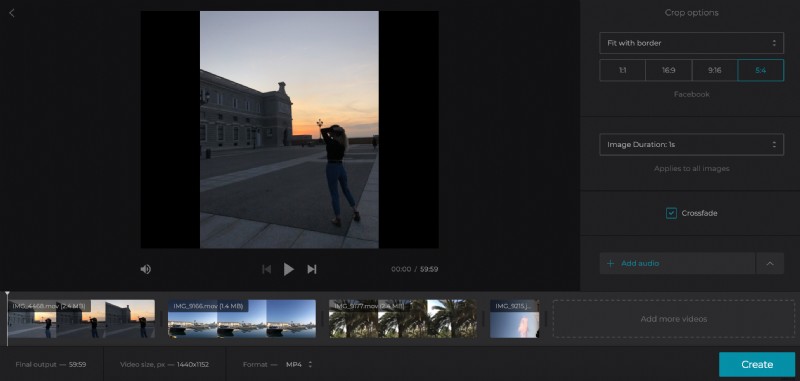
Next, you can also choose how long the pictures are displayed for with the ‘Image duration’ option. Then, you can add a crossfade between the videos and images by simply ticking the box.
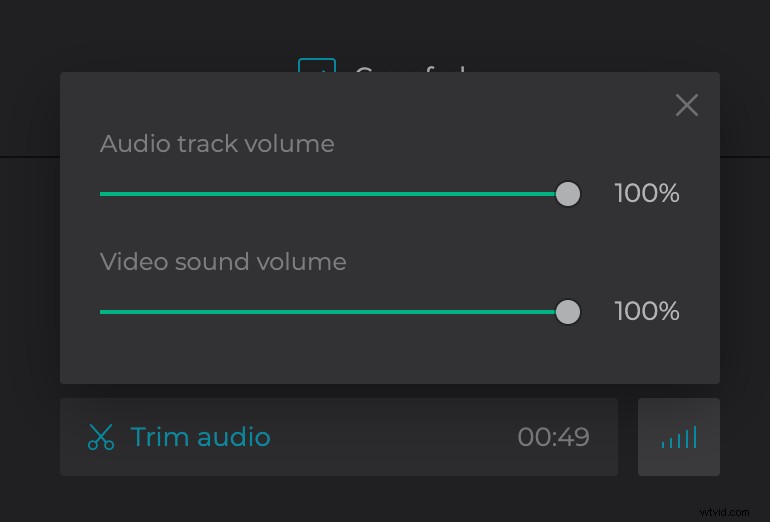
The great thing with Clideo’s Slideshow Maker is that you can also add music as a backing track if you fancy. You’ll find this option underneath. Trim audio and set its volume.
At the bottom, you can also change the video format depending on your preference and which platform your slideshow is intended for. We’d recommend keeping it at MP4 for Windows 10.
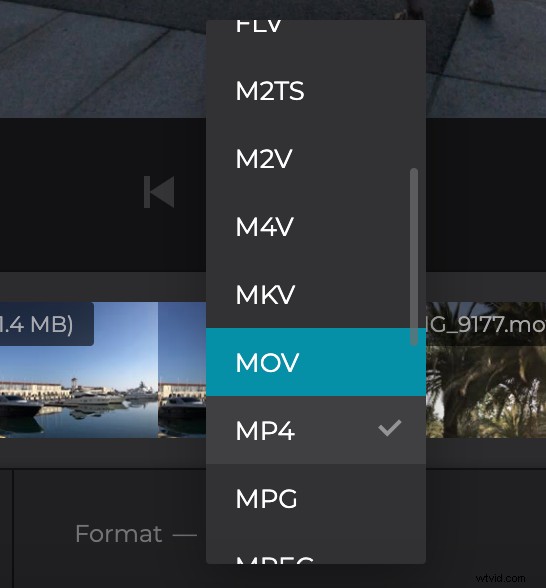
To finish editing, tap the ‘Create’ button in the bottom right.
Time to download
Once your slideshow has been processed, it’s time to give it a preview.
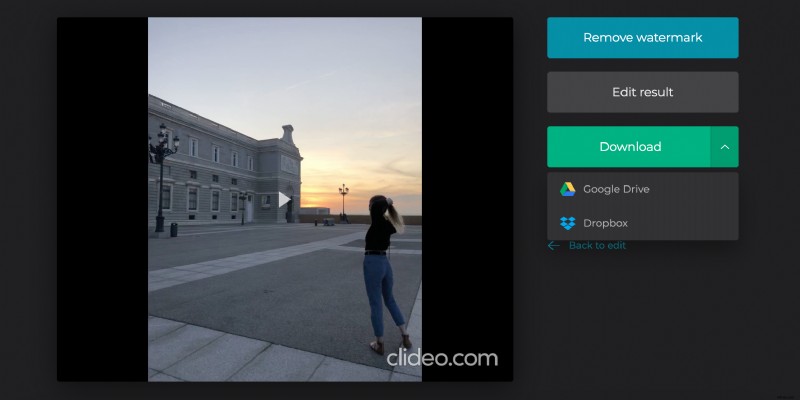
If it’s to your liking, tap the green ‘Download’ button. You’ll have the option to either save the clip back to your device or to a cloud storage account.
If you need to make some changes, select the ‘Back to edit’ option and you’ll be taken right back to the editor, without needing to start afresh.