
If you like to print out articles from the web via an iPhone or iPad you may appreciate this tip, which allows you to strip down a webpage or any web article so that the primary focus is on the article text content and photos. Essentially this lets you print out webpage articles without any of the typical web experience, removing all razzle-dazzle, ads, social sharing buttons, styling, widgets, or any of the other elements commonly found on webpages that are helpful on the web web but not particularly useful when printed out on paper. The end result will be printed out articles from an iPhone or iPad that are stripped of anything other than the article content itself, which makes them more pleasant to read on printed paper and also should reduce ink usage as well.
This particular tutorial is focusing on printing articles from Safari in iOS with an iPhone or iPad, but if you’re a Mac user then you may want to check out this walkthrough about printing webpages and articles without ads and styling from a Mac. The process is a bit different, but the end result is the same; you’re printing out material from the web without any clutter.
To try this out you’ll obviously need an iOS device with an internet connection, and an AirPrint compatible printer.
How to Print Articles Without Ads from Safari in iOS
This method works to strip down a web page or article in Safari to just focus on the content (text and pictures in the article), which you can then print out as a simplified clutter free version of an article. This process works the same on iPhone and iPad, here’s all you need to do:
- Open Safari and head to the web page article you want to print out (test it out with this very article you’re reading!)
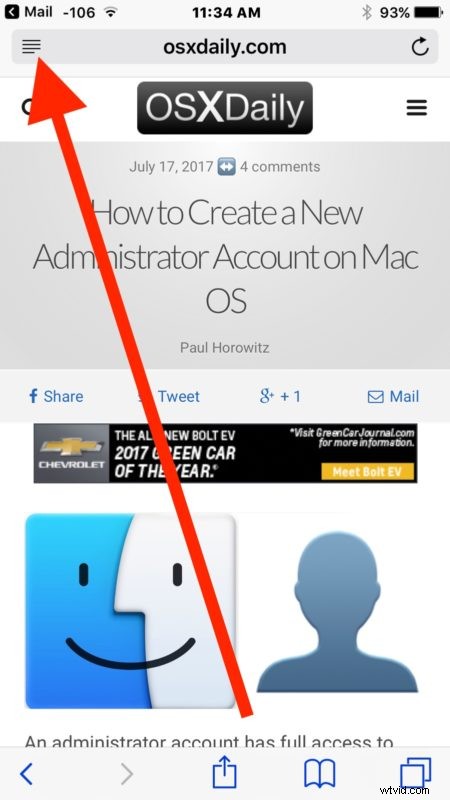
- Tap the Safari Reader button in the link URL bar at the top of Safari, it looks like a series of lines atop one another, this will enter into Reader mode in Safari for iOS
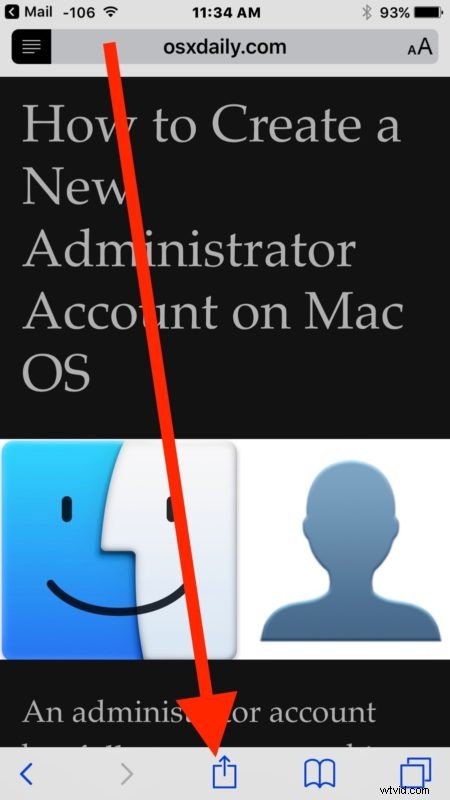
- Once in Reader mode, tap the Sharing action button, it looks like a little box with an arrow flying out of it
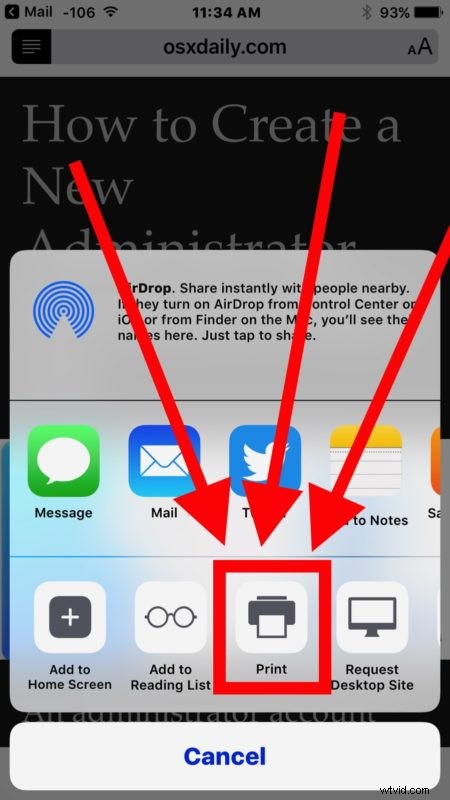
- From the Sharing action options, choose “Print”
- Adjust your printer options as necessary and choose the “Print” button to print the article or web page from Reader Mode, stripped of any ads or other content
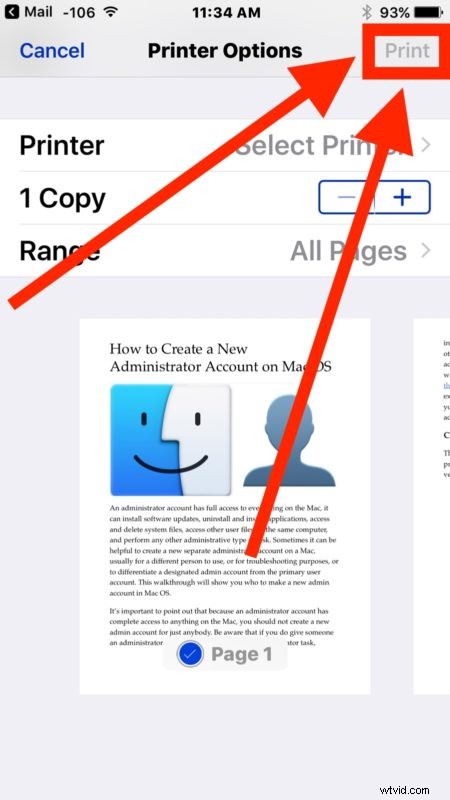
That’s all there is to it, the resulting printed web pages or articles should simply include the article text, and related article images – nothing else.
This works because Safari mode strips out webpage data that is not directly related to the core content of the web page in question, and by printing from there rather than the regular webpage view, you can print out a simplified version of the article.
By the way, you can also use this trick to save simplified webpages as PDF files.
Modern webpages are fairly complex, and printing them out directly can lead to pages of documents printed out that contain data that is not really helpful once it’s on paper. The complexity of modern webpages and articles may be appropriate for the web, but once it’s printed out most of that styling and splendor results in waste of paper. Things like social buttons and poll widgets may be fun on the web but are useless when printed out, likewise advertising funds most of the web and allows websites to serve up great content without users paying directly, but printing out a banner ad is rather pointless and will just waste ink, just like printing out any other wildly styled webpage or a bunch of complex design which is unrelated to the core article. So, save yourself some paper and printer ink, and print out simplified versions stripped of any of the clutter, social buttons, widgets, ads, polls, and other stuff found on the web.
And for Mac users, you can perform the same webpage simplification process for printing articles without ads in Mac Safari too. We mentioned that earlier, but it’s worth reminding everyone again.
You may already know this, but Reader Mode has a lot of other great uses as well. You can use Reader Mode on iPhone to make a webpage mobile friendly or easier to read, you can use it to change the appearance of articles and make text bigger, change font faces, adjust colors, and much more.