
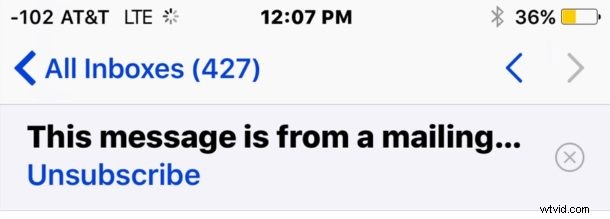
Have you ever found yourself receiving emails from a mailing list you never subscribed to? Virtually everyone with an email address has experienced this, usually from solicitors, junk mailers, and companies of things you may have once interacted with. While you can usually go to the bottom of an email and poke around for a micro-font “Unsubscribe” link, another faster option is available to users of the latest versions of iOS.
Thanks to a new Mail app feature in iOS, users of iPhone and iPad can quickly unsubscribe from emails sent from a mailing list, directly from the mail app and faster than usual.
As already mentioned, you’ll need a new version of iOS to have this feature on iPhone or iPad, anything beyond 10.0 will include the mailing list unsubscribe ability.
How to Unsubscribe from Mailing Lists in iOS Mail Quickly
- Open the Mail app in iOS if you haven’t done so already
- Choose any email in the inbox that has been sent to you from a mailing list and open it, at the top of the screen you will see a message stating “This message is from a mailing list” with a blue “Unsubscribe” link button
- Tap on that to attempt to unsubscribe from the mailing list that sent the email
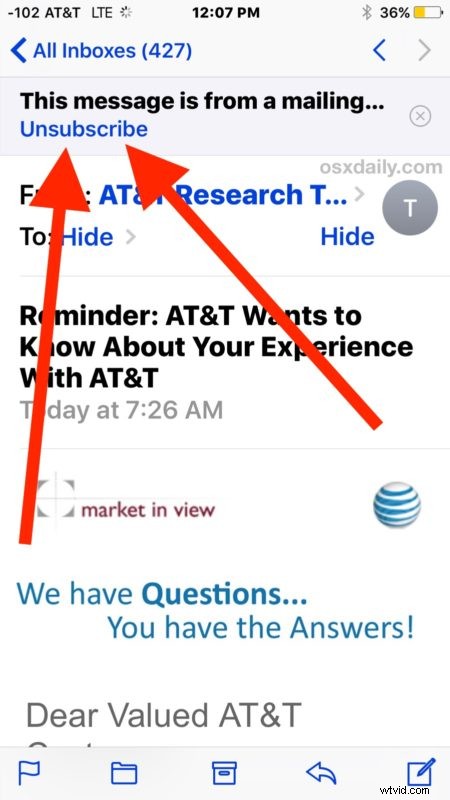
This works the same on Mail app for any iPhone or iPad running the latest versions of iOS. You can have the device in horizontal or vertical mode and you’ll still have the unsubscribe option at the top of an email that is eligible to be unsubscribed from.
For email lists that you want to stay subscribed to, you can hit the little grey “(X)” button in the same header option to dismiss the unsubscribe option for that given mailing list, it should carry forward to all other emails from the same mailing list and address.
Note that not all mailing lists will have the unsubscribe option in the Mail app like this, but it does appear often enough to work for most. If you’re totally overburdened with mailing list emails, you can always resort to deleting all mail in iOS 10 or use the Trash All Mail function in other iOS releases, or mark them as read and use the unread Mail inbox instead.