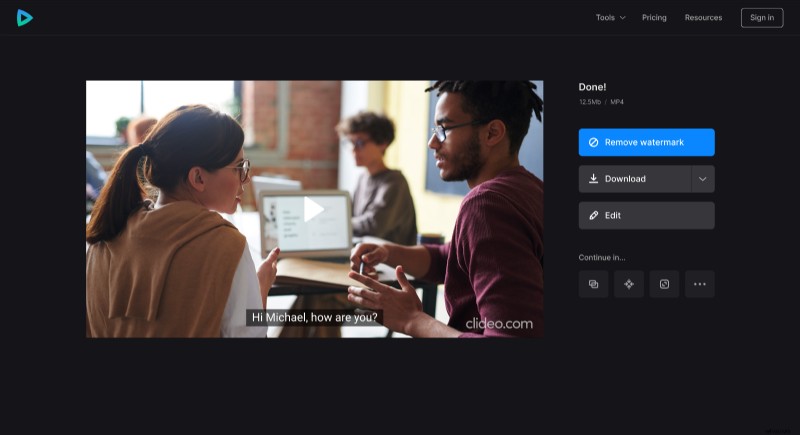
How to use an SRT file generator
There is a simple way to create your own subtitles! First of all, let's find out what is an SRT file? SRT stands for SubRip Text, and it is a format used to embed video captions. Simply put, an SRT file is a text document that contains information about subtitles, such as start and end time codes, as well as the text of all subtitle sequences. But how to create it?
Actually, that’s not hard at all! With our Subtitle Generator, all you need is an Internet connection and a video. Moreover, if you need to create subtitles when you’re away from your PC, you can use the tool on your smartphone as well.
The rest is simple, just follow the instructions below.
Add a video
Open Clideo’s Subtitle Generator.
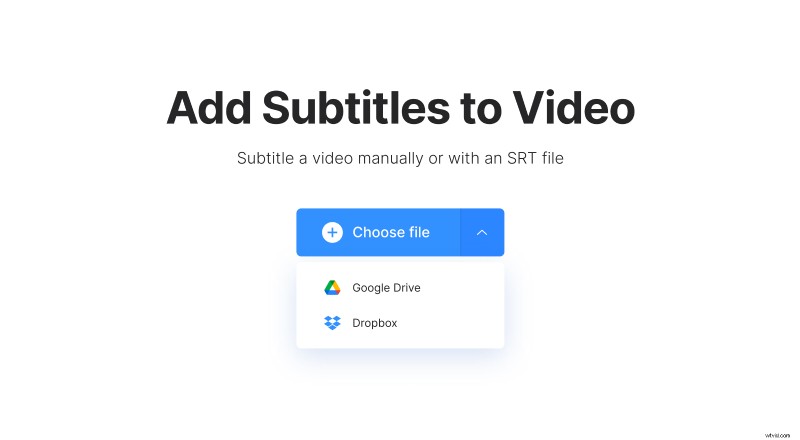
Press the “Choose file” button to add the video from your PC or smartphone. If it’s stored on Google Drive or Dropbox, there’s an option to add files from them as well – just hover over the downward arrow on the same button and choose the cloud storage you need.
Once the video is uploaded, you will get to choose how you want to add subtitles. If you need to create them, just click on the “Add manually” option.
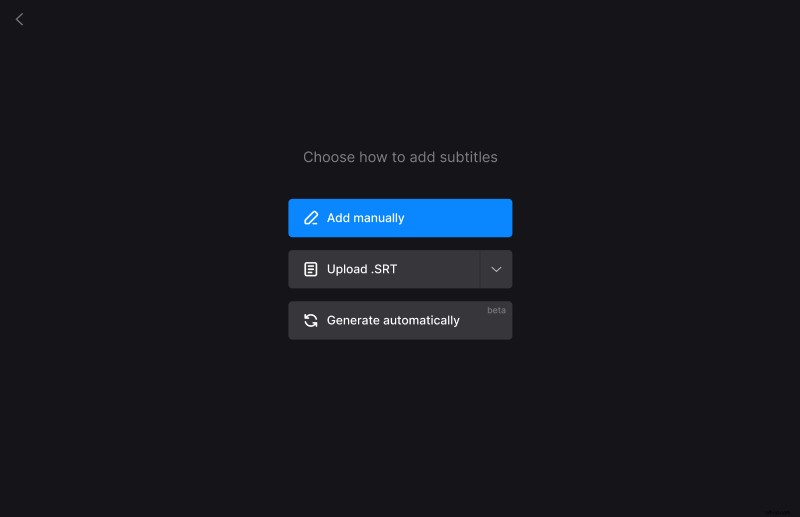
You can also add an SRT file to video if you have one but want to tweak its text or time codes – to do that, choose the “Upload .SRT” option and upload the file.
Create subtitles
On the next page, you can add and edit subtitles via options on the right side.
If the “Subtitles” tab is chosen, there’s already a box where you can write text for your captions. To add more boxes, just click on the plus sign on the box or the “+ Add subtitle” button. You can add as many boxes as you need.
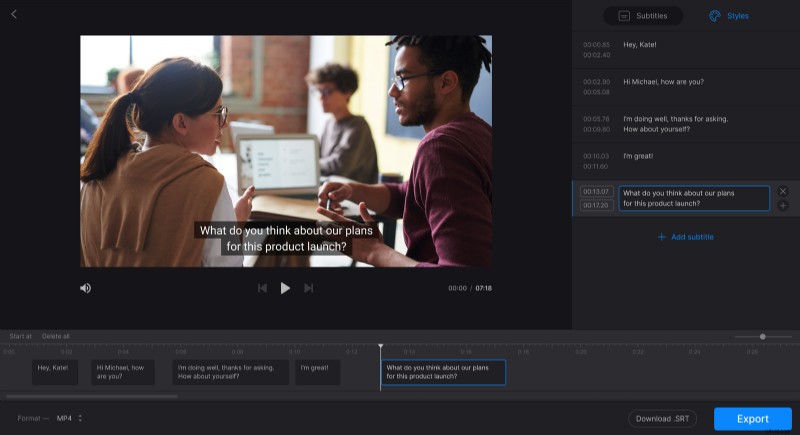
Time codes can be set here too. Write them manually in the time sections on the left side of the text box or drag the handles of the captions in the timeline under the player.
Switch to the “Styles” tab to change the font of the subtitles, their color, background, size, and alignment.
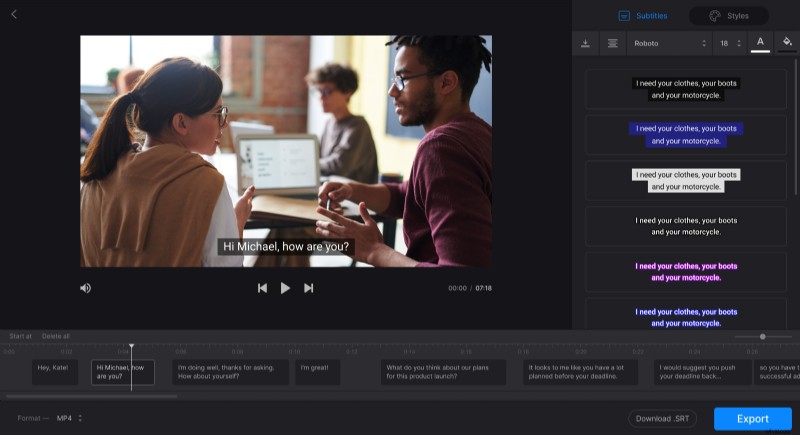
You can also change the format of the video via the option with the same name at the bottom of the page.
If you only need to download an SRT file, simply use the “Download .SRT” option. Otherwise, click the “Export” button.
Download end result
Watch the preview to check whether everything is set correctly. If you need to change anything, click “Edit” to return to the previous page. And if everything looks good, save the video to your device or upload it to Dropbox or Google Drive.