

Building a connection with your audience can be a nuanced endeavor, especially when you’re foraying into the world of videos and find transcriptions tricky.
As it turns out, people consume 16 hours of online video content every week. And most people watch these videos with the sound off.
Which is why captions or subtitles offer a huge window of opportunity you must tap into.

But before you spend a fortune on audio transcription services, consider creating custom SRT files for your videos. If you’re unsure of what an SRT file is and how it can help you, read on.
And, as you would have guessed from the title, we’ll be sharing some awesomely-simple tips on how to create SRT file.
Let’s jump right in.
What is an SRT file?
An SRT (.srt) file or SubRip Subtitle file is a text file containing captions/subtitles with start and stop times.
A crucial part of a video’s post-production process, an SRT file is uploaded to the platform it will be hosted on. It ensures your subtitles’ accuracy and delivers a host of benefits, including better accessibility, more views, and increased viewer engagement by offering a great viewer experience.
Plus, it’s excellent for boosting your search engine ranks too. Uploading SRT files to video platforms helps search engines index them, leading to increased searches.
Here are some more reasons why captions are essential for your videos – Video Captions: 7 Good Reasons to Transcribe Your Video Content
What does an SRT file contain?
An SRT file contains the following components in each of its sections:
- a number of the caption frame
- start time
- end time
- the caption text
- a blank line to begin the new caption sequence
This is how the time format appears: HH:MM:SS,MS with a two-hash arrow ““– – >” between the start and end time. The time is what helps the computer know when to display the captions.
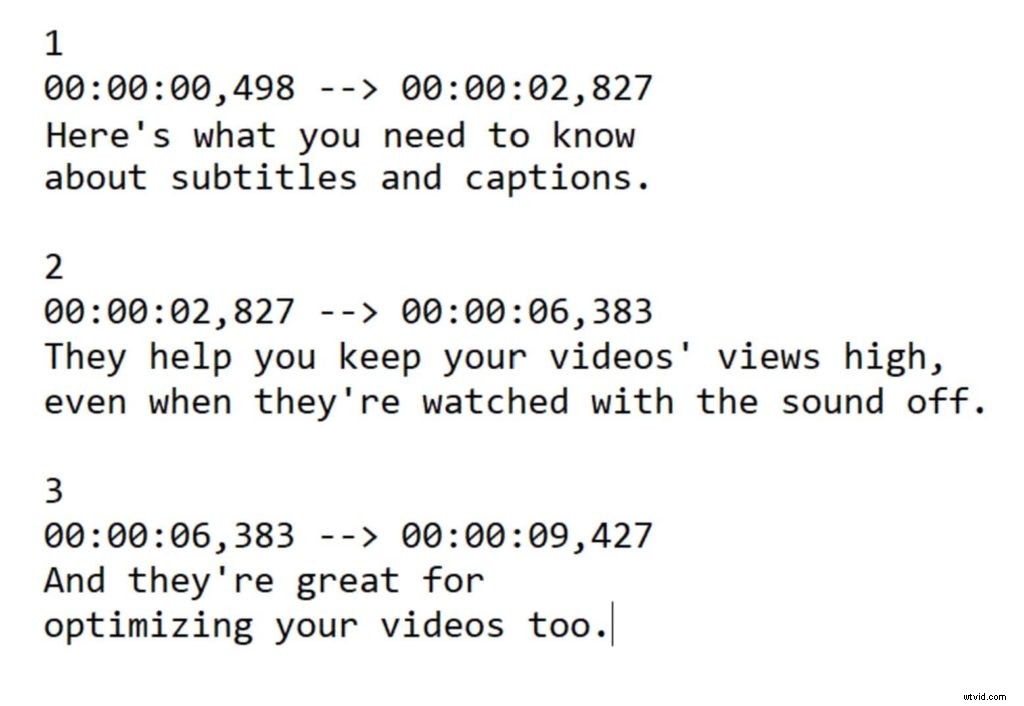
It’s advisable to keep each caption’s length up to 32 characters and bifurcate it into two lines for easy comprehension without taking too much space on the screen.
Now, let’s get to work.
How to create a custom SRT file
SRT files are a great way to make your videos more accessible and capture audience attention. So, how to create a custom SRT file? Let’s find out.
Creating an SRT file with Wave.video
With our easy-to-use automatic video captioning feature, we bring order to a task that often feels chaotic. Here are some simple steps that take you to those perfectly created custom SRT files with Wave.video:
Step 1 – Sign up
If you haven’t already, then sign up on Wave.video to make the most of its awesomeness.
Step 2 – Create your video or upload one
Whether you want to create a video from scratch or jazz up your existing video, Wave.video has got you covered. Pick a template, choose a blank slate, or upload your content. Either way, it’s going to be a hassle-free task.
Step 3 – Generate automatic captions
Next, select “Captions” to go to the “Auto Captions” tab and click on it.
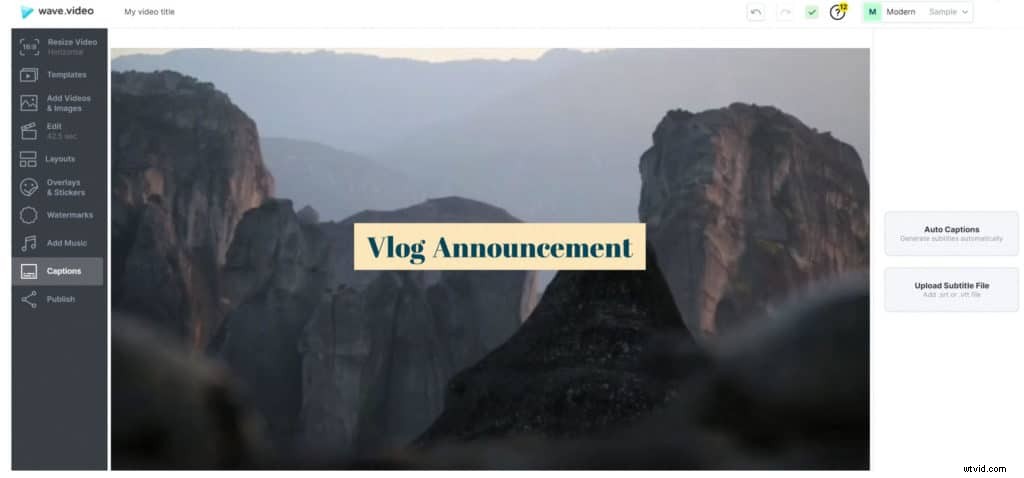
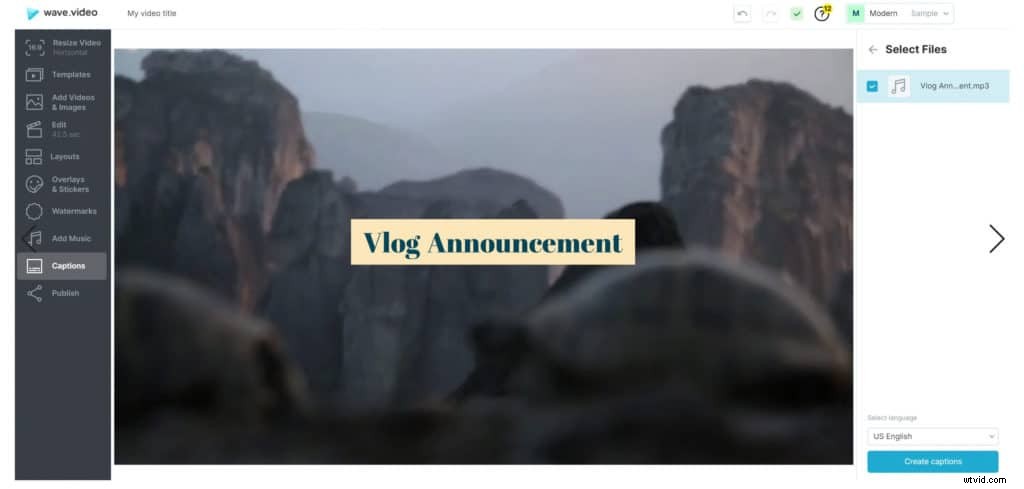
Step 4 – Select the audio files
Then, choose the file(s) you want to caption and select your audio’s language from the drop-down menu. Once done, click on “Create captions”.
And there, you’ll have them: stunning captions created in a matter of seconds.
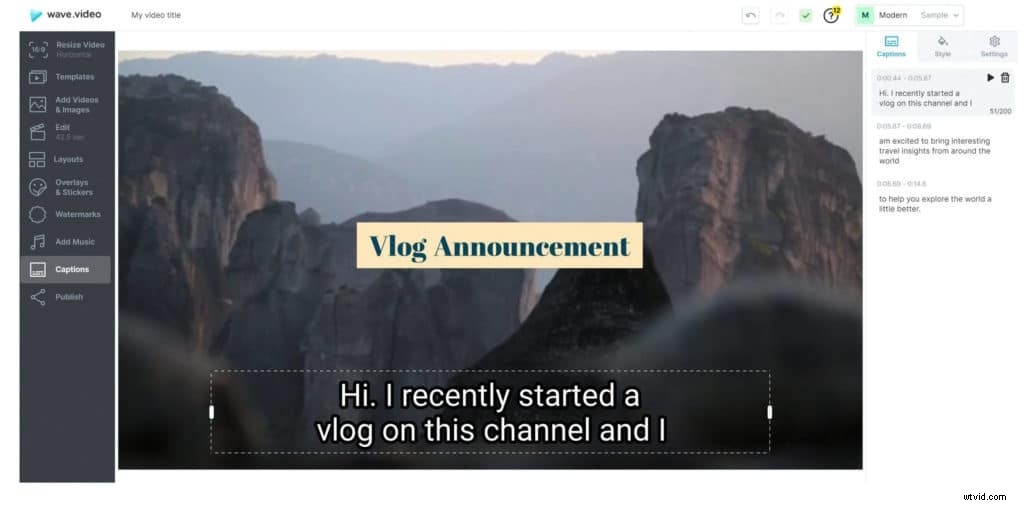
Step 5 – Customize
Now that you have the captions ready, customize them to your heart’s content. Change the font type, size, text color, background, and anything else you want to finetune the captions. Hey, and just as a side note, you can also edit the captions if you wish to.
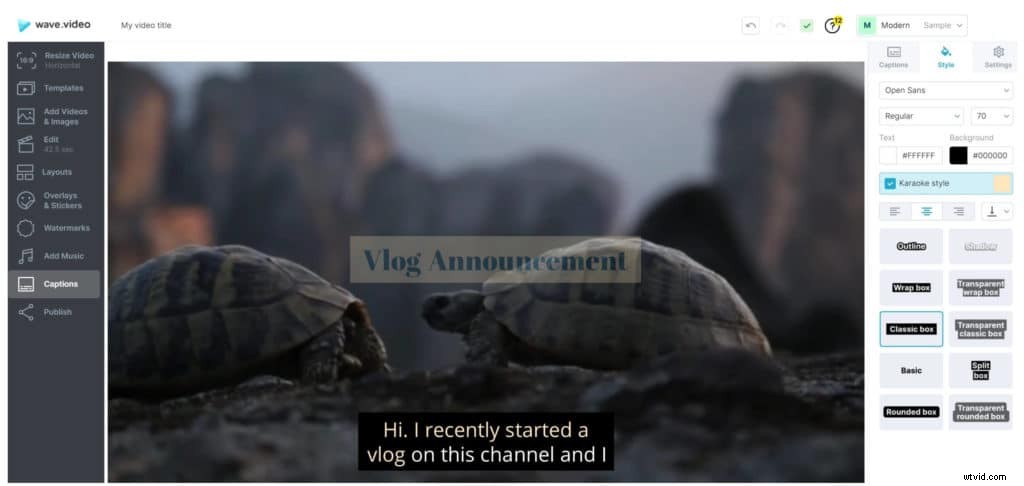
Step 6 – Burn captions and download .SRT file
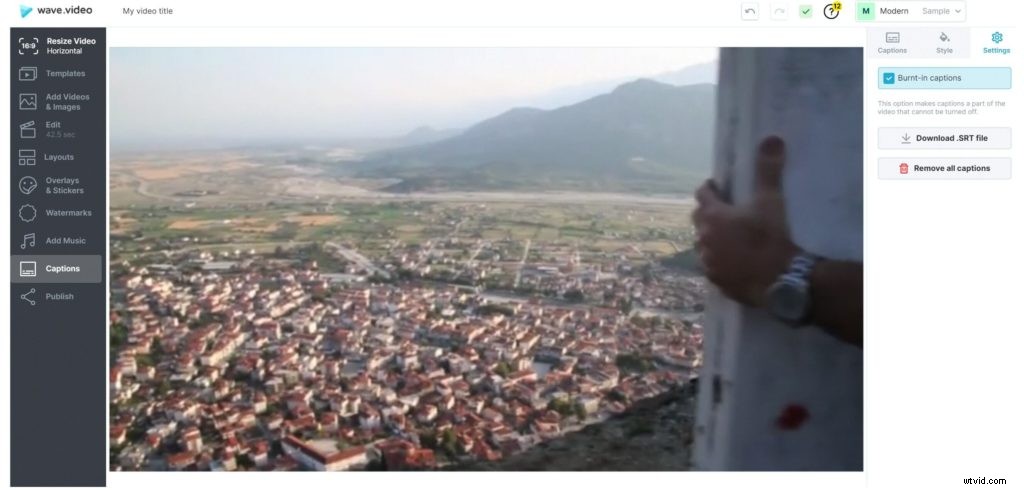
Wave.video also gives you the option to burn the captions if you want to include them in the video permanently.
When all is done, you can then download the auto-generated captions in .SRT format.
I told you, it’s a cinch.
Intrigued to know more about how Wave.video continues to help you with your video captioning goals? Here’s What’s New in Wave.video: Automatic Captioning!
Creating an SRT file using a text editor
You can also create SRT files on your computer’s text editor. If you use a Mac, then you will need “TextEdit” to create your SRT files. Window users can use the good ol’ “Notepad”.
Just ensure to follow the time format to the tee.
As mentioned earlier, it should be: hours:minutes:seconds,milliseconds, with the milliseconds rounded to 3 decimal places and with a two-hash arrow (“– – >”) separating each timestamp.
Once your transcript is completed, save your file as an SRT file. You can also change the “.txt” extension into “.srt”.
In Mac, however, make sure to uncheck both “Hide extension” and “If no extension is provided, use “.txt””.
Although an extremely convenient method to create SRT files, using a text-editor can be tedious, which takes us to the next step.
Creating an SRT file with YouTube Creator Studio
Not every YouTube content creator knows this, but almost every video they upload on the platform gets automatic transcriptions. Here’s how you can create an SRT file with YouTube Creator Studio:
Step 1 – Upload your video and sign in to YouTube Studio.
Step 2 – Select “Subtitles” from the menu and choose the video you want to create the SRT file for.
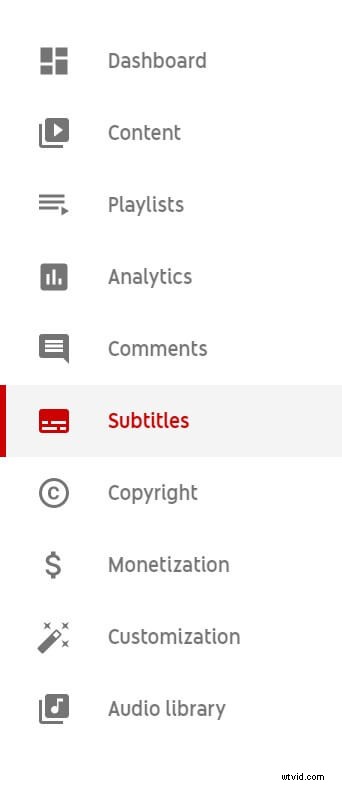
Step 3 – Next, if you want, you can manually edit the subtitles by choosing the “DUPLICATE AND EDIT” tab.

Else, click on the “Download” button from the three-dot options menu on the right.
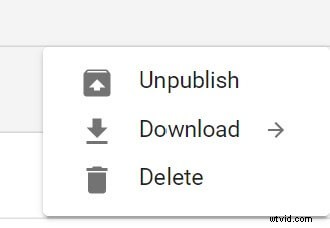
And this is how YouTube lets you create your SRT files.
Over to you
Creating subtitles is a necessity you can’t ignore. If you’ve been wondering how to create SRT files, the above-listed methods are your best bet. Follow one or all to drive your video content forward.
What do you think about creating SRT files? Is there any other tool worth your time and effort? We’d love to hear your thoughts. Leave your comments below.