
Learn how to add end screens to your next YouTube video—plus some additional tips on making them more engaging.
Building a subscriber base is crucial to your success as a YouTube creator. Part of becoming a better YouTuber is taking advantage of YouTube’s tools—like end screens. Here’s how.
Are you sick of hearing: “Remember to smash that like button and subscribe!” Or: “Be sure to check out our other videos…?” That’s understandable, but it’s part of community building, and it’s statistically proven to help grow your channel. It’s just one of those unavoidable aspects of YouTube that’s here to stay. YouTube tells you to use these tools for your success.
YouTube content should be educational, entertaining, engaging, or interesting—it’s even better if it’s a combination of all of these. That’s the basis of every successful YouTube channel.
Once you have your videos online, you want to encourage your viewers to subscribe to your channel for future videos, as well as sharing and watching your other videos. Keep your audience in the little universe you’ve created.
To help you achieve success with your channel, we’ve started a series of YouTube tips. Let’s begin with end screens . . .
What Are YouTube End Screens?
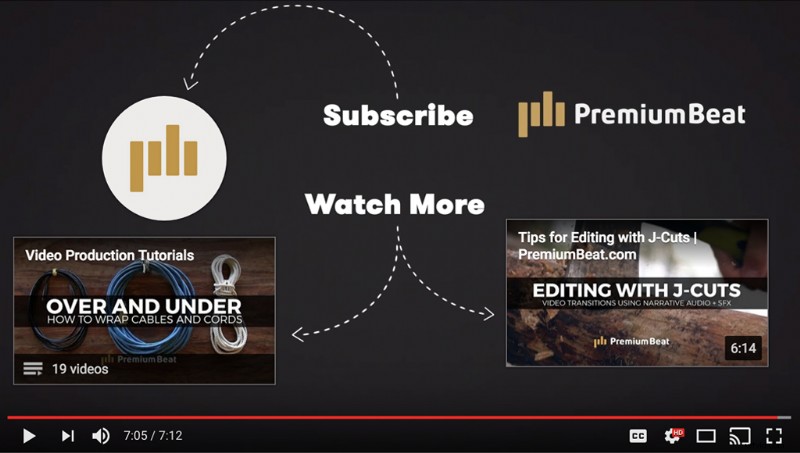
End screens are clickable links viewers see after watching one of your videos. You can prompt viewers to click to watch more videos, subscribe to your channel, or follow links to external websites.
In the example above from PremiumBeat’s channel, you’ll see that the end screen features three different links and animated text to draw your attention.
On the bottom-left is a link to a playlist titled “Video Production Tutorials” with a series of video tutorials. And a featured link to one specific video titled “Editing With J-Cuts.”
The subscribe button on the top-left will subscribe you to that channel immediately, rather than hitting the subscribe button underneath the video player.
I chose this example because the PremiumBeat channel focuses on creating YouTube tutorials to educate viewers on all aspects of video production—shooting, editing, motion graphics, audio mixing—you name it, we’ve covered it.
These end screens link you directly to more content in the same vein. I’d say it’s generally a good idea to keep your audience engaged by giving them more of what they’re already looking for.
So, you might be wondering how to make a custom end screen like this. Look no further than Justin Odisho’s guide to creating a simple, yet entirely your own, end screen that fits your channel’s aesthetic.
Adding YouTube End Screens on New Videos
Tip 1: Ten Seconds
When editing, dedicate at least ten seconds of the end of your video for the end screen. Then export your video.
The final seconds of your video can be just black video, or you can get creative and make a custom end screen image or animation to play at the end of every video.
Be sure to make the end screen at least ten seconds, so viewers have time to make a selection at the end of the video.
Tip 2: Log In
Log in to your YouTube account and upload the video. Easy peasy.
Tip 3: End Screen & Annotations Tab
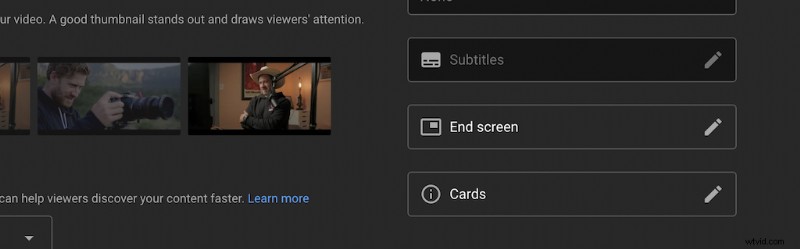
Tip 4: Formatting
The easiest thing to do is choose a template end screen. You’ll have multiple options and looks, but you can customize the template to your liking. You can even add or remove elements, such as more video links.
After you finally have your layout set, you can apply the same layout to future videos by selecting the IMPORT FROM VIDEO option on your next YouTube video.
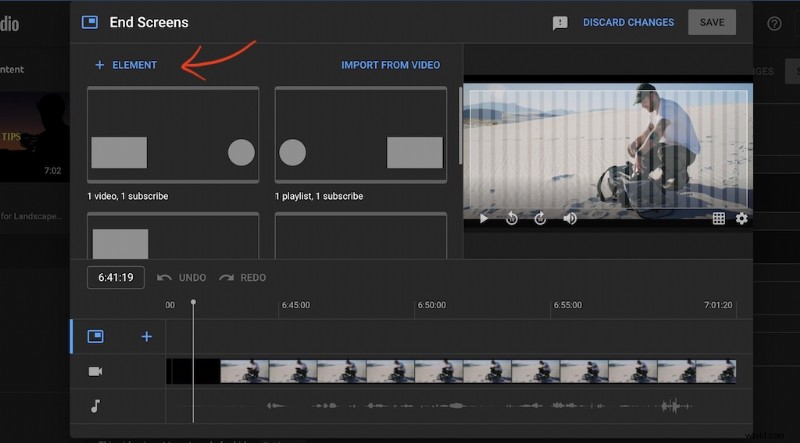
Determine whether you want the video links to be single videos or playlists, and choose which videos or playlists you want to appear. The subscribe button will default to your YouTube page’s profile picture.
You can upload your custom artwork or image with an external link button. External links will need to be approved URLs, then you’ll be able to link to items like downloads, more information, or links to products.
Move and resize the elements as you see fit.
Tip 5: Adjust the Timeline
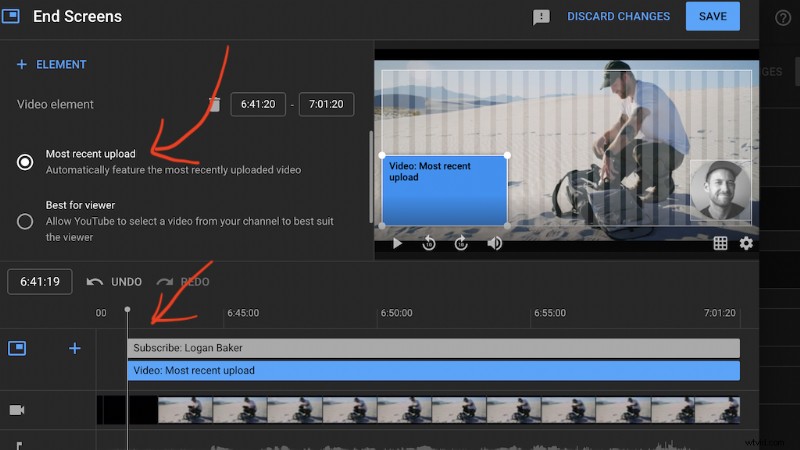
You can make all of your elements show up simultaneously, or stagger them. Remember that you’ll need at least ten seconds at the end of a video, but you can certainly extend your elements and make the end screens last longer.
Tip 6: Click Save
Finally, click Save when you’re done. The end screens will now appear at the end of your video. If you’ve already uploaded your video, you can visit the video page and click on the End Screen & Annotations icon. (You must be logged into your account.)
You can then add end screens to your videos, but keep in mind that since you don’t have a dedicated black background video or an end screen animation, the links will appear on top of your footage for the last ten to twenty seconds. It’s harder to make older videos look good and work. Just something to keep in mind for the next video you upload.
I’ve found that just extending your video by ten to fifteen seconds will give you a black backdrop to place the end screens on top of. This will help the card stand out from the background so your audience can see them clearly and understand the call-to-action.
Top image by insta_photos.