
How to make pictures fit on Instagram with or without borders
Landscape shots with a wide 16:9 ratio, for example, will get chopped down, which could totally mess up your image.
There is an easy way around this, though and that’s with our online tool which can make a photo fit on Instagram by adding white, black, blurred or coloured borders to the image, or by chopping out parts of the image you don’t want.
What’s more, Clideo lets you resize any file that you have stored on any device via a web browser, for free. This means that you don’t need to download any expensive apps or software for your desired outcome.
So, if you’re looking for how to fit a full picture on Instagram without the fuss, check out our step-by-step how-to below!
Upload your image
To get started, head over to Clideo’s Instagram Image Resizer where you'll find a 'Choose file' button. Tap this to upload from a device.
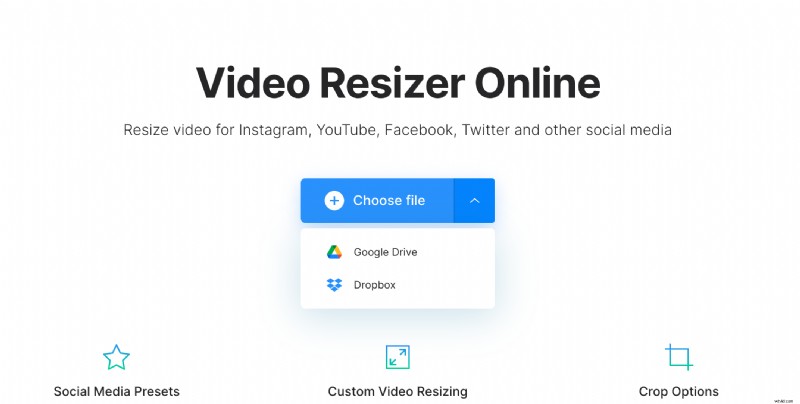
If your image is stored in a cloud storage drive, you can also add straight from Dropbox or Google Drive — just tap the downwards-arrow on the right-hand side and you’ll see the option in the drop-down menu.
Crop down your big image, or add borders
Once your file has been uploaded, it’s time to make it Instagram-perfect.
Choose ‘Instagram;’ from the list of social media platforms under the ‘Resize for’ heading, then select the necessary post type.
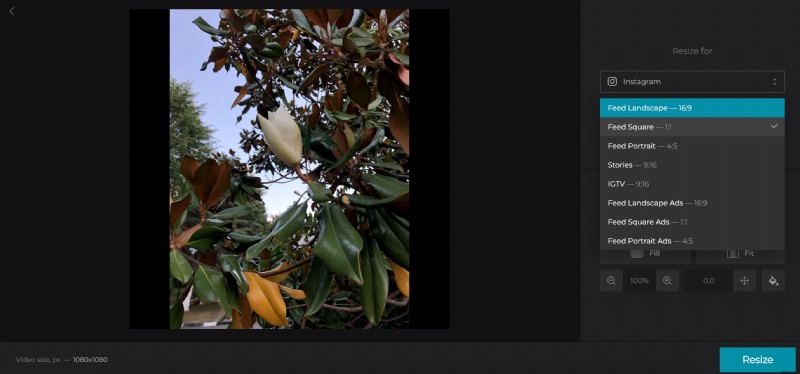
If you want your picture to fit on Instagram without borders click on ‘Fill’. It will crop the image to fully fill the frame, and you can then move it around to make sure you get everything you want in the image.
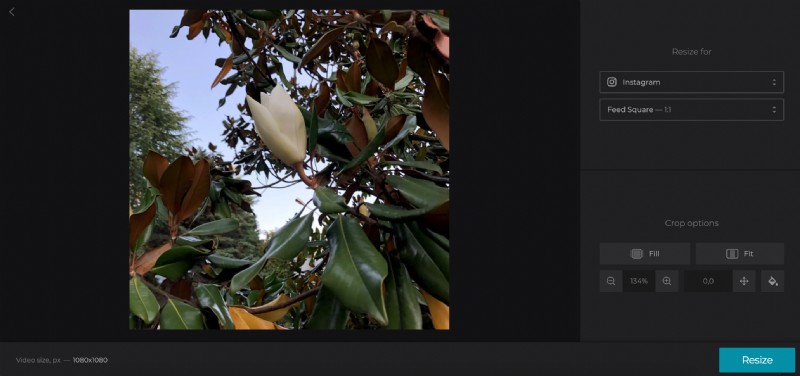
The ‘Fit’ option will give you borders, which you can customise with the paint can icon, and move around with the directional and zoom buttons. Feel free to play around until you get the result that you want.
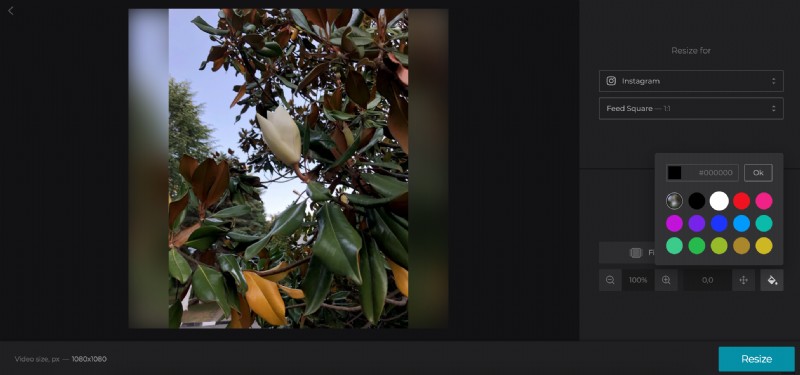
Once you think you’re all done, proceed to the bottom and hit the ‘Crop’ button.
Save the edit
Once your picture has finished processing, you’ll be taken to the download page of the tool. Here you can save your photo back to your device or, again, to Google Drive or Dropbox via the ‘Download’ button.
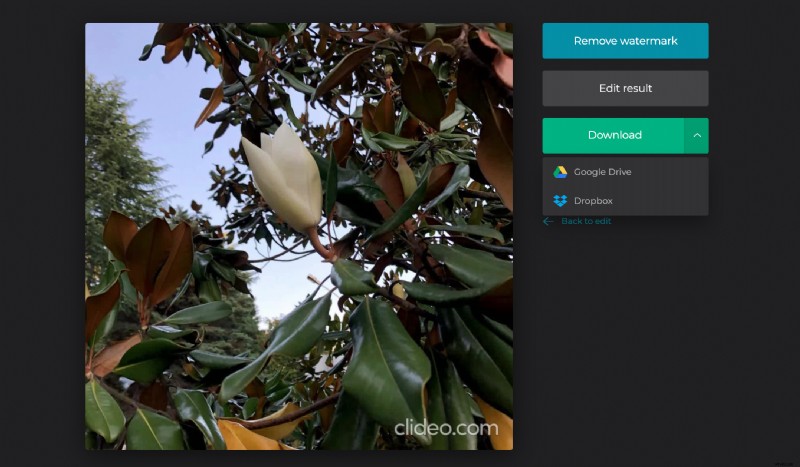
Be sure to give it a preview first, however: we want you to be happy with the result! If you’re not, simply tap the ‘Back to edit’ button to make some tweaks without starting all over.