
How to Use Zubtitle to Add Top Border Video Headlines
If you haven’t started incorporating video content into your digital marketing strategy yet, now is the time. Here at Zubtitle, we’re always updating and making it easier for you to put quality video content out on social media.
That’s why we recently launched Zubtitle 2.0, an updated version of Zubtitle that provides all of the tools you need to get your video ready for social media. And one of the best features of Zubtitle 2.0 gives you the ability to add headlines to your video. If you’ve ever wanted to add a title to the top of your video… now you can! Here’s a comprehensive guide on all of the steps for adding a video headline to the top border using our new feature.
Step 1: Add Your Headline
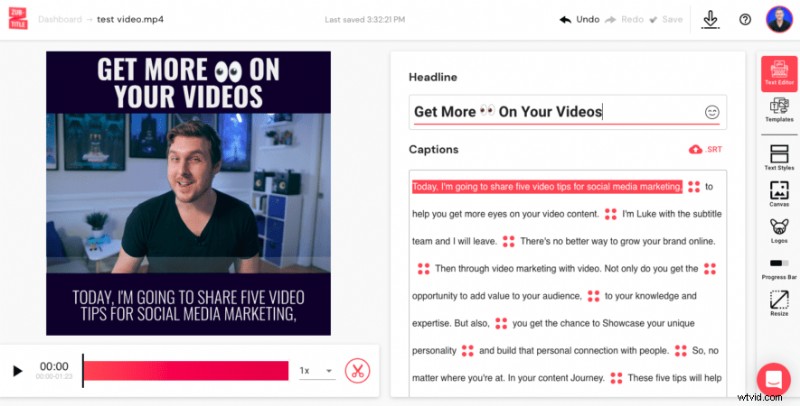
As soon as you’ve uploaded your video (and trimmed it, if necessary), you'll be automatically taken to the Text Editor. This is where you can review your captions, make any desired edits, and add your headline. You'll see a space near the top of the editor where you can add your headline. Just type your headline into the space provided and you'll see it appear over your video on the left-hand side of the screen.
Step 2: Style Your Headline
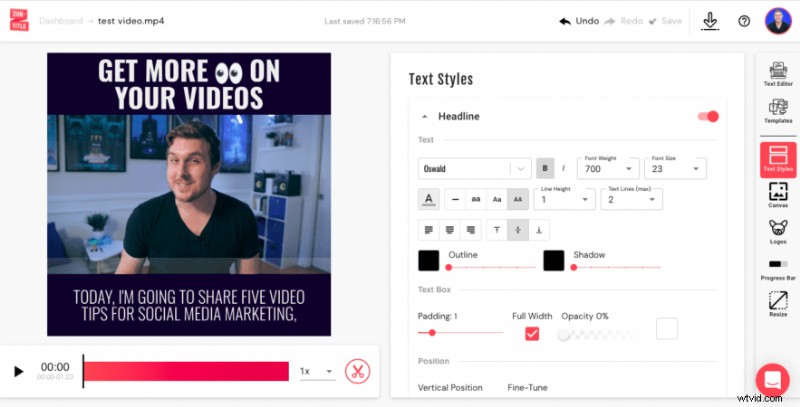
Next, navigate to the Text Styles option on the right-hand menu bar. This is where you will find tons of options to customize your video, including caption styling, caption position, and video headlines. Now you can style your headline by choosing a font (or uploading a custom font), changing the font weight and size, adjusting the line height, text box padding, and more.
Step 3: Customize Headline Position
You can customize where your title is placed on your video by dragging the dot up or down the Vertical Position scale. If you want more control over where it’s placed, just check the Fine-tune position box. You can also select the alignment of your title so that it’s placed to the left, right, or center.
Step 4: Generate Your New Video
Sign up for a free Zubtitle account today to get started! With our free plan, you can create two videos per month. To create up to 10 videos per month (and remove the Zubtitle watermark), check out our standard plan.