
YouTube remains the premier platform for entertainment, education, and community engagement. As a creator, the technical quality of your videos—particularly frame rate—directly influences viewer satisfaction and subscriber growth.
Setting an appropriate frames‑per‑second (FPS) value is more than a technical detail; it shapes the visual experience your audience will have. Below, we explore how FPS impacts playback, recommend optimal rates for various content types, and show you how to check and adjust FPS during production.

In this article
- How FPS Influences YouTube Viewing
- Recommended and Highest Frame Rates for YouTube
- Best Frame Rates for Specific Genres
- How to Check FPS on a YouTube Video
- How to Adjust FPS in Video Editing Software
How FPS Influences YouTube Viewing
Frames per second is the number of individual images displayed each second. The higher the FPS, the smoother the motion appears, while a low FPS can make footage look choppy and distracting.
Consider a flipbook: each page is a frame. Rapidly flipping more pages yields smoother motion. Similarly, the human visual system can comfortably distinguish up to about 18 distinct images per second; beyond that, motion feels fluid. A frame rate below 24 FPS typically results in noticeable stutter on YouTube.

For everyday, cinematic‑style videos, 24 FPS delivers a classic filmic look. If your content contains more motion—such as vlogs or interviews—30 FPS offers a clearer, more natural presentation. Gaming, sports, or action‑heavy footage benefits from 60 FPS, providing smoother transitions and better detail in fast scenes.
Recommended and Highest Frame Rates for YouTube
While no single FPS is universally “best,” YouTube supports a wide range of rates. Historically, film used 24 FPS, television 30 FPS, and high‑motion content often exceeds 60 FPS. The platform’s guidelines recommend staying within these ranges to ensure compatibility across devices.
Table 1 summarises common frame rates and their ideal use cases:
| Frame Rate | Best For | Notes |
| 24 FPS | Film‑style content | Cinematic feel; technically 23.976 FPS on NTSC |
| 30 FPS | Vlogs, interviews, talk shows | Standard for television and online videos |
| 60 FPS | Gaming, action, sports | Smoother motion, captures more detail in rapid scenes |
| 120 + FPS | Slow‑motion footage | Requires advanced equipment; rarely used for routine uploads |
In practice, 24 FPS is a solid baseline for most creators. For high‑motion videos, bumping to 30 FPS—or even 60 FPS for gaming—can enhance visual clarity. The key is consistency: use the same frame rate across a single video to avoid perceptible jumps.
Best Frame Rates for Specific Genres
Below is a concise reference of FPS recommendations by content type:
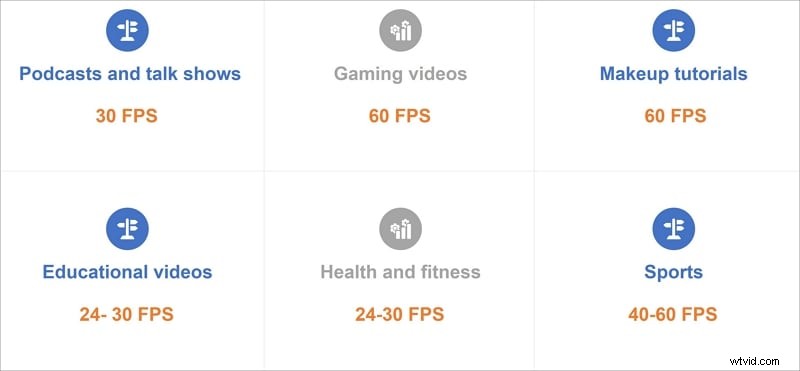
- Podcasts & talk shows: 30 FPS
- Gaming videos: 60 FPS
- Makeup tutorials: 60 FPS
- Educational videos: 24–30 FPS
- Health & fitness: 24–30 FPS
- Sports: 40–60 FPS
These figures are guidelines; you should adjust based on your content’s motion intensity and your audience’s viewing devices. Remember that your frame rate should align with your encoding settings to avoid playback issues.
How to Check FPS on a YouTube Video
Identifying the FPS of an existing YouTube upload is straightforward:
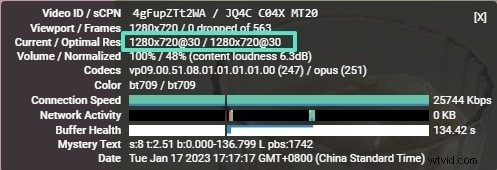
- Open the video and right‑click. Select Stats for nerds from the context menu.
- In the popup, locate the Current/Optimal Res line. The numbers after the slash indicate the optimal resolution and frame rate. For example, 1280×720/30 FPS confirms a 30 FPS video.

How to Adjust FPS When Editing a YouTube Video
Most professional editing suites allow you to set the project’s FPS before exporting. One popular choice is Wondershare Filmora, which offers intuitive controls and a range of features that enhance both creative and technical workflow.
Key features include:
- GIF support
- Audio equalizer and mixer
- 4K editing capability
- Advanced text and colour tools
- Noise reduction and scene detection
Step‑by‑step guide to setting FPS in Filmora:
- Launch Filmora and open the project.
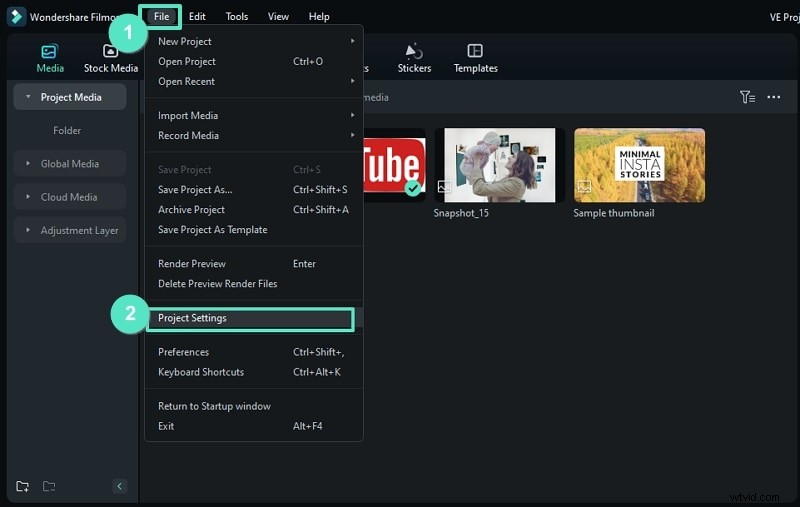
- Navigate to File > Project Settings.
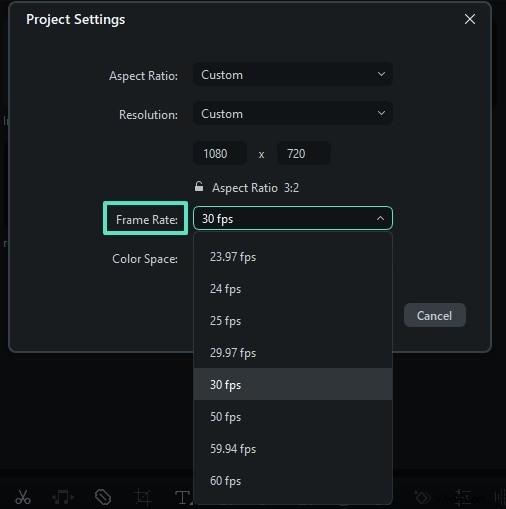
- In the dialog, select your desired Frame Rate (e.g., 24, 30, or 60 FPS).
- Apply the change and continue editing. When finished, choose Export and select a YouTube‑ready format.
Filmora also offers an AI‑powered Idea to Video tool that auto‑generates scripts, storyboards, and even footage—allowing you to maintain consistent FPS and style across multiple projects.
Conclusion
Delivering polished, viewer‑friendly YouTube videos hinges on thoughtful technical decisions. By selecting the right frame rate—24 FPS for cinematic content, 30 FPS for general footage, and 60 FPS for high‑motion scenarios—you ensure smooth playback across all devices.
Experiment with your chosen FPS, review playback quality, and refine your workflow. With the right tools and a clear understanding of frame rates, you can elevate your channel’s production value and keep your audience engaged.