
Posting videos on social media like Snapchat means you need to be mindful of the video length. This is because Snapchat is designed for content that is quick and to the point, and the platform has limitations on video duration in one Snap.
For this reason, it's essential to know how to cut videos on Snapchat. By trimming your videos, you can distill your content to its most attractive parts so that it holds the viewer's attention from start to finish. Here's a simple guide on how to cut or trim videos on Snapchat with ease.

In this article
- How to Cut or Trim Videos on Snapchat
- Alternative Solution: How to Cut Parts of Video for Snapchat
- Pro Tips for Optimizing Snapchat Videos
Part 1. How to Cut or Trim Videos on Snapchat
Snapchat allows you to post videos up to around 2 minutes in one Snap. While you can create a multi-snap video to extend the length, there may be parts you want to remove to keep your content clear and engaging.
Thankfully, Snapchat has built-in editing tools to help you edit your videos before posting. Although it doesn't have a tool to split videos into separate clips, you can still trim them to cut out parts of a video on Snapchat. Let's see how to do it.
How to Trim Recorded Videos on Snapchat
01of 04Record Your Video
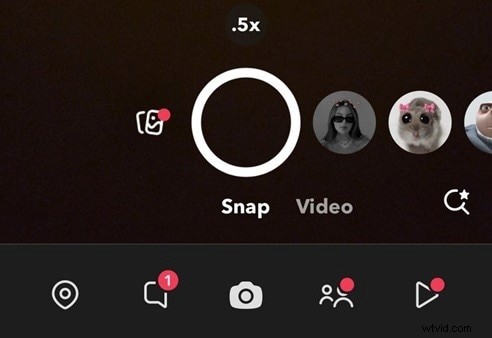
Open the Snapchat app on your phone and start recording. You can do it by pressing and holding the recording button. Or, select the Video option and tap the recording button.
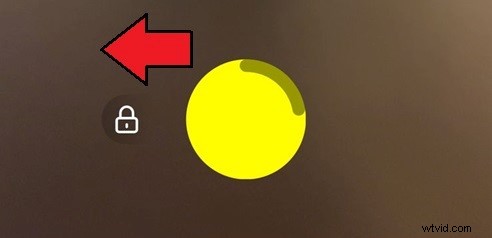
Tip: Lock the recording by pressing and sliding the camera button to the left.
02of 04Access the Trimming Tool
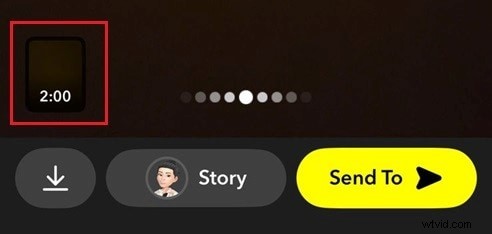
After finished recording, look for a mini video preview at the bottom left. Tap on it and you'll see two draggable edges on the timeline, which allow you to trim the beginning or end of the video.
03of 04Trim Your Video
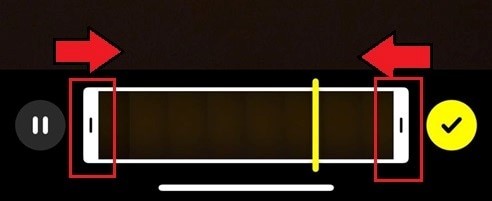
Drag the left handle to trim the beginning of the video. Or, drag the right handle to trim the end of the video.
04of 04Save or Share Your Video
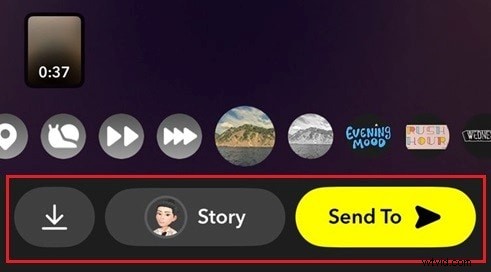
Once satisfied, tap the checkmark button to apply the changes. Then, tap Send To to share it with friends or post it as a Story. If you want to save the trimmed video for later, tap the Save button (download icon).
How to Trim Videos from Camera Rolls on Snapchat
If you'd like to trim a video Snapchat from your camera roll, the steps are pretty similar to trimming a recorded video we've covered before.
- Open the Video You Want to Trim: Open Snapchat and tap the Memories icon (two overlapping photos) at the bottom of the screen. Go to the Camera Roll tab and select the video you want to edit.
- Trim Your Video: Press and hold the video and choose Edit Video. Or, tap the arrow down button from the tools menu to access the trimming option.
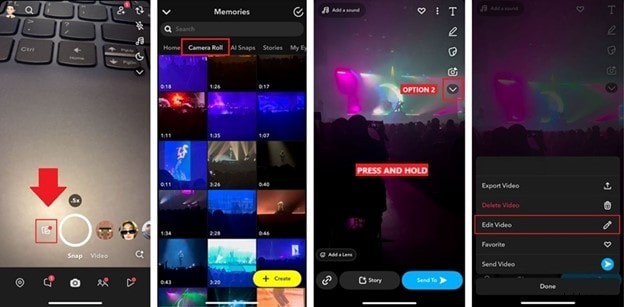
Just like before, use the left handle to trim the beginning of the video and the right handle to trim the end. Adjust the handles until you reach the desired length.

Part 2. Alternative Solution: How to Cut Parts of Video for Snapchat
Since Snapchat doesn't allow you to cut videos within the app directly, you may need a more advanced editing tool to cut and shorten a Snapchat video. Filmora is a great alternative for editing Snapchat videos. This app offers more flexibility and precision than Snapchat's built-in tools.
One of the notable features of Filmora is the Split tool, which helps you cut Snapchat videos and divide them into segments. You can remove any unwanted sections, trim parts from the beginning or end, and even combine clips. This gives you greater control over your video's content.
In addition to cutting videos, Filmora also lets you:
- Merge & Combine– Join multiple clips into one seamless video.
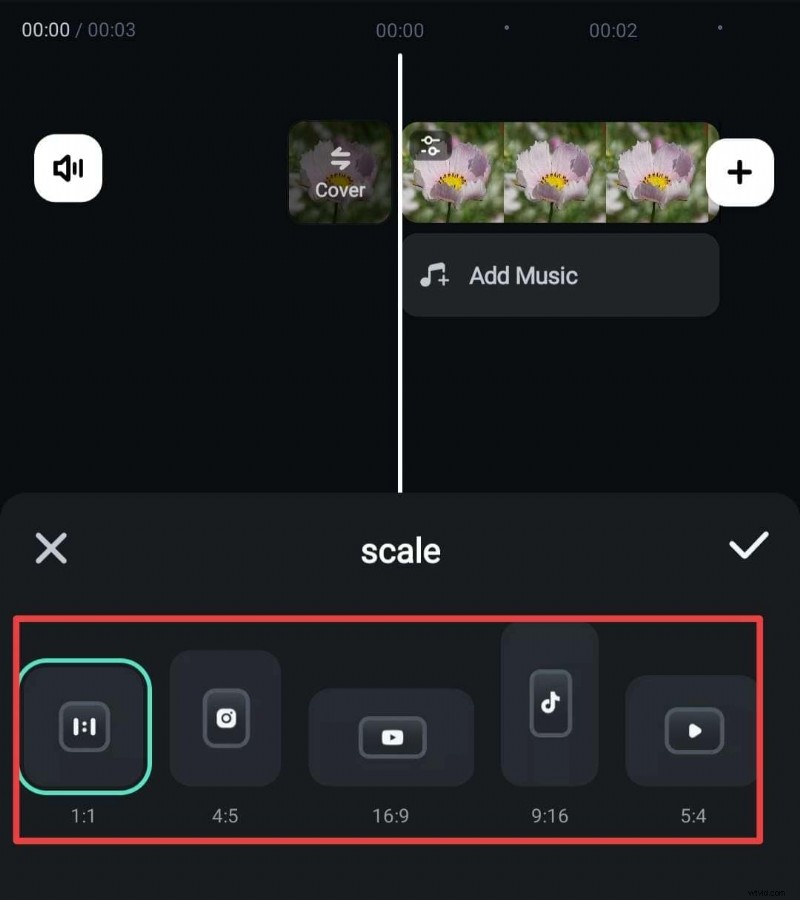
- Aspect Ratio Adjustment– Change video dimensions to fit different platforms.
- Transitions– Add smooth transitions between clips to enhance video flow.
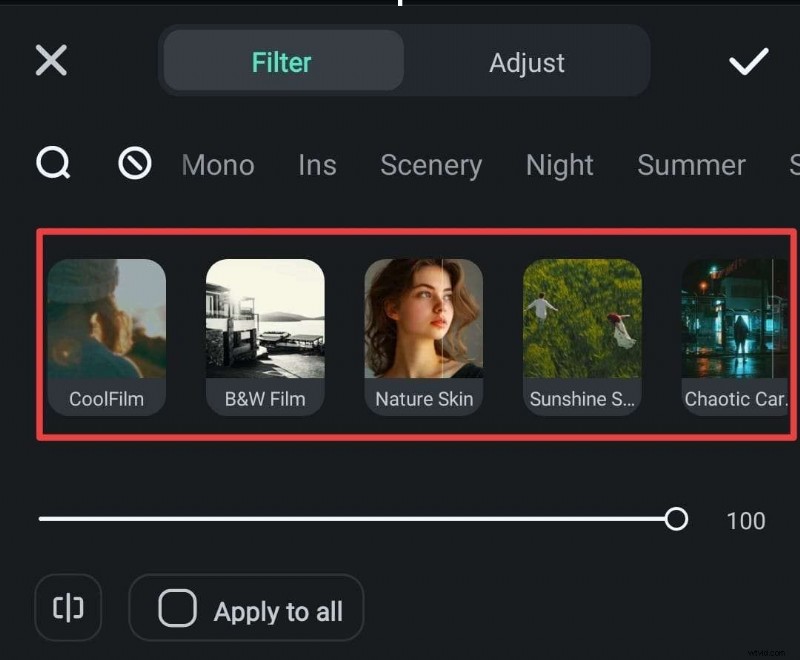
- Filters & Overlays– Add cinematic filters, light leaks, and more.
- Creative Assets – Use various pre-made templates, stickers, animations, and text styles to elevate your videos.
How to cut Snapchat videos with Filmora
01of 03Start a New Project and Import Your Video
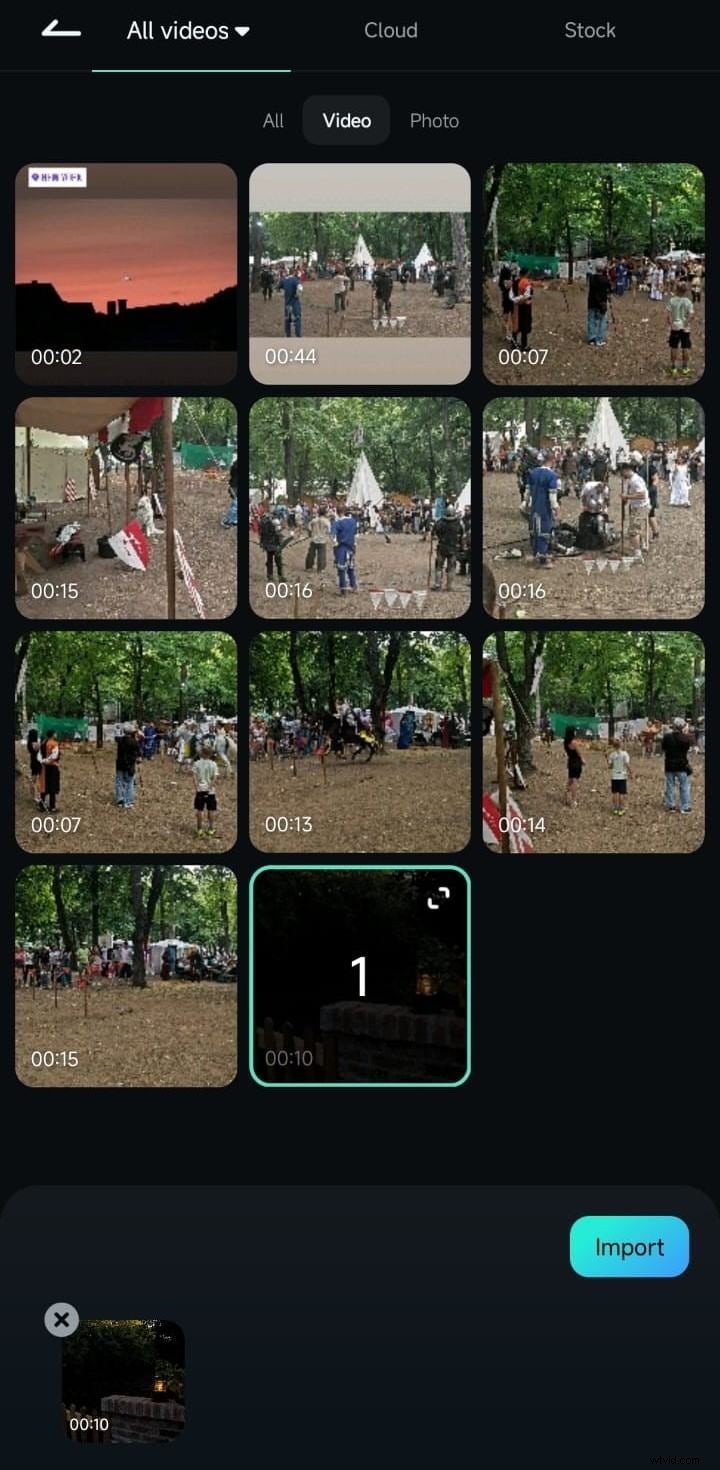
Open Filmora on your mobile (available on both iOS and Android). Then, create a new project or find the Trim option in the Quick Access menu. Select and import the video you want to edit.
02of 03Trim, Cut, or Split the Video
To trim the video, select "Trim" from the toolbar or tap on the video in the timeline and drag the left handle to trim the beginning of the video, and the right handle to trim the end.
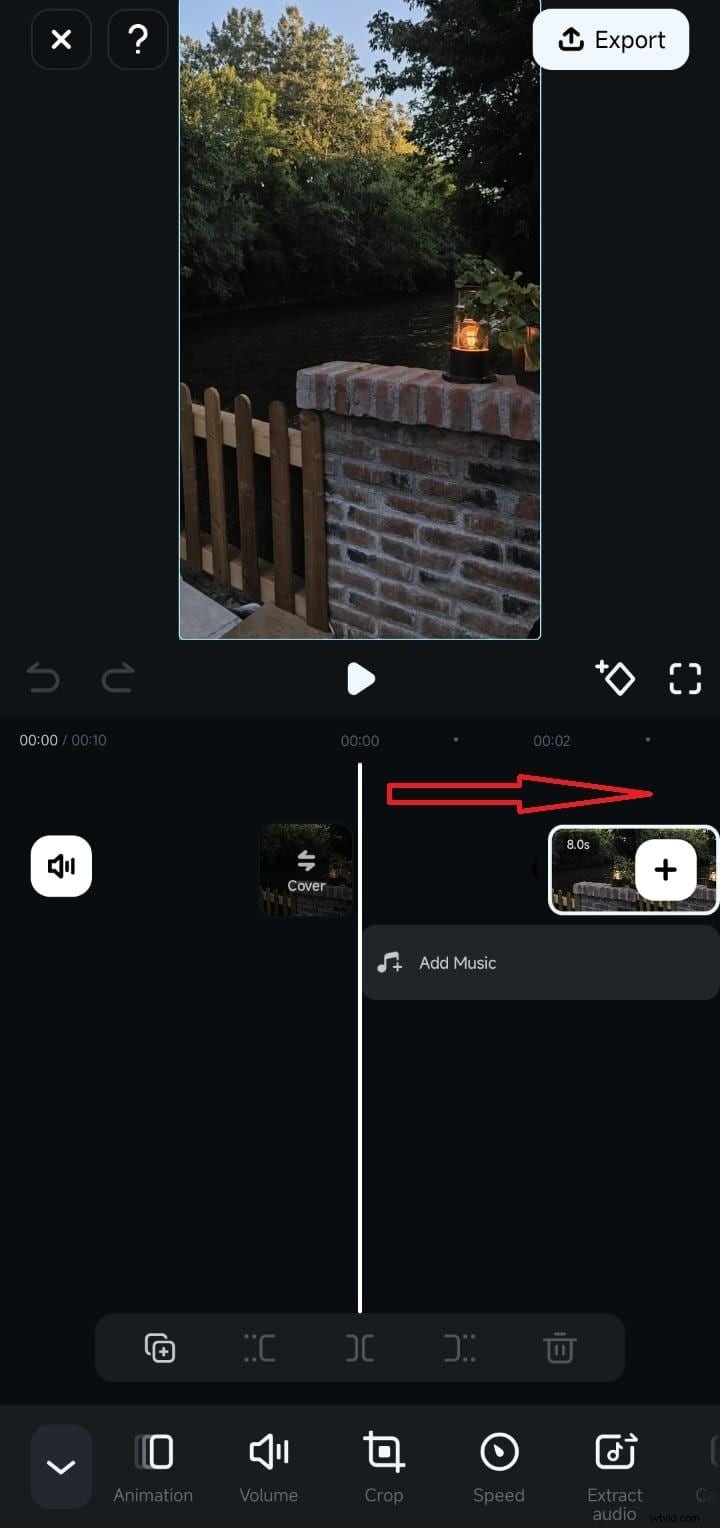
You can also position the handles at the specific points where you want to trim, and then tap the Trim tool to apply the changes.
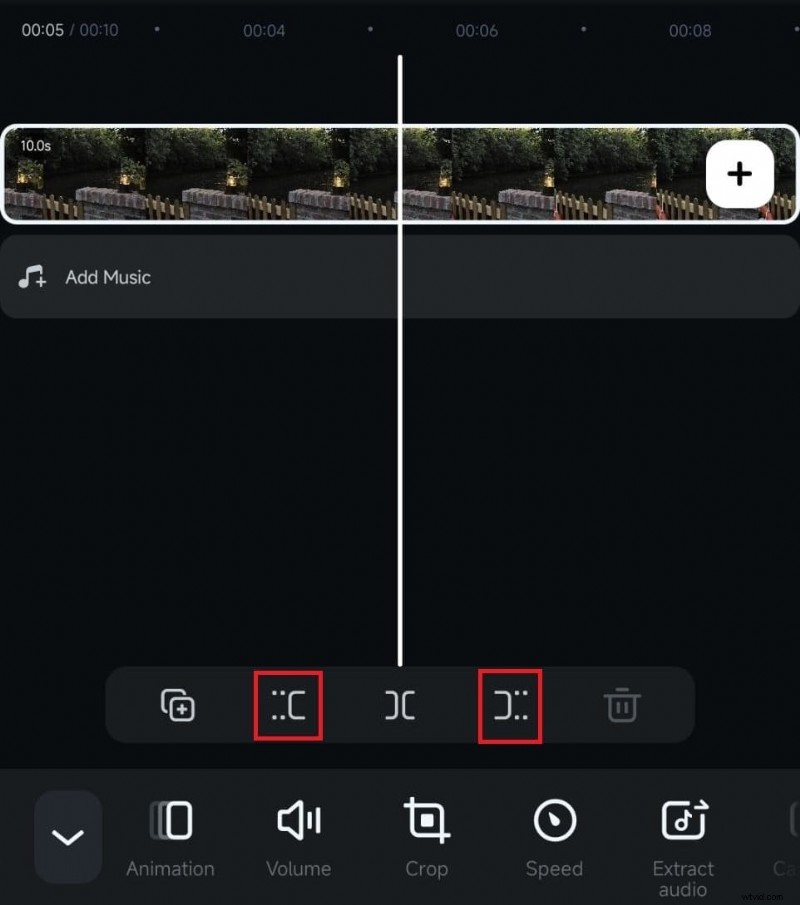
To cut or split the video, tap the video on the timeline and tap the Split button. It will divide your video into two parts at that point. You can repeat this process if you need to make more splits.
03of 03Export and Share
Play back the entire video to ensure it flows smoothly and everything looks good. Once you're happy with your edits, click Export.
Part 3. Pro Tips for Optimizing Snapchat Videos
After learning how to cut and trim Snapchat videos, there are more ways to ensure your videos look their best before sharing. While trimming is essential for removing unnecessary parts, you can take a few additional steps to optimize it.
Here are some tips to achieve that seamless, high-quality look for your Snapchat videos.
1. Adding Transitions
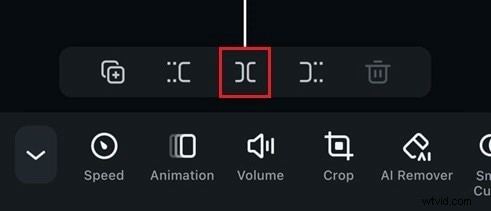
While Snapchat's built-in tool doesn't offer a transition feature, you can use Filmora to add smooth transitions between clips. To do this, tap the "/" button between the clips on the timeline and choose from various transition styles to enhance the video flow.

2. Track Switching
After cutting the videos for Snapchat, you may want to organize your Timeline precisely how you envisioned it. To help you with it, you can use Filmora Track Switching, which helps you edit projects with multiple tracks seamlessly.

3. Optimizing Video Quality for Snapchat
If you have a horizontal video that you want to upload to Snapchat, you can easily resize it using Filmora. After importing the video, tap the Scale or Format button and select 9:16 for a vertical aspect ratio. You can then adjust the video to fit the frame as needed.
4. Filters and Effects
Snapchat is known for its creative and playful filters, but you can also use Filmora's filters and effects to enhance your video before uploading. To apply video filters, select the Filter menu on the toolbar and choose the filter that matches your video mood or style. Don't forget to tap "Apply to All" to apply it to the entire video.
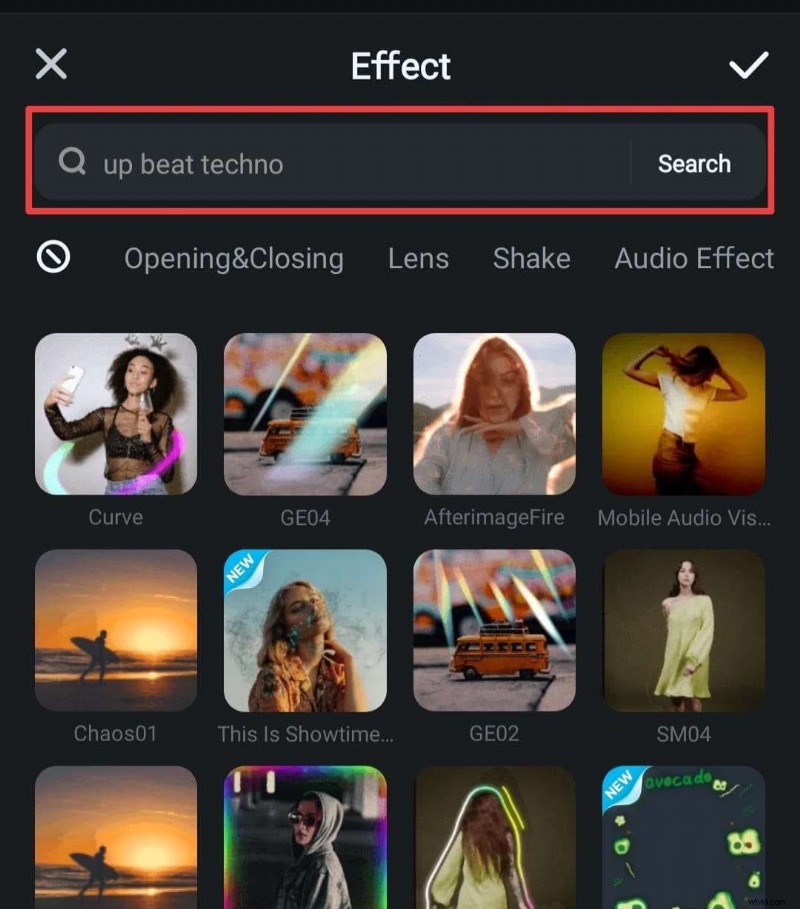
If you want to apply video effects, select Effects from the toolbar and choose the effect that best suits the vibe.
Conclusion
Keeping your videos short and sweet is vital on platforms like Snapchat, where quick and snappy content grabs the most attention. But after learning how to cut videos on Snapchat above, you don't have to worry about making engaging content on the platform from start to finish.
When Snapchat's built-in tool is limited, you can turn to a more advanced editing app like Filmora. With Filmora, you can cut, split, and trim videos for Snapchat. Then, you can also fine-tune the video further by adding transitions, applying filters, and adjusting the overall look and feel of your Snapchat video.