
Google Drive is a cloud storage service developed by Google. It allows you to store videos and synchronize videos across devices in order to save disk space. So how to upload a video to Google Drive? How to share it with your friends? Check out this post and find the answer.
Cloud storage services have become increasingly popular these days. More and more people choose to store their media files to Google Drive or other services. Google Drive supports storing the following files: images, videos, audio files, documents, fonts and many more. If you want to reduce video size before uploading it to Google Drive, here recommend MiniTool MovieMaker.
In this post, we will show you how to upload files to your Google Drive from different devices.
How to Upload a Video to Google Drive from Computer
Here’s how to upload a video to Google Drive from the computer.
Step 1. Launch Google Chrome and click the Google Apps icon in the upper right corner.
Step 2. Click on Drive to open the Google Drive app.
Step 3. Right-click on the blank space of this page, choose New folder and create a folder to save the video.
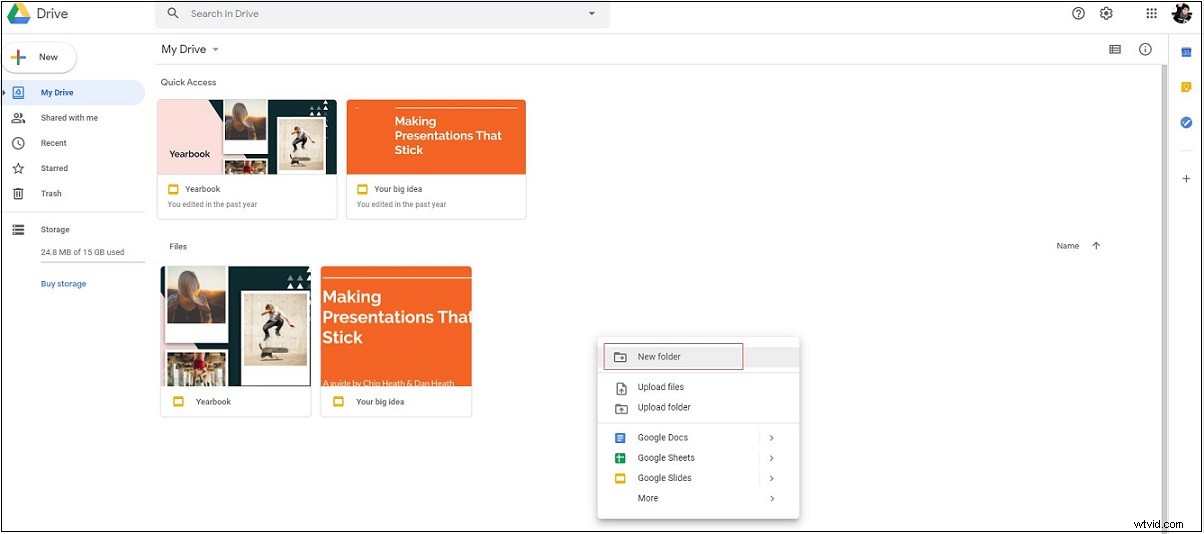
Step 4. Double-click on the newly created folder, and drag and drop the video file to a folder. Or tap on New and choose File upload to upload the video from your computer.
How to Upload a Video to Google Drive from Android
For Android users, this section tells you how to upload a video from your android device.
Step 1. Open the Google Drive app.
Step 2. Tap on the Files button in the bottom bar.
Step 3. Then select a folder that you want to save the video file.
Step 4. Go to Create New> Upload and upload the desired video.
How to Upload a Video to Google Drive from iOS
If you are using iPhone, follow the steps below to learn how to upload a video to Google Drive from iPhone.
Step 1. Go to Google Drive on your iPhone.
Step 2. Tap the + icon and choose the Upload option.
Step 3. Tap the video file you want to upload and click the UPLOAD button.
How to Share a Video on Google Drive
Sometimes, you may want to share a funny video with your friends. Let’s see how to share files on Google Drive.
Step 1. Open Google Drive and find the target video.
Step 2. Right-click on it and choose the Share option.
Step 3. In the pop-up window, enter your friends’ email addresses and copy the file link. Or select Anyone with the link in the Get Link tab and copy the file link.
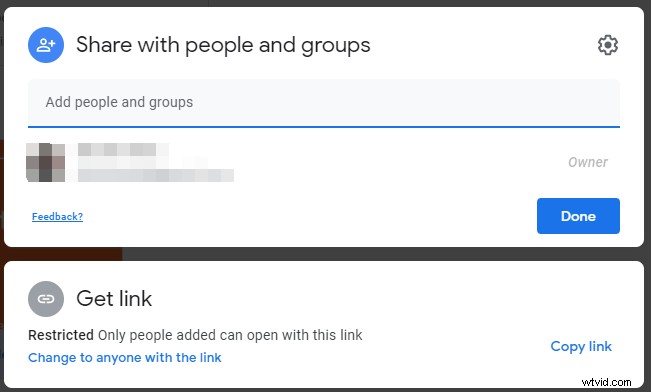
Step 4. Afterward, send the file link to your friends.
Bonus Tip: How to Make a Video Smaller before Uploading It
Google Drive only offers 15 GB of storage for free. If you want to upload all your video files, it’s not enough. In this case, you can reduce the video file size by changing its format. For example, AVI is usually larger than other video formats. To make an AVI video smaller, the best way is to convert AVI to MP4.
Here recommend MiniTool MovieMaker. With it, you can convert any popular video with zero quality loss.
Conclusion
Storing your video files to Google Drive not only saves your storage space but also prevents data loss. This post teaches you how to upload a video to Google Drive from computer, Android and iOS. Now, it’s your turn.