
iMovie often becomes the go-to video editing app for Apple users, as it comes pre-installed on their devices. Whether you're stitching together vacation footage, creating a short film, or making a professional-looking montage, iMovie merge clips functionality provides a simple and effective way to combine videos seamlessly.
In this article, we'll guide you using iMovie merge clips on iPhone and Mac. Additionally, we'll introduce an alternative solution for those seeking more advanced editing features that offer greater flexibility and creative control.

In this article
- How to Merge Clips in iMovie on iPhone
- How to Merge Clips in iMovie on Mac
- How to Merge Clips Using iMovie Alternative
Part 1. How to Merge Clips in iMovie on iPhone
Merging clips in iMovie on iPhone allows you to create smooth, continuous videos by combining multiple clips into a single sequence. Whether you're editing travel vlogs, social media content, or personal projects, iMovie provides a user-friendly interface with essential tools like transitions, trimming, and background music to enhance your video.
If you're wondering how to merge clips in iMovie, the process is simple and can be done in just a few taps. By following the right steps, you can effortlessly combine footage and create an enhanced final video.
How to merge clips in iMovie on iPhone
01of 08Open iMovie
Launch the iMovie app on your iPhone. If you don't have it installed, you can download it from the App Store.
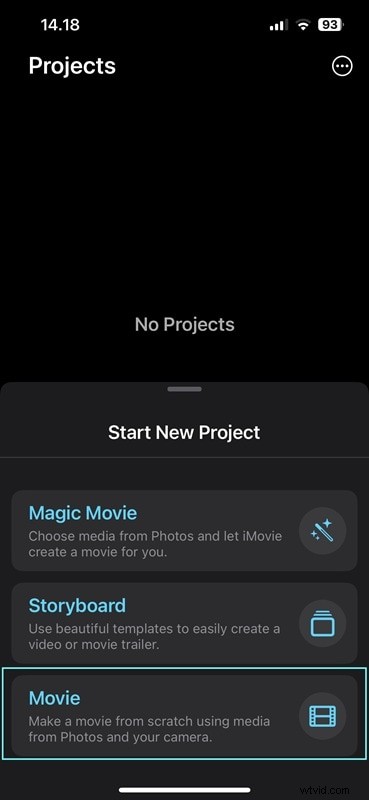
02of 08Create a New Project
Tap Create Project and select Movie from the options.
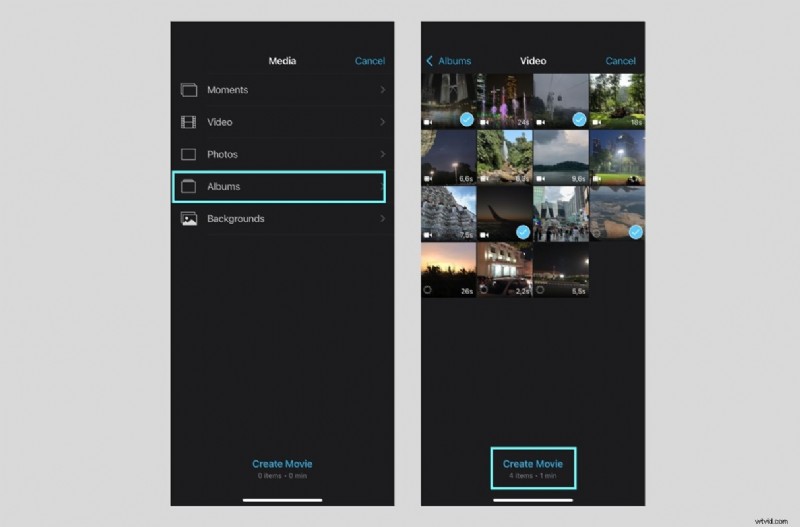
03of 08Import video clips
Tap Media, navigate to your video library, and select the clips you want to merge. Once selected, tap Create Movie to add them to the timeline.
04of 08Arrange the clips
Drag and drop the clips in the timeline to arrange them in your desired order.

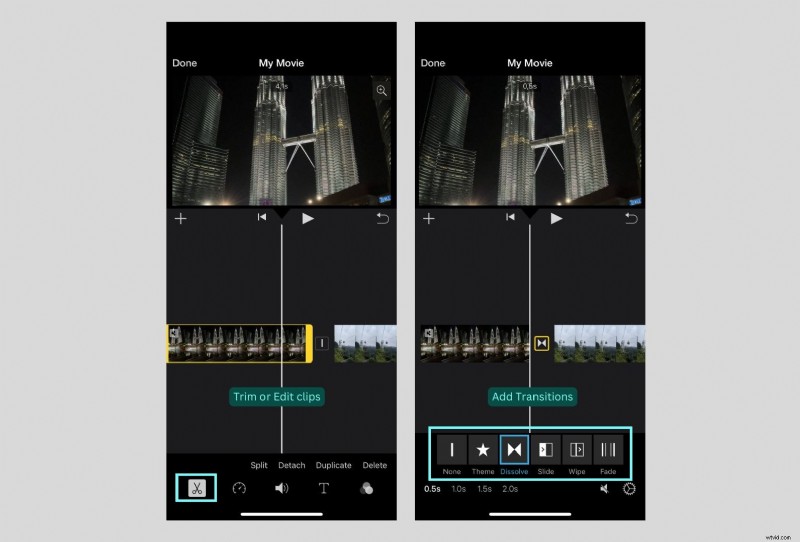
05of 08Trim or Edit clips
Tap on a clip to trim, split, or adjust its length using the editing tools.
06of 08Add Transitions
iMovie automatically adds transitions between clips. Tap on the transition icon between clips to change or remove it.
07of 08Preview your video
Tap the play button to preview your merged video and make any necessary adjustments.
08of 08Export the Merged Video
Tap Done in the top-left corner. Tap the share icon, then choose Save Video to export it to your Photos app.
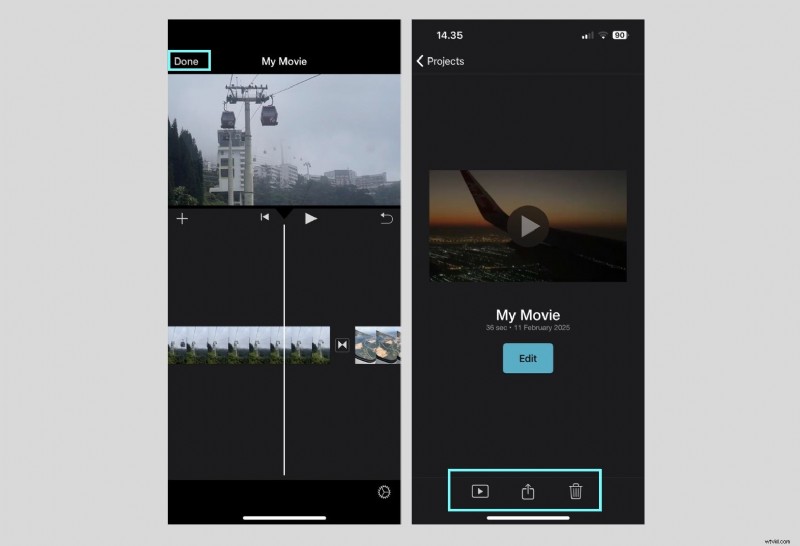
Your clips are now merged into a single video! This simple process makes iMovie a great tool for quick edits on the go. If you're looking for more advanced features, stay tuned for editing using iMovie on Mac and alternative editing solutions in the next section.
Part 2. How to Merge Clips in iMovie on Mac
While iMovie on Mac shares many similarities with the iPhone version, it offers a more advanced editing experience with a larger workspace, precise timeline control, and additional features like video overlays and advanced audio editing.
If you're looking for how to merge clips in iMovie on Mac, the process is slightly different but still easy to follow. With the larger screen and expanded tools, Mac users can fine-tune their edits with more precision.
How to merge clips in iMovie on Mac
- Step 1. Open iMovie on your Mac. You can download it from the Mac App Store if it's not installed.
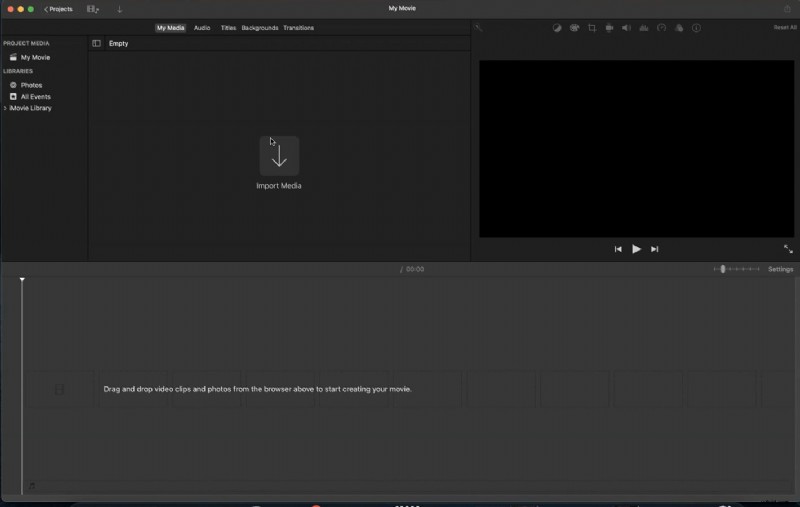
- Step 2. Click Import Media and select the clips you want to merge from your computer. Once imported, drag and drop them into the timeline.
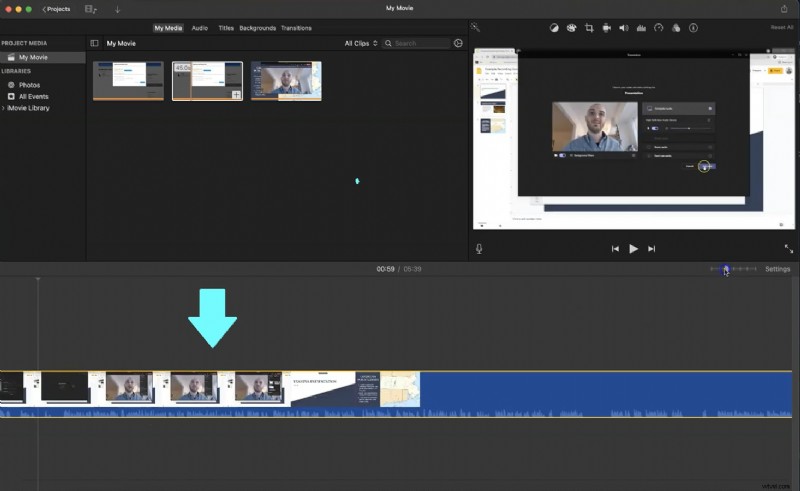
- Step 3. Drag the clips within the timeline to arrange them in your desired order.
- Step 4. Select a clip to trim, split, or modify its duration using the editing tools.
- Step 5. iMovie applies basic transitions automatically, but you can customize them by selecting the tansition between clips and choosing a different style.
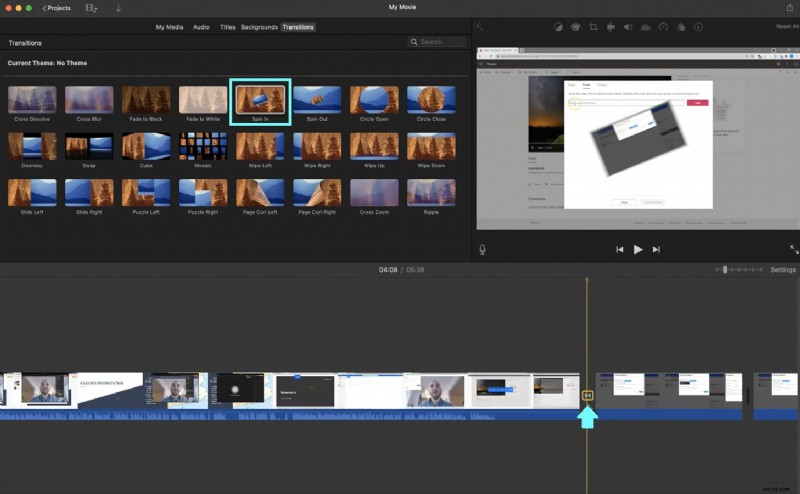
- Step 6. Press the play button to preview your merged clips and make any needed adjustments.
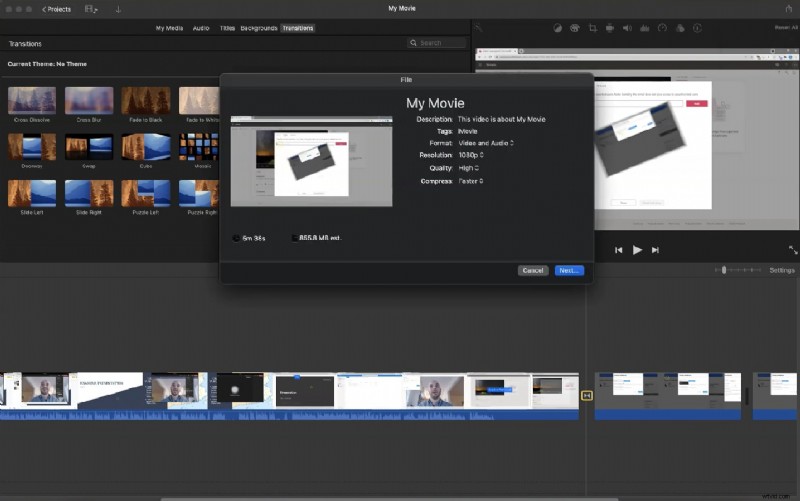
- Step 7. Go to File > Share > File, then pick your resolution and format. Click Next, name your file, choose a location, and click Save to export.
iMovie on Mac provides more flexibility than the iPhone version, allowing you a smoother editing experience with advanced controls. If you're looking for even more powerful editing features, we will further explore other solutions using iMovie alternatives in the next section.
Part 3. How to Merge Clips Using iMovie Alternative
iMovie is a convenient and intuitive video editing tool, yet some users may seek more advanced features, customization options, or flexibility that it doesn't offer. If you're looking for a video editor that allows for more creative control, better audio editing, and a wider range of effects, iMovie merge clips functionality may feel limited.
In this case, Wondershare Filmora is the perfect alternative. With a user-friendly interface and powerful editing tools, Filmora can handle everything from basic clip merging to professional-grade video production.
Why Filmora is a Better Alternative to iMovie
- Cross-Platform Compatibility: Unlike iMovie, which is only available on iOS and macOS, Filmora works on Windows, macOS, iOS, and Android, giving users more flexibility to edit on different devices.
- Advanced editing tools: Filmora includes powerful features such as multi-track editing, keyframing, speed ramping, motion tracking, and AI-powered tools, compared to iMovie's limited toolset.
- More Effects and Transitions: Filmora offers an extensive library of pre-made transitions, filters, overlays, and animated text effects, which makes it easier to create professional-looking videos without needing external plugins.
- Better audio editing: While iMovie has basic audio tools, Filmora provides audio ducking, noise reduction, equalizer adjustments, and AI-powered voice enhancements to allow you better control over sound quality.
- AI-Powered Features: Filmora includes AI-driven tools like AI Copywriting, AI Music, AI Image Generator, and AI Smart Cut, making video production faster and more efficient.
iMovie vs. Filmora Comparison
| iMovie | Filmora | |
| Platform | iOS, macOS | Windows, macOS, Android, iOS, iPad |
| Editing Tools | Basic editing tools | Advanced tools like multi-track, motion tracking, and speed ramping |
| Effects and Transitions | A limited selection of basic effects | Large library of customizable effects, transitions, and templates |
| Audio Editing | Basic audio tools | Advanced audio features, including noise reduction, audio ducking, and more |
| Export Options | Basic export options | Multiple export formats, including 4K, and direct export to platforms |
How to merge and edit clips using Filmora on iPhone
- Step 1. Launch the Filmora and tap New Project.
- Step 2: Select the video clips you want to merge. Then, tap Import to add them to the timeline. Arrange the clips in the timeline in your preferred order.
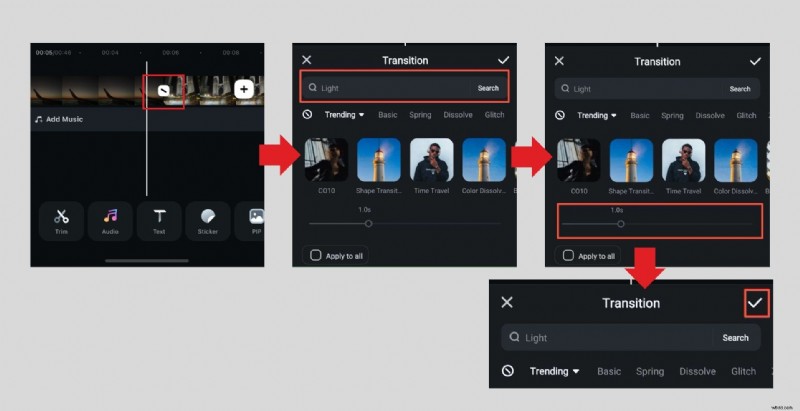
- Step 3. Tap the Transition button, browse through the available effects, and select a transition to apply between clips. Adjust the duration of the transition if needed.
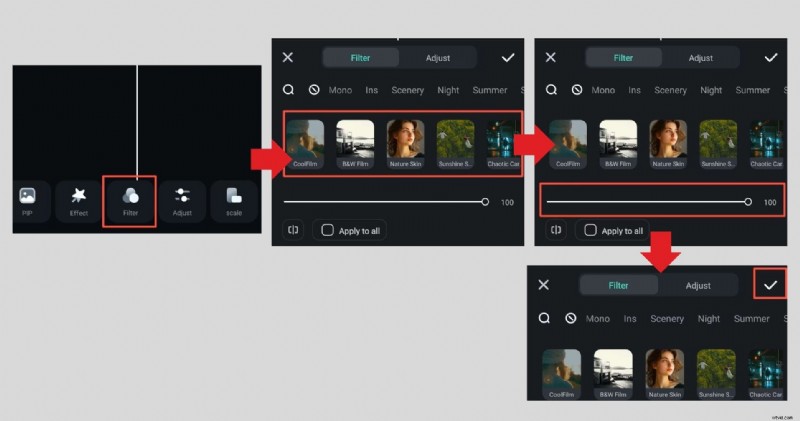
- Step 4. Tap Filter and choose from various effects to enhance the visual appeal of your video. Adjust the intensity of the filter if necessary.
- Step 5. Tap the Play button to preview your edited video and make any final adjustments.
- Step 6. Tap the Export button and choose the resolution and format for your video. Then, save it to your device or share it directly on social media platforms.
How to merge and edit clips using Filmora on Mac
- Step 1. Open Filmora on your Mac. Download it from the official Filmora website if you haven't installed it.
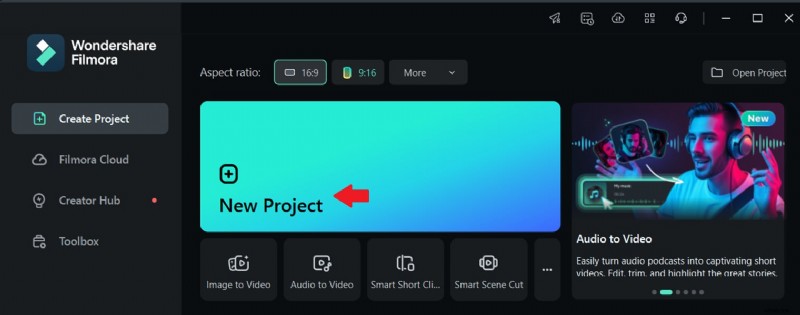
- Step 2. Click New Project to start a fresh video editing session.
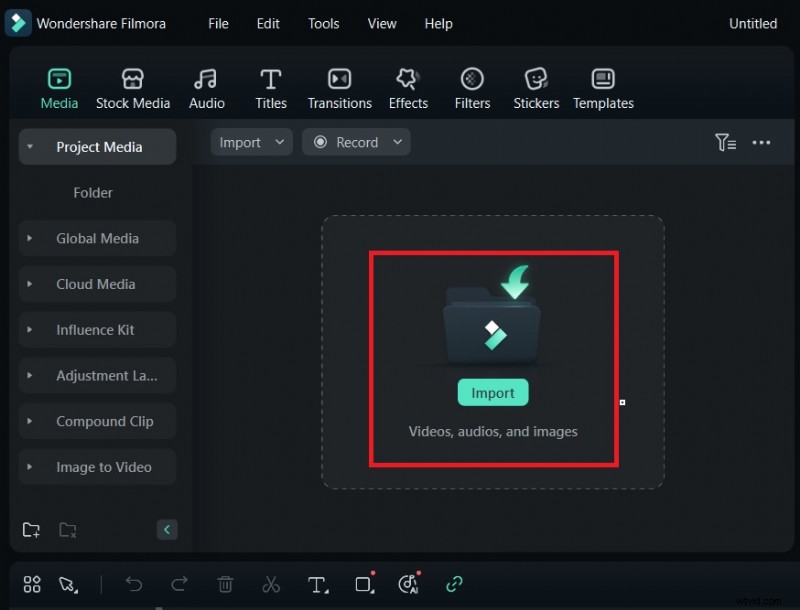
- Step 3. Click Import Media and select the video clips you want to merge. Then, drag them onto the timeline to begin editing.
- Step 4. Drag clips to rearrange them in the correct sequence. Use the Trim and Split tools to cut out unwanted sections.
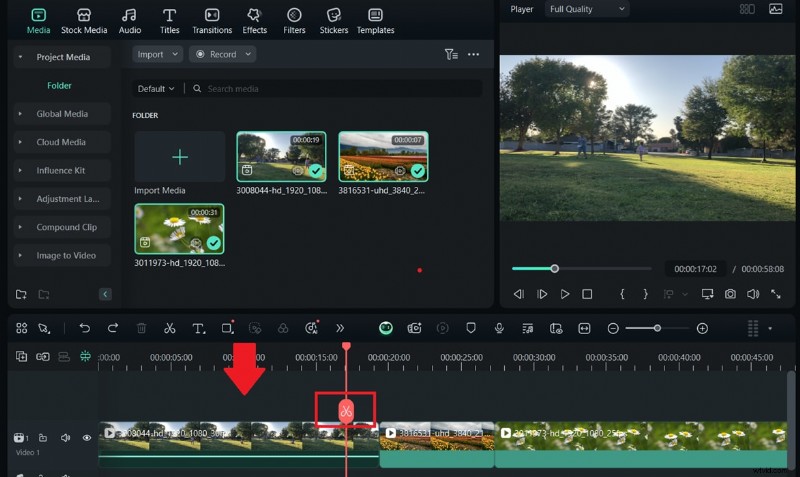
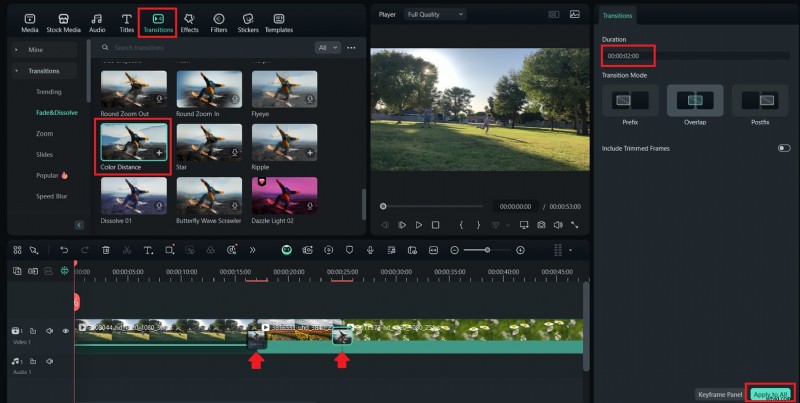
- Step 5. Click on the Transitions tab, browse the available effects, and drag a transition between two clips. Adjust the duration by double-clicking the transition.
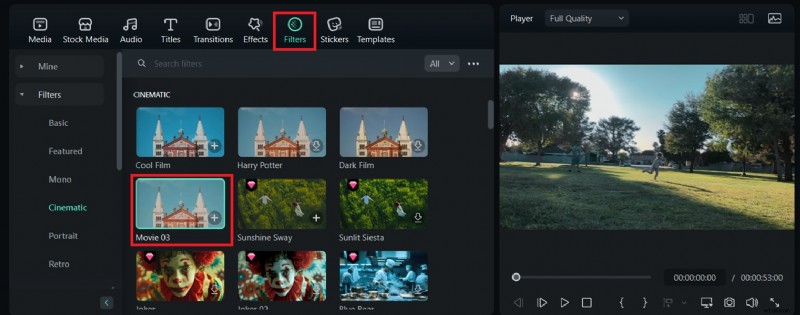
- Step 6. Navigate to the Filters tab and choose a filter to enhance the video's look. Then, drag and drop the filter onto the desired clips.
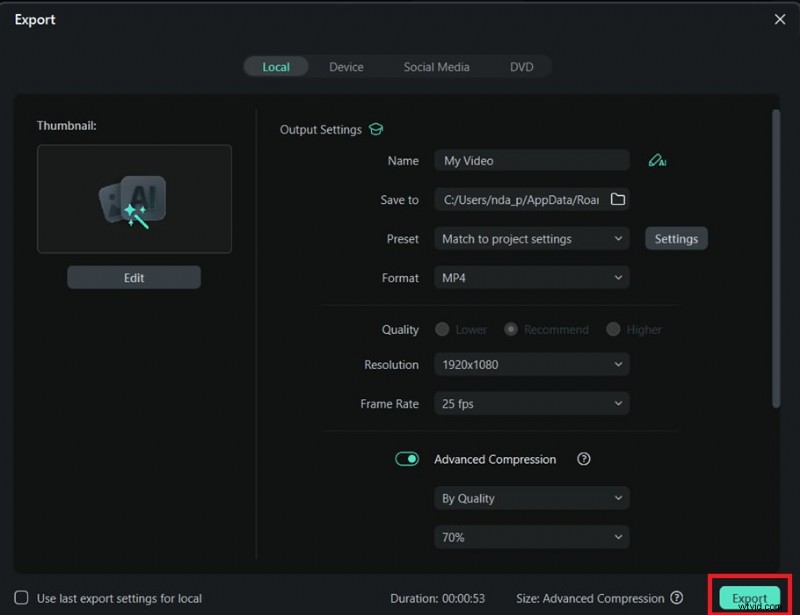
- Step 7. Click the Play button to preview your edits and adjust any elements as needed. Once satisfied, click Export. Choose the resolution, format, and destination for your video. Save it to your computer or upload it directly to platforms like YouTube and Vimeo.
Conclusion
Both iMovie and Filmora offer great solutions for merging and editing video clips. But, Filmora stands out as the better choice for users who want more flexibility, advanced editing tools, and a wider range of effects. While iMovie merge clips functionality is simple and effective, Filmora provides more customization options, including AI-powered tools, transitions, filters, and multi-platform support across Windows, Mac, iOS, and Android.
If you're looking for an easy yet powerful clip-merging and video editing solution, Filmora is the perfect alternative to iMovie. Whether you're merging clips for a social media post, a vlog, or a professional project, Filmora ensures your final video looks smooth and engaging. Check out Filmora and take your video editing to the next level!