
GIFs have emerged as a go‑to format for sharing bite‑size, engaging videos across social media and messaging platforms. While they allow you to capture moments, reactions, and emotions quickly, the quality can vary dramatically. Low‑frame‑rate GIFs often appear choppy and lack polish, diminishing the viewer’s experience.
To elevate your GIFs, converting MP4 footage to a higher frame rate—ideally 60 FPS—produces smoother, more fluid motion that feels professional and visually appealing. In this guide, we walk through the steps needed to transform your MP4 files into high‑quality 60‑FPS GIFs, ready for sharing.
In this article
- Why Convert MP4 to 60‑FPS GIF?
- Is There Any 60‑FPS GIF Maker?
- People Also Ask
Why Convert MP4 to 60‑FPS GIF?
GIFs are a convenient way to share short, eye‑catching clips, but the perceived quality hinges on frame rate. Low‑frame‑rate GIFs look jerky, while higher rates deliver smoother, more fluid motion, making the animation feel polished.
Converting your MP4 videos to GIFs offers several advantages:
- Smoother Motion: A higher frame rate yields fluid, lifelike movement.
- Increased Detail: Rapid scenes capture more nuance, enhancing clarity.
- Reduced Ghosting: More frames diminish the blur that plagues low‑FPS GIFs.
- Higher Quality: The resulting GIFs are sharper and better suited for online sharing.
- Greater Engagement: Smooth, detailed animations keep viewers hooked and more likely to interact.
By upgrading the frame rate, you transform ordinary clips into polished GIFs that resonate with your audience.
Can I Get a 60 FPS GIF?
Although many users seek 60‑FPS GIFs, the GIF format’s technical constraints mean a true 60‑FPS animation cannot be encoded. GIFs store frame delay in hundredths of a second, so the maximum representable rate is 100 FPS—though browsers typically cap playback at 10–20 FPS.
In practice, you’ll find frame rates of 10, 20, 25, 33.3, 50, and 100 FPS, but 100 FPS is rarely used due to compatibility issues. For the best balance between quality and accessibility, 50 FPS is a practical target.
Is There Any 60 FPS GIF Maker?
No dedicated 60‑FPS GIF maker exists, because the format cannot support that frame rate. However, several video‑to‑GIF converters let you set a higher frame rate, producing smoother results than standard GIFs.
How To Convert Video to GIF and Set Its FPS on Desktop
Converting videos to GIFs is straightforward with desktop tools like Wondershare Filmora, which offers a user‑friendly interface and precise control over frame rate.
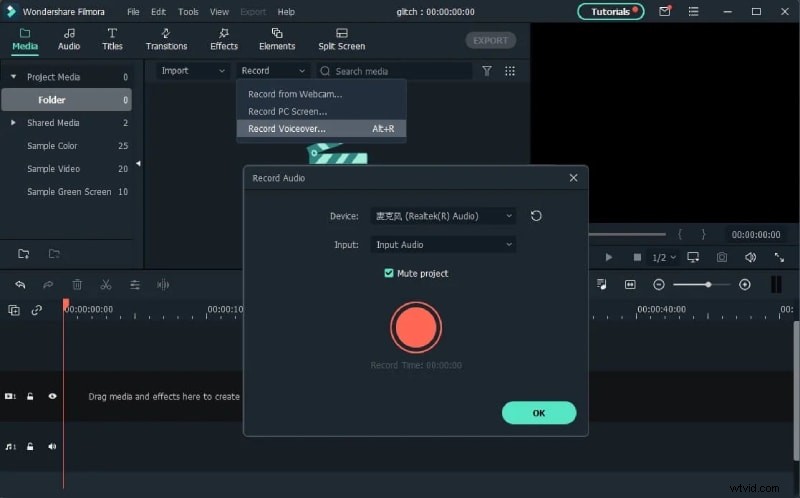
Follow these steps to convert an MP4 to a 60‑FPS GIF:
Step1 Open the Filmora software and create a new project.
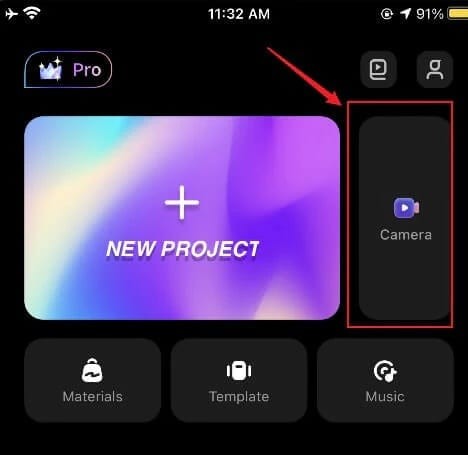
Step2 Import your video into the timeline.
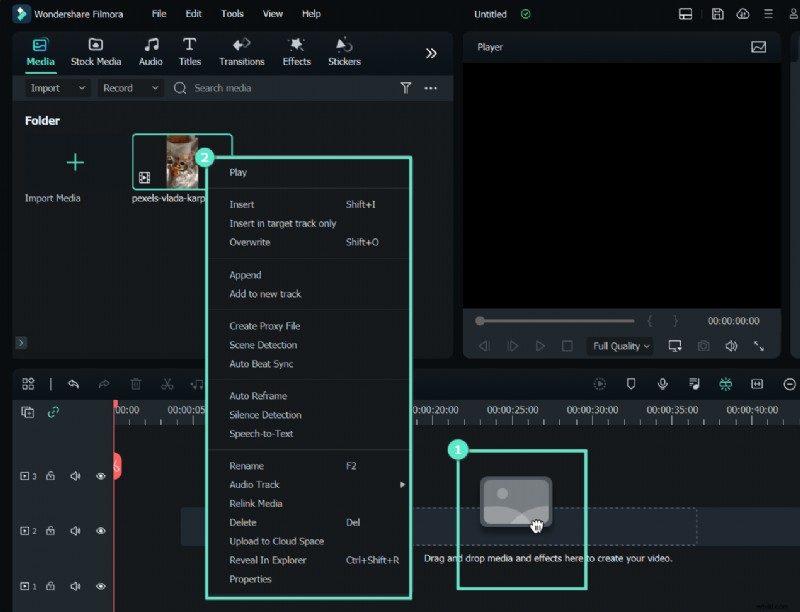
Step3 Export the video.
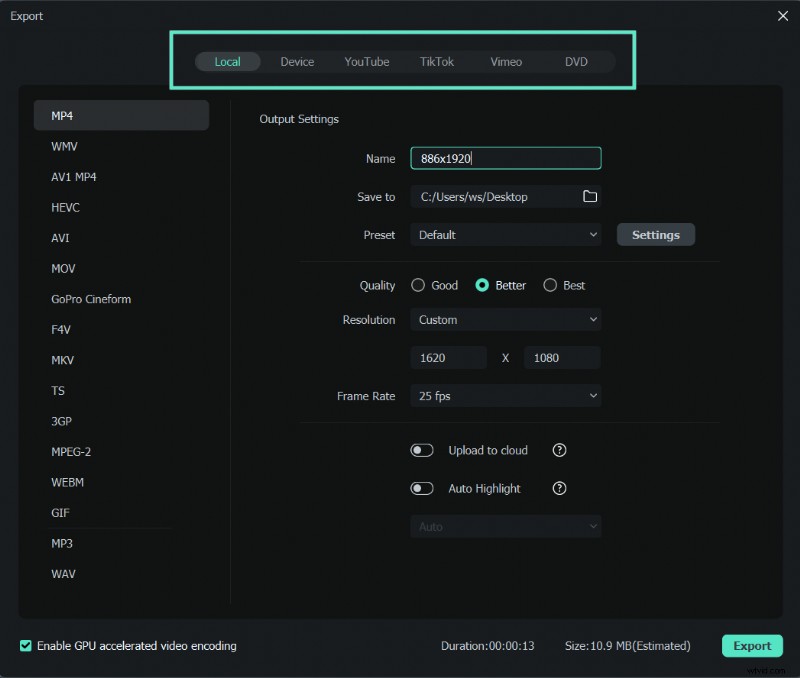
Step4 In the export window, select "GIF" and set the frame rate to 60 FPS.
People Also Ask
Here are some frequently asked questions about converting MP4 to GIF and related topics:
Q1. Can a GIF be 30 FPS?
Because GIF delay values are integers representing hundredths of a second, you can specify delays that correspond to 100, 50, 33.3, 25, 20, or 10 FPS, but not a precise 30 FPS.
Q2. How Do I Get the FPS of a GIF?
Use online tools that display the frame delay in milliseconds. Dividing 1000 ms by the delay gives you the effective FPS.
Q3. What FPS Should a GIF Be?
Common GIF frame rates fall between 10 and 50 FPS; the most frequent choices are 10, 12.5, 20, 25, and 50 FPS. The appropriate rate depends on the motion and desired playback speed.
Q4. What Is the Max FPS for a GIF?
Theoretical maximum is 100 FPS, but most browsers and display hardware limit GIF playback to 10–20 FPS for compatibility.
Conclusion
GIFs remain a popular choice for short animations, but understanding frame rate constraints is key to producing smooth, engaging content. By using the right tools and settings, you can convert MP4 footage into high‑quality GIFs that maintain fluid motion and captivate viewers.