
Update: we're phasing out Clipchamp Teams. The feature is no longer available for new Teams. Learn more.
You’ve heard it all before – teamwork makes the dream work, there’s no “I” in team – the list goes on. While we hate to sound like a broken record, but some sayings stick around because they really do ring true (and rhyming is fun).
Collaboration tools are on the up-and-up – on a daily basis, we use them to streamline our workflows and connect with our teams. From Slack to Google Docs, there are tools for every team project … well, almost. When it comes to video editing, we’ve noticed a gap, so our team has decided to fill it with our take – Clipchamp Teams.
Currently in BETA, Clipchamp Teams is a new functionality created to help you and your collaborators work on video projects together. Now, you can create a team, invite members and edit video projects in Clipchamp. This blog is here to show you how.
What does BETA mean exactly?

BETA is a word used in the technology industry to describe an almost complete prototype of a product. At Clipchamp, we like to start releasing new updates to our everyday editors asap. If we can’t wait until a project is 100% complete, we’ll release it in BETA. Excitingly, this means there’s more to come from Clipchamp Teams in the not-too-distant future.


 Explore teams for free
 Create a team, invite members and collaborate on video projects together.
Try for freeHow to use Clipchamp Teams BETA
Step 1. Log into Clipchamp or create an account
If you haven't already, sign up to Clipchamp for free, or log in.

Step 2. Explore a new menu
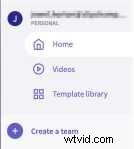
Now, when you log in to Clipchamp and arrive in Home, you’ll notice an updated menu.

Beneath your account name, you’ll see a PERSONAL tag (this ensures you won’t confuse your personal space with your team).
Under this, you’ll see options to open your Videos and the Template Library.
Most importantly, you’ll see the option to Create a team – click this to get started.
Step 3. Create a team
Once you’ve clicked Create a team, a screen will appear, prompting you to Give your team a name. Enter a team name, then click Create.

Step 4. Invite team members
Once your team has been created, you’ll arrive on the Team details page. This is where you can find all of your team’s members.
To Invite members, all you need to do is enter their email address, and click Invite. There is no limit on the number of members you can add to your team.

Your team member will receive an invitation via email.
They can join your team using their existing Clipchamp account, or they can set up a Clipchamp account.
After you’ve sent an invitation to your teammate, they’ll appear in the Members section on your Team details page.
Their status will say Invited. This status will disappear once they have accepted the invitation.
Step 5. Remove team members
If you ever want to remove a member of your team, just hover over the member's email on this page and select the Remove option.

Step 6. Create a team video
After you’ve finished inviting team members, click on the Team videos tab in the sidebar to start working on video projects.
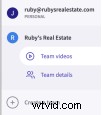
You’ll arrive on the Team Videos page. On this page there are two work areas:
All team videos: an area where you can view the videos created by all team members (including your own).
My team videos: an area where you can view just the videos you have created.

You’ll see a prompt to Create your first video. You can click on this to create the first video for your team.
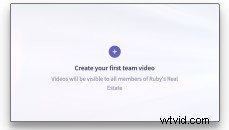
To create videos in the future, all you need to do is click the Create a video button in the top right corner of the page.

When you create a video, it will automatically be saved to your Team videos page.

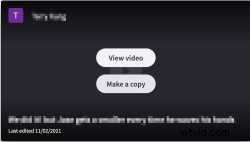
With any video you create, you have the option to Edit, Make a copy, or Delete.

Step 7. Collaborate on a video with your team
So, how can you collaborate on a video with your team? It’s simple.
When a team member accepts their invite and logs into Clipchamp, they can navigate to the Team videos page. Here, they’ll see videos created by team members in the All team videos area.
If a team member wants to work on a video that someone else has created, they’ll need to Make a copy.

Making a copy allows a team member to edit a video without losing the original. This way, changes can be suggested and compared before a decision is made.
Your team can continue to make copies of videos until you’ve agreed on a final version.

Tip: It’s helpful to title videos clearly. See in the above example, the video is named Property listing | Original and in the below example, the copy is named Property listing | Paige’s edit.
This makes a clear distinction between the two videos and clarifies who the copy belongs to.
Your team member can see every video in the All team videos area. They will only see the videos they have edited in the My team videos area.
Step 8. Cloud Sync files with your team
We’ve enabled automatic Cloud Syncing for all Teams videos. This means that no matter which team member is working on a video, they’ll have access to all of its media files, even if they aren’t saved on their device.
Cloud Sync is a feature that’s normally only available to users with a paid subscription. However, to improve your Clipchamp Teams experience, we’ve made it available to all users working in Clipchamp Teams.
Note: If you’re on a free Clipchamp plan, you’ll only be able to use Cloud Sync on Teams videos. Cloud Sync won’t work on videos created in your personal account.

We want your Cloud Syncing to be successful, so if you try to exit your video before it’s complete, you’ll receive a message asking you to finish syncing media before exiting.
Note: If you choose to exit your video before Cloud Syncing is complete, when a team member copies your video to make their edits, they may notice missing files. These files can be relinked if they have the files saved on their device.

Step 9. Share your video’s preview with your team
When you Export your finished Teams video, you’ll notice you have the option to enable sharing. Click the toggle, and you’ll be provided with a unique URL you can share with anyone you’d like to view your video. You’ll also be provided with links to embed your video in email or messages.

Note: Once you’ve enabled sharing, you’ll see that a new option – View video – is available for that video back on the Team Videos page. Your team members can click on this and they’ll be taken to the unique URL you created, where they can preview the video before making a copy.
Teamwork makes the dream work

Now that you’ve read the how-to, it’s time to get to work. Create a team, send out invites, and start working alongside your A-team to make great videos with Clipchamp.
Media Contact: Lana Sciasci - press@clipchamp.com