

REC

Recommended: Video Production, Editing & Gear Maintenance Guide

 WTVID >> WTVID >  >> video >> Video clip

Introducing Cloud Sync: Seamless Media Backup for Clipchamp Across Devices

Introducing Cloud Sync: Seamless Media Backup for Clipchamp Across Devices

Cloud storage has quickly become the new normal for in-browser applications, so we’ve decided to bring it to Clipchamp. Introducing Cloud Sync, a new way to backup your media so you can work on your Clipchamp video projects flexibly, across devices without worrying about relinking or losing files.

Cloud Sync is available to all Premium Clipchamp users.

How to use Cloud Sync in Clipchamp Create

1. Enable Cloud Sync

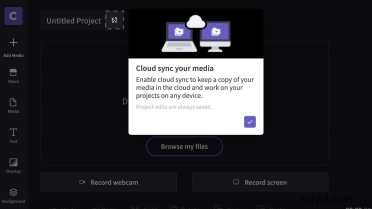
If you’ve been working on video projects in Clipchamp Create lately, you may have noticed a prompt to try out Cloud Sync. Go ahead and activate Cloud Sync if you see the below message. If you don’t see a prompt, simply click the Cloud Sync icon located next to your video project's title in the top left hand corner of the screen. 

Cloud Sync is enabled per project. This gives you the choice not to back up all project media and maintain privacy when working with sensitive material e.g. business data.
Introducing Cloud Sync: Seamless Media Backup for Clipchamp Across Devices

2. Backup your files in the Cloud  

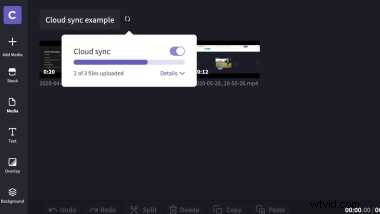
Go ahead and start creating. As you add media to your project, Cloud Sync will automatically backup your files in the cloud. Note: it’s important to keep your project open until your Cloud Sync is complete to avoid any disruptions.
Introducing Cloud Sync: Seamless Media Backup for Clipchamp Across Devices

3. Continue creating your video

Enjoy working across multiple devices knowing your files are stored safely.

Introducing Cloud Sync: Seamless Media Backup for Clipchamp Across Devices

4. Disabling Cloud Sync

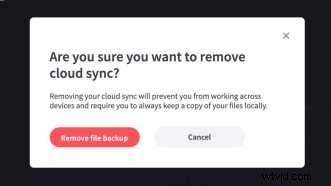
If you change your mind, you can easily disable Cloud Sync by clicking on the Cloud Sync icon and then the toggle that appears. You’ll have five days to re-enable and restore your Cloud-synced media before the files are removed from the Cloud.
Introducing Cloud Sync: Seamless Media Backup for Clipchamp Across Devices


  1. How to Easily Change Language Settings in All Adobe Creative Cloud Apps

  2. Photon: Revolutionary 3D Color Grading Tool Transforming Your Image Workflow

  3. Film Sound Editing Mastery: Sync Audio vs. Synchronous Sound | Premiere Pro Tutorial

  4. Clipchamp Teams BETA Update: Phasing Out – No Longer Available for New Teams

  5. Expert Guide: Sync Audio and Video Perfectly in Adobe Premiere Pro

Video clip
  1. 3 Proven Ways to Sync Audio to Video: Streamline Your Editing Workflow

  2. Riverside.fm iOS App Launched: Studio-Quality Podcast Recording from Your iPhone

  3. Introducing 2:3 Vertical Aspect Ratio: Perfect for Pinterest Videos

  4. Clipchamp Stock Images: Transform Photos into Stunning Videos Effortlessly

  5. Clipchamp Timeline 2.0: The Upgraded Video Editor You've Been Waiting For

  6. Adobe Integrates Frame.io for Free into Creative Cloud – Premiere Pro & After Effects

  7. Is Adobe Creative Cloud Becoming Bloatware? The Rising Cost of Frequent Updates

  8. Frame.io Revolutionizes Video Production with New Camera-to-Cloud Workflow