
This new 3D color grading tool is sure to change your workflow and give you new ways to think about coloring your images.
Color correction is an area where you find something that works for you—and you stick with it. Everyone I talk to about color has a few tools they’ve just always used. DaVinci Resolve is obviously one of the more common choices.
All the same, with as many people who swear by Resolve, there are plenty of people who just can’t get into the node-based workflow and opt for something a bit more straightforward, like Lumetri inside of Premiere Pro. I’ve always fallen somewhere right in the middle.
With color specifically, I always feel like whatever option gives you the fastest feedback and tactile experience is the one you’re going to have the best results with. Color is a feeling. It’s subjective. It’s an expression of your art just like anything else. I think that’s why it’s so different with everybody.
I’ve always waited for a tool that can blur the lines between a node-based workflow and a simpler “what you see is what you get” style workflow. Thus, a new player has entered the arena: Photon by color.io.
I was given a chance to try Photon by Jonathan Ochmann, one of the creators of the software. I knew Jonathan previously from an interview we did about his popular VisionColor LUTs, which are still widely used by many today (including myself).
This new venture is Jonathan’s latest entry into giving video/photo creators the tools they need to add aesthetically pleasing color to their images. This time, however, you’re the one making the decisions.
This new tool is actually mind-blowing. I’m a huge fan, and will absolutely be using it on many projects. Here are my thoughts.
See and Manipulate Your Color in Three Dimensions
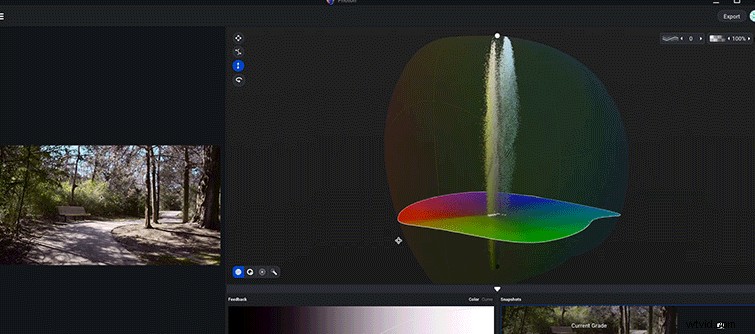
This tool represents the color in your scene as a 3D spindle. This spindle distributes a point cloud across a shape that gives you an instant visual representation of where colors and tonality are in the color space.
To make adjustments, you can just click on various parts of the image and make adjustments, while simultaneously watching what’s happening to your color moving and changing in the 3D representation.
This results in a tactile, almost feel-based, approach to coloring your images. At times, it almost feels like the Minority Report version of color-correction.
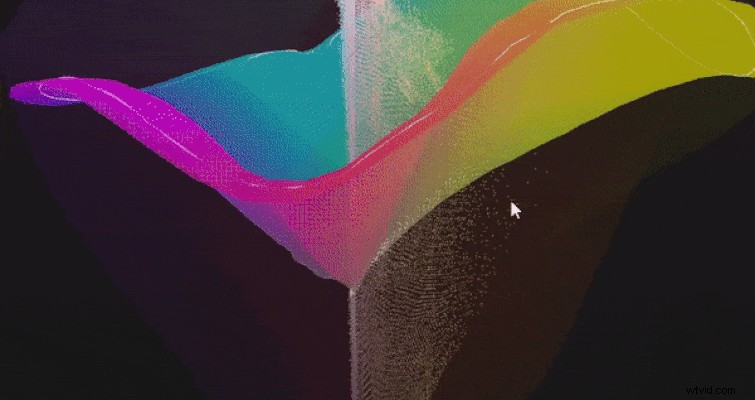
You find yourself quickly making choices: “Okay this is brighter. This is bluer. Ooh, how about more contrast for these colors. Now smooth it out. Okay done!” It feels like painting.
No laborious masking or fiddling with HSL sliders needed.
Excellent 3D Masks and Localized Adjustments
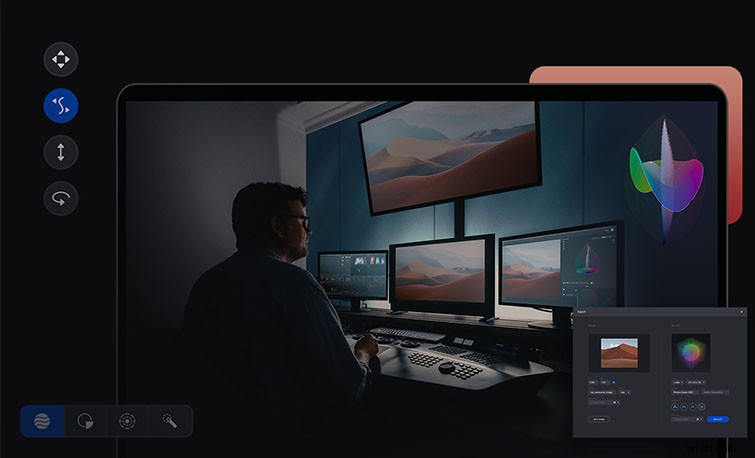
Photon’s interface has four different types of adjustments: Lightness/Saturation, Color Toning, Contrast, and Color Twist. Each does what it sounds like, with various mouse movements while clicking and dragging, having different effects with each adjustment type. As you click and drag, you’ll see what’s happening to the color, both in the reference image and the 3D spindle on the right.
As you get a feel for these adjustment types, you can easily switch between types of color ranges for different, more localized adjustments. You can choose from a global range that manipulates all colors on the spindle. The hue range will change colors of a particular hue value. And, the saturation range will manipulate colors with a similar saturation value.
All of these ranges can have their tolerances increased or decreased. This allows you to completely customize specific colors with more precision (in my opinion) than I’ve ever had with conventional HSL tools.
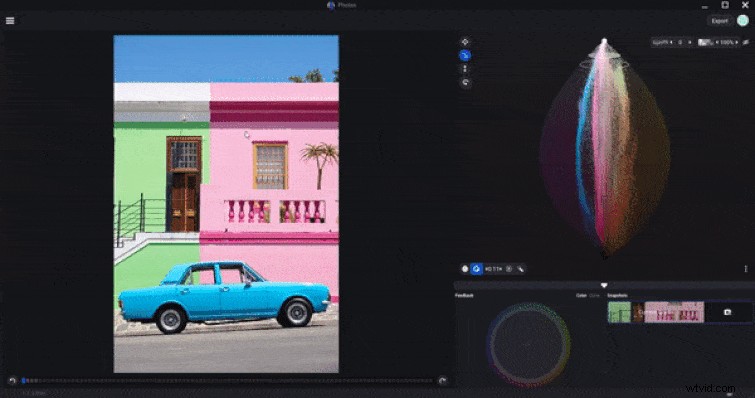
Once you’ve gotten the hang of the range tools, you can even create your own custom masks, using the color data however you like. Make your own custom masks using hue, lightness, and saturation.
Color Smoothing and Mixing Different LUTs
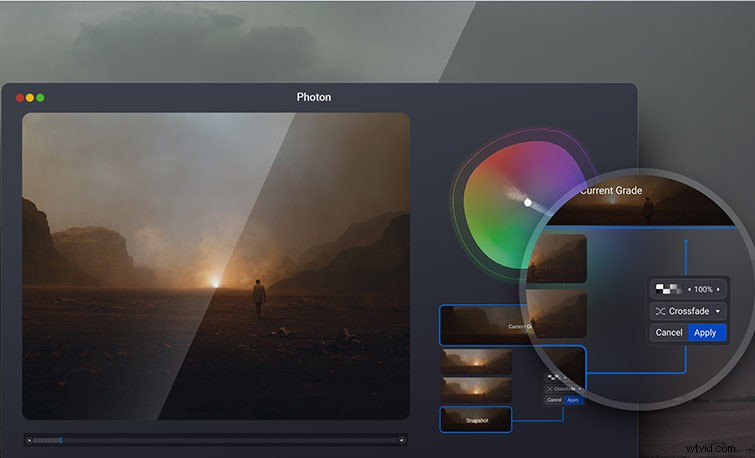
Have some LUTs you really like? Well, Photon allows you to use those LUTs in conjunction with whatever look you’re already building. You can bring existing LUTs into your current look, and even mix them together to whatever degree you wish.
Not to mention, as you make adjustments, there’s a history timeline that stores every single adjustment you’ve made. Then, if you liked the way something looked previously, you can mix that in your current look.
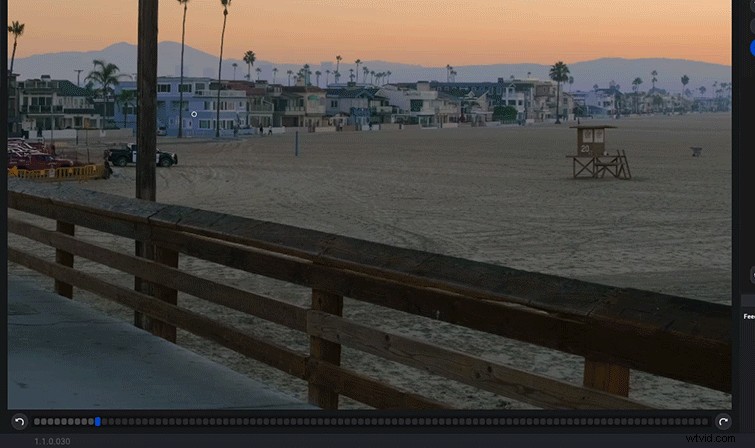
Another huge feature is the advanced, one-of-a-kind color smoothing.
If you’ve ever done extensive alterations using HSL adjustments, then you’ve probably pushed your grade to a point where you have extreme amounts of blocking in your image from compression artifacts and other issues.
Photon has a slider that just smooths all of your adjustments out, spreading the data across your image like butter. This allows you to purposefully make extreme grades on your image with the intention to smooth it out towards the end. It works nicely.
Paint Your Own 3D LUTs
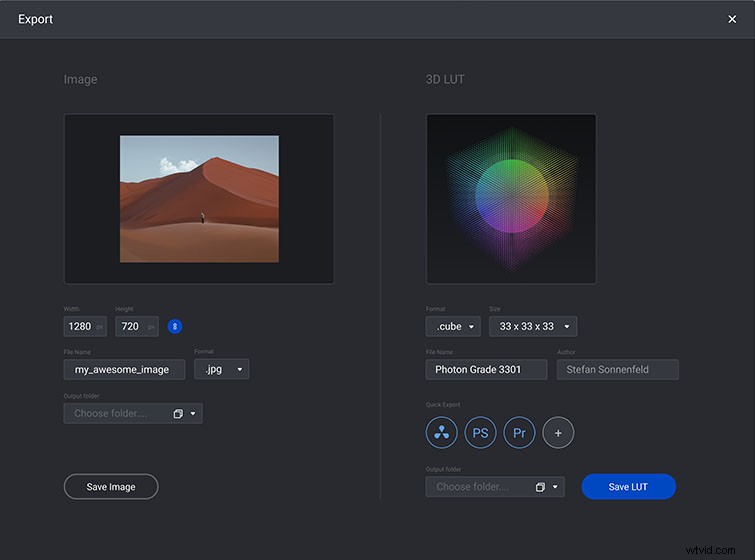
This tool kind of ticks all of the boxes for me. I’ve never really taken the time to do much of my own LUT creation. This is mostly because any time I have, I’ve found the colors to be too extreme, or I’ve just always found that it only works in a specific scenario. The tools inside Photon give me everything I need to make LUTs that I’d actually be proud to use.
With the smoothing, easily localized adjustments, and (most importantly) an extremely user-friendly and tactile interface, I really think I’m going to start making my own LUTs for every project. Even if most of the time I’m mixing other LUTs I already like into my new ones.
At a reasonable price (a refreshingly non-subscription, one time payment of $70, at the time of this writing), this software makes painting your color onto your images an incredibly Zen, creative process that I highly recommend.
For additional color correcting tips and advice, check out these articles:
- How to Alter the Color of Your Video Using Lumetri Curves
- Color Correct, Add Music, and Export Your Video in FCPX
- The Curves Tool: An Introduction to Color Correction Curves
- Production Tips: Working With a Color Checker on Your Next Shoot
- Video Tutorial: Navigate the Basics of the Color Wheels