 Posted by: Lyle Schrock 1 year ago
Android devices are renowned for their flexibility and extensive customization options, letting users tailor their phones to match personal style and workflow.
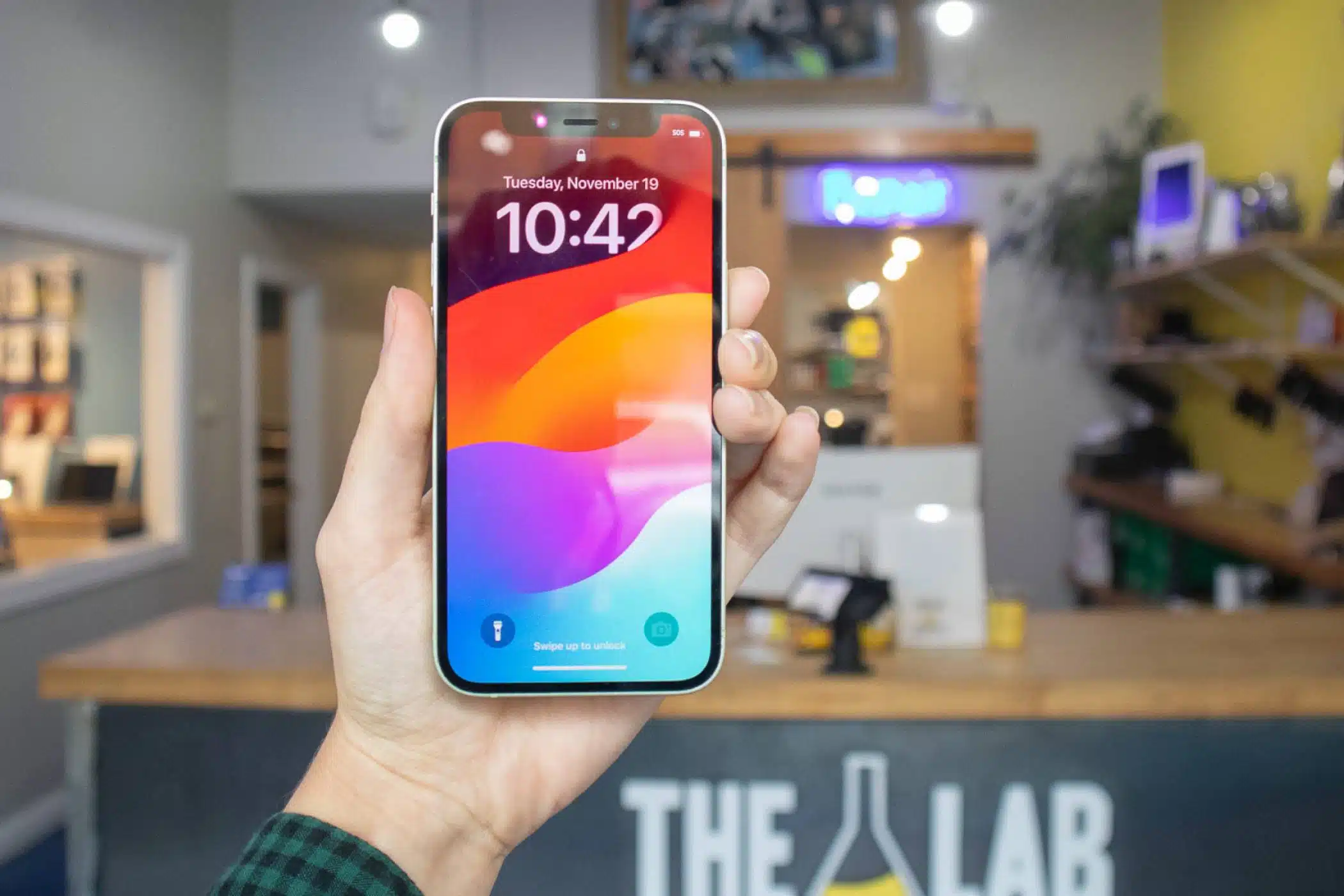
Whether you're boosting productivity, enhancing usability, or simply beautifying your device, there are endless customization avenues available.
1. Explore Home Screen Widgets
Widgets represent a core Android feature, granting quick access to vital information and functions directly from the home screen.
- Add Widgets: Long-press on an empty space on your home screen, select “Widgets,” and browse through the available options. You can add weather updates, calendars, and music players.
- Resize and Rearrange: After adding a widget, long-press it to resize or move it to fit your layout perfectly.
2. Choose a Custom Launcher
Though Android ships with a default launcher, selecting a custom launcher can significantly transform your device’s appearance and usability.
- Download Launchers: Visit the Google Play Store to find popular launchers like Nova Launcher, Microsoft Launcher, or Action Launcher. Each offers unique features like customizable app grids, gestures, and more.
- Set Your Default Launcher: After installing, go to your device settings and select your new launcher as the default.
3. Change Your Icons
Refresh your app icons to align with your personal aesthetic.
- Icon Packs: Download icon packs from the Play Store that fit your style. Many launchers support these packs, allowing you to change multiple icons at once.
- Manual Changes: Long-press the app icon, select “Edit,” and then choose a new icon from the installed packs or your gallery.
4. Customize Your Notification Shade
Tailor your notification shade to be both functional and visually appealing.
- Quick Settings: Swipe down from the top of your screen to access the notification shade. Tap the pencil icon to edit the quick settings tiles, adding or removing options like Wi‑Fi, Bluetooth, and Do Not Disturb.
- Notification Styles: Go to your settings, then Notifications, and customize how notifications appear on your lock screen or when the phone is in use.
5. Use Themes and Dark Mode
A unified theme elevates your device’s appearance and can extend battery life.
- System Themes: Navigate to your settings, then Display, and choose between light and dark themes. Dark mode can save battery on OLED screens and is easier on the eyes at night.
- Third‑Party Themes: Explore apps like Substratum or Samsung’s Theme Store (if you have a Samsung Android device) for extensive theme options that completely change your device’s appearance.
6. Personalize Your Keyboard
Your keyboard shapes daily communication; customize it to fit your style.
- Keyboard Apps: Download alternatives like Gboard or SwiftKey, which offer customization options such as themes, size adjustments, and even GIF support.
- Custom Shortcuts: Create keyboard shortcuts for frequently used phrases to save time while texting.
7. Set Up Gesture Controls
Gesture controls streamline navigation, making your phone quicker and more intuitive.
- Built‑In Gestures: Check your device settings under Gestures to see what options are available, like swiping to take screenshots or double‑tapping to wake the screen.
- Custom Gestures: Some launchers and apps allow you to set custom gestures for specific actions, enhancing accessibility and convenience.
8. Organize Your Apps
An organized app drawer and home screen boost workflow efficiency.
- Folders: Group similar apps into folders by dragging one app over another. This keeps your home screen organized and reduces clutter.
- App Drawer Management: Use the app drawer to your advantage. Many launchers allow you to customize the layout, sorting options, and even hide apps you rarely use.
Customizing your Android phone enhances its usability and personal connection; these tips empower you to create a device that reflects your preferences and functions flawlessly.
The Lab Is Here To Help
For additional guidance and personalized support, visit The Lab—our experts are ready to help you maximize your Android experience.
Schedule a repair appointment online using the button below, or stop in and see us at our storefront in downtown Warsaw during our regular business hours.
Our Hours
Monday: 10am – 5pm
Tuesday: 10am – 5pm
Wednesday: 12pm – 7pm
Thursday: 10am – 5pm
Friday: 10am – 7pm
Saturday: 10am-2pm
Sunday: Closed

Previous 6 Causes Of Data Loss And How To Prevent Them
Next Exciting New Changes to Better Serve Our Customers