

Do you want to look a bit better while video calling your friends, colleagues, and family with Zoom? You’re certainly not alone. If you use Zoom for online meetings, you can take advantage of its “Touch Up My Appearance” feature for this purpose, which works as a visual filter that basically digitally airbrushes your appearance a bit to spruce it up. This feature is available for Zoom on iPhone, iPad, Windows PC, and Mac.
Not only does Zoom allow you to host and join meetings with up to 100 participants for free, but it also gives you the option to improve your visual appearance in real-time. Consider this feature a bit like an Instagram filter or Snapchat filter, but for video calls. If you’re normally camera-shy, or perhaps you’re a bit tired, or maybe you’re not quite fully awake, you can use Zoom’s “Touch Up My Appearance” for that extra confidence during video calls.
Interested in taking advantage of this nifty feature? Well, it’s your lucky day because, as we’ll cover how you can spruce up your appearance on Zoom with the Touch Up My Appearance feature.
How to Look Better on Zoom with Touch Up My Appearance
For this procedure, we’ll be focusing on the Zoom app that’s available for both iPhone and iPad first, and further below you can find instructions for Windows and Mac. Make sure you’ve downloaded the latest version of Zoom from the App Store and simply follow the steps below.
- Open “Zoom” on your iPhone or iPad.

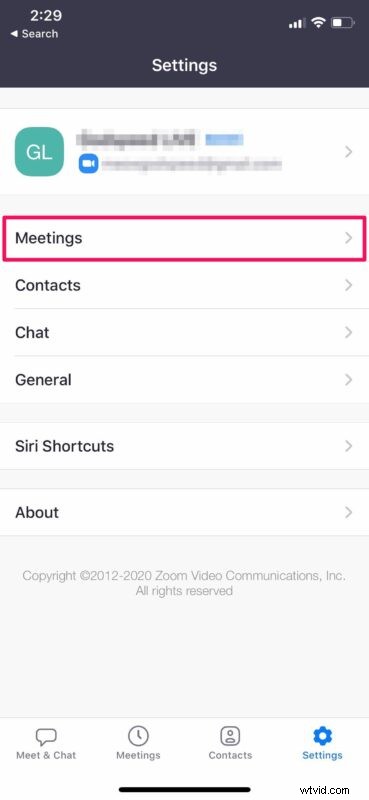
- Head over to the “Settings” section within the app and tap on “Meetings”.
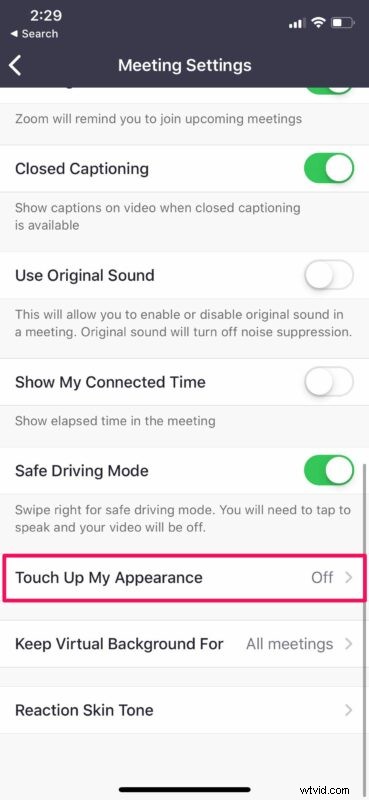
- Here, scroll all the way to the bottom and tap on “Touch Up My Appearance”.
- Now, use the toggle to turn this feature on. You’ll be able to preview the retouched video in real-time right here.

That’s all there is to it. Now you know the key to looking better during Zoom meetings from your iPhone and iPad.
What does “Touch Up My Appearance” in Zoom do?
According to Zoom, this feature retouches the camera feed with a soft focus, essentially smoothing out the skin tone on your face for a more polished looking appearance. This minimizes the appearance of minor imperfections such as wrinkles, dark spots, pimples, and so on.
Below, you can see a video that demonstrates the Touch Up My Appearance feature being used in the Zoom app:
How to Use Zoom “Touch Up My Appearance” on Mac & Windows
Do you use Zoom on your computer instead of a smartphone? In that case, you’ll be pleased to know that “Touch Up My Appearance” can also be accessed on Zoom’s desktop client that’s available for both Mac and Windows PCs too:
- From the Zoom app on Mac or Windows, open the Zoom Settings
- Go to Video Settings, then select “Touch up my appearance” and enable it
The feature works the same on Zoom for Mac, Windows, iPhone, iPad, and Android, softening the appearance with a digital filter.
We hope you were able to boost your confidence during Zoom video calls by perhaps making yourself look slightly better. Is this something you’ll be using during Zoom calls on a regular basis? Do share your thoughts in the comments section down below.