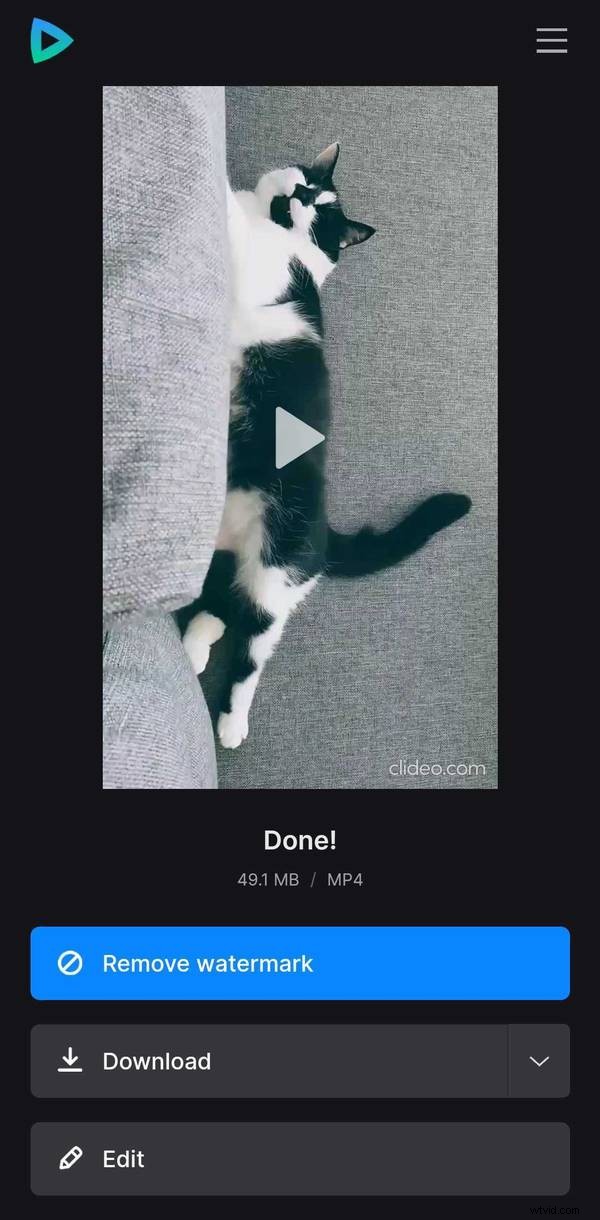
How to rotate your phone video sideways
Even if your recording looks fine while being played on your phone, it doesn’t mean that the situation will not change when you upload it to social media or view in some other player. Some sites do not support recording metadata, and a clip may appear to have a portrait orientation instead of a landscape one, or vice versa.
Luckily, there is a fast and easy way to fix it! Just use Clideo service, and enjoy your rotated video in no time.
All Clideo tools work online, i.e., you don’t have to download and install any additional software. On the other hand, make sure your Internet connection is stable enough, as file processing may take some time.
You may edit files up to 500 MB for free, but we’ll place a tiny watermark on the ready clip as a humble tribute to our service. If you want to get rid of it, update your account toClideo Pro.
Read on and get to know how to rotate a video that is sideways.
Upload an initial file
Open Clideo’s Video Rotator in your favorite browser and import an iPhone video turned sideways either from your device or cloud storage account.
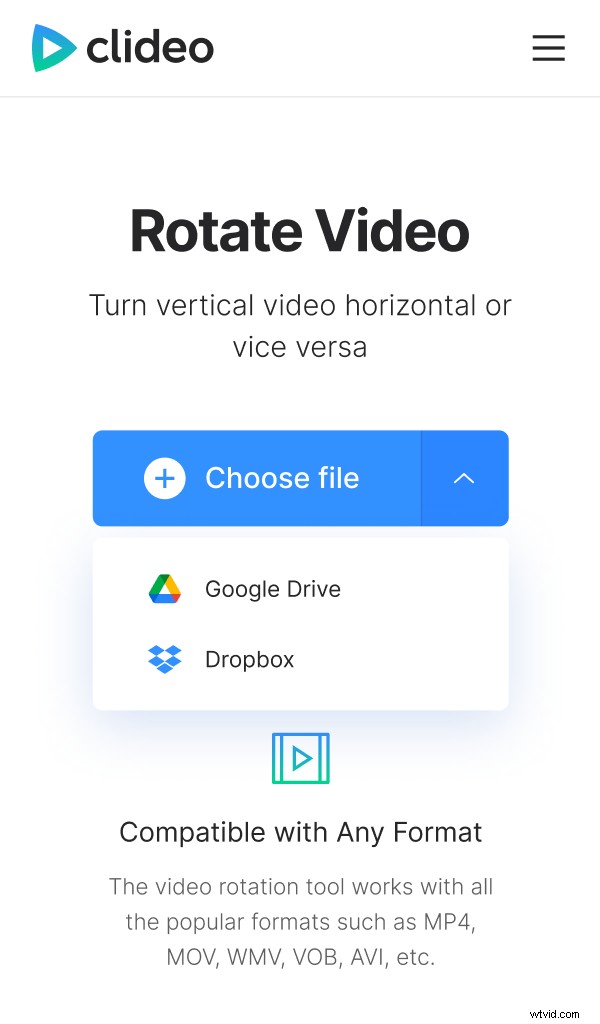
To do so, either hit the "Choose file" button or call the drop-down menu on its right.
Rotate the video
Once the video is uploaded you will see its preview. Change the video’s orientation by clicking on the corresponding arrows under the preview.
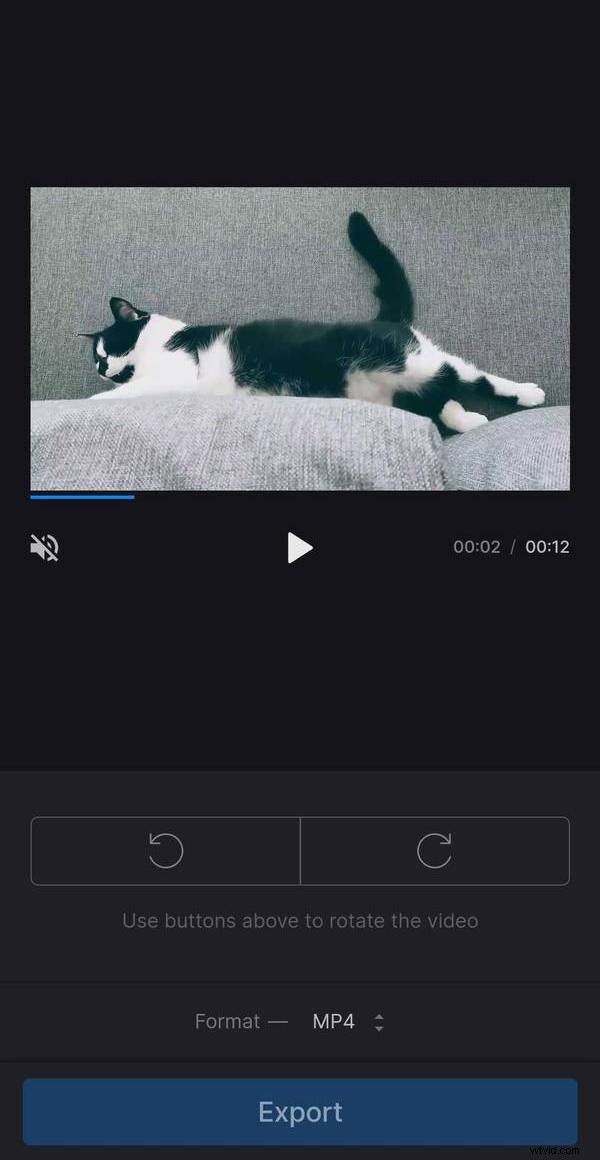
Make sure you like what you see or rotate it again and again.
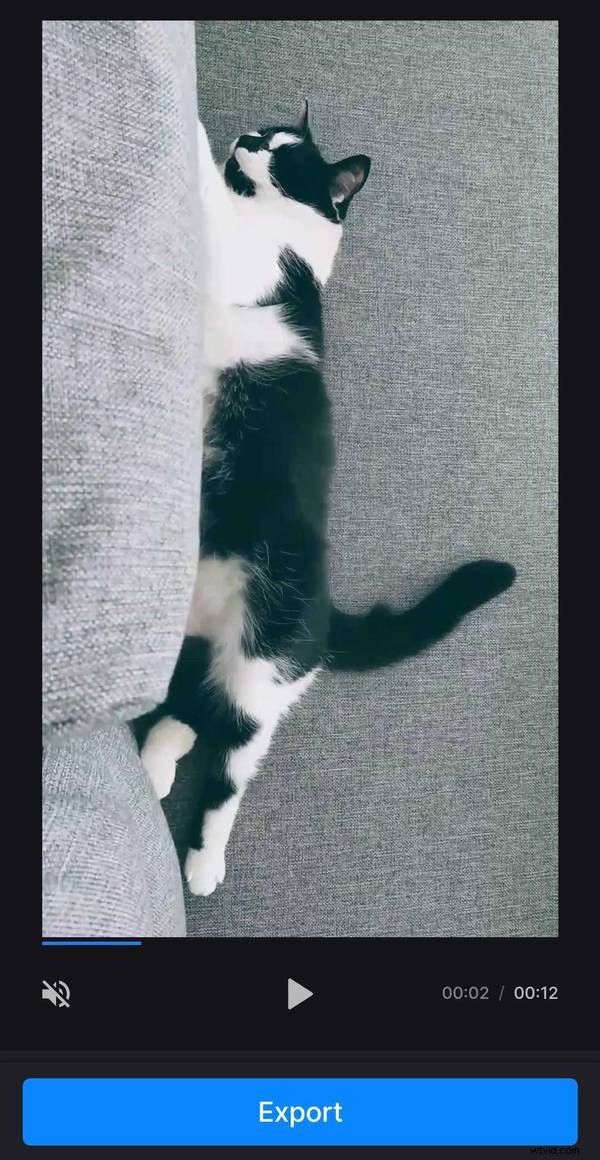
If your recording suddenly looks already rotated, but the "Export" button is inactive, the problem is in metadata again. Don’t worry and perform the steps from this short workaround manual.
As soon as you set the needed orientation, scroll down and choose the output format at the bottom. If you want to post your project online, stick to MP4 and MOV, as these formats are compatible with most platforms.
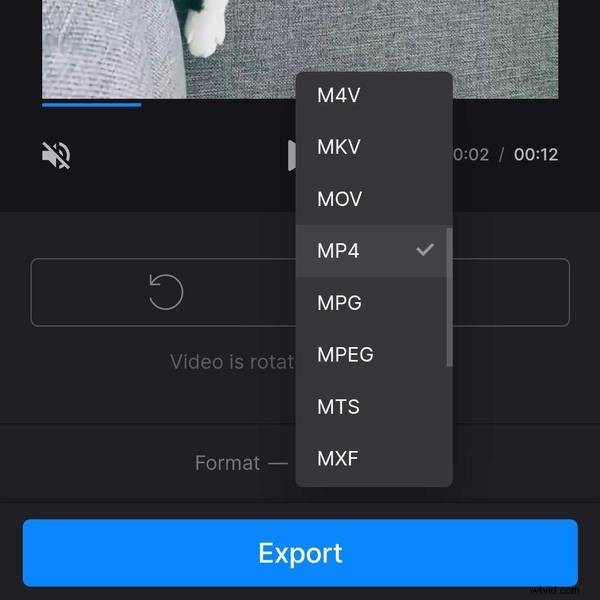
When you are fully done, hit "Export" and get ready to check the result.
Save the project
Make sure everything looks neat and tidy. If so, save the rotated video to your device, Google Drive or Dropbox. If not, hit the "Edit" button and keep working.