
Change MP4 to GIF online in 3 easy steps
Being generally much shorter in length and compressed in size, GIFs way easier to share with friends or on social media sites such as Twitter, and even embed in articles, emails and documents.
So if you’ve got a video, such as an MP4 file, stored on your mobile device or home computer that you think would make an excellent GIF, and you’re not sure exactly how to do it, we have just the solution.
And the neat thing is that our tool doesn’t require downloading any dodgy software, programs or apps from the internet as it works completely online. Oh, and did we mention it’s free?
Read on to find out how to turn an MP4 into an animated GIF in no time at all…
Upload your MP4 video
Head over to Clideo’s MP4 to GIF maker. This will work from any browser and on any device, whether that’s Mac or Windows computers, iOS or Android phones.
You’ll be greeted by a blue ‘Choose file’ button in the centre of the screen. Tap this to upload any MP4 clip from your personal storage and begin creating your GIF. Once you’ve selected your file, it will begin processing in Clideo’s servers.
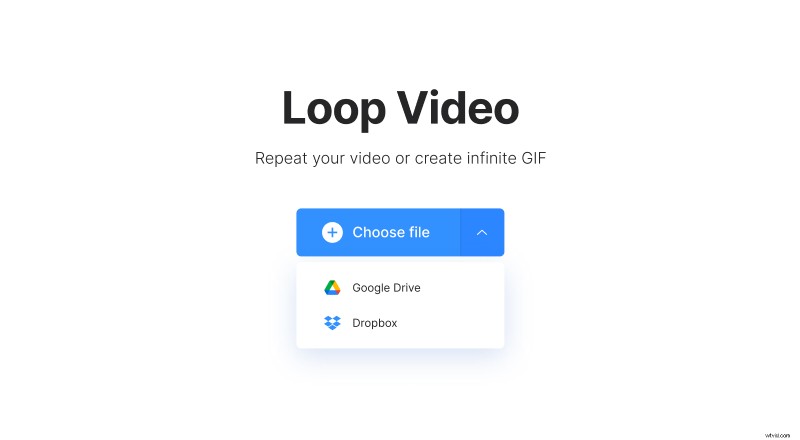
You’ll also notice that on the right-hand side of the button there’s a drop-down arrow. This will summon a drop-down menu that allows you to upload videos either directly from Google Drive or Dropbox cloud storage accounts if that’s where your clip is stored.
Uploading shouldn’t take long but will depend on the video length and the file size.
Also note that the tool works with a variety of video formats other than MP4, including AVI, MPG, VOB, WMV, MOV and many more.
Create a GIF from an MP4
Once your video is uploaded, you’ll be taken to the editor tool.
Here you’ll be able to see your clip in the preview panel in the centre. To turn it into a GIF, simply select the Infinity symbol. It will be muted automatically.
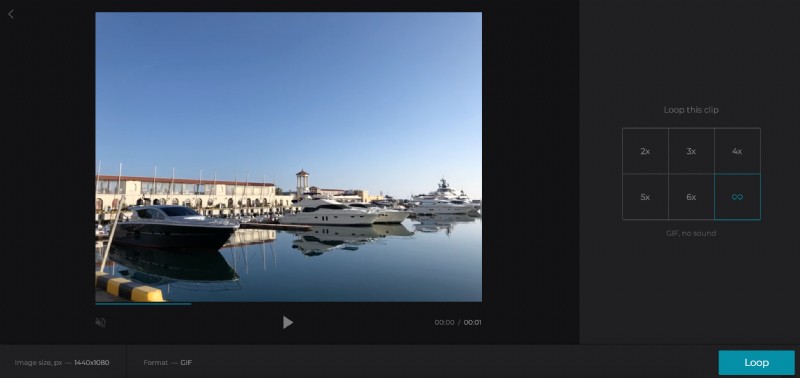
Once you’re happy with your GIF, tap the green ‘Loop’ button at the bottom and the clip will begin processing.
Download your GIF
Once the video has been processed, you’ll be able to play it back to make sure it’s exactly what you wanted.
Want to make some changes? No worries! Just tap the ‘Back to edit’ link and you’ll be taken right back to the editor where you can make some changes without starting from scratch.
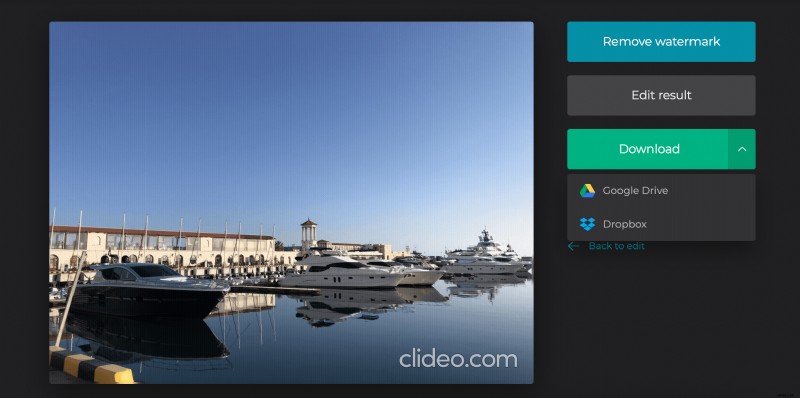
All happy? Save back to your device via the green ‘Download’ button, or - again - hit the down-arrow and download straight to your cloud storage accounts.