
How to send a large video file
The same goes if you’re trying to send a clip over an instant messaging platform such as a Facebook message. This is because most email or messaging providers limit attachment file sizes (usually to 25MB) for performance and security reasons.
So, if the video you’re trying to send was recorded at a high quality, this means its file size will be large, and likely way too big for sending over an email or instant message.
To get around this, you can simply compress the video file size first. Doing so would usually require downloading some pricey external software. However, it is possible to do it online and for free - all from the safety of your web browser!
Our step-by-step guide below will explain all you need to know...
Upload your large clip
To begin, head over to Clideo’s Video Compressor. Here you’ll find a home screen with a blue ‘Choose file’ button. Tap this and select the clip that you’re wanting to make smaller.
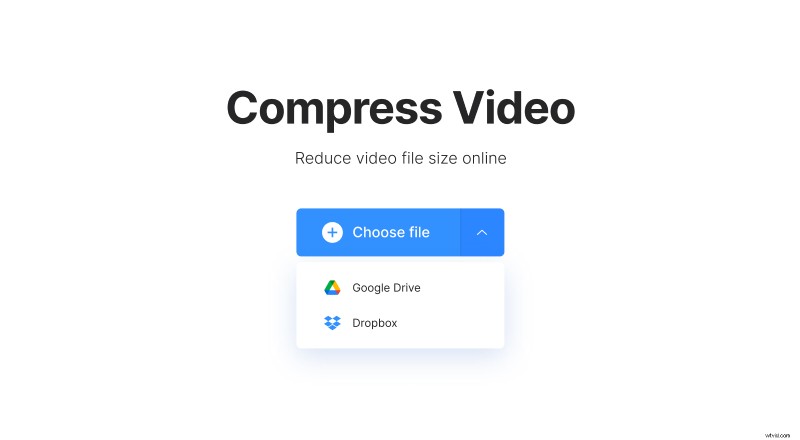
You can upload from an online location, too, if you like. Tap the down-arrow at the end of the button and you’ll be given the option to upload directly from Dropbox or Google Drive.
Your video will then begin processing automatically. And don’t worry about the format of your clip as Clideo’s nifty tool supports most major video formats, including WMA, MP4, WMV, VOB and AVI.
Wait for the video to be compressed
Now, all you have to do is wait while the tool works its magic squashing the size of your video. After a little bit of processing time, your freshly-compressed clip will be ready to view.
Send a large video from a phone or computer
Once that’s done, you’ll be shown by what percentage Clideo’s tool was able to compress your movie, as well as the before and after size in MB.
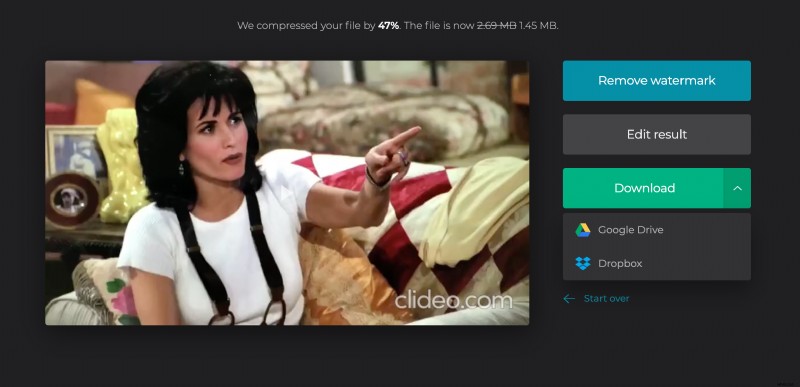
Below this, you have the option to download your new video. Just tap the green ‘Download’. As before, you can save to your online cloud account, simply click the down-arrow and you’ll be given the option in the drop-down menu.