
Why Convert GIFs to PNG or JPG?
GIFs are popular for short animations, but when you need a static image or a higher‑resolution format, converting to PNG or JPG is essential. The challenge is preserving image quality and avoiding file size bloat. Fortunately, a number of free, web‑based tools make this simple.
Before you start, note that most services are free for modest file sizes, but some impose limits (e.g., 100 MB) or require an email confirmation. Below we’ve evaluated the leading options and highlighted their strengths and drawbacks.
Part 1: Best Online GIF‑to‑PNG/JPG Converters
FileZigZag
FileZigZag lets you upload a GIF and instantly receive a PNG or JPG via email. No software download is needed, and the platform supports dozens of formats—from images to documents, audio, video, and archives.
Features
- Convert GIF, PNG, JPG, and many other file types
- Drag‑and‑drop upload or browse files
- Conversion completes within minutes
Pros
Free and user‑friendly; real‑time conversions; sharing options.
Cons
Conversion is email‑driven, which adds a slight delay.
CoolUtils Online Image Converter
CoolUtils offers instant, in‑browser conversion without email links. Upload your GIF and choose PNG, JPG, TIFF, or other formats. You can also rotate and resize before conversion.
Features
- Quick drag‑and‑drop interface
- Supports common image formats (JPEG, GIF, BMP, etc.)
- Conversion completes in seconds
Pros
Built‑in rotation and resizing; cross‑platform compatibility.
Cons
None identified.
ZAMZAR
ZAMZAR converts GIFs to PNG or JPG for free and requires no installation. The service supports a wide range of input and output formats, and files up to 100 MB are processed without charge.
Features
- Upload directly from your computer
- Multiple formats available for both input and output
- Free for files up to 100 MB
Pros
Extensive format support; no installation needed; generous free quota.
Cons
Conversion speed can be slower for larger files.
Ezgif
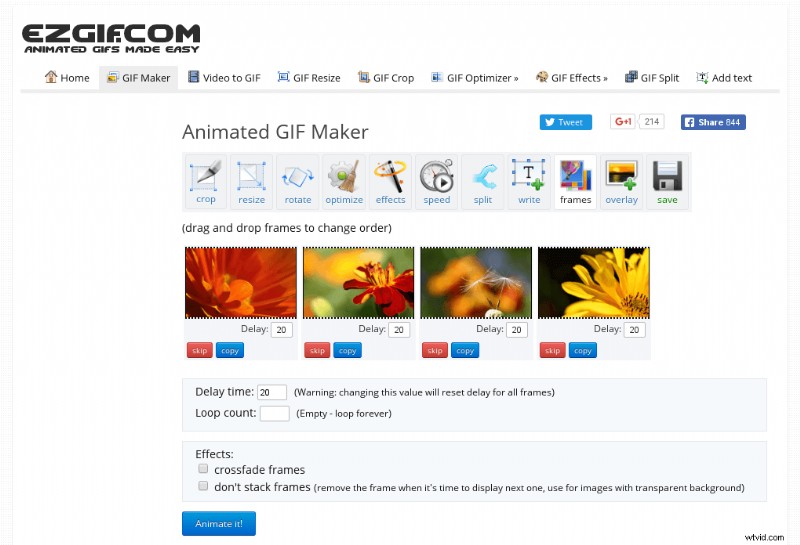
Ezgif is a lightweight, no‑watermark GIF editor that also converts GIFs to PNG, JPG, WebP, or PDF. It accepts files up to 35 MB.
Features
- Scaling, cropping, and optimization tools
- Advanced GIF editing (trim, rotate, add text)
- Backend powered by gifsicle, lossygif, and FFmpeg
Xn Convert
Xn Convert is a full‑featured editor that offers over 80 operations, from basic resizing to advanced filter application.
Features
- Metadata editing and adjustment
- Color correction, emboss, sharpen, blur, and vignetting
- Watermarking and special effects
Pros
Available on Mac, Windows, and Linux; multilingual interface; deep customization.
Cons
Some advanced options require frequent updates.
Picresize
Picresize is a free, browser‑based tool that lets you edit images by upload, URL, or link, then convert them to BMP, GIF, JPG, or PNG.
Features
- Resize, crop, flip, and rotate images
- Adjust output quality to balance size and fidelity
- Generate web‑ready files
Pros
Simple interface; cross‑platform compatibility; quality control.
Cons
Limited advanced settings compared to full‑featured editors.
Free Image Convert and Resize
This compact program supports batch processing of JPG, PNG, BMP, GIF, TGA, and PDF (export only). It’s lightweight and safe for beginners.
Features
- Batch conversion of folders or individual images
- Optional feature extensions for additional formats
- Easy to install and run
Pros
Secure and efficient for novices; minimal system impact.
Cons
Not all image formats are covered compared to larger suites.
PixConverter
PixConverter specializes in batch conversion with watermarking and thumbnail creation, ideal for email, websites, or auction listings.
Features
- Import multiple photos from a folder
- Rotate, resize, and add watermarks before conversion
- FTP upload to a dedicated server
- Thumbnail generation
Pros
Responsive help desk; no technical prerequisites.
Cons
None significant for typical users.
Part 2: How to Convert GIF to PNG with Convertio
Convertio is the most straightforward online tool for turning GIFs into PNGs, TIFFs, TGA, BMP, or JPG. Follow these simple steps:
Step 1 – Add Your GIF
Open Convertio, click Add Files, or drag your GIF directly into the upload area.
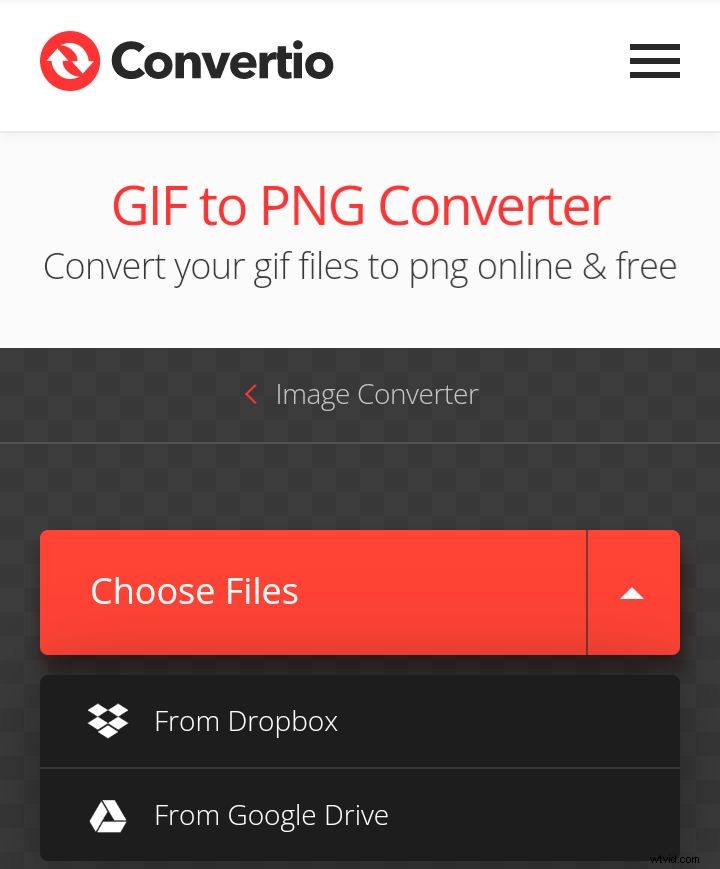
Step 2 – Select PNG Format
From the file type drop‑down, choose PNG under Image Formats.

Step 3 – Convert and Download
Click Convert Now to start the process. Once finished, download your PNG directly to your device.
Part 3: How to Convert GIF to JPG with Ezgif
Ezgif offers a versatile workflow for converting GIFs to JPG while preserving quality. Use the steps below:
Step 1 – Import the GIF
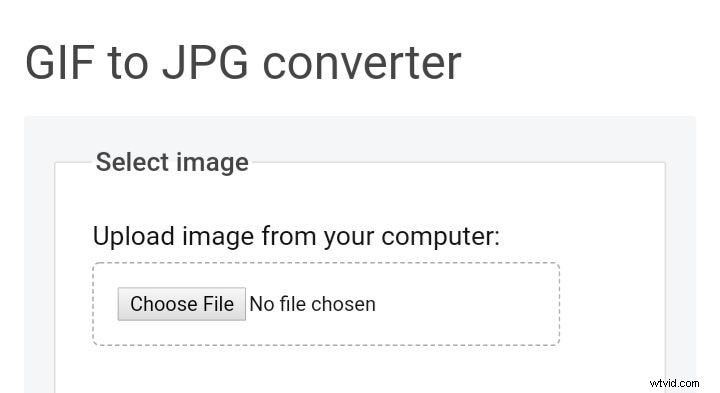
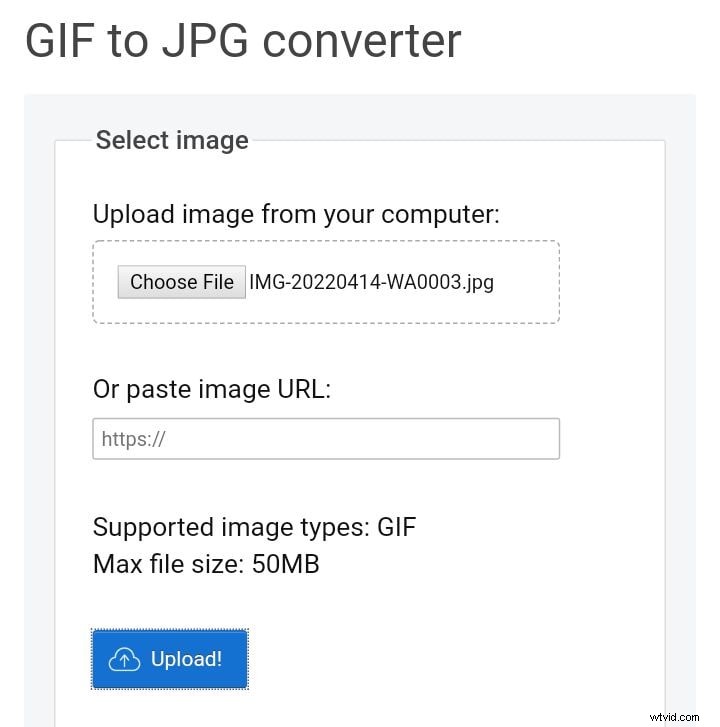
Navigate to Ezgif, click Choose file, and select your GIF (max 35 MB).
Step 2 – Edit (Optional)
Use the editing tools—cut, add text, resize, or rotate—before conversion.
Step 3 – Convert to JPG
Click Convert to JPG and your image will be ready for download.
Conclusion
Choosing the right online converter depends on your file size, desired output format, and feature needs. FileZigZag and CoolUtils are great for quick, email‑based conversions, while ZAMZAR and Ezgif offer extensive format support without installation. For batch processing, Free Image Convert or PixConverter are solid choices. Use Convertio for a fast PNG conversion and Ezgif for quality JPG results. All these tools are free, secure, and maintain the visual integrity of your original GIF.