
Captivating text can turn a simple video into an engaging story. OpenShot, a free and open‑source editor, offers a range of animated title templates and basic text tools that let you add subtitles, intros, and lower‑thirds with ease. For users who need more advanced animation options, Wondershare Filmora provides a polished, commercial solution with a rich library of templates and AI‑powered features.
Where to Add Text Effects in Your Video
Text elements are most effective in the following sections:
- Captions and subtitles
- Intro titles
- Closing credits or end cards
- On‑screen annotations or lower‑thirds
These placements help convey information, reinforce branding, and maintain viewer engagement.
Step‑by‑Step: Adding Text in OpenShot
Method 1: Built‑in Title Templates
OpenShot includes several animated templates that can be customized instantly.
- Blinds (Two Titles): A blind‑style reveal that uncovers the text.
- Blur: A dynamic blur‑in/blur‑out effect.
- Bounce: Text bounces onto the screen.
- Zoom: Text zooms in or out for emphasis.
Steps:
- Import your footage into OpenShot.
- Click Title in the toolbar and choose a template.
- Enter your headline in Line 1 and optional subtitle in Line 2.
- Pick a font, adjust size, and change the text color.
- Save the title and drag it onto a video track.
- Use the preview window to fine‑tune the duration and scale.
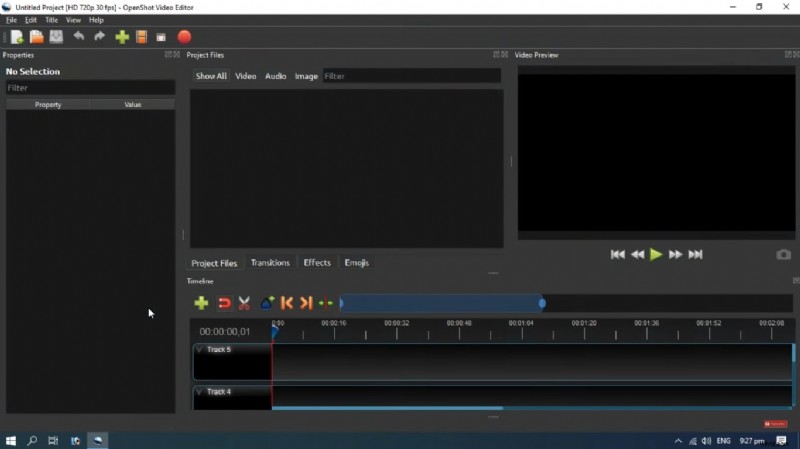
Method 2: Advanced Editor with Inkscape
For greater creative freedom, OpenShot’s advanced editor launches Inkscape, allowing you to design custom vector text.
- Select a title template and click Use Advanced Editor.
- In Inkscape, type your text with any system font.
- Convert the text to paths to preserve the font in OpenShot.
- Export the file as SVG and import it back into OpenShot.
- Place the SVG on a dedicated text track.
Method 3: Import Text Images
Create a PNG with a transparent background in a graphics editor, then overlay it onto your footage.
- Design the text image (PNG, 300‑dpi preferred).
- Import the main video to Track 1.
- Import the text image and add it to Track 2.
- Trim the text clip to match the desired on‑screen time.
Method 4: Adjust Color Saturation
OpenShot lets you fine‑tune text color saturation directly in the title editor.
- Open the Title menu and choose a template.
- Click Text Color and slide the saturation knob.
- Confirm with OK and preview the change.
Method 5: Animate Text with Keyframes
Keyframe animation adds motion to text elements, such as sliding in, rotating, or scaling.
- Add a title template and customize the text.
- In the properties panel, click Animate.
- Set keyframes at different timeline positions and adjust position, rotation, or scale.
- OpenShot interpolates the movement smoothly between keyframes.
Common Challenges When Adding Text in OpenShot
- Limited Templates – The free library is small; external text images fill the gap.
- Animation Variety – Only basic motions are available; consider Filmora for trends.
- Font Size Constraints – Large fonts can overflow; choose legible sizes.
- Performance Instability – Occasional crashes may occur on large projects; keep the software updated.
- Software Dependencies – Inkscape or Blender may be needed for advanced features.
- No Mobile Version – OpenShot is desktop‑only; use Filmora for on‑the‑go editing.
Filmora: A Robust Alternative for Eye‑Catching Text
Wondershare Filmora is a cross‑platform editor that brings a library of over 100 title templates and 80 animation styles, plus AI tools such as object removal, voice cloning, and music generation. It supports more than 50 input formats and 15 output presets, making it ideal for both beginners and professionals.
Key Features That Outshine OpenShot
- Extensive template and animation library.
- AI‑powered editing utilities.
- Built‑in stock media and audio.
- Stable performance with minimal crashes.
- Mobile editing via FilmoraGo.
Adding Text in Filmora
- Import your footage.
- Click Titles and select a style.
- Choose Text (simple or 3D).
- Enter your content, adjust size and position.
- Click Animations and pick an effect, e.g., typewriter.
- Export the finished video.
AI‑Generated Captions
- Launch Filmora and import the video.
- Open Speech to Text and select the language.
- Enable Add Automatic Active Words and confirm.
- Wait for AI to generate captions.
- Customize style, font, and active word color.
- Export the video with captions embedded.
Conclusion
Incorporating animated text elevates the professionalism of any video. OpenShot provides a solid, free foundation for basic text overlays, while Filmora offers a richer, more polished experience for those who need advanced animations and AI features. Choose the tool that best matches your workflow and creative goals.
Call to Action
Try OpenShot for a lightweight, community‑supported workflow, or download Filmora for a feature‑packed editing suite. Share your results or questions in the comments below!