
Great Video Converter – Wondershare Filmora
Wondershare Filmora offers a rich set of video effects, powerful color grading tools, and comprehensive tutorials from its official channel.
The GIF format is a bitmap image format that supports up to 8 bits per pixel. APNG (Animated Portable Network Graphics) expands this capability, supporting 24‑bit color and 8‑bit transparency, while remaining backward compatible with standard PNG files. Because the first frame of an APNG is a regular PNG stream, most conventional PNG decoders can display it without any special support. Additional chunks store frame timing and animation data, leveraging the original PNG specification.
Compared to GIF, APNG offers smaller file sizes, higher image quality, and richer color depth. However, GIF enjoys broader compatibility across browsers; APNG is natively supported in Firefox, Safari, Chrome, and Opera, whereas virtually all browsers render GIFs without issues.
Below is a curated list of the best eight GIF‑to‑APNG converters, followed by a step‑by‑step guide and FAQs.
In this article
Part 1: Best 8 GIF‑to‑APNG Converters
Part 2: How to Convert a GIF to APNG
Part 3: Frequently Asked Questions
Part 1. Best 8 GIF‑to‑APNG Converters
Here are the top eight converters you should consider:
1. EZgif
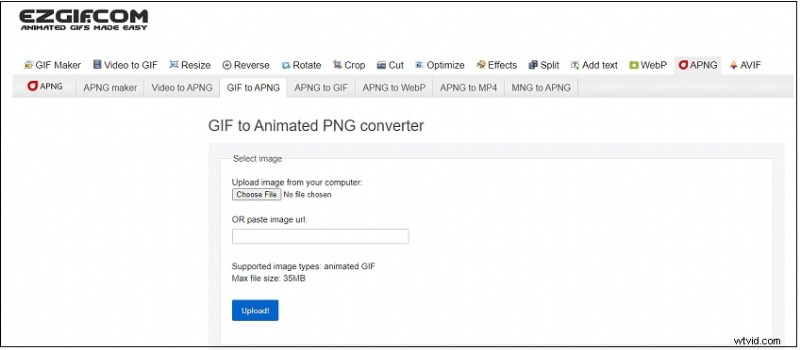
Ezgif.com is a free, web‑based toolkit for creating and editing animated GIFs. In addition to GIFs, it handles WebP, PNG, MNG, and FLIF conversions. Key utilities include GIF maker, video‑to‑GIF converter, and photo resizer.
Users can edit GIFs directly before converting them to APNG.
Features:
- ImageMagick integration for resizing, optimization, and cropping.
- Advanced GIF manipulation via gifsicle and lossygif.
- FFmpeg support for video conversion.
- Fast conversion speeds and a user‑friendly interface.
- All features are free, no registration required.
- High‑quality output with minimal loss.
Pros
Secure and entirely browser‑based—no downloads needed.
Intuitive workflow for quick GIF creation and conversion.
Cons
Image quality can degrade when converting from photos; not ideal for professional‑grade projects.
2. FreeConvert
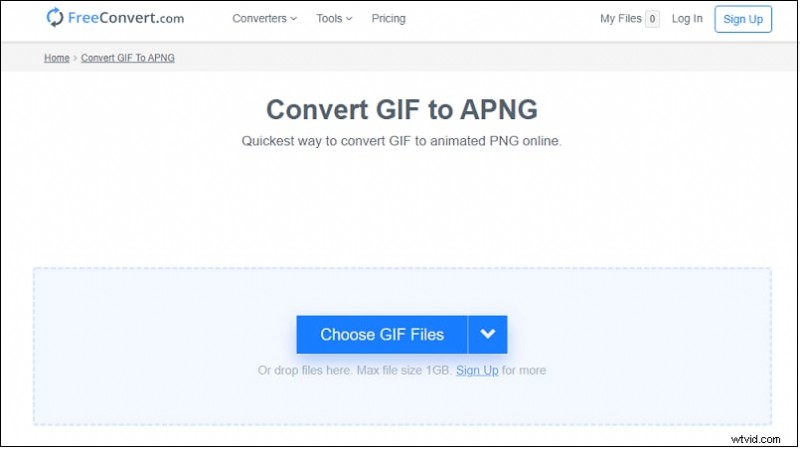
FreeConvert is a versatile online converter that supports GIF‑to‑APNG, as well as audio, document, and eBook formats. It accepts uploads from local devices, Google Drive, Dropbox, or a direct URL, and can batch‑convert multiple GIFs while preserving quality. Files are automatically encrypted and deleted after two hours.
Features:
- Batch conversion without compromising quality.
- Wide range of output formats.
- Multiple upload sources: device, Dropbox, Google Drive.
Pros
Simple drag‑and‑drop interface.
Free for all browsers; secure 256‑bit SSL encryption.
Automatic file deletion ensures privacy.
Cons
Free tier limits conversion options.
3. Aconvert
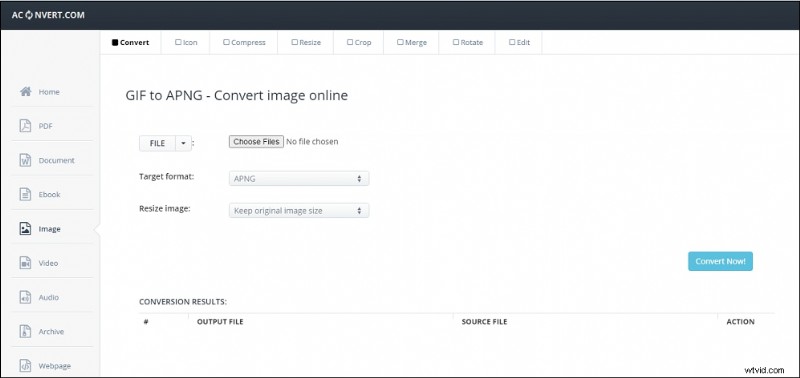
Aconvert offers GIF‑to‑APNG conversion plus compression, resizing, merging, cropping, and rotation. Uploaded files can be up to 200 MB and are stored locally or in cloud services.
It also supports a broad array of image formats and editing features such as watermarks and filters.
Features:
- Large‑file support (up to 200 MB).
- Resizing and rotation capabilities.
- Extensive format compatibility.
- Watermark editing.
Pros
Cross‑platform compression settings.
Fully free and browser‑based.
Cons
Limited functionality on the free plan.
4. AVS Image Converter
AVS Image Converter Download – Batch editing for Windows
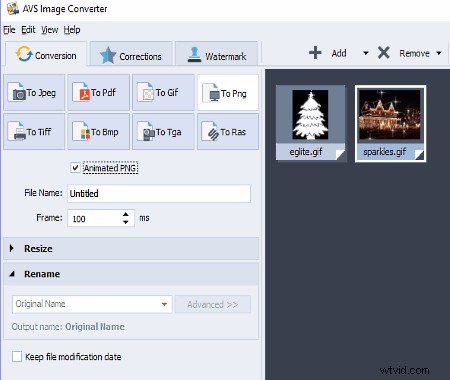
AVS Image Converter is a Windows shareware that handles GIF‑to‑APNG and vice‑versa. It supports a wide range of input formats—including BMP, JPEG, TIFF, TGA, and PSD—and outputs to PNG, GIF, JPEG, and more. Batch processing is available.
Features:
- Multi‑format support.
- Batch conversion.
- Animated GIF to APNG conversion.
Pros
Efficiently processes large image sets.
Command‑line operation available.
Pre‑set dimensions and various effects.
Export to PDF and other formats.
Cons
No individual preset presets.
5. Real World Paint
RealWorld Paint – Portable image editor
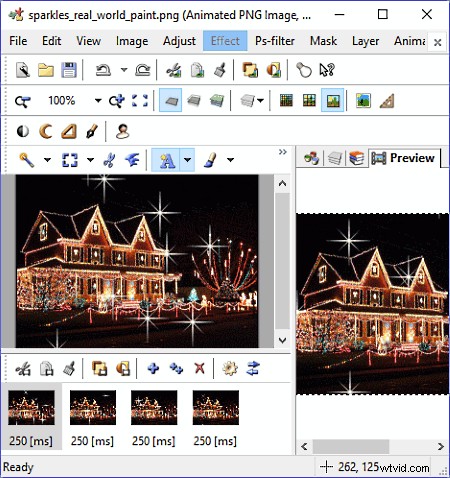
Real World Paint offers GIF‑to‑APNG conversion on Windows, with two‑way support between APNG and GIF. It also handles PNG, JPEG, GIF, WebP, and animated WebP conversions, and can open projects from Photoshop, Paint.NET, GIMP, and others.
Users can edit individual frames and apply simple enhancements.
Features:
- Wide format compatibility.
- User‑friendly interface.
- Light on system resources.
- Fast conversion times.
Pros
Selective area transformation.
Simple folder selection.
Quick quality adjustment.
Cons
Steeper learning curve for beginners.
Premium version required for full features.
6. Convertio

Convertio is a lightweight alternative to Browserling, supporting a broader spectrum of image formats—including GIF, TGA, PSD, JPG, TIFF, ICO, and more. While it lacks advanced editing tools, it excels in conversion speed and file size flexibility.
Features:
- Unlimited file size.
- No limit on simultaneous conversions.
- Unlimited daily conversion minutes.
- Ad‑free experience with paid tiers.
Pros
Drag‑and‑drop interface.
Sub‑2‑minute ETA for most conversions.
Three membership plans available.
Cons
Files are removed after 24 hours unless manually saved.
7. OnlineConvertFree
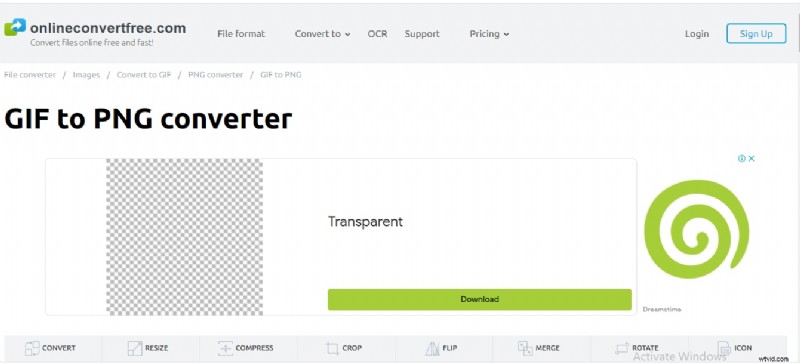
OnlineConvertFree supports all standard image formats and offers cropping, rotating, and flipping. It works offline for quick document access and includes a free tier with core features.
Features:
- Offline access for faster processing.
- Free tier covers essential functions.
- Supports a variety of formats.
- Three subscription tiers—ad‑free.
Pros
Easy upload and download of converted files.
Format‑agnostic conversion.
No email or personal data required.
Cons
Free plan limits to two files per conversion.
8. Zamzar
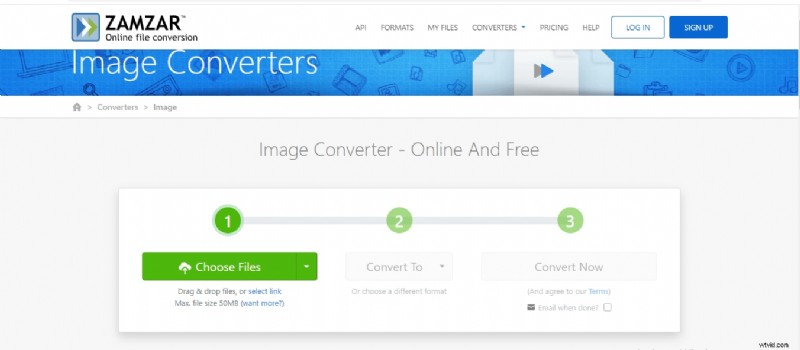
Zamzar offers a straightforward, three‑step conversion process. It supports GIF, PNG, TIFF, TGA, JPG, BMP, and over 1,200 other formats.
Features:
- Drag‑and‑drop uploads for speed.
- High‑speed downloads for subscribers.
- Email conversion option.
- Streaming to iOS devices.
Pros
URL‑based file input and batch conversion.
Clear, three‑step workflow.
Supports 1,200+ file types.
API available for developers.
Cons
Free uploads capped at 50 MB.
No OCR support.
Part 2. How to Convert a GIF to APNG
Follow these three straightforward steps to convert your GIF into a high‑quality animated PNG.
Step 1 – Choose Files
Select one or more files from your computer using the "Choose Files" button or pick an online source (URL, Google Drive, Dropbox). Each image can be up to 200 MB. A file analyzer provides detailed metrics such as size, resolution, and transparency.
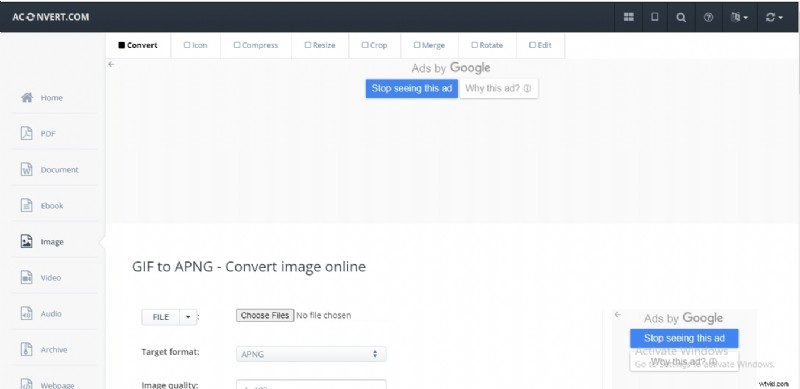
Step 2 – Choose Image Format
Decide on the target format, quality, and dimensions. You can keep the original size or set custom dimensions (e.g., 1920×1080). Quality settings range from 1 (high compression) to 100 (best quality). Supported target formats include JPG, PNG, TIFF, GIF, HEIC, BMP, and more.

Step 3 – Click Convert Now
Initiate the batch conversion by clicking "Convert Now." The system automatically retries on server failure. Converted files appear in the "Conversion Results" section. You can view a QR code or save the file to Google Drive or Dropbox.

Part 3. FAQ
1. What Is APNG (Animated Portable Network Graphics)?
APNG is an extension of the PNG format that allows multiple frames, creating an animation similar to GIF. It supports 24‑bit color and 8‑bit transparency, and can be opened by browsers such as Firefox, Chrome, and Safari, as well as by iOS 10+ messaging apps.
2. How to Create an APNG File?
1. Select an image – File > Open.
2. Open the image – click "Open".
3. Save As – File > Save As.
4. Choose PNG – ensure PNG is selected from the format list, then click "Save."
5. Adjust compression – default is "Best," but you can fine‑tune the compression level to balance file size and quality.
3. How Do I Save Something as APNG?
1. Open an image editor (e.g., Paint for Windows, Paintbrush for Mac).
2. Load the image you wish to convert.
3. Optionally resize or add text.
4. Select "Save As" and choose PNG.
5. Click "Save" to write the file to disk.
Conclusion
With these eight top‑rated GIF‑to‑APNG converters, you can efficiently transition from GIF to animated PNG while preserving quality. The accompanying FAQ deepens your understanding of APNG and its creation process. Start converting today and unlock the benefits of richer, smaller, and more versatile animations.