
If you’re ever in a situation where you are concerned about unauthorized biometric access to your iPhone, for example, someone holding your iPhone up to your face to unlock it with Face ID, or someone forcing you to put your finger on the Touch ID sensor to unlock the iPhone, you can prevent that unauthorized access to the iPhone with a Hard Lock trick.
Hard Locking an iPhone disables the biometric access capabilities on an iPhone, like Face ID and Touch ID, forcing the iPhone to require a passcode to unlock the device. This could be theoretically useful in a variety of situations, like crossing a foreign border or interacting with some legal authority.
Most people don’t know about hard locking an iPhone, but fortunately it’s an easy trick to learn and to master, and you can do it all discretely from your pocket so you don’t even have to pull the iPhone out and fiddle with it.
How to Hard Lock iPhone
- For Face ID equipped iPhones: Press and hold the Power button and either Volume button for about 2-3 seconds
You will feel a haptic response, and the screen itself will show the “Slide to Power Off” and Emergency
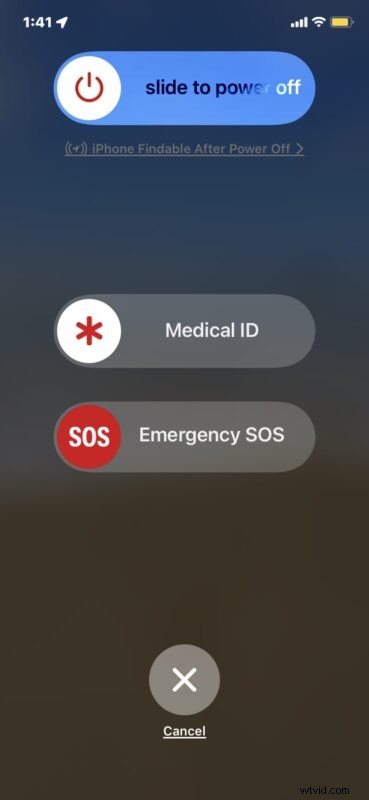
Because all you need to do is press and hold the Power and Volume button for a few seconds, you can easily do this from your pocket, or from a purse or bag, just hold those buttons until you feel that haptic vibrate, or see the “Slide to Power Off” screen appear.
This is a handy trick that every iPhone user should know, and we were reminded by this from DaringFireball, who offers the following advice:
DaringFireball also referenced a recent situation where someones iPhone was searched by using Face ID to unlock the device, granting authorities full access to the device and its contents.
So if you’re concerned about any sort of unauthorized biometric access to your iPhone, you should at least learn how to use the hard lock feature, since you can hard lock the iPhone discretely in your pocket or a bag. Or you can simply use the iPhone without Face ID, which basically just means you enter a passcode to access the iPhone every time, like how earlier iPhone models worked pre-biometric access.