
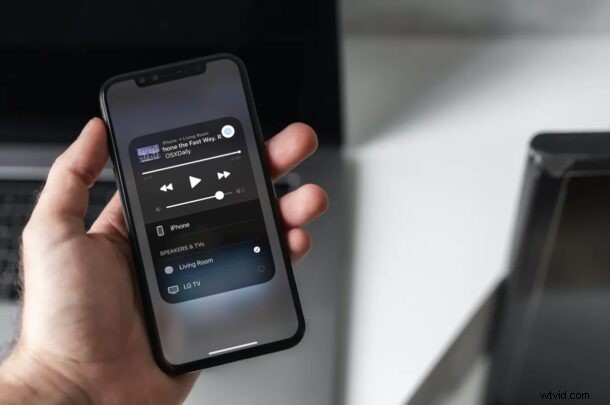
There’s no official YouTube support for the HomePod yet, but did you know that you can still listen to YouTube music videos using your HomePod? This is made possible with the help of AirPlay, a feature that has been around for iPhone and within the Apple ecosystem quite a while.
When you try to get Siri to play a specific YouTube video on your HomePod, you’ll simply get the response “I can’t open apps here”. This is because HomePod isn’t capable of opening apps installed on your paired iPhone, but that doesn’t mean you cannot play YouTube videos at all. In situations where you can’t get Siri to play audio, there’s always the alternate route, which is AirPlay.
AirPlay can stream any audio that’s being played on your iPhone straight to your HomePod, including YouTube. In this article, we’ll be discussing exactly how you can AirPlay YouTube Audio on your HomePod with ease.
How to AirPlay YouTube Audio to HomePod
You’ll need to use the YouTube app on your iPhone or iPad to get this done, so make sure you have it installed. Simply follow the steps below to get started:
- Launch the YouTube app on your iOS/iPadOS device and find the video that you want to listen to using your HomePod.

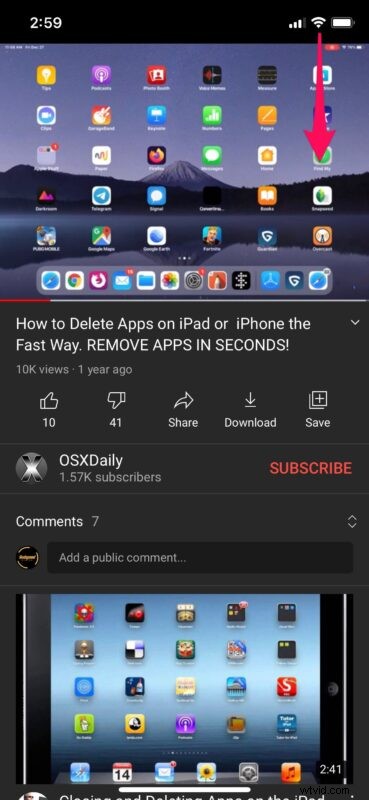
- Start playing the video and swipe down from the top-right corner of the screen to bring up the iOS Control Center. If you’re using an older iPhone with Touch ID, you can swipe up from the bottom of the screen to access the Control Center.
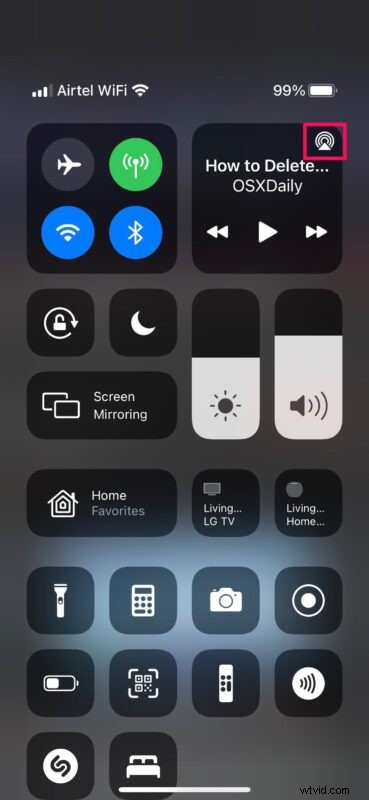
- In the Control Center, you’ll find the playback card at the top-right. Here, tap on the AirPlay icon as shown in the screenshot below to proceed.
- This will show you a list of all AirPlay-compatible devices, which includes your HomePod. Now, simply tap on your HomePod to select it as the audio source for the YouTube video that’s currently being played back.
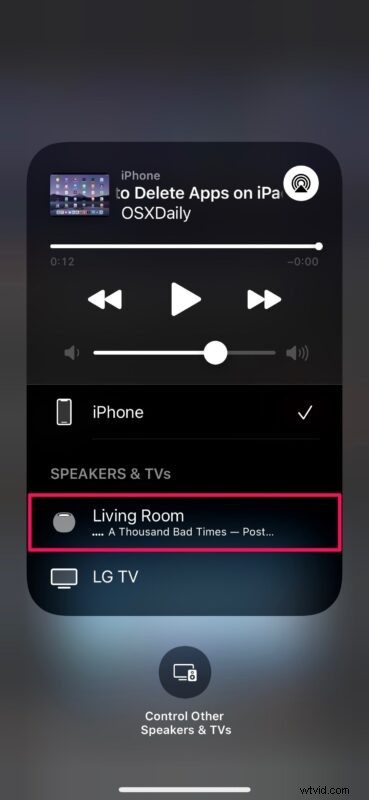
- Within a second, the audio playback will be switched to your HomePod. You can open other videos on your iPhone, but the audio will continue to be streamed on your HomePod. You can switch back to your iPhone as the audio source from the same menu.
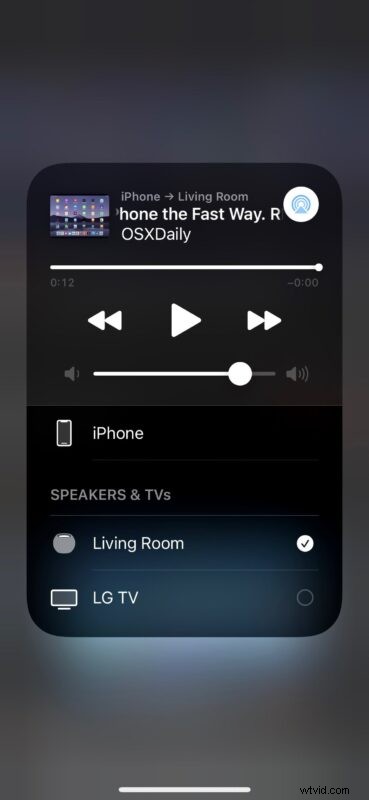
That’s pretty much all you need to do, your HomePod will now be the audio destination for the YouTube video.
This AirPlay method will come in handy when you’re listening to music videos and podcasts on YouTube rather than watching them. You can also use it whenever you’re listening to other YouTube videos where the video itself isn’t really important.
YouTube to HomePod with AirPlay via Mac works too
Although we were focusing on the iPhone and iPad in this article for using AirPlay, you can achieve the same using a Mac too.
On the Mac, all you need to do is look for the AirPlay icon whenever you’re watching YouTube videos in Safari, click on it, and switch the audio source.
No matter what Apple device you’re using, the technique to get it working is mostly the same.
Obviously, this procedure was for streaming YouTube audio, but you can use AirPlay to stream other content too. For instance, Spotify hasn’t officially added support for the HomePod yet, but you can still use AirPlay to stream songs on your HomePod. The same applies to other third-party music streaming and video streaming services too, just access AirPlay, choose the HomePod as the destination, and away you go.
Hopefully you’ve now got the hang of using AirPlay to listen to YouTube on your HomePod or HomePod mini. This is yet another useful capability of the smart speakers, and don’t forget to review other HomePod articles too.
Do you have any particular thoughts, tricks, or experiences about using AirPlay, YouTube, or HomePods together? Let us know in the comments.