
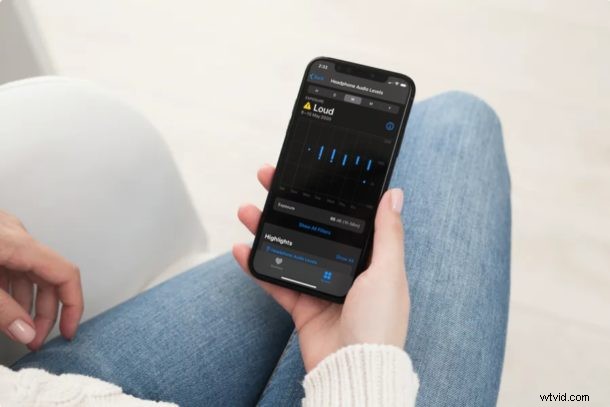
Do you use your headphones for listening to music and watching videos on your iPhone? If so, you can now monitor your headphone audio levels right from your device, without installing any third-party apps.
In modern versions of Apple’s Health app, you can monitor headphone audio levels and sound levels from your surroundings. This can assist you in protecting your hearing by providing data on how long and often you’re exposed to loud volume while you’re consuming media through your headphones. Noise levels are measured in decibels (dB) and sounds are generally considered loud when they’re above 80 decibels.
If you’re interested in figuring out the audio levels you’ve been exposed to using your smartphone, then read on.
How to Protect Hearing Using Headphones with Decibel Meter on iPhone
Make sure your iPhone is running iOS 13 or later before you go ahead with the procedure, as earlier versions do not support the capability. This feature only works with certain headphones, but you can try this out with wired EarPods, AirPods, AirPods Pro, and Beats headphones, amongst others. Now, without further ado, let’s take a look at the necessary steps.
- Open “Health” app that’s pre-installed on your iPhone.

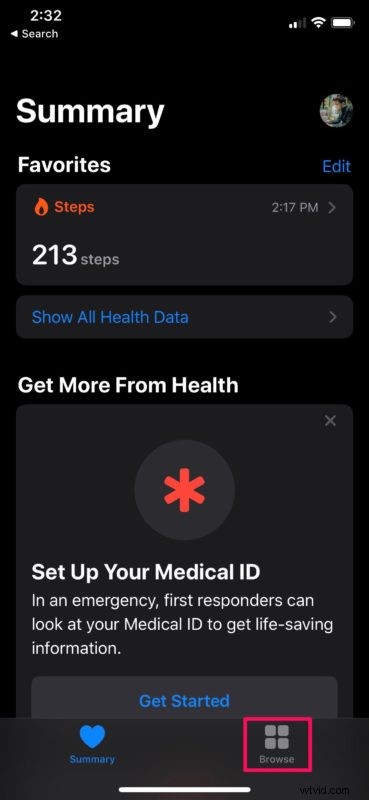
- If you’re in the Summary page when you open the app, tap on “Browse” located at the bottom.
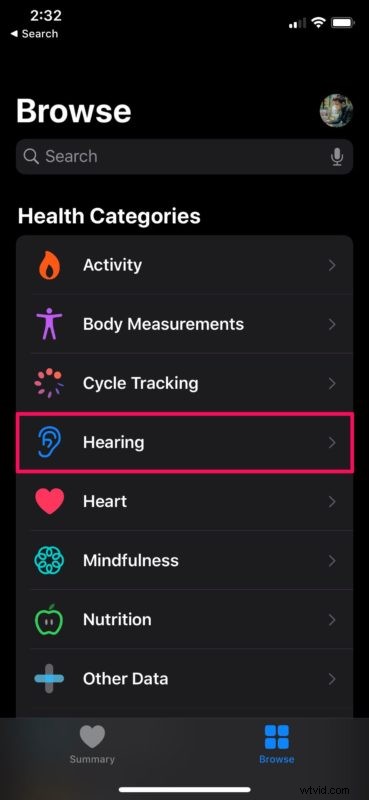
- In the Browse menu, choose “Hearing” as shown in the screenshot below.
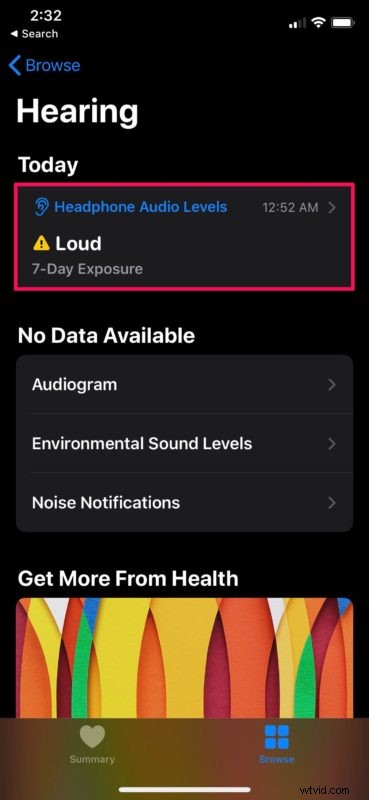
- Here, you’ll notice “Headphone Audio Levels” right at the top. Apple categorizes this as either “OK” or “Loud”. Long-term exposure to audio levels less than 80 dB is considered “OK” and anything above is considered as loud. Tap on “Headphone Audio Levels” to view more data.
- Here, you’ll be able to see the average noise level exposure measured in decibels. Considering I personally listen to music at full volume, this data seems pretty accurate. You can tap on “Exposure” to view it in the graph.
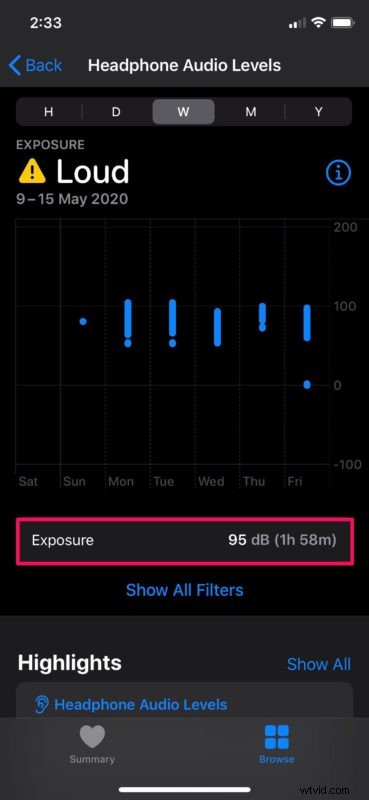
And that’s it, now you know how to monitor your audio levels right from your iPhone.
By scrolling down in the same menu, you’ll be able to view your average headphone audio levels on a daily and weekly basis. This data is automatically sent to the health app from your headphones.
As for compatibility, Apple claims that the measurements are most accurate when using AirPods or Beats headphones. Although you could try this out on your wired headphones, including EarPods, this data might not be as accurate. Audio played through these headphones and speakers connected by wire are simply estimated based on the volume of your device.
If you own an Apple Watch, you can pair it with your iPhone and set up the Noise app to automatically send sound levels in your environment to the Health app. However, this feature requires the Apple Watch to be running watchOS 6 or later.
Speaking of audio levels, you can also make AirPods sound louder, but you’ll want to be mindful of the decibel level if you choose to do that.
Were you able to take advantage of the built-in decibel meter to monitor your headphone audio levels from your iPhone? What results did you get? How often would you be monitoring your noise levels? Do share your thoughts and experience in the comments section down below.