
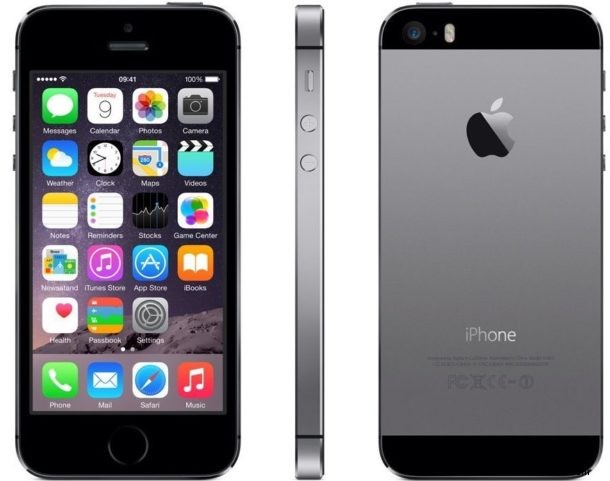
Update: You can read how to fix iPhone 5 not working recently with internet, data, cellular calls, etc, here.
If you use iPhone 5 you will want to update the device to iOS 10.3.4 as soon as possible. Failure to do so means iPhone 5 will have problems with internet connectivity and functionality, significantly degrading the devices utility. This is apparently due to an issue with GPS having a correct time.
According to Apple, any iPhone 5 that is not updated to at least iOS 10.3.4 by November 3, 2019 will no longer be able to access key components of device features that rely on the internet and accurate date & time, including web browsing, email, GPS, iCloud, iCloud backups and restore, Software Update, and the App Store. In other words, most internet and internet functionality will not work on iPhone 5 without the software update.
Update iPhone 5 to iOS 10.3.4 by November 3 to Avoid Problems
Apple specifically warns that if an iPhone 5 has not been updated to iOS 10.3.4 by November 3 2019, the device will have to be backed up and restored using a Mac or Windows PC, because the Software Update and iCloud backup features on the iPhone 5 will not work at that point.
Even if iPhone 5 is no longer your primary device but you have an old iPhone 5 sitting in a drawer somewhere, it’d be wise to power it on and install iOS 10.3.4 software update on that device to prevent any problems with it being used in the future.
Fortunately, avoiding this problem is simply a matter of updating any iPhone 5 to the latest available iOS version for that device, which is currently iOS 10.3.4.
Updating iPhone 5 to iOS 10.3.4 with iTunes
If you missed the Nov 3 deadline to install iOS 10.3.4 on iPhone 5, then you must now install iOS 10.3.4 onto iPhone 5 with iTunes and a computer. This is done by simply connecting the device to a Mac or PC and run iTunes and install the software update from there, like so:
- Connect the iPhone 5 to a Mac or Windows PC with iTunes
- Choose to “Backup” and backup the iPhone to iTunes
- After iPhone is finished backing up to iTunes, now choose “Restore” and select the backup you just created
- Choose to Update and Restore iOS 10.3.4 to the iPhone 5
You can also backup iPhone to iCloud for good measure, but in order to actually restore the device you must use iTunes.
How to Update iPhone 5 to iOS 10.3.4 via Settings
It’s always a good idea to backup iPhone to iCloud or iTunes before installing any software update.
- Open the “Settings” app, then go to “General” and to “Software Update”
- Download and install iOS 10.3.4 software update if it’s available
The iPhone will reboot to complete installation. Once the device is running iOS 10.3.4 the GPS issue will not impact any internet functionality on the device, and it should work as expected.
Checking what iOS version is on iPhone 5
If you aren’t sure what version of iOS is on iPhone 5, go to Settings > General > About and you can locate the system software version there.
Advanced users can also install iOS 10.3.4 on iPhone 5 by using IPSW firmware file for the device (which also requires iTunes and a Mac or PC):
- iPhone 5 iOS 10.3.4 IPSW (direct link from Apple)
The iOS 10.3.4 update originally came out earlier in the year alongside other iOS software updates (12.4 and 9.3.6), and thus has been available to download and install for any iPhone 5 device for a while now, but may have been overlooked by many users who use older devices and don’t pay much attention to updating system software.
If you are interested in learning more about this particular issue impacting iPhone 5, you can check out https://support.apple.com/en-gb/HT210712.
Despite being seven years old having been released in September of 2012, the iPhone 5 remains a ubiquitous iPhone model with a significant user base, with many people around the world continuing to use the older yet still capable device.