

Visual Voicemail on iPhone makes checking voicemail super easy, whether it’s just quickly listening to a voicemail message or reading voicemail transcripts, so it’s understandably frustrating if you discover that voicemail is suddenly not working on the iPhone.
One peculiar voicemail issue on iPhone can be where there are numerical indicators showing new voicemail messages, but iPhone Voicemail is unable to load any of them and instead suggests that voicemail isn’t setup or configured when it certainly is, with an error stating “to retrieve a voicemail first set a password and greeting.” without any option to set a greeting or password.
If you know for certain that you already have voicemail set up with a password and greeting and you’re seeing this message in the voicemail tab of the Phone app, you can likely quickly remedy the error and get access to your voicemail again.
The solution to this voicemail problem is usually rather simple: forcibly reboot the iPhone.
Forcibly restarting an iPhone differs per iPhone model:
- iPhone XS, iPhone XS Max, iPhone XR, iPhone X, and newer iPhone models without a Home button: Press volume up, press volume down, then press and hold Power button until the iPhone reboots and you see the Apple logo on screen
- iPhone 8 Plus, iPhone 8: Press volume up, press volume down, then press and hold Power button until the iPhone restarts
- iPhone 7 Plus, iPhone 7: press and hold Volume Down and Power button until iPhone restarts
- iPhone 6s Plus, iPhone 6s, iPhone 6, iPhone 6 Plus, iPhone 5s, iPhone SE, and older: press and hold the Power button and the Home button until the Apple logo shows on screen
After the iPhone boots back up again, unlock the iPhone and return to the “Phone” app and to the Voicemail tab, your voicemails should be available again as expected where you can share or save voicemails from iPhone.
In the example screenshots here, an iPhone had a blank voicemail screen with the erroneous voicemail message stating “To retrieve a voicemail first set a password and greeting.”
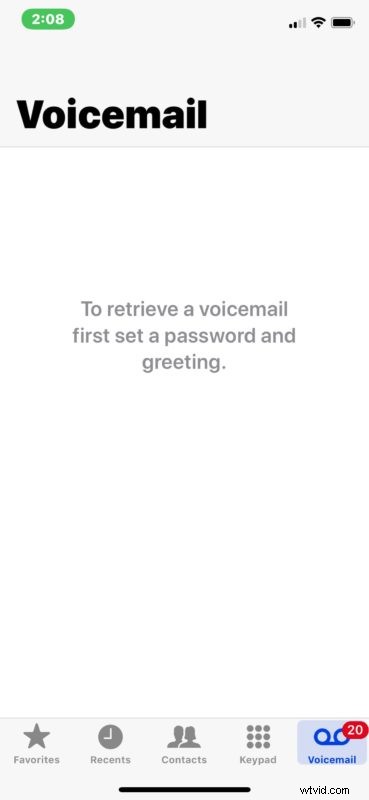
(Note: you can see that error for legitimate reasons, but typically if visual voicemail is actually not set up on the iPhone, there will be a button at that screen to configure visual voicemail – in this case obviously there is no setup button and this is an erroneous message thus requiring troubleshooting)
This was remedied with a simple force reboot, and now you can see the iPhone Voicemail is available, in this case filled with dozens of lovely spam voicemail calls from spam robocallers and scam automated calls (hooray).
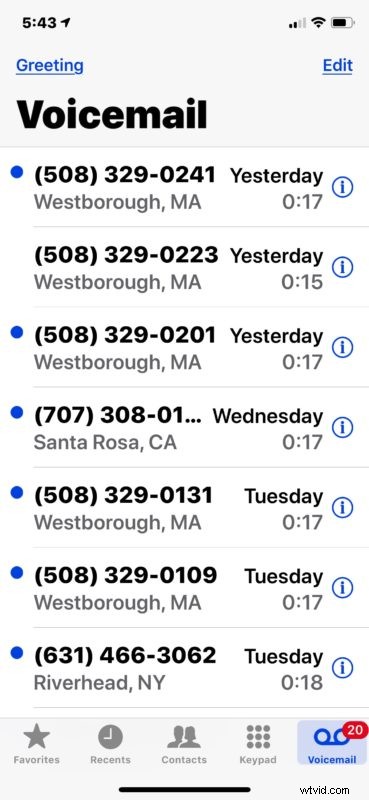
If you reboot and then find a blank red badge on the Voicemail tab, you’ll need to re-enter or change the voicemail password though Settings > Phone, though this shouldn’t be necessary if you had voicemail configured properly before.
If you still have issues with visual voicemail on iPhone after these steps, resetting network settings can often resolve the problem, though that should be considered a last resort since doing so will clear out wi-fi passwords and other custom network configurations.
Remember, not all iPhone cellular carriers will support visual voicemail, so if the feature never worked for you because your mobile provider isn’t supporting the feature than none of these tricks will work to resolve something that your carrier does not support to begin with.
Rebooting an iPhone can often resolve voicemail issues, including if they show up but won’t play, and sometimes if you get the Visual Voicemail Unavailable error on the iPhone too, though that latter error is usually a connection issue.
If you want detailed instructions on force restarting of iPhone models, the following links should be helpful to you:
- How to force reboot iPhone XS Max, iPhone XS, and iPhone XR
- How to force restart iPhone X
- Force restarting iPhone 8 and iPhone 8 Plus
- Force restarting the iPhone 7 Plus and iPhone 7
- How to force restart iPhone models with a clickable Home button and iPad models with pressable Home buttons too
Did this resolve your voicemail problems on iPhone? Share with us in the comments below if this worked, or if you found another solution.