
Want to play a video with an external audio track? VLC can help you. It lets you add an external audio track to the video. How to add audio to video in VLC? Here I offer you two different ways to add an audio track to a video.
You may want to add external audio tracks to videos or videos that contain no audio streams. How to add audio tracks to videos or soundless videos? You can use VLC media player. Follow are the two ways to add audio to video in VLC.
If you want to add an audio track to a video quickly without losing quality, MiniTool MovieMaker surely meets your needs.
How to Play an External Audio Track for a Video in VLC
Follow the steps to learn how to add an audio track to video in VLC player and play the video with the added audio at the same time.
Step 1. Download and install VLC media player on your computer.
Step 2. Open VLC, click Media, and select Open Multiple Files… from the drop-down menu.
Step 3. In the Open Media window, click Add to import the video you want to watch.
Step 4. Then check the Show more options box and check the box Play another media synchronously (extra audio file…).
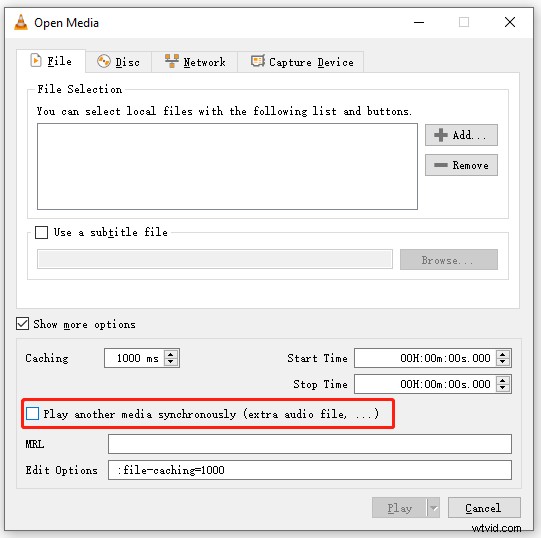
Step 5. In the pop-up window, click the Browse button to add the external audio track.
If you want to add subtitles to video, check the Use a subtitle file box to load your subtitle file. After that, tap on Select.
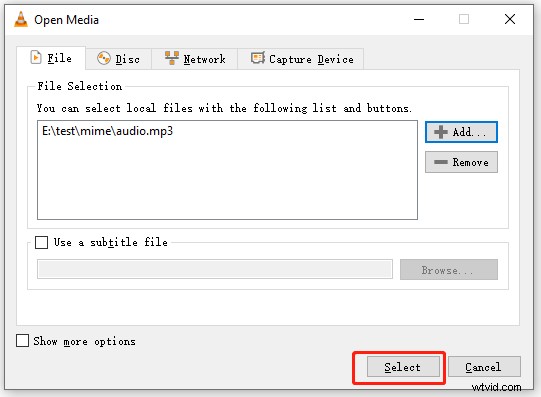
Step 6. Click the Play button to watch your video with an external audio track synchronously.
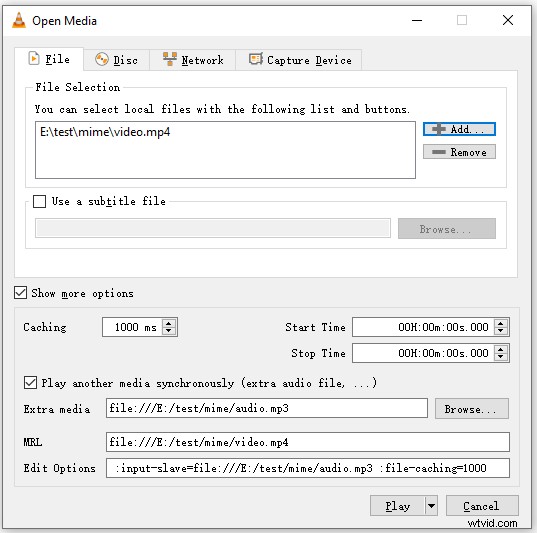
How to Add An External Audio Track to Video in VLC and Save
Another way to add audio to video in VLC is to convert them into one file.
Step 1. Run VLC media player.
Step 2. Go to Media > Open Multiple Files...
Step 3. Load the video file by clicking the Add button.
Step 4. Check the boxes Show more options and Play another media synchronously…
Step 5. Add the audio file and click Select.
Step 6. Click the down arrow icon next to Play and select Convert.
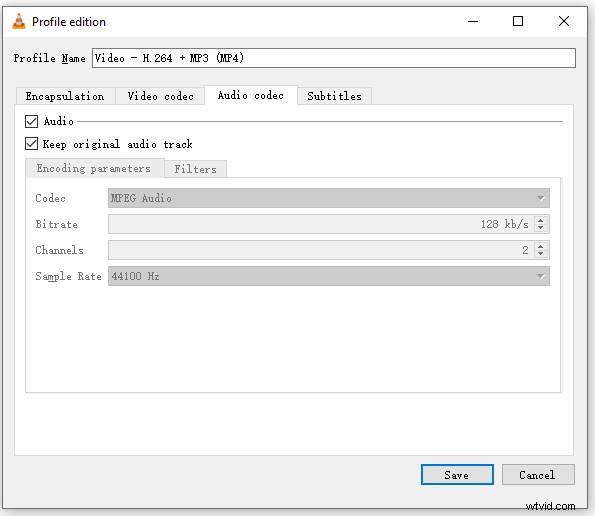
Step 7. In the Settings section, click the wrench icon. Then switch to the Audio Codec tab, check the options Audio and Keep original audio track. Click Save.
Step 7. Click the Browse button to select a folder to save the converted video. Then click Start.
How to Add an Audio Track to a Video without Losing Quality
In addition to VLC media player, MiniTool MovieMaker also can add an audio track to a video. It’s an excellent video editor that allows you to edit the audio in video and edit the audio track.
Here’s how to add audio to video without losing quality using MiniTool MovieMaker.
Step 1. Download, install and launch MiniTool MovieMaker.
Step 2. Import the video and audio track. Then drag and drop them to the timeline.
Step 3. Select the video. In the Video Property pane, click Audio and you can add fade effects to audio and change the video volume. Click the speaker icon and you can mute the video.
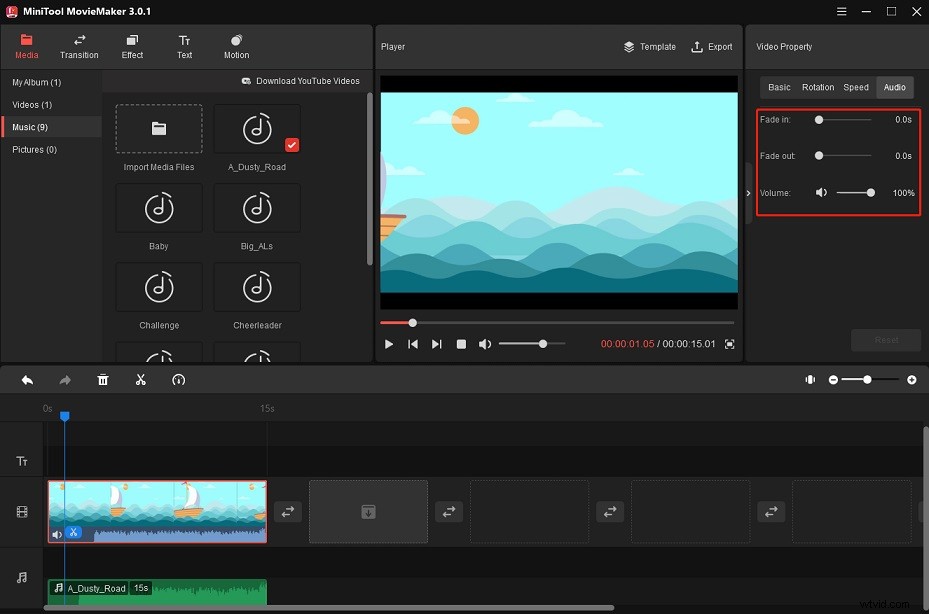
Step 4. To edit the added audio track, choose the audio and you are able to adjust its volume and add fade effects.
Step 5. Click Export to change the output settings and then export the video.
Conclusion
There are two different ways to add audio to video in VLC. Follow this guide and have a try!