
How to Create a Transparent Background GIF from Video
With the right tools and a clear workflow, you can easily transform any video clip into a high‑quality GIF that seamlessly blends into your designs or web pages.
We’ll walk through the process using a free, user‑friendly editor and cover the most popular software options for Windows and macOS.
Follow the detailed tutorials and expert tips from the official channel to achieve flawless results.
In this article
Part 1: Is It Possible to Create a Transparent GIF from Video?
GIFs combine visual storytelling with concise messaging, making them a popular choice for social media, tutorials, and digital marketing. When you convert a video into a GIF, you can enhance its appeal by removing the background.
Yes—creating a transparent GIF from a video is entirely feasible. The key is to replace the background with full transparency after the conversion. Below is a step‑by‑step approach using the Egif video converter.
Step 1: Convert Video to GIF
Use Egif to turn your selected video into a GIF. After conversion, manually remove any background from each frame and save the file with a .gif or .png extension; avoid .jpg, which discards transparency.
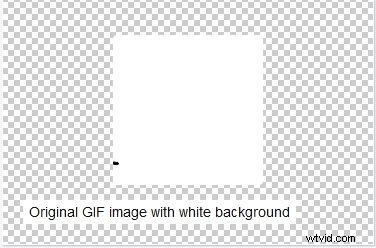
If the GIF has a solid‑color background, navigate to Egif’s Effects Tool and click Replace Color with Transparency.
Step 2: Choose the Color to Make Transparent
Select the color you wish to turn transparent. For a black‑and‑white background, pick white. For colored backgrounds, use a graphic editor such as GIMP or MS Paint to identify the exact hex code with a color picker.
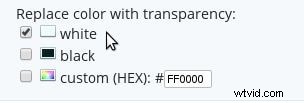
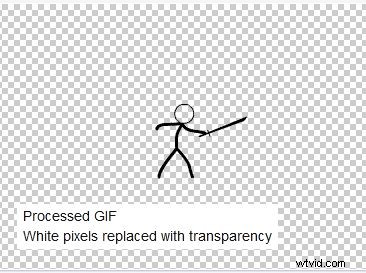
Note that the Egif tool can only handle a limited set of solid colors, and the chosen color should not overlap with foreground elements. If you need semi‑transparent regions within a complex animation, consider using the GIF Maker to split and edit individual frames before reassembling.
Part 2: Can Parts of a GIF Be Made Semi‑Transparent?
The GIF format supports only fully opaque or fully transparent pixels; true alpha blending is not part of its specification. Consequently, you cannot create partially transparent backgrounds within a standard GIF.
While this limitation persists, emerging formats like APNG or WebP provide alpha channel support and may become viable alternatives for future projects.
Part 3: Best Free Transparent GIF Maker Software
Below are the top free tools for crafting transparent GIFs on Windows and macOS. Each offers unique features that cater to both beginners and advanced users.
01. Transparent GIF Maker for Windows
Choose from these reliable options when working on a Windows machine:
● Wondershare Filmora Video Editor
Filmora delivers a polished editing experience with a comprehensive suite of effects, including a green‑screen feature that instantly swaps the background for transparency. The software is free to download and supports both GIF creation and audio integration.
Key features:
- Green‑screen tool for quick background removal
- Over 300 audio and visual effects
- Customizable frame size, rate, loop frequency, and duration
- Export to GIF, PNG, or WebP, with options to share directly to social media
- Intuitive drag‑and‑drop interface suitable for beginners
● RealWorld Paint
A free, Windows‑only application that offers advanced drawing tools (brush, magic wand, lasso) and robust GIF editing capabilities.
Key features:
- Manual frame creation with drawing utilities
- Advanced effects: drop shadow, pixelate, unsharp mask, bevel, noise reduction, glow
- Color adjustments, watermarking, and saturation controls
- Ability to merge frames into a film strip
- Export options: GIF, PNG, WebP, static cursors, icons
● Chasys Draw IES
A versatile, Windows‑compatible suite for graphic and GIF creation, supporting both normal and onion‑skin animation modes.
Key features:
- Comprehensive drawing toolkit: clone, heal, paintbrush, snip, magic wand, smoother, sharpen, text, shapes
- Transformation and color adjustment tools for dynamic GIFs
- Wide format support: PNG, JPEG, ANI, TIFF, PCX, ICO, TGA, etc.
- Multi‑purpose: file conversion, video creation, icon generation
- Plugin extensibility for added functionality
02. Transparent GIF Maker for macOS
For macOS users, the following free tools provide robust GIF creation with transparent backgrounds:
● Smart GIF Maker
Smart GIF Maker allows you to split a video into individual frames and apply selective effects, including background color adjustments, on each frame.
Key features:
- Intuitive interface and frame splitter
- Selective background editing per frame
- Drawing tools: resize, eraser, etc.
- Frame timing and loop control
- Preview before export to social media or local storage
● Giphy Capture
Giphy Capture records your screen and offers a straightforward editing pane to apply transparent backgrounds and other adjustments.
Key features:
- Professional editing tools: text, style, color adjustments, reverse, resize, frame rate control
- Supports 640‑pixel frame sizes, reverse/normal/ping‑pong loop styles
- Animation styles: fade, scale, etc.; captioning capability
- Export to local device; paid version required for cross‑platform sharing
● GIFlash
GIFlash combines video and image mixing with transparent GIF creation, offering a quick, user‑friendly workflow.
Key features:
- Screen selection while converting videos to GIFs
- Frame manipulation: flip, delete, reorder
- Color inversion for color backgrounds
- Loop frequency and duration adjustments
- Simple, clean interface
Key Takeaways
• Transparent GIFs make short clips more engaging and versatile across platforms.
• The software ecosystem offers a variety of free tools—Filmora, RealWorld Paint, Chasys Draw IES for Windows; Smart GIF Maker, Giphy Capture, GIFlash for macOS—to suit different skill levels.
• Leveraging these editors, you can convert any video into a polished transparent GIF in just a few steps.