
Language barriers and noisy environments can make video content difficult to understand. Subtitles bridge that gap, offering text‑based transcriptions that ensure your videos are accessible to everyone, anywhere.
With subtitles now available in a wide range of languages, creators can reach global audiences with ease. Filmora’s auto‑caption feature makes adding subtitles fast, accurate, and versatile, letting you enhance the accessibility and appeal of your videos in 2026.
In this article
- Key Features of Filmora Auto Captions
- Method 1: Generate Subtitles with Speech‑to‑Text
- Method 2: Add Dynamic Captions
- Method 3: Use AI Translation for Multilingual Subtitles
- Adding Subtitles on Filmora Mobile
- Conclusion
Part 1: Filmora – The Ultimate Subtitle Tool
Wondershare Filmora is a leading video editor that excels in subtitle creation. A single click transcribes spoken dialogue into text, and the built‑in subtitle generator supports 27 languages. Whether you need simple captions, bilingual subtitles, or animated dynamic captions, Filmora offers a comprehensive set of tools for every scenario.
Key Features of Filmora Auto Captions
- Export Flexibility: Export subtitles as a separate SRT file or embed them directly onto the timeline.
- Customization: Edit text, adjust font color, opacity, and apply a variety of animation styles to make captions stand out.
- Bilingual Support: Generate subtitles in two languages simultaneously, enabling seamless integration of both language tracks.
- AI‑Driven Editing: Edit captions in an integrated text editor, rewrite phrases, and add animations with a few clicks.


Part 2: Adding Subtitles on Desktop
Method 1: Speech‑to‑Text Subtitles
Filmora’s Speech‑to‑Text feature automatically transcribes spoken words, creating accurate subtitles with minimal effort.
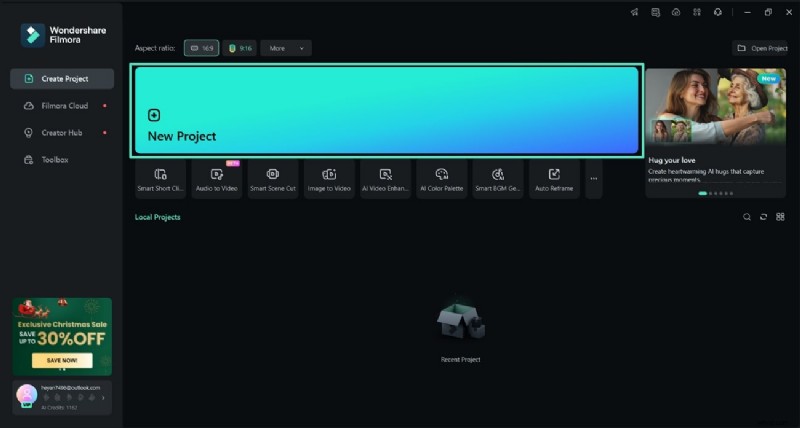
Step 1 – Create a New Project
Download the latest version of Filmora from the official website. Click the New Project button to enter the editing interface.
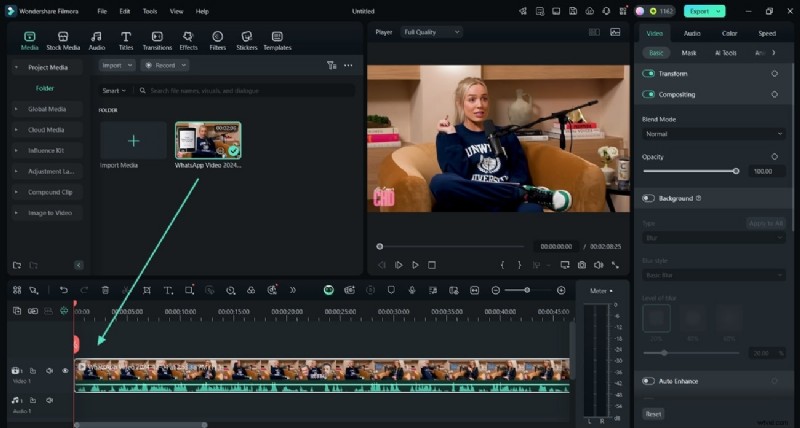
Step 2 – Import Your Video
Click Import to add your footage. Drag the clip onto the timeline to prepare it for captioning.
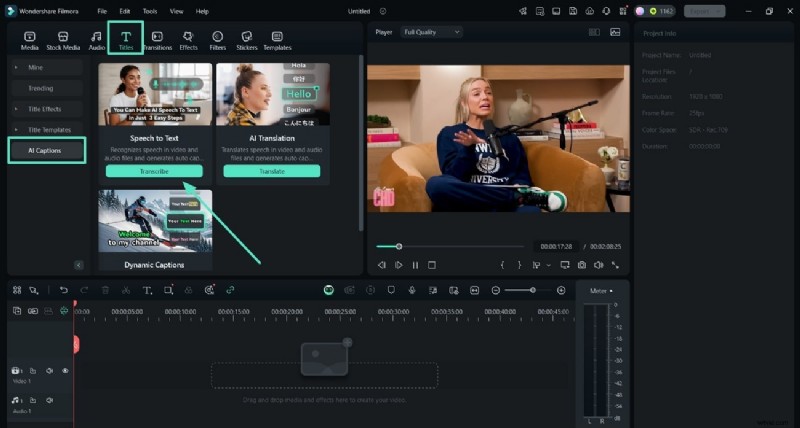
Step 3 – Access Speech‑to‑Text
Navigate to the Titles tab, select AI Captions, and click Transcribe under Speech‑to‑Text.
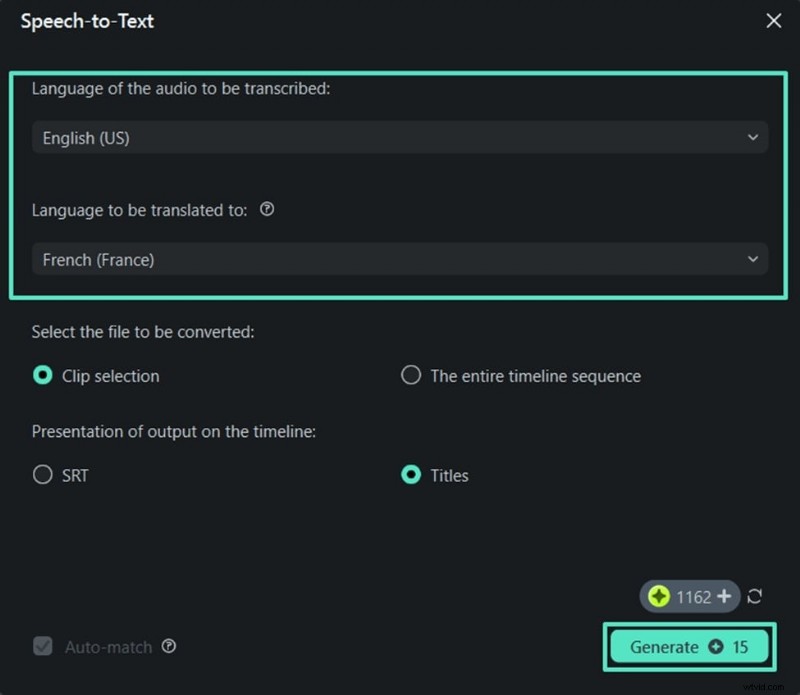
Step 4 – Generate Subtitles
Choose the source language of your audio and the target language for captions. Click Generate to start the transcription.
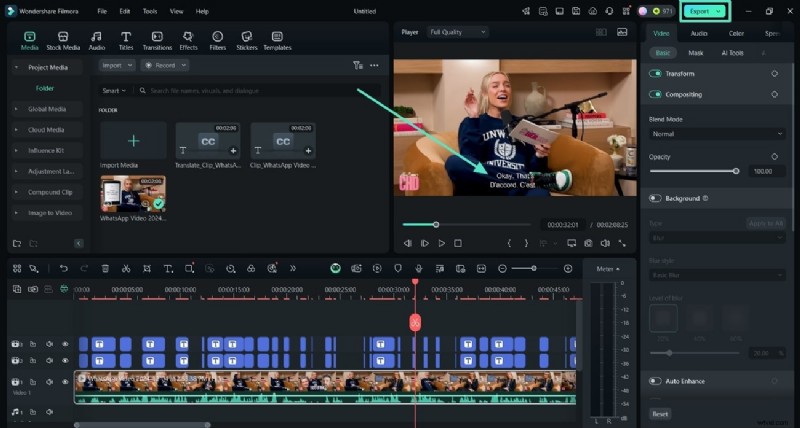
Step 5 – Export the Video
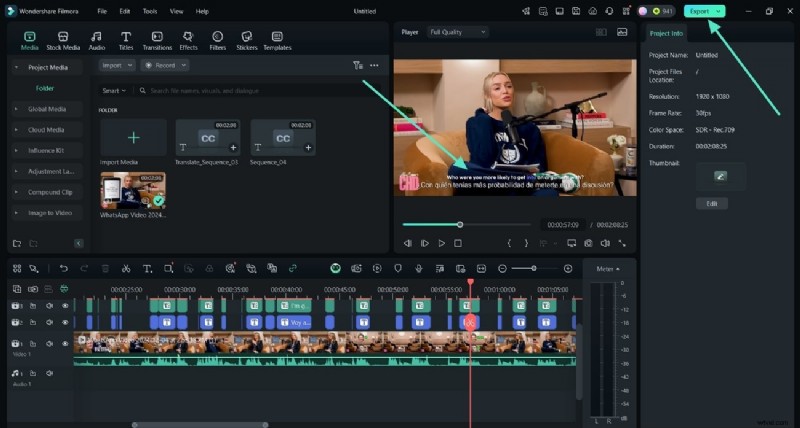
Review the subtitles in the preview window. When satisfied, click Export to save the captioned video.
Method 2: Dynamic Captions
Dynamic Captions add animated text that syncs with your video’s style.
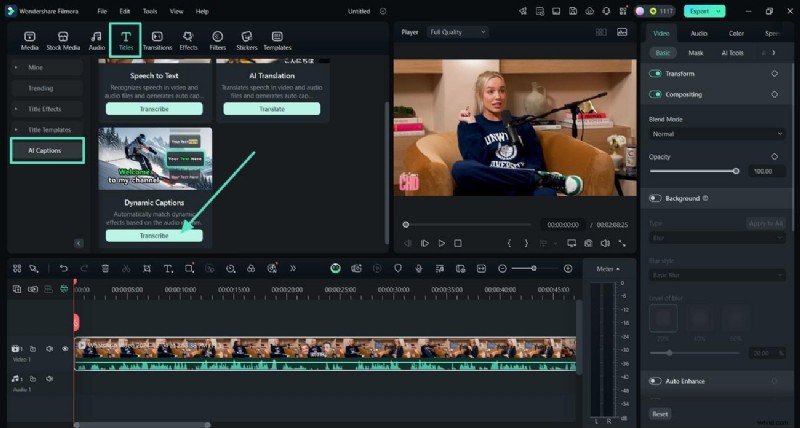
Step 1 – Open Dynamic Captions
In the AI Captions section under Titles, click Transcribe below Dynamic Captions.
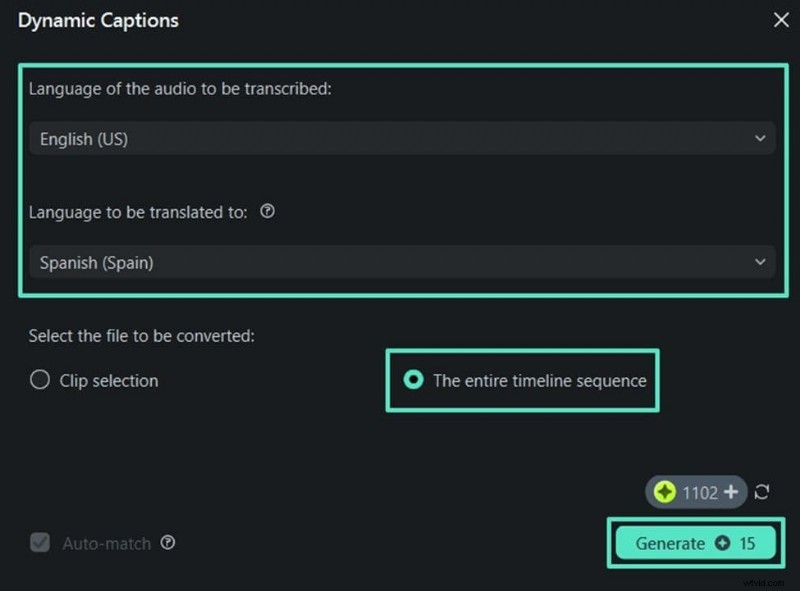
Step 2 – Set Languages and Generate
Select source and target languages, toggle Entire Timeline Sequence, then click Generate.
Step 3 – Review and Export
Play the video to check accuracy. Once satisfied, hit Export to save the file.
Method 3: AI Translation for Multilingual Subtitles
Translate your audio into another language while generating captions simultaneously.
Step 1 – Access AI Translation
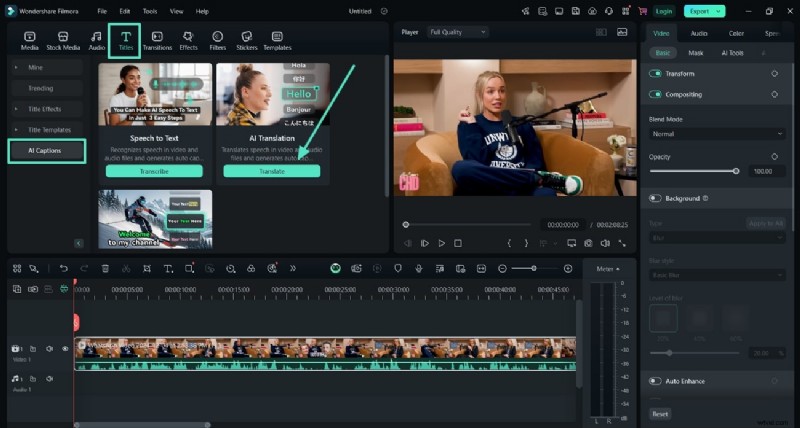
In AI Captions, click Translate.
Step 2 – Choose Languages and Generate
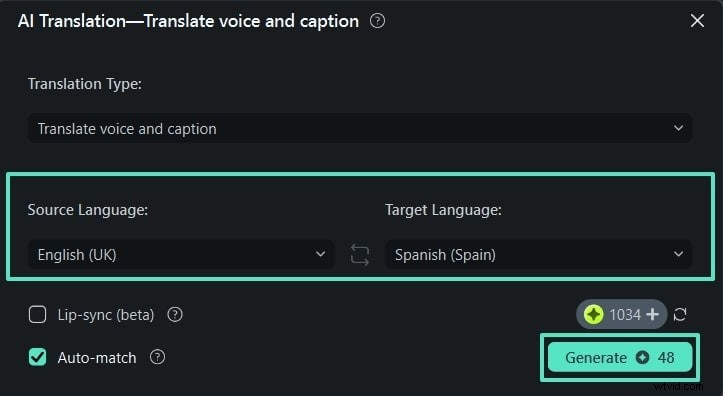
Select the source and target languages, then click Generate.
Step 3 – Export
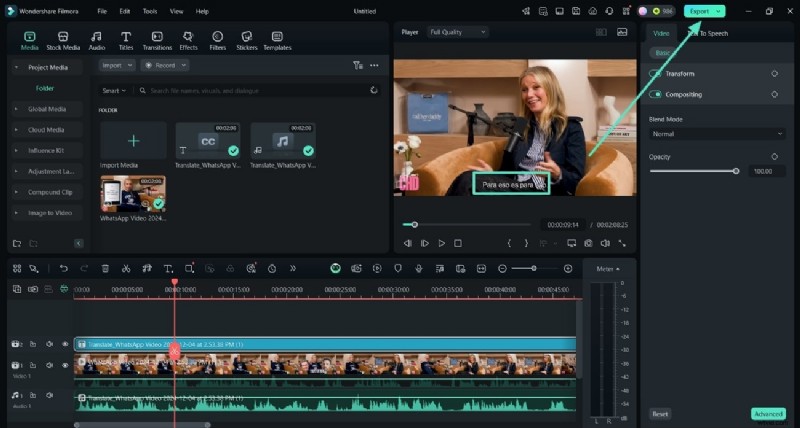
After reviewing the captions, click Export to save your video.
Part 3: Adding Subtitles on Filmora Mobile
Filmora’s mobile app lets you create captions on the go.
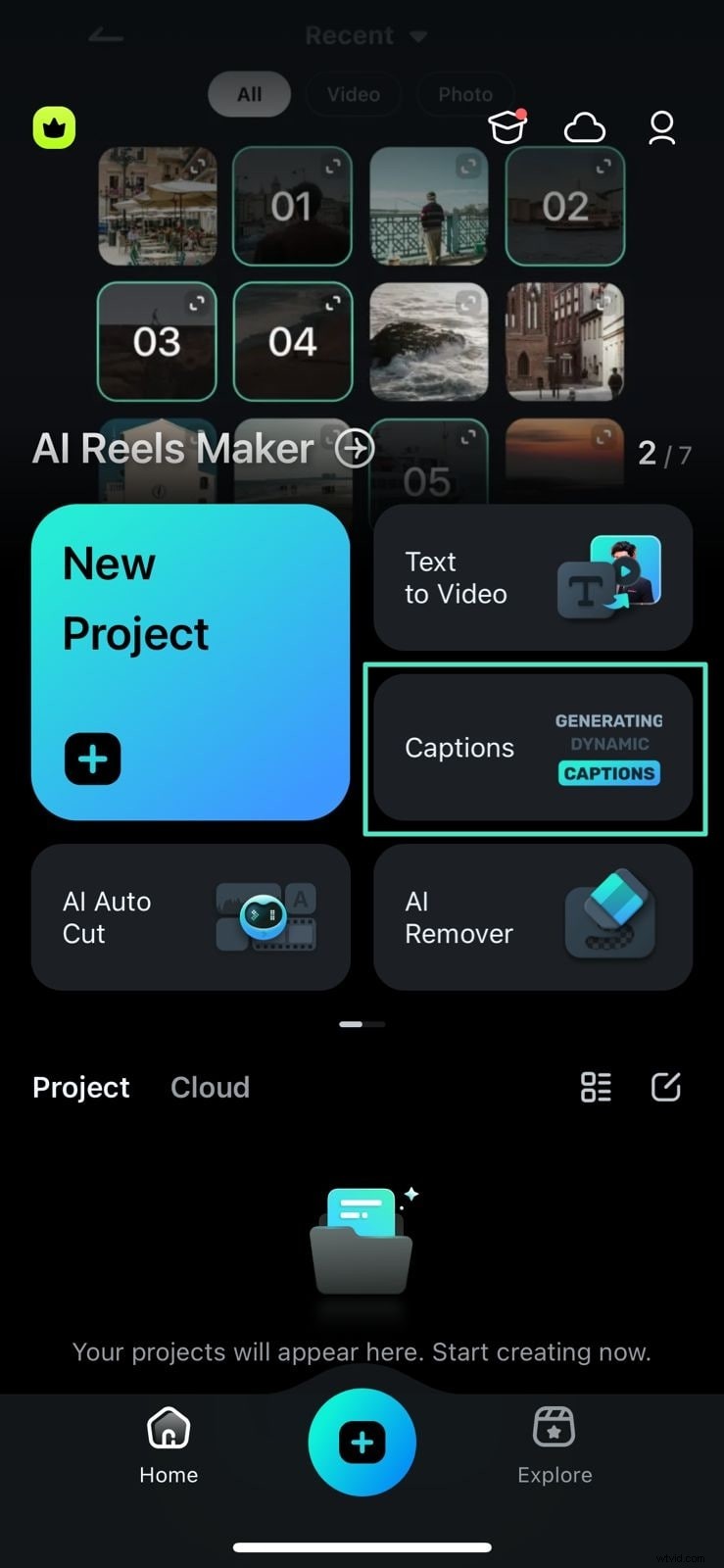
Step 1 – Import Video
Open the app, tap Captions, and add your video from your device.
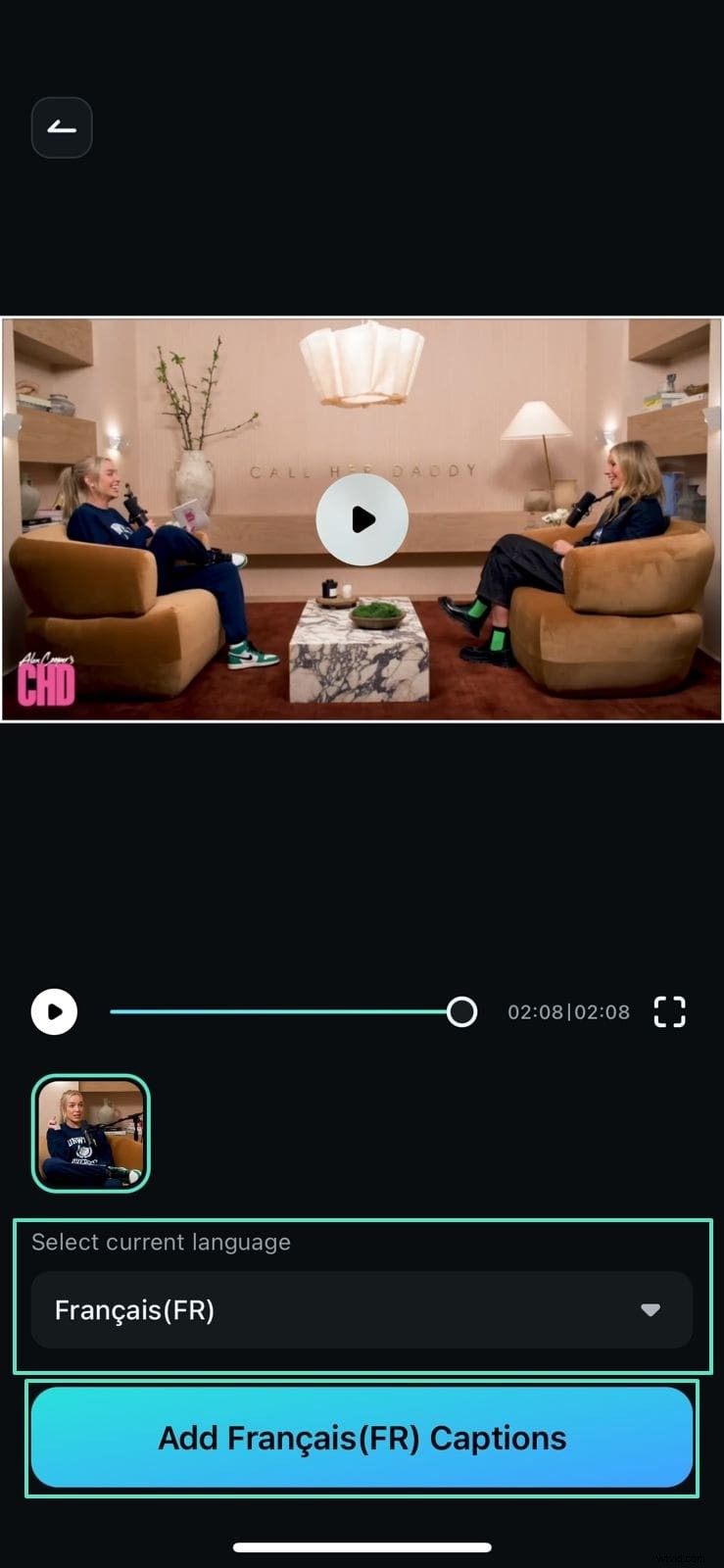
Step 2 – Generate Auto Captions
Select the target language, then tap Add Captions to generate subtitles.
Conclusion
Subtitles expand your reach and improve accessibility. Filmora’s AI‑powered subtitle tools—speech‑to‑text, dynamic captions, AI translation, and mobile support—give creators a powerful, flexible solution for every video project in 2026.