
In today’s social‑media ecosystem, meme text can make or break a video’s engagement. By adding captions that resonate, you transform ordinary clips into shareable, viral‑worthy content that instantly connects with viewers.
Many creators struggle to produce polished meme captions because the tools they use feel limited. This guide shows how Wondershare Filmora’s desktop and mobile solutions enable you to add, edit, and animate meme text with ease—whether you prefer a manual touch or AI‑powered generation.
Table of Contents
- Key Features of Filmora
- How to Add Text on Mobile
- How to Add Text on Desktop
- Choosing the Right Font
- Conclusion
Key Features of Filmora for Meme Captions
- AI Captions – automatic subtitle generation from audio.
- Speech‑to‑Text – transcribe spoken words into captions.
- Dynamic Captions – animated, style‑matched subtitles.
- AI Translation – convert audio into subtitles in any language.
- Text Templates – ready‑made designs for quick styling.
- Animated Text – preset entrance/exit combos with adjustable speed.
Part 1: Adding Meme Text on Mobile (Filmora App)
The Filmora App for Android and iOS offers an intuitive interface that lets you add captions, animations, and templates on the go.
AI Caption Feature
- Open the app and tap AI Captions on the home screen.
- Import your video clip.
- Choose the language of the audio and tap Add Captions to generate subtitles.
Manual Text Addition
- Create a new project and import your video.
- Tap Text in the toolbar and select Add to insert a text layer.
- Type your caption, then adjust font, color, size, and style from the Style and Font panels.
- Confirm changes by tapping the checkmark and export the final video.
Part 2: Adding Meme Text on Desktop (Filmora PC)
Filmora’s desktop version provides deeper control over positioning, timing, and animation.
Speech‑to‑Text Workflow
- Open Filmora and start a new project.
- Import your video and drag it onto the timeline.
- Navigate to Titles > AI Captions > Speech to Text and click Transcribe.
- Select source and target languages, then click Generate.
- Review the captions, make edits if needed, and export the video.
AI Translation Workflow
- In AI Captions > AI Translation, click Transcribe.
- Choose the source and target languages and click Translate.
- Edit the translated subtitles directly on the timeline, then save.
Dynamic Captions Workflow
- Open Dynamic Captions and click Transcribe.
- Set the source and target languages and hit Generate.
- After captions appear, click a caption to open the Text tab and apply a template.
- Use Apply to All to style every caption consistently.
Part 3: Choosing the Best Fonts for Meme Text
Font choice shapes the humor and readability of your meme. Below are six professional fonts that work well for video captions.
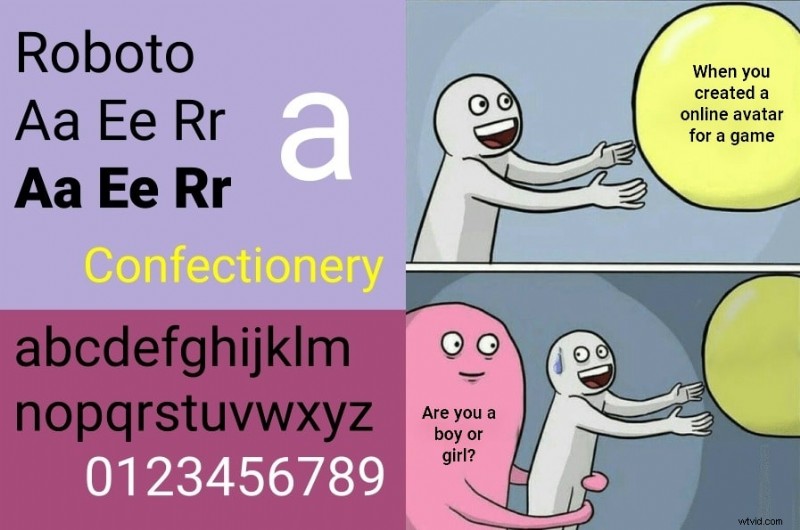
1. Roboto T
Bold and impactful, ideal for punchy one‑liners.
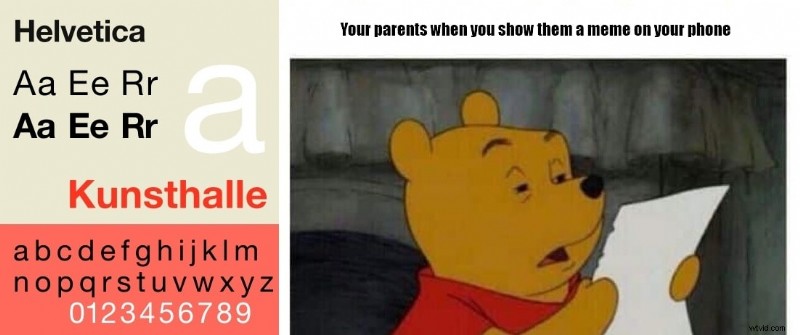
2. Helvetica
Classic and clean, perfect for ironic or sarcastic captions.
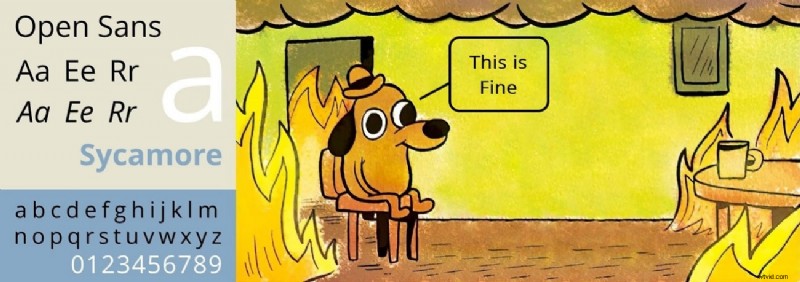
3. Open Sans B
Strong and sarcastic, great for humor mixed with information.
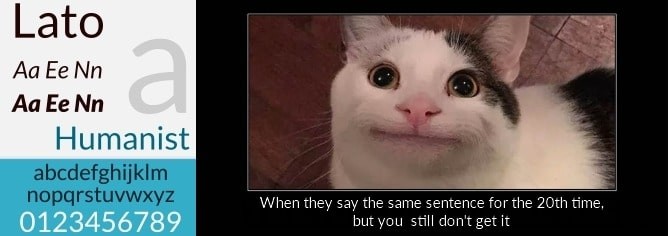
4. Lato
Sophisticated yet approachable; balances wit and readability.
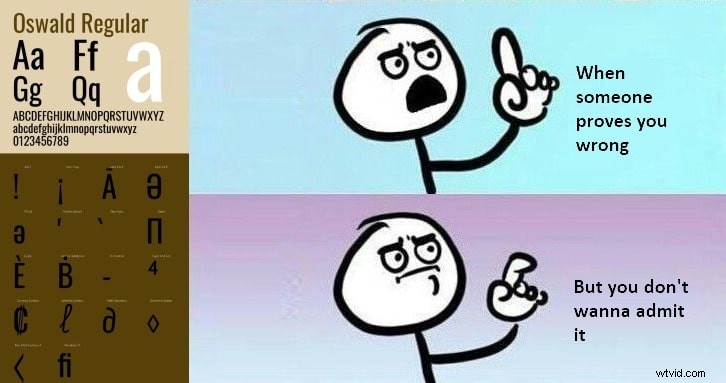
5. Oswald Black
Bold, upright, and eye‑catching—excellent for bold statements.
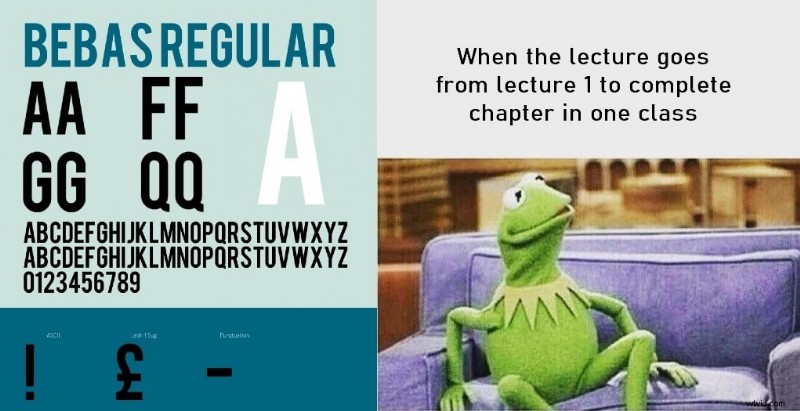
6. Bebas R
Fun and relatable; works well for casual, expressive captions.
Conclusion
Mastering meme text on video is a key skill for creators who want to generate humor that resonates online. With Filmora’s AI and manual tools, you can add professional‑grade captions, choose the perfect font, and animate text to elevate your videos. Whether you’re working on a phone or a PC, Filmora provides the flexibility and power to create captions that turn ordinary clips into viral sensations.