
Want your videos to connect with viewers worldwide? In today's borderless digital world, subtitles aren't just nice-to-have - they're essential for breaking language barriers and maximizing your content's reach.
While no one can master every language, there is a simple solution: VLC Media Player. As one of the most versatile media platforms available, VLC makes adding subtitles surprisingly easy - especially on mobile devices.
Why struggle with complicated desktop solutions when you can add perfect subtitles directly from your smartphone? In this guide, we'll show you exactly:
- how to add subtitles in VLC iPhone and Android.
- how to find and sync subtitle files effortlessly
- how to optimize subtitles for international viewers
In this article
-
- Adding Subtitles on iPhone Using VLC
- Adding Subtitles on Android Using VLC
- Limitations of VLC
-
- The Features of Filmora That Complement Your Subtitled Videos
- A Tutorial on Adding Subtitles to Videos Using the Wondershare Filmora App
-
- Issue 1. Subtitle File Not Loading
- Issue 2. Captions and Video Out of Sync
- Issue 3. Subtitles Not Available for Download
Part 1. How To Add Subtitles in VLC iPhone/Android?
While watching a video in a foreign language, you can quickly use the VLC application to generate subtitles and understand the content. The VLC application can be accessed on iOS and Android devices for mobile users. To insert subtitles using VLC, you will require a pre-existing subtitles file:
Adding Subtitles on iPhone Using VLC
Besides accessibility enhancement, captions are essential for SEO. If you want to learn how to add subtitles in VLC on iPhone, follow the instructions below.
Step 1. Prepare and Launch VLC
- Download the subtitles you want from any online source.
- Install the VLC app on your iPhone.
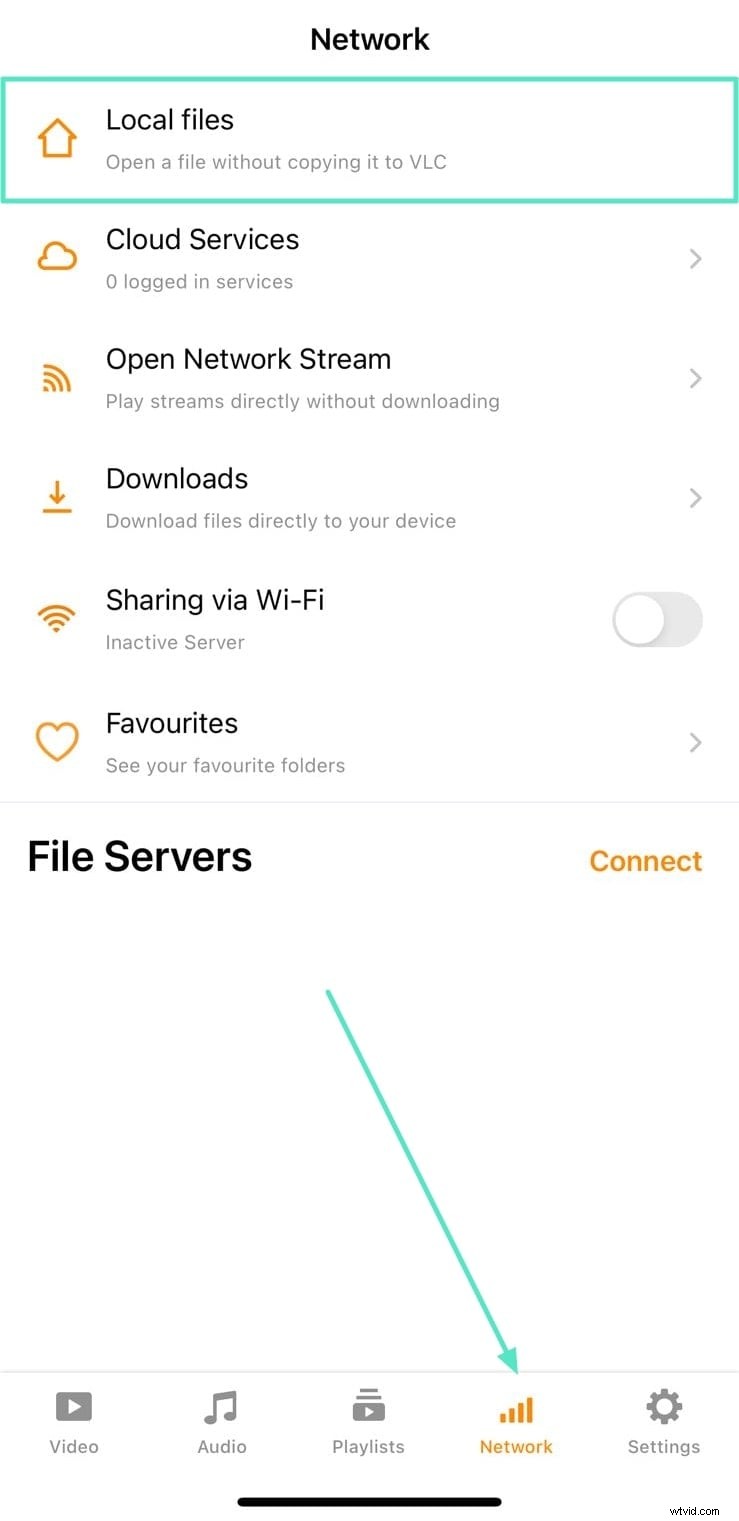
- Open the app, go to the bottom menu, tap on "Network," and select "Local Files" to access your media.
Step 2. Load External Subtitles
- Select the video you want to play from the "Files" app.
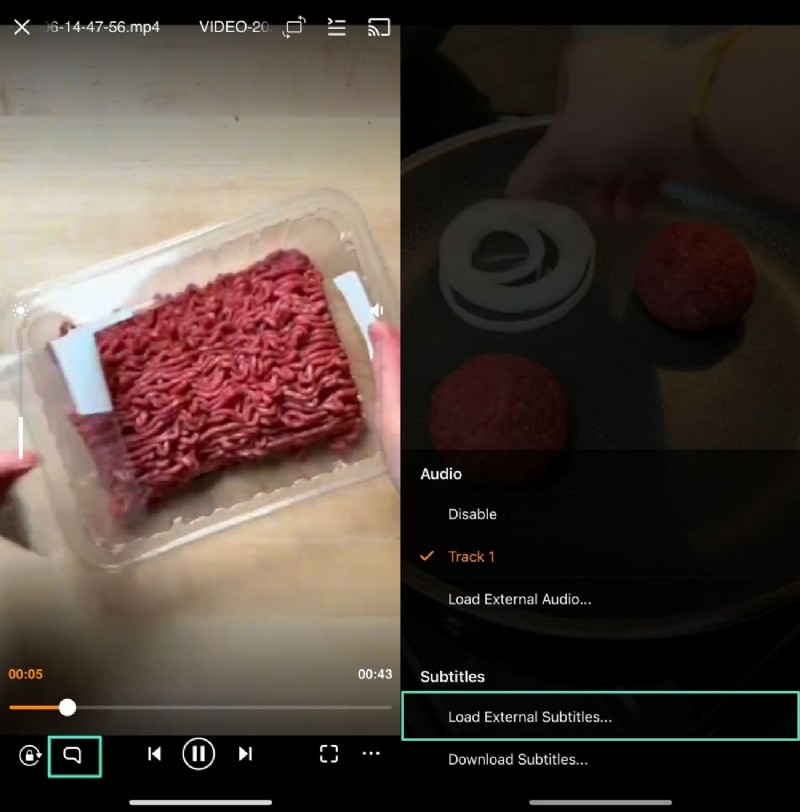
- Tap the "Subtitles" tab in the bottom left to open the menu.
- Choose "Load External Subtitles" to browse for your subtitle file.
- Once selected, the subtitle track will appear on the screen automatically.
Adding Subtitles on Android Using VLC
Although VLC's functionality across all types of phones is the same, some things still differ. For instructions on how to add subtitles in VLC Android, explore the following guide.
Step 1. Import Video into VLC
- Download the subtitle file you need from any online source.
- Install and open the VLC app on your Android device.
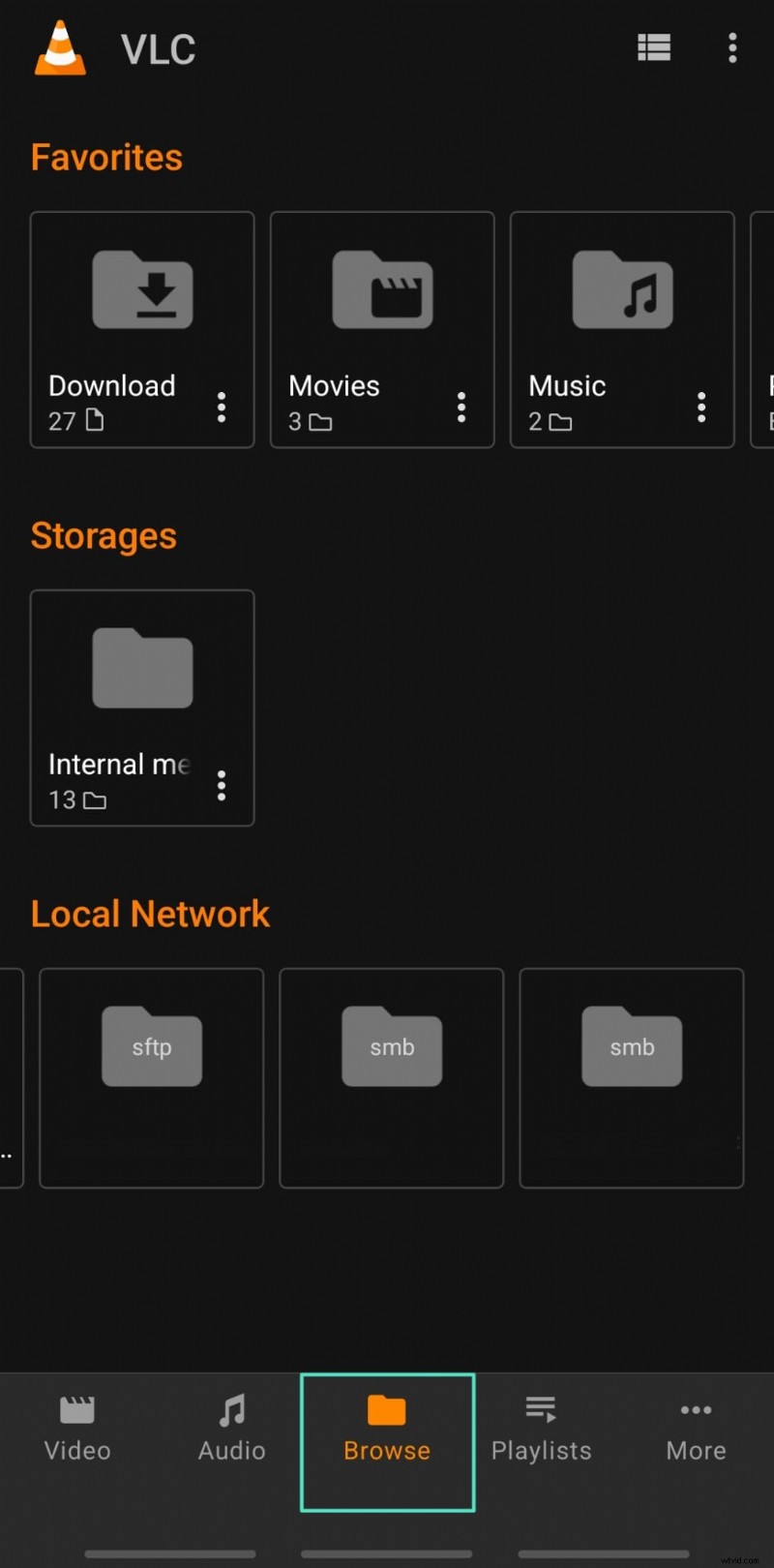
- Tap the "Browse" tab and import the video from your phone.
Step 2. Add Subtitles to Your Video
- Once the video is imported, tap the "Subtitles" tab at the bottom left.
- Select your subtitle file from the device storage.
- Import it into VLC to display subtitles with your video.
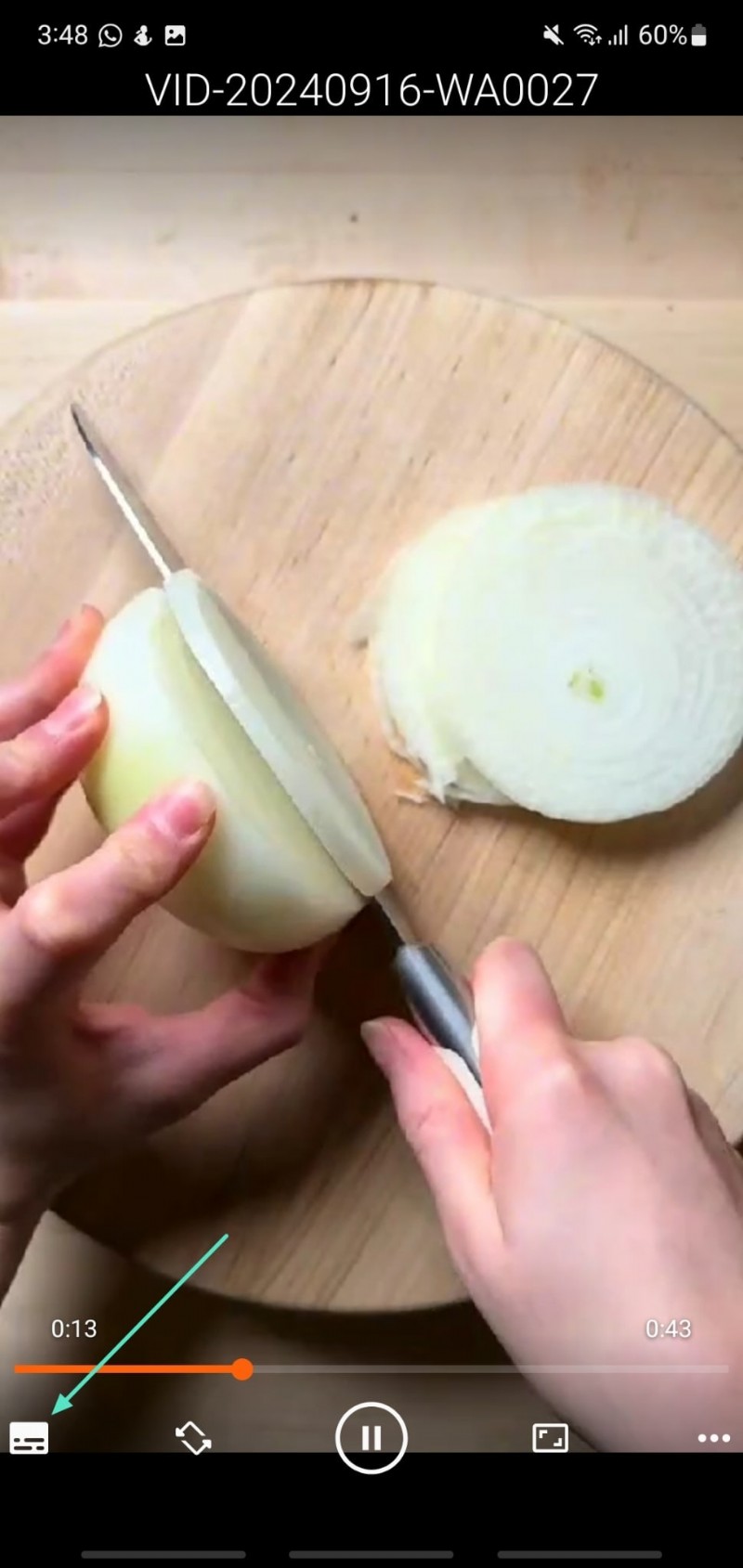
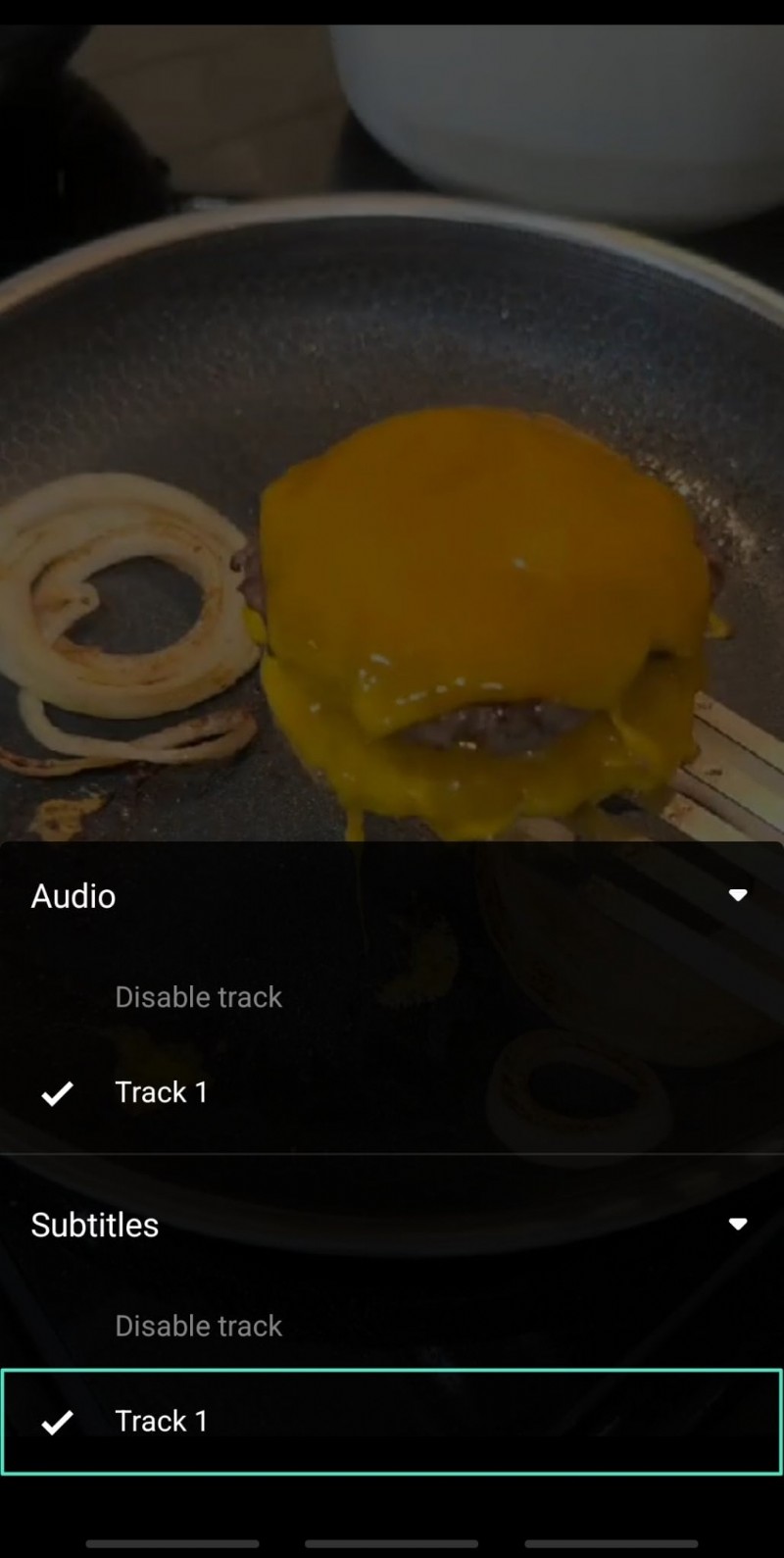
Step 3. Enable Subtitles
- The imported subtitle track will now appear on the VLC screen.
- Tap the track to activate it.
- The subtitles will automatically sync and display with your video.
Limitations of VLC
- The VLC application might not be able to handle uncommon formats of subtitles, leading to incorrect display.
- Other than that, this application have no option for auto subtitles generation, which is troublesome for time-bound users.
- You cannot personalize the subtitles, like changing their font, color, and size, while watching visuals on your mobile devices.
Part 2. Add and Edit Subtitles in Videos: Going Beyond VLC
Although we have discussed VLC for adding captions to videos, it does not fully incorporate the captions into the videos. Therefore, it is understandable that some users might be uncomfortable while following the subtitle-generating steps on VLC.
Thus, they ultimately seek more powerful solutions that combine captioning with full video editing capabilities. This is where Wondershare Filmora shines. Filmora offers a wide range of video editing features and is an excellent choice for adding text overlays.

Filmora ⭐⭐⭐⭐⭐
Powerful AI video editor for all creators


The Features of Filmora That Complement Your Subtitled Videos
- Auto Captions: Generate animated subtitles for all your videos in one click.
- Batch Processing: Filmora offers batch processing to save the time required to generate subtitles for individual videos. Using this facility, you can import as many videos as you need and add captions.
- Multilingual Support: To make your videos understandable to multiple ethnicities, Wondershare Filmora supports around 19 languages. If the original video language is unknown, you can enable the "Auto Identity" feature, and AI will automatically identify it.
- Export Settings: To ensure that your videos are exported without watermarks and are of high quality, you can enter the custom export settings. Select the resolution and FPS of your choice and save the files in Smart HDR.
A Tutorial on Adding Subtitles to Videos Using the Wondershare Filmora App
Now that you know that Filmora offers AI captions for your videos, let's see how the process works. The following section will focus on the step-by-step tutorial for adding AI-generated and manual captions using this application:
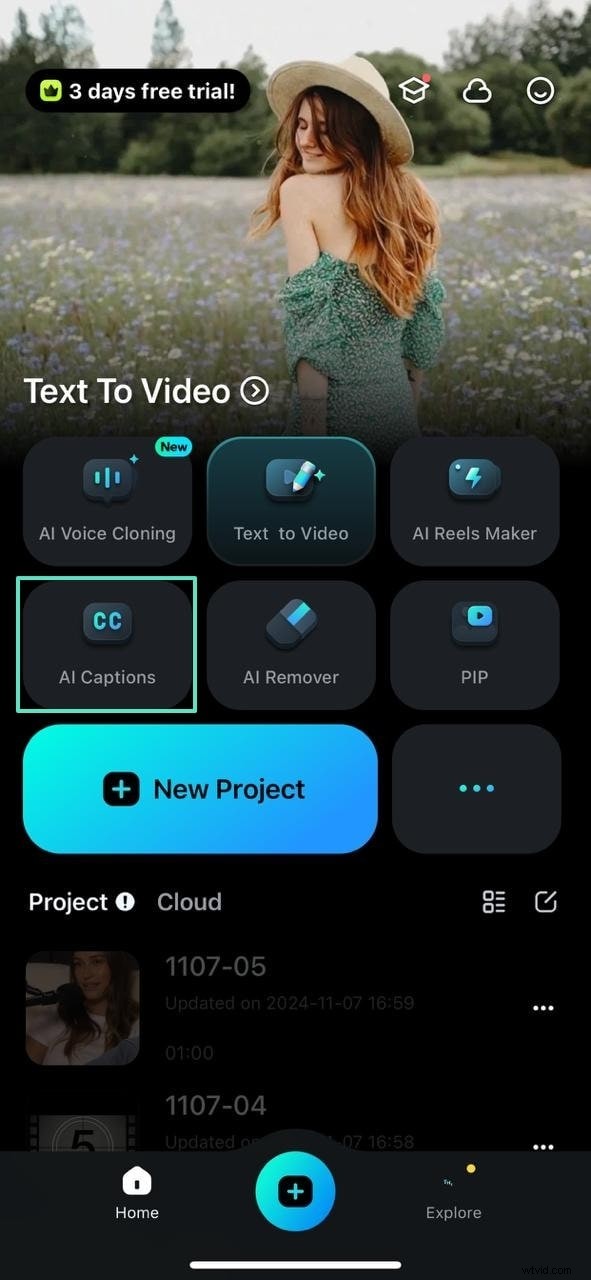
Step 1. Import a Video To Add Captions
- Open the Filmora app on your phone.
- Tap the "AI Captions" button on the main screen.
- Select and import the video you want to add captions to.
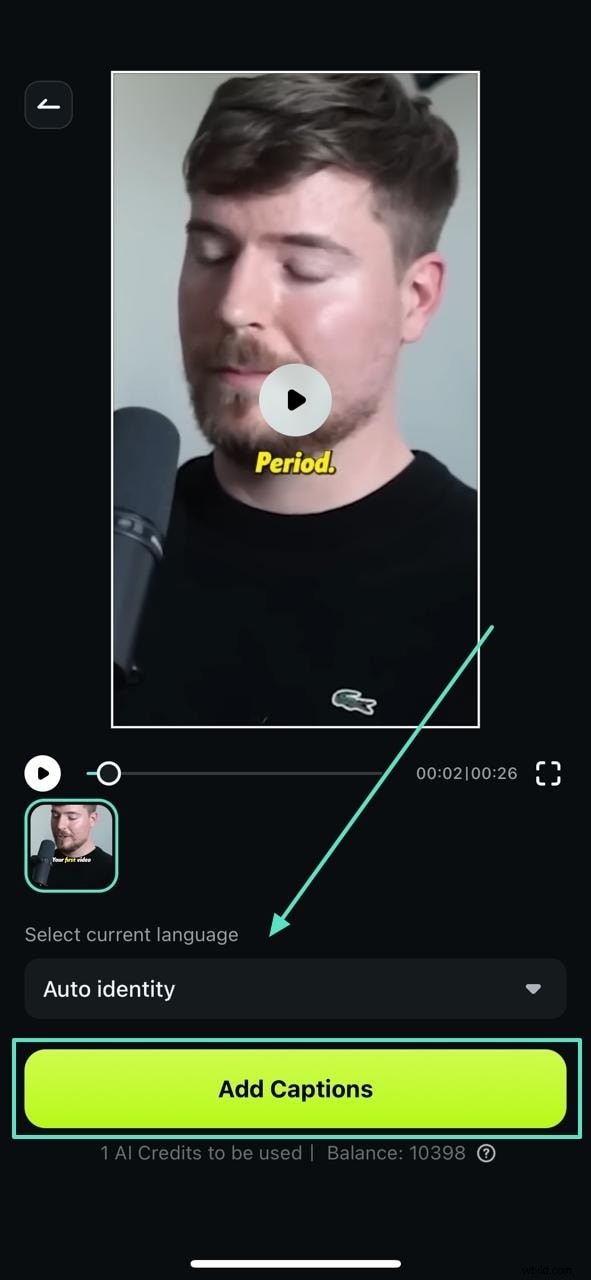
Step 2. Select the Language and Generate the AI Captions
- Once the video loads, open the language menu.
- Select the language for subtitle generation.
- Tap "Add Captions" to let the AI automatically generate subtitles.
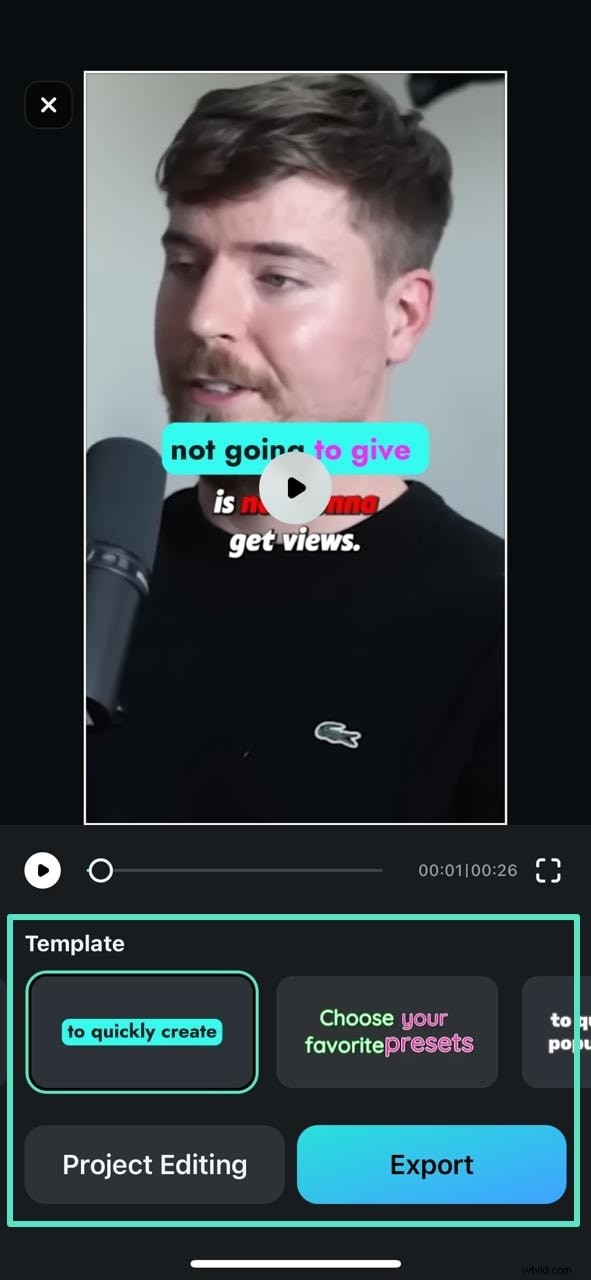
Step 3. Continue Editing Generated Captions Video or Export
- After the captions are generated, you can choose to refine them by tapping "Project Editing."
- Or tap "Export" to save and share the final video with captions.
Step 4. Discover More Options for Editing Subtitles
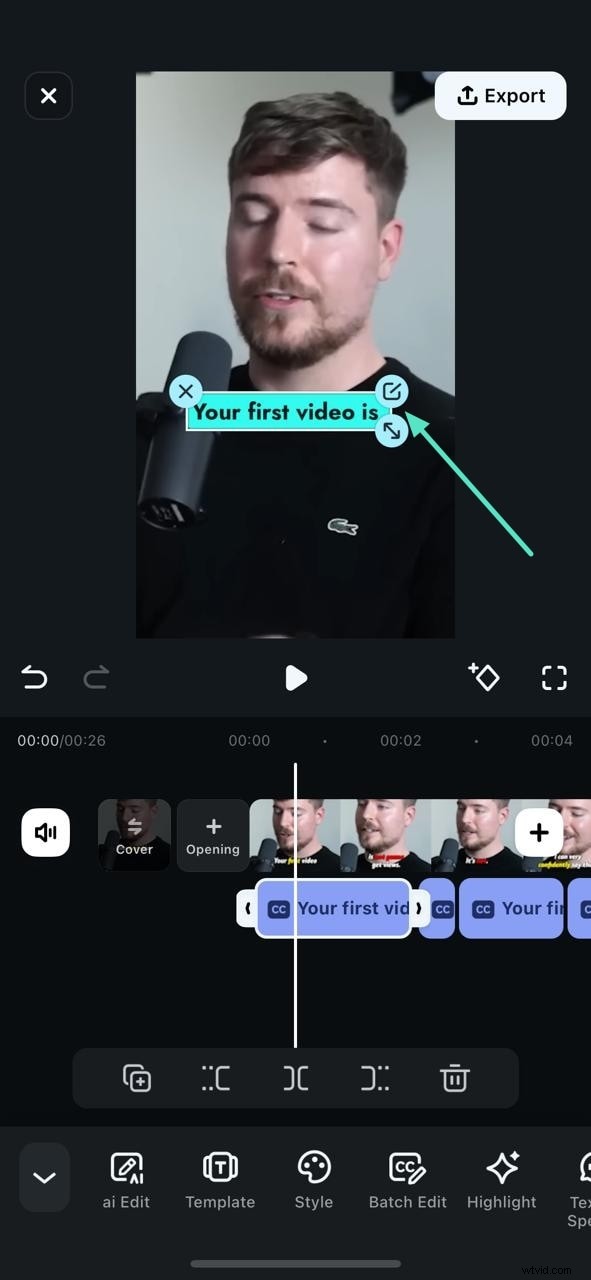
- If you choose "Project Editing," you’ll enter the editing interface.
- Adjust the position of the captions as needed.
- Make additional edits or enhancements to match your style.
Step 5. Proceed With Defined Exporting Parameters
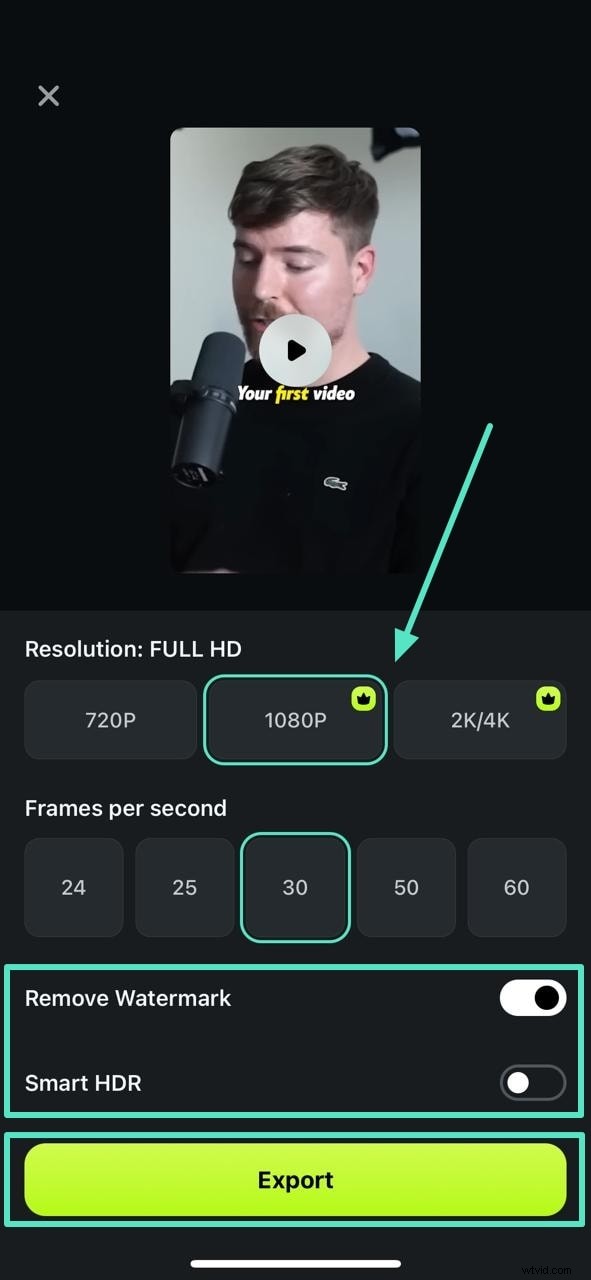
- Tap "Export" to open the export settings window.
- Select your preferred resolution and frame rate.
- Optionally enable "Remove Watermark" and "Smart HDR" for enhanced quality.
- Tap "Export" again to save your final video.
What's even more exciting? Filmora's upgraded AI Caption features now offer smarter customization:
- 🔥 AI Camera - Automatically shifts focus to speakers when their dialogue appears
- 🎨 AI Emoji - Adds relevant emojis to amplify emotional impact
- 💡 AI Highlight - Instantly emphasizes key phrases for better retention
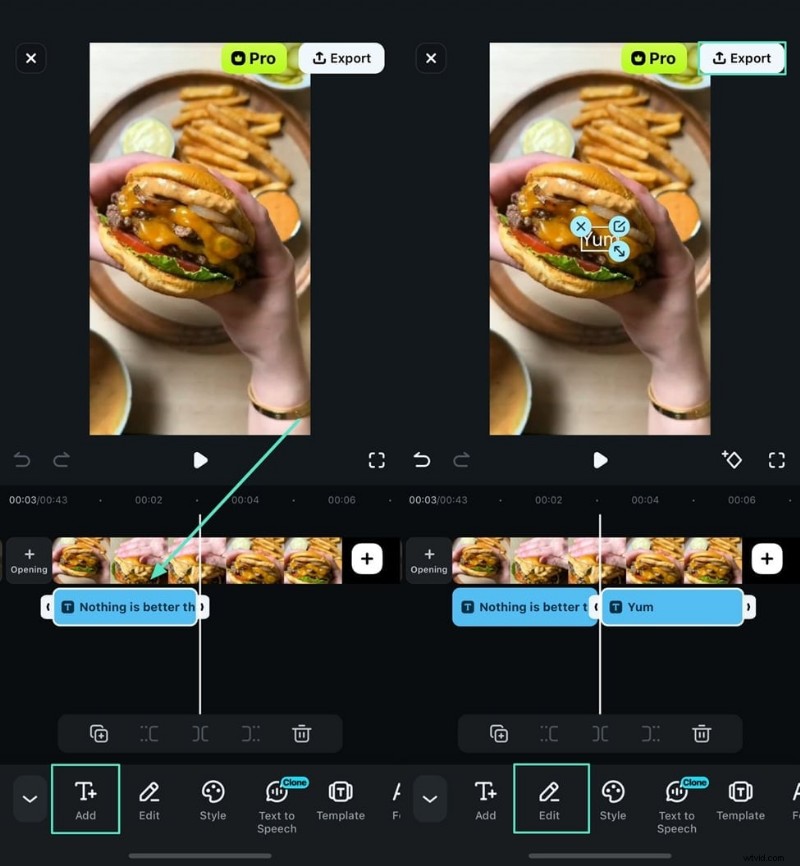
While you've learned how to add subtitles on VLC iPhone, there's a similar manual functionality offered for the Filmora App. You can simply type in your video's subtitles and make edits to its text with the available font settings. With pre-existing templates, editing manually with the Filmora App only gets more exciting.
Similarly, when it comes to longer videos or when detailed customization is needed, you can try Filmora's desktop software to add subtitles, which offers automated tool, and a larger screen for easier editing.
Filmora ⭐⭐⭐⭐⭐
Powerful AI video editor for all creators
Bonus Part. How To Troubleshoot Common Subtitle Adding Issues in VLC?
The above discussion covered the methods on how to add subtitles in VLC on the phone using various devices. While VLC allows users to add subtitles to videos, it has various limitations that make it a less dependable option. The following section concerns common issues and their solutions when using VLC to generate captions:
Issue 1. Subtitle File Not Loading
When importing a subtitle file on VLC, we often encounter a message that says, "Subtitle File Not Loading." To fix this, you can try uploading a subtitles file in a compatible format, like SRT. If the issue still persists, select the correct language for the original video and the subtitles file.
Issue 2. Captions and Video Out of Sync
After the subtitles file is incorporated into the videos, the captions and the audio are often out of sync. This issue can be fixed by choosing a subtitle file with proper time stamps, and then you can add them to the VLC video.
Issue 3. Subtitles Not Available for Download
If the subtitles files fail to download, the entire struggle behind the process goes in vain. You can quickly get away with this by checking your internet connection.
Conclusion
As the article ends, we've learned that VLC is a commonly used video player, and when used on a phone, it can generate subtitles for videos. Afterward, we learned how to add subtitles in VLC on the phone, leading to the same tutorial for Filmora App. To wrap up, it can be safely said that the Filmora App is a more reliable option for generating video captions.
Filmora ⭐⭐⭐⭐⭐
Powerful AI video editor for all creators