

Last December we released Clipchamp’s Google Drive Import/Export functionality, made better in January with the Clipchamp add-on in Google’s Workspace Marketplace. Adding to the list of Clipchamp integrations, is our latest integration with Google Photos.
Now, with this latest Google Photos integration, users can import photos and videos straight into Clipchamp, no need to take extra steps to download or import.
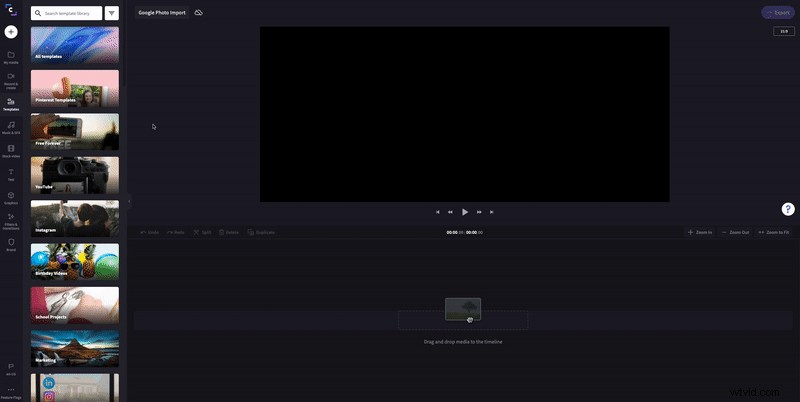
Step one: Select Google Photos Import
After you’ve logged in or signed up to your Clipchamp account, open the editor to get started. Navigate to your Media Library, click the “Add” icon, and select the Google Photos button to import your files.
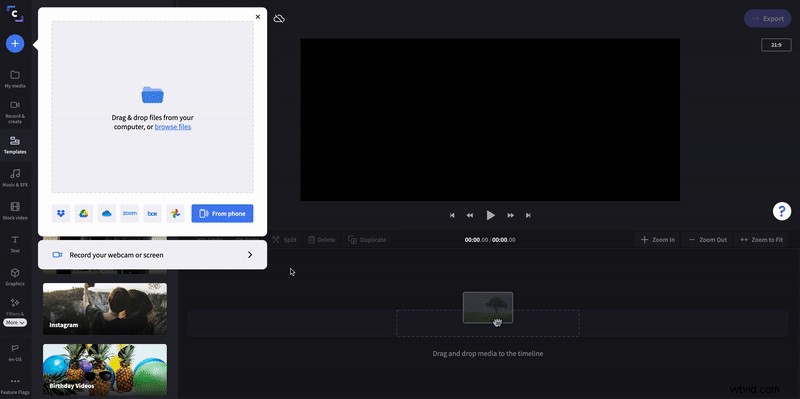
Step two: Authenticate Google Photos
You’ll be asked to give Clipchamp permissions to access your Google Photos account before you can begin importing files. Simply follow the prompts to provide access to get started.
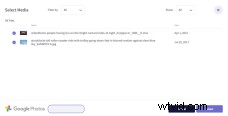
Step three: Select photos or videos and import
Once you’ve gained access to your Google Photos account, find the file/s you’re after, select them and click the Import button to import them into your media library in Clipchamp.
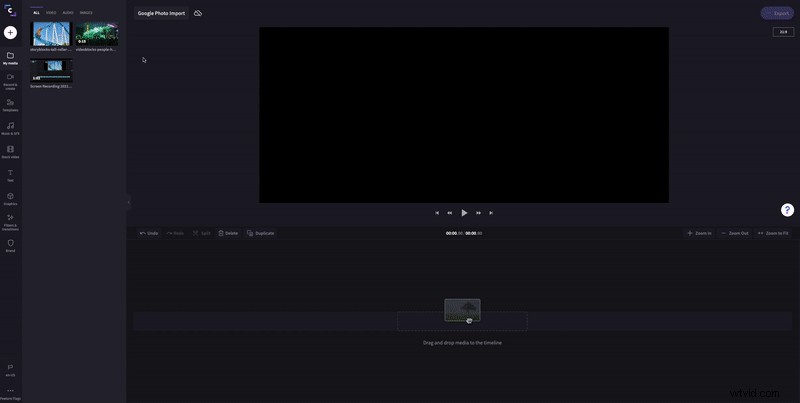
Step four: Add to timeline and edit
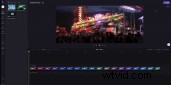
When your files have finished importing, you can go ahead and drag and drop them to the editing timeline. From here, you can get stuck into your video editing by trimming clips, adding stickers and transitions, and creating motion titles.
Step five: Export and save
Once you’re happy with your video, it’s time to export it back to your Google Drive. Hit the Export button at the top right corner of your screen, and once you’re there click the Save to Google Drive option and hit save. Note: a copy of your video will also be automatically saved to your device.
Happy editing
That's all there is to it! Enjoy this new, simple way to import media using Clipchamp's Google Photos integration.