
Sometimes you shoot videos or take photos only to find it's vertically oriented. When you are editing those photos and videos in iMovie, you want to rotate them. And sometimes, you just need a certain part of the video frame, so you need to crop photos and videos to remove the imperfect part, focusing on the specific part.
- Part 1: How to Crop and Rotate Photos/Videos in iMovie
- Part 2: An Easier Way to Rotate and Crop Photos/Videos
- Part 3: FAQs About Cropping and Rotating Videos in iMovie
Part 1: How to Crop and Rotate Photos/Videos in iMovie
Related: How to Zoom in/out Videos in iMovie
Step 1. Open iMovie
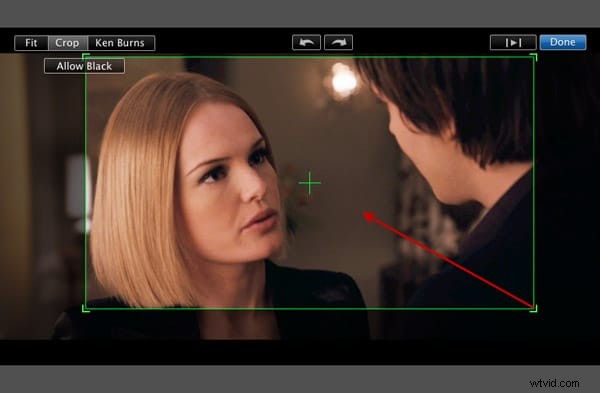
Open your iMovie project first and open the cropping and rotating tools. Hit the Crop button on the iMovie toolbar to open the Cropping Tools in the viewer.

Step 2. Crop Photos and Videos
In the cropping tools viewer, simply drag to resize and reposition the green area to focus on a certain part. Then move the pointer to a corner of it until the pointer turns into a plus sign, and then drag to make it bigger or smaller to change the size.
Tip: You can hit Allow Black to maintain a black border around your still photo. This function applied only to still photos.
Step 3. Rotate Photos and Videos
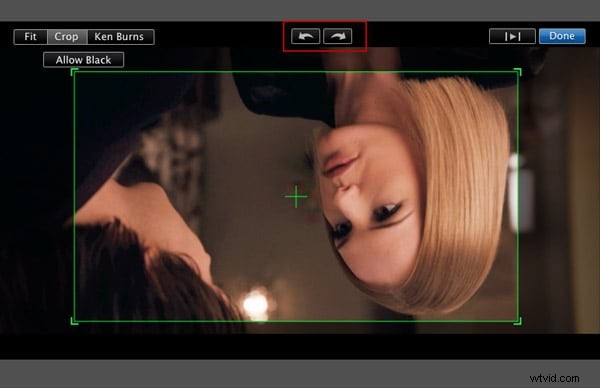
Hit the Rotate button to rotate your videos and photos to the left or right. Each click turns your image 90 degrees.
Note: With the new orientation, the image might no longer fit the project's aspect ratio, and black bars might appear at the top and bottom of the image (letterbox) or on its left and right sides (pillarbox).
You may also like: How to Speed Up and Slow Down Video Clips in iMovie
Step 4. Preview and Save
Click the Play button in the viewer to preview the photo and video. When you're satisfied with the result, simply click Done to finish rotating photos and videos or cropping photos and videos in iMovie.

You may also be interested:
- How to Resize Videos in iMovie
- iMovie Editing Tips
Part 2: An Easier Way to Rotate and Crop Photos/Videos
If you’re looking for a simple tool that works on your Mac or Windows to crop your video, it would be worth trying Wondershare Filmora. It's an easy-to-use yet power-packed Mac video editing tool that supports almost all the popular video and audio formats! Now let's see how to use to crop and rotate videos as well as photos.
To crop a video using Filmora, follow these steps:
Step 1. Import Your Media Files
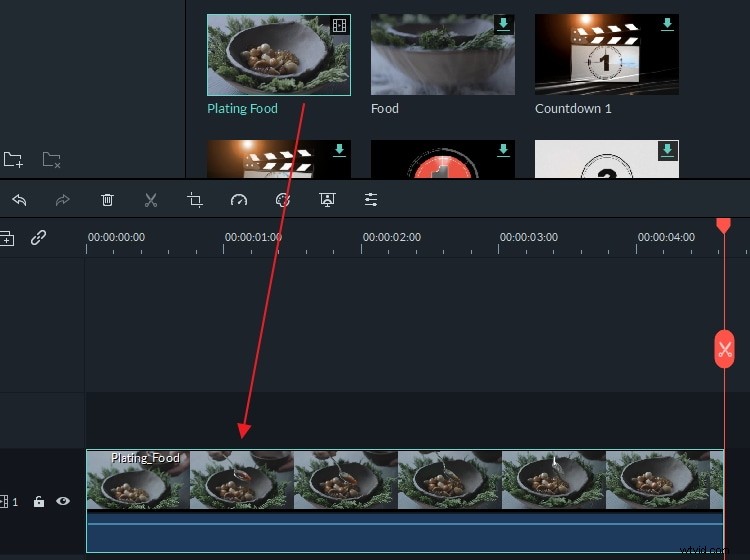
Go to File > Import Media or just drag and drop photos, videos to the program. To help you easily get files, a media browser is provided to let you import from iTunes library, Photo Booth, etc. You can also record videos using a video capture device or with the built-in iSight.
Step 2. Crop Videos and Photos
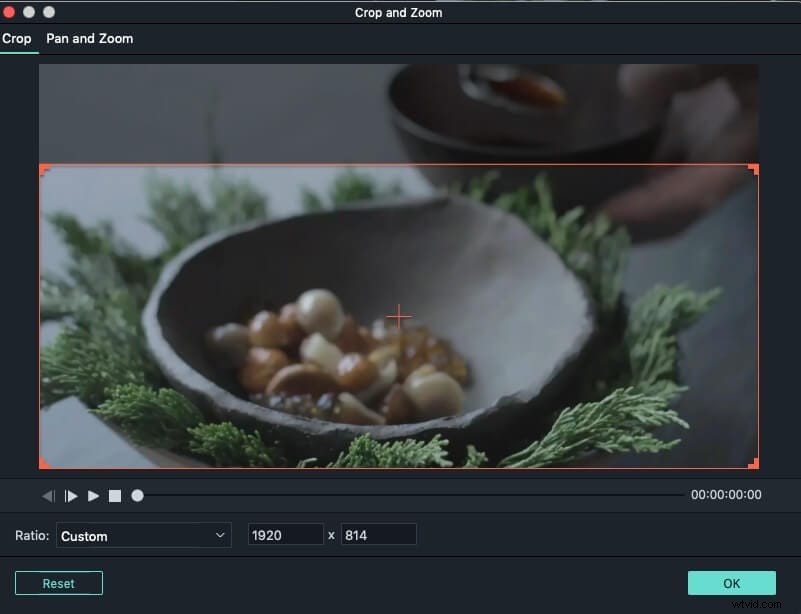
Click the "Crop" button on the tool bar. In the pop-up window, choose the "16:9" or "4:3" option to crop automatically, or choose "Manually" and customize the size window to crop manually.
Step 3. Rotate Videos and Photos
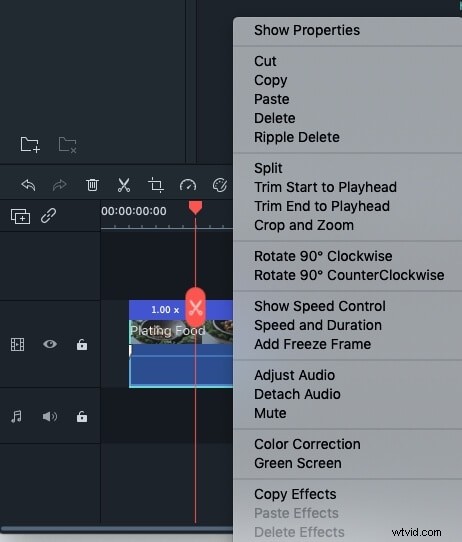
Click the "Rotate" button on the toolbar to rotate the videos as you like. Alternatively, you can also right-click the file and choose the "rotate" option. Rotating 90 degrees clockwise or anti-clockwise, flipping horizontally and vertically are all available.
Step 4. Save Your Files
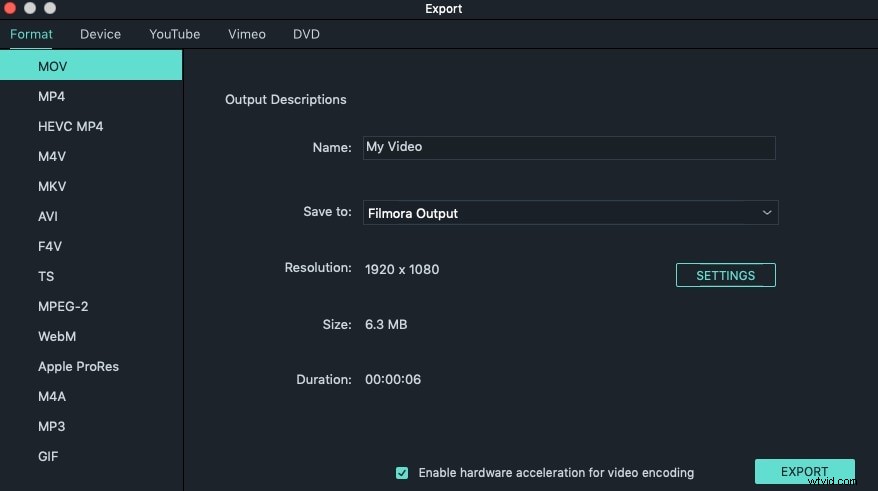
After cropping or rotating your videos or photos, click "Export" to save the file to a new format or upload them to YouTube and even burn them to DVD.
Learn more about Filmora Editing Tips
Part 3: FAQs About Cropping and Rotating Videos in iMovie
Below are some frequently asked questions about cropping and rotating videos in iMovie for your reference.
1. Can you crop a video in iMovie from an iPhone?
Yes, simply tap on the Magnifying Glass icon and then make the pinching gesture on the device’s screen to crop the video.
2. Where can I find the crop button in iMovie?
The Crop button is located in the toolbar above the Preview Window. However, you won’t be able to see this toolbar until you add a video clip to iMovie’s timeline.
3. Why is iMovie cropping my video?
iMovie is going to crop your video if its aspect ratio doesn’t match the aspect ratio you selected for the project. The easiest way to fix this is to change the video’s dimensions to those that are specified in the project settings.
4. How to crop a video to a square in iMovie?
iMovie doesn’t offer the option to change a project’s aspect ratio to square and you have to use another video editing software or presentation software like Keynote if you want to create square videos.
5. How to change a video’s orientations from portrait to landscape in iMovie?
You just have to use the iMovie’s rotate tools in order to change a video’s orientation, but you shouldn’t expect great results. The objects in the new horizontal video you make in this manner are not going to rotate along with the video, and for that reason, you should decide which video orientation you are going to use before you start shooting a video because this issue is nearly impossible to fix in post-production.
6. Can I export vertical videos from iMovie?
The short and simple answer to this question is no. iMovie doesn’t offer a 9:16 ratio, which means that you cannot export portrait videos from this video editing software. Even though iMovie displays vertical videos accurately within a project, the output file is going to be exported as a landscape video.
Related: Best iMovie Alternatives for Windows