
Google Drive is the cloud storage platform of choice for many of our everyday editors. – it's as commonplace in 2020 as floppy disks were in the 80s. With this in mind, our logical next step was to integrate with Google Drive to make importing and exporting your video files seamless and simple. In this blog, we'll take you through how it works, let's get started.
How to Import and Export Videos Using Clipchamp's Google Drive Integration
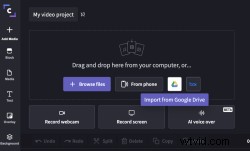
Step 1. Find the Import from Google Drive option in your media library.
Once you've opened a new project in Clipchamp, head to your Media Library. You'll see all of your importing options including the Google Drive integration. Click the Google Drive icon to start.
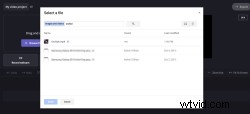
Step 2. Select the files you want to import
Once the Google Drive integration has opened and you've allowed file sharing with Clipchamp, you can search for and select the files you want to import. When you've made your selections click the Select button.
Step 3. Edit your video in Clipchamp
Once your files have appeared in the Media Library you can start to edit your video. Drag and drop your media to the timeline and start editing your video.

Step 4. Export your video and save in Google Drive
When your video project is complete, click the Export button to export it. On the export screen, you'll see a Save to Google Drive option, click this, enter a name for your video and select a folder to save it in. Your video project will now save to both your device and your allocated Google Drive folder. If you need to streamline data entries about your video project, you can integrate Google Drive to Google Sheets and track their status in one place.

Happy editing
That's all there is to it! Enjoy this new, simple way to import and export videos using Clipchamp's Google Drive integration.