
As the world’s largest B2B-centric content channel, LinkedIn reports that 94% of B2B marketers use the platform as a primary content distribution channel. And the statistics speak for themselves, with the platform serving up 36 billion monthly impressions.
For businesses on LinkedIn, video is proving to convert at a higher rate, boost impressions dramatically, and generate three times the engagement than regular text posts. On top of that, video has proven to be five times more likely to start a conversation among LinkedIn members, than other content.
At Clipchamp we’re committed to helping our everyday editors share their videos as easily and effectively as possible. It’s why we’re happy to announce we’ve integrated with LinkedIn to allow you to share videos made in Clipchamp directly to your LinkedIn company page in an instant.
In this blog we’ll take you through the five simple steps you’ll need to follow to share your video to a LinkedIn company page. Even better? If you’re looking for that spark of inspiration to get started, we’ve included some template examples too!
How to create and share your video to a Linkedin company page with Clipchamp 🤔
Step 1. Create a video in Clipchamp using a template
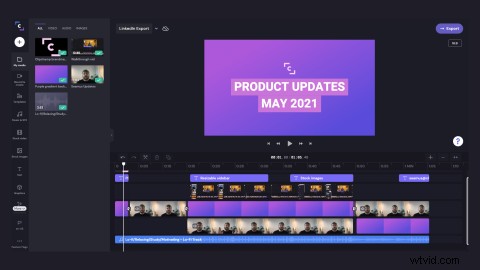
Once you’ve signed into Clipchamp, you can get started creating and editing your video - we recommend using the 16:9 aspect ratio. If you’re stretched for time, or needing some inspiration, we have a huge variety of Clipchamp video template collections for any occasion, event, presentation, or social media post. Need some editing ideas? Adding in transitions and stickers, as well as creating motion titles is a great starting point to boost your video’s effectiveness.
Step 2. Optimize your video for LinkedIn and export
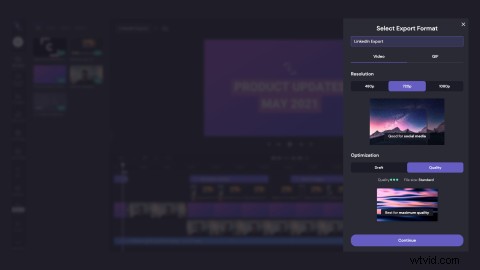
Once you’re happy with your video and you’ve completed all your edits, hit the Export button in the top right-hand corner of your screen. The minimum video resolution for LinkedIn is 720p, so we recommended starting with this.
Step 3. Share your video to your LinkedIn company page
When you reach the Export page, you’ll notice all of our Save/Share to buttons. To share your video on LinkedIn, click on the Share to LinkedIn (Company Page) button, and follow the prompts to connect to your LinkedIn account.
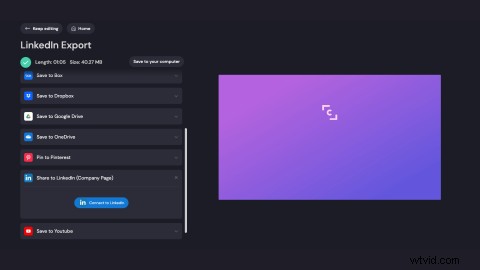
You’ll need to authorize and allow Clipchamp to access your LinkedIn account.

Step 4. Edit your video post details
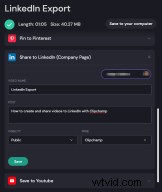
After you’ve authorized your LinkedIn account, the Share to LinkedIn (Company Page) button will expand when you click it. Here you can add a video name and write your posts description. You can then choose whether you want your video public or to connections only, and finally you’ll select the company page you’d like to share it to.
Step 5. You’ve got a video post!
Once your video has successfully been shared to LinkedIn, you’ll see a green confirmation tick, plus a link to your video post. Click Open to go and take a look. If you need to make any further changes to your post, you can make them on LinkedIn.

Start creating videos for LinkedIn
And with five simple steps, that’s all there is to it! We’re excited to make creating and sharing videos to LinkedIn with Clipchamp easier than ever. With more users watching video on LinkedIn than ever before, there’s never been a better time to explore this part of the platform and get all eyes on your content.
Media Contact: Lana Sciasci - press@clipchamp.com