
When it comes to using Lightroom Classic CC (formerly Lightroom CC. Yeah, it confuses me too) there are lots of fun things to do and some not-so-fun things to do. Oddly enough, those not-so-fun (okay, painfully monotonous) undertakings can be the most pragmatic and valuable.
Don’t get me wrong. I like using the filters and sliders as much as the next guy. But sometimes you need to endure a little dullness so you have time to do more of the fun stuff.
In this article I’ll be tackling two of the less adventurous aspects of working with image files in Lightroom Classic CC: import and export presets.
The Great Power of Presets
A Lightroom preset (along with a Photoshop action) is a file containing a set of actions you want to perform. It can help you complete a relatively complicated operation without needing to perform each step manually. What’s more, it can easily be repeated as many times as needed.
Import and export presets allow you to apply certain choices when importing and exporting your images. They tell Lightroom where you want to start and end with one or more images.
Fortunately, creating and working with import and export presets is extremely easy. Let me show you how easy and useful they can be. (I promise I’ll sneak in a joke at some point to keep things fresh.)
Using Import Presets
Import presets are sets of parameters you can apply when you first import your images using the import dialog box.
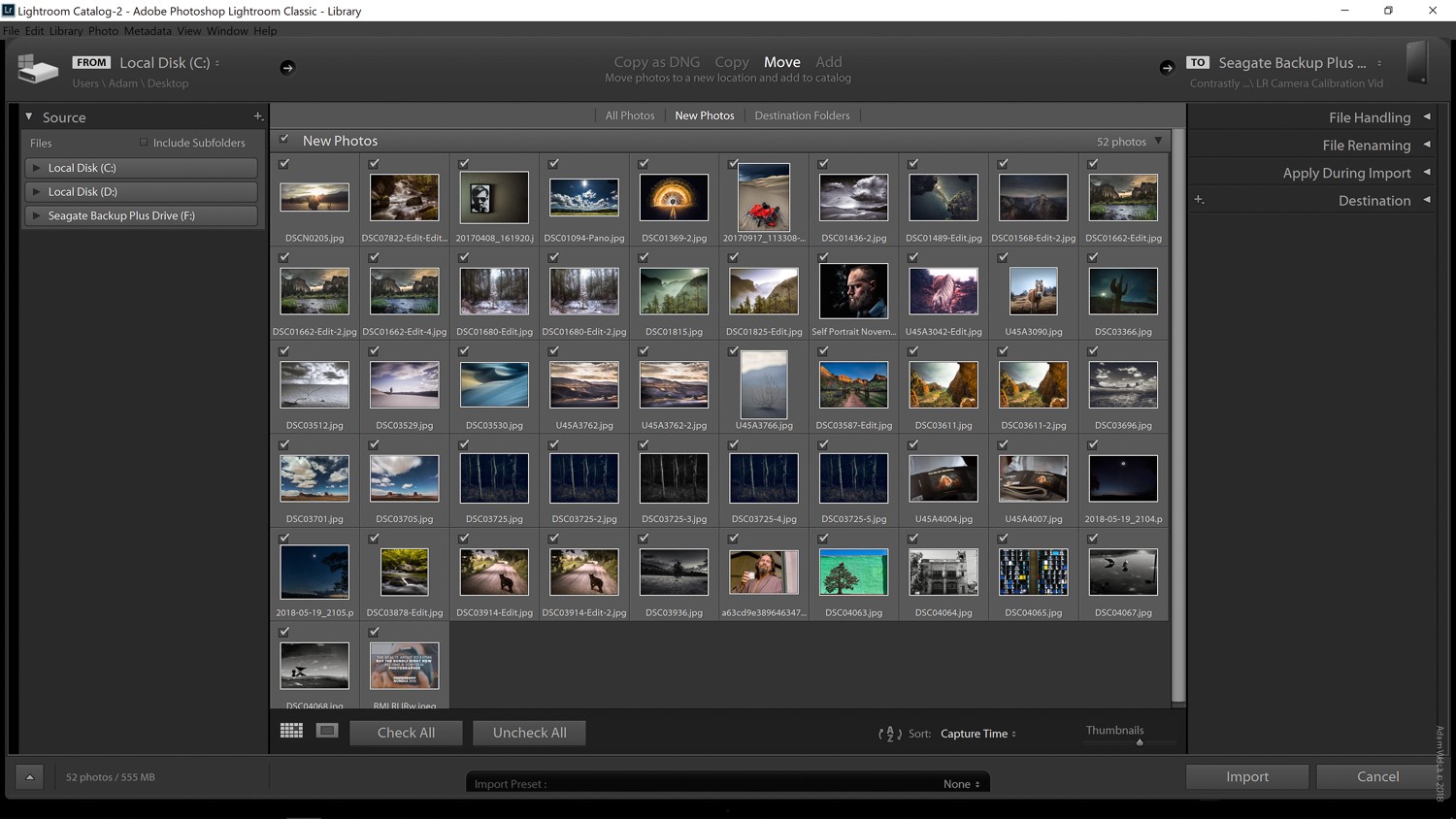
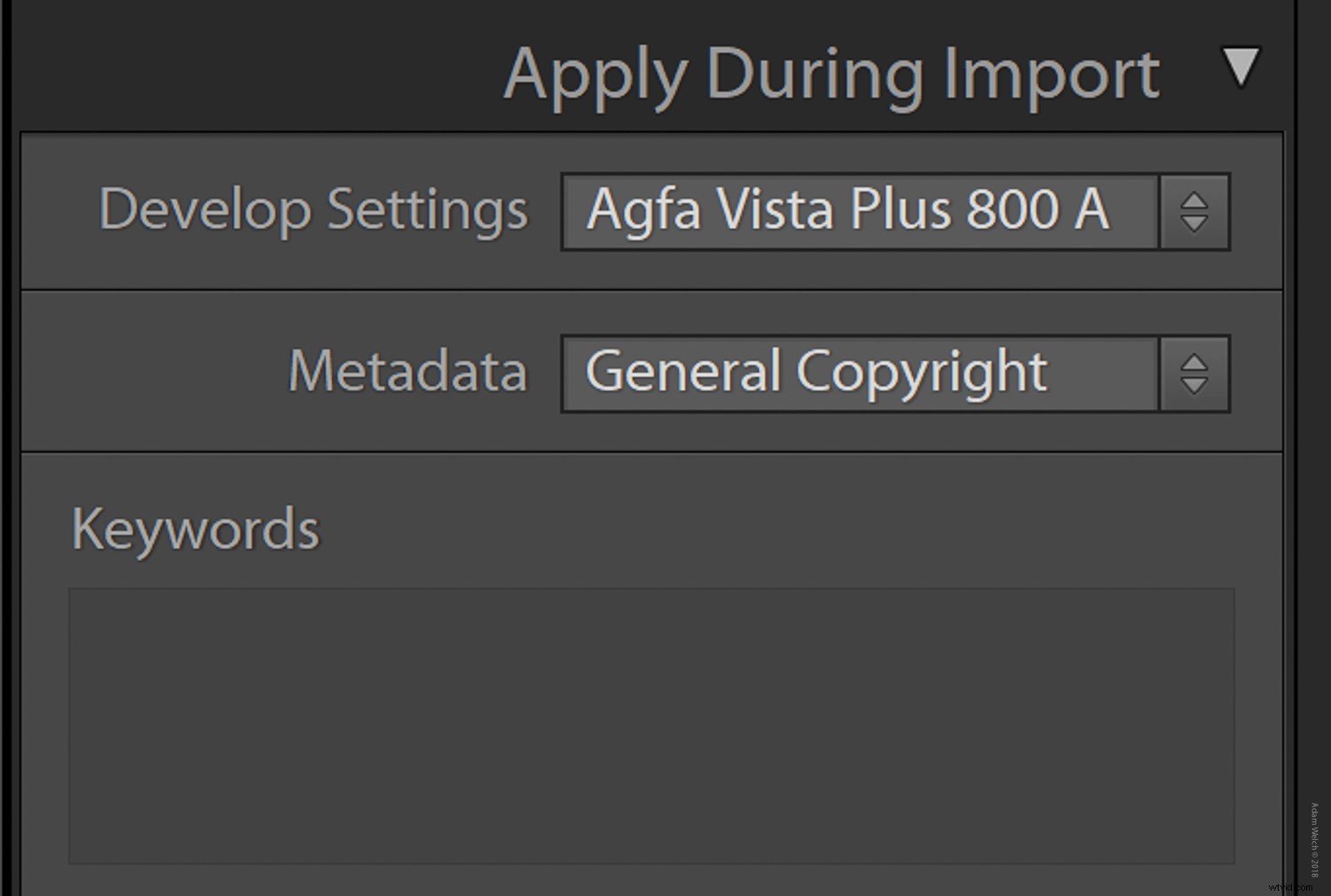
Creating an import preset is a great way to speed up importing your photos. Instead of having to choose the destinations, file naming and handling, and metadata each time you bring your images into Lightroom, you can simply make a preset. What’s more, the develop and metadata presets can be automatically applied as you import them. This is a great way to not only speed up your processing but also ensure your images are protected with copyright metadata.
How to Create an Import Preset
Once you’ve selected all the options you want saved as a preset, look for the ‘Import Preset:’ tab at the bottom of the import dialog screen. This is what you’ll use to save your import preset.
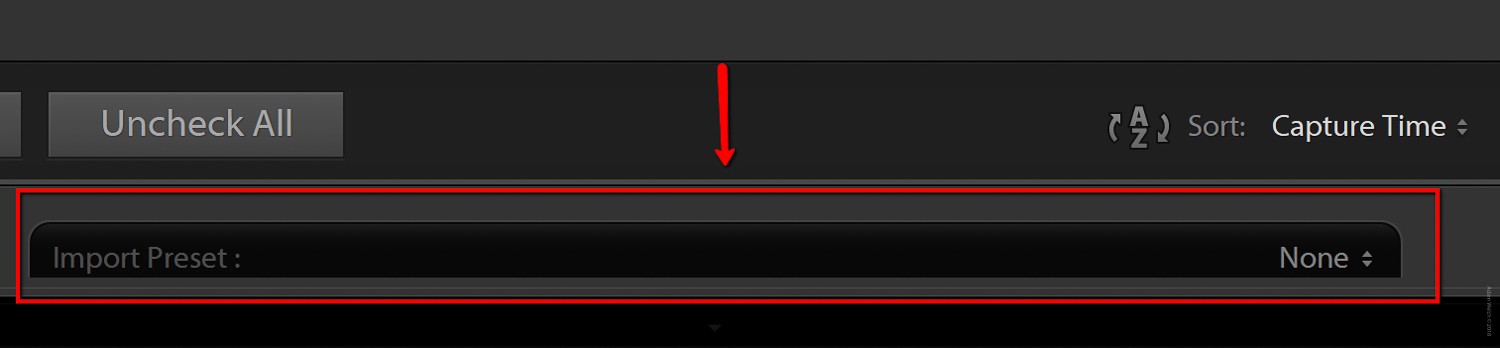
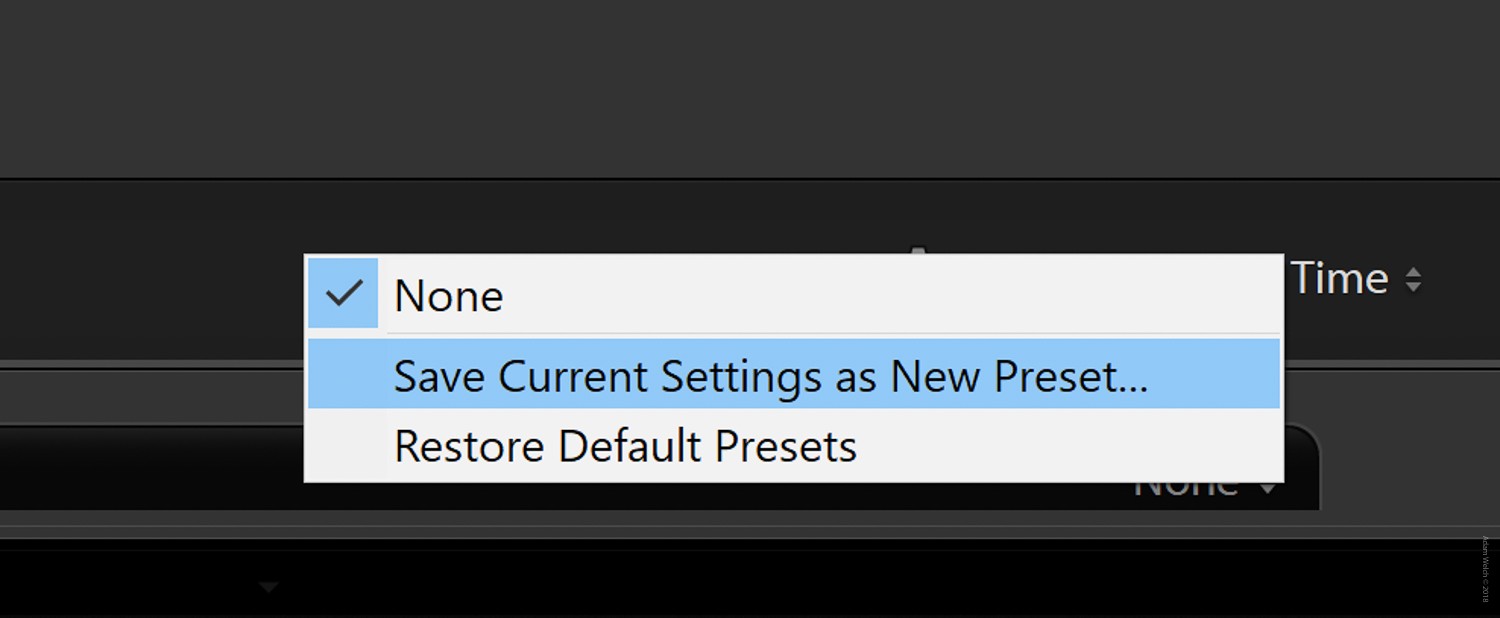
Next, select the drop-down menu on the far right of the tab and select ‘Save Current Settings as New Preset…’.
Next, enter a name for your new import preset. In this example, I’ve chosen a name that’s demure and professional.
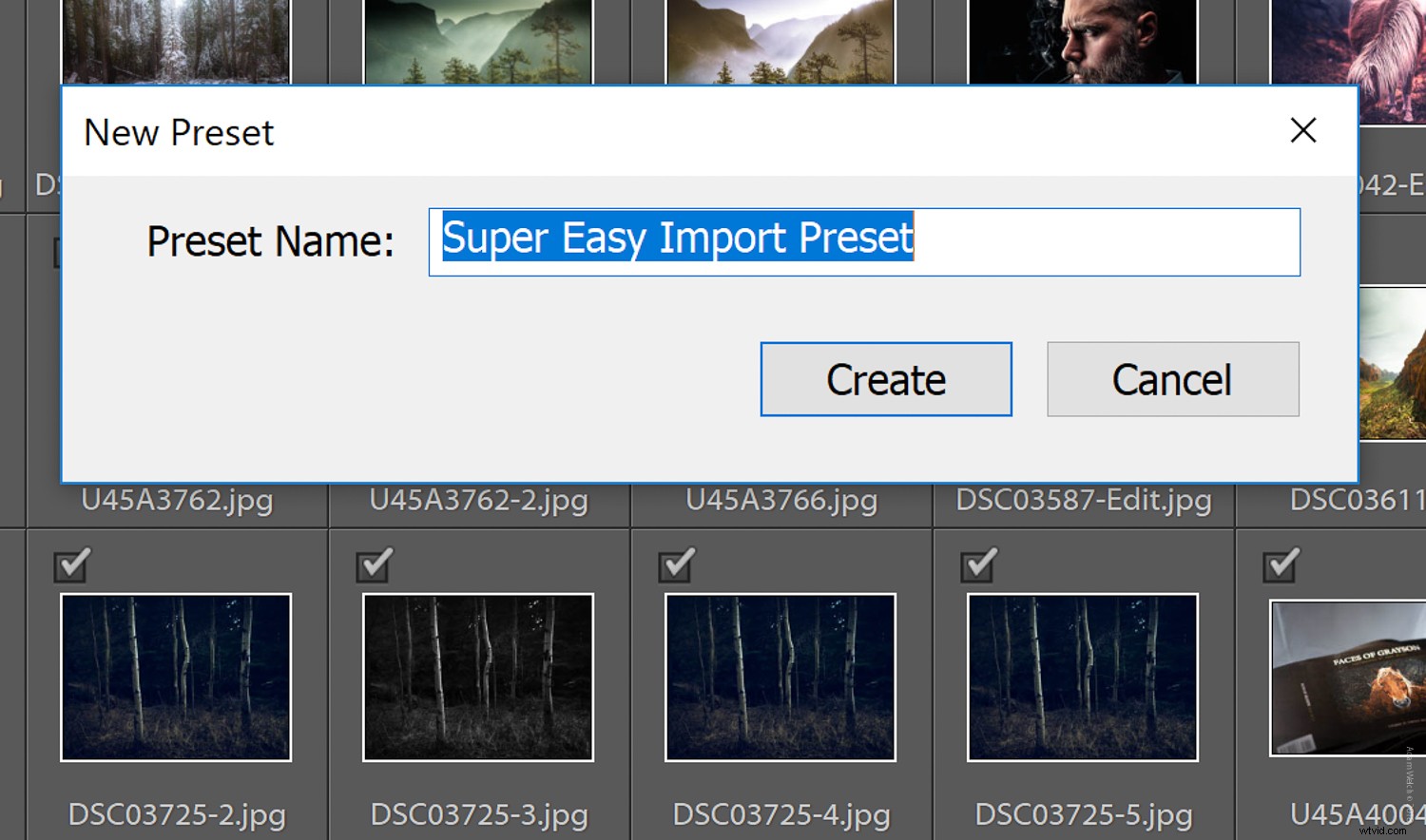
Finally, select ‘Create’. Your new import preset should now appear in the presets drop-down menu.
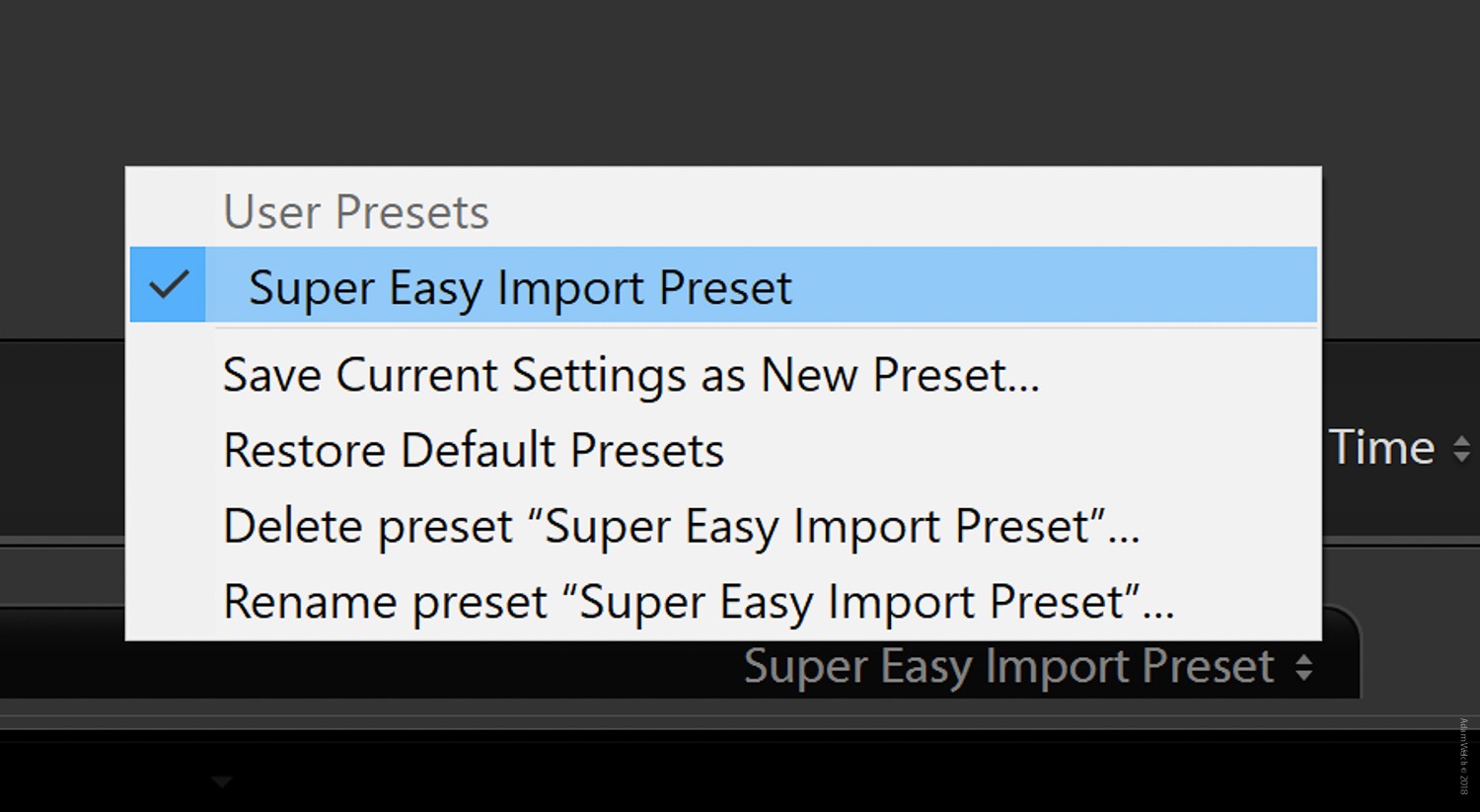
How to Apply an Import Preset
If you think creating an import preset is easy, wait ’til you see how painless it is to apply one to your next import.
This is the real reason why import presets are so great to have in your Lightroom toolbox.
Simply go back to the ‘Import Preset:’ tab at the bottom of the import dialog screen and select the preset you want to use. (You’ll notice I’ve added some more presets with similarly demure and professional names.)
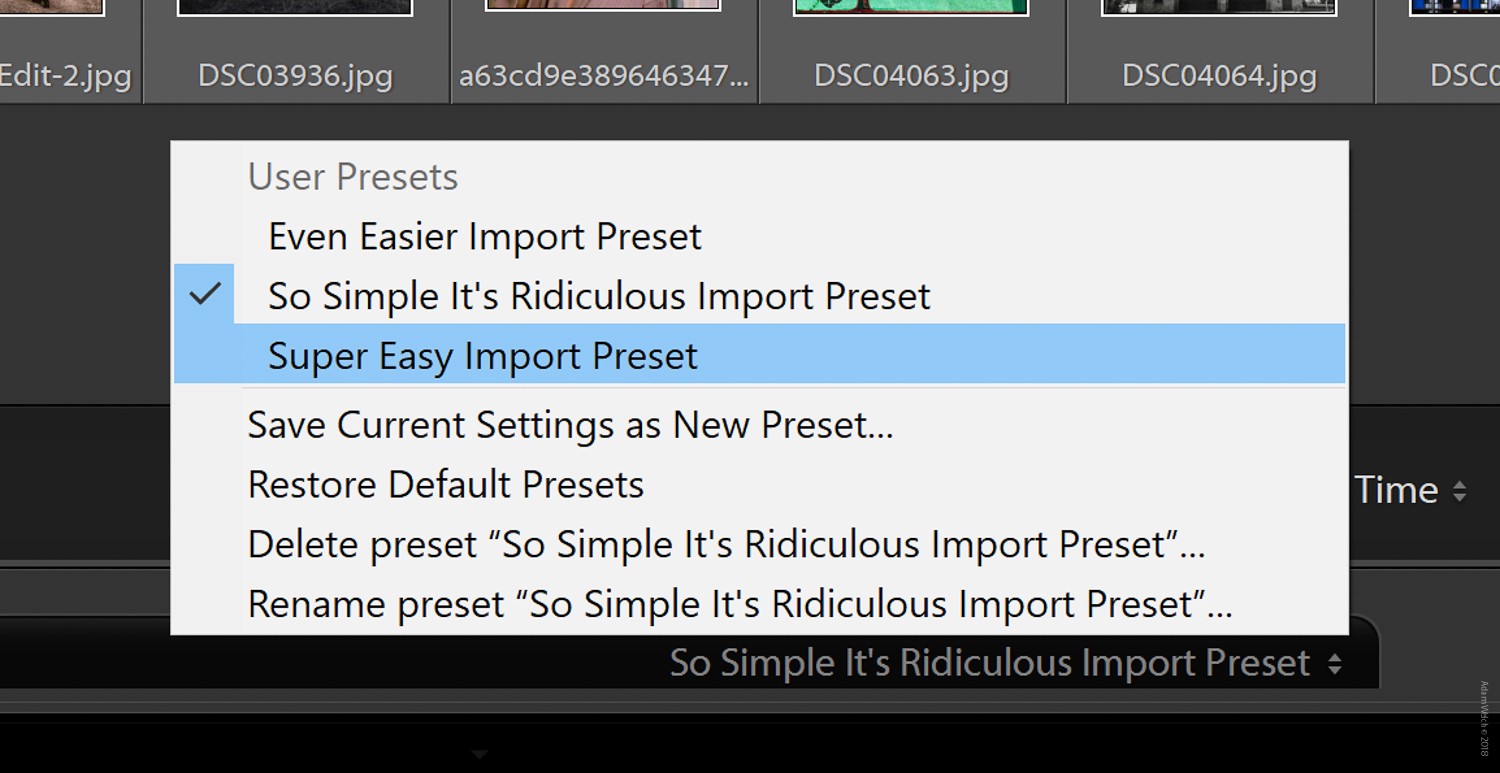
Select the preset you want to use from the list and it will instantly be applied to your import. No more cycling through option panels or wasting time on file handling and renaming.
Using Export Presets
Export presets are the cool uncle of our import presets. They accomplish essentially the same task except they look after the back end of your editing.
In a way, export presets are even more flexible and useful than import presets. They can ensure you export and store your images correctly every time, which is important when working with websites, publications or clients that have specific image requirements. And they’re just as easy to make as import presets.
To get started, click ‘Export…’ to bring up the export dialog screen.
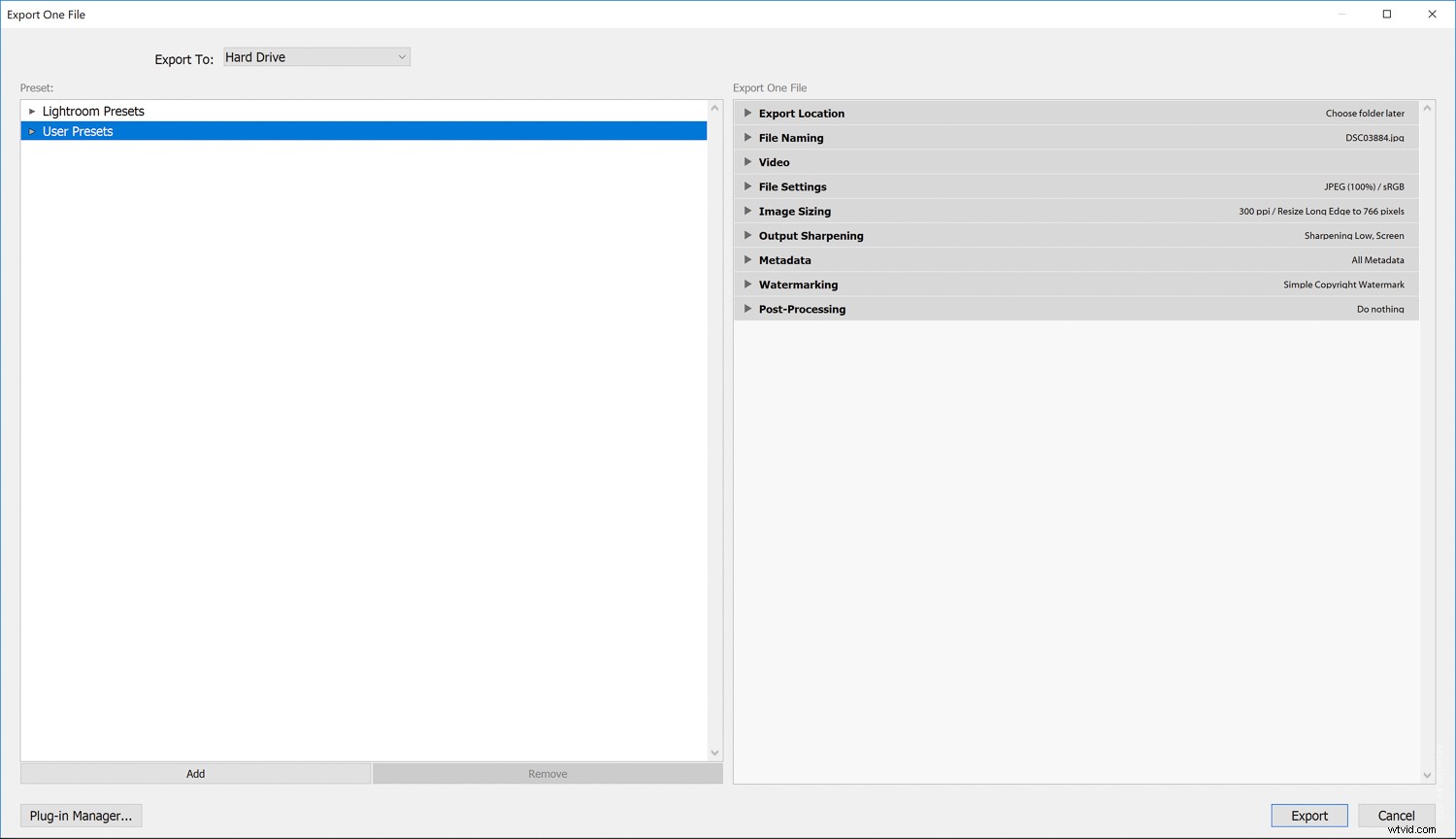
As you can see you have the usual suspects you can apply as you export – export location, file naming, file settings, image sizing – along with develop presets, watermarking and output sharpening. Won’t it be great having a preset ready and waiting to save you from doing all those clicks?
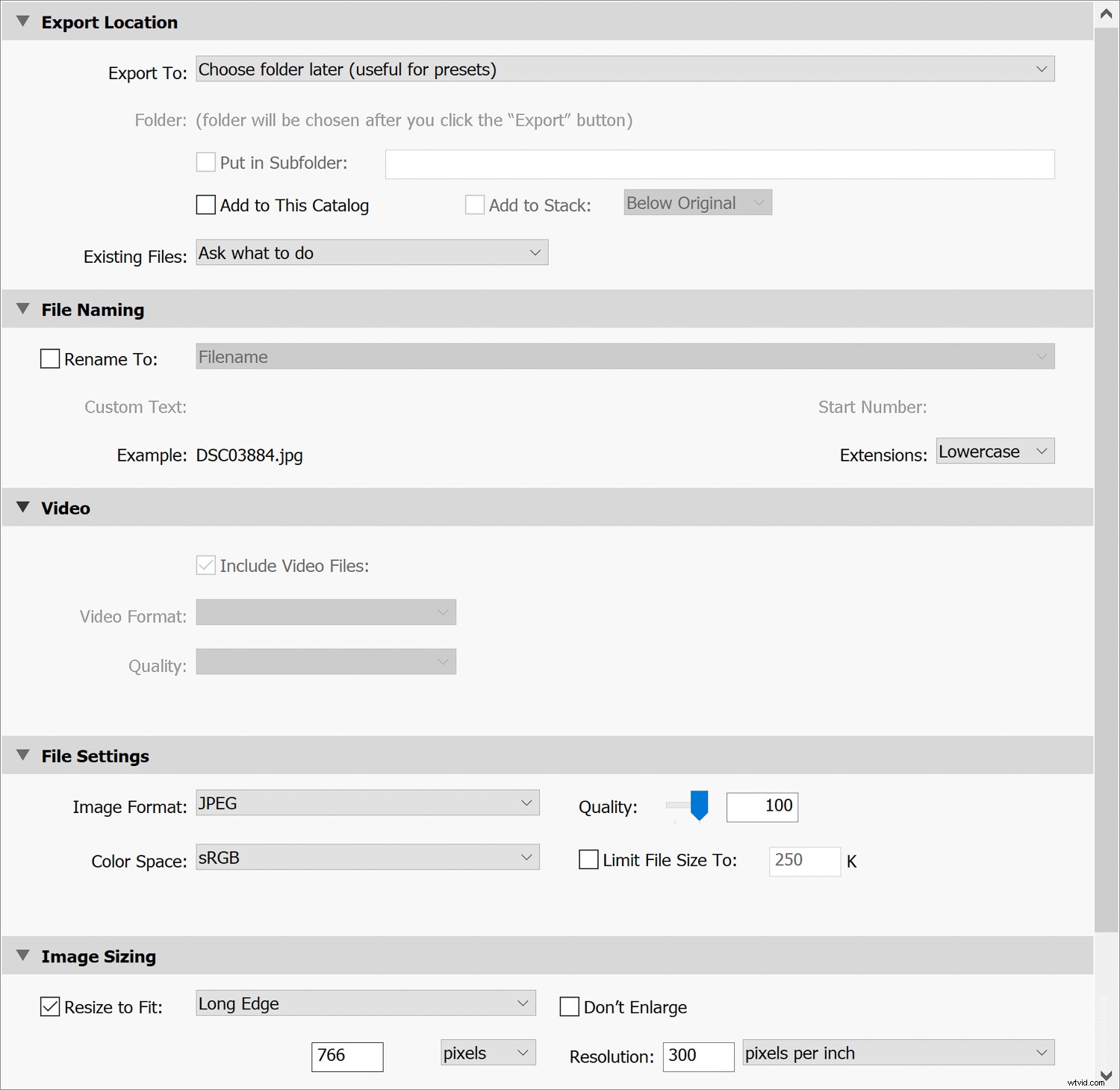
How to Create an Export Preset
Creating an export preset is incredibly simple. Lightroom comes with some default export presets, but we’re going to be grownups and create our own.
Once you’ve made all the selections you want to be included in your preset, click the “Add” button
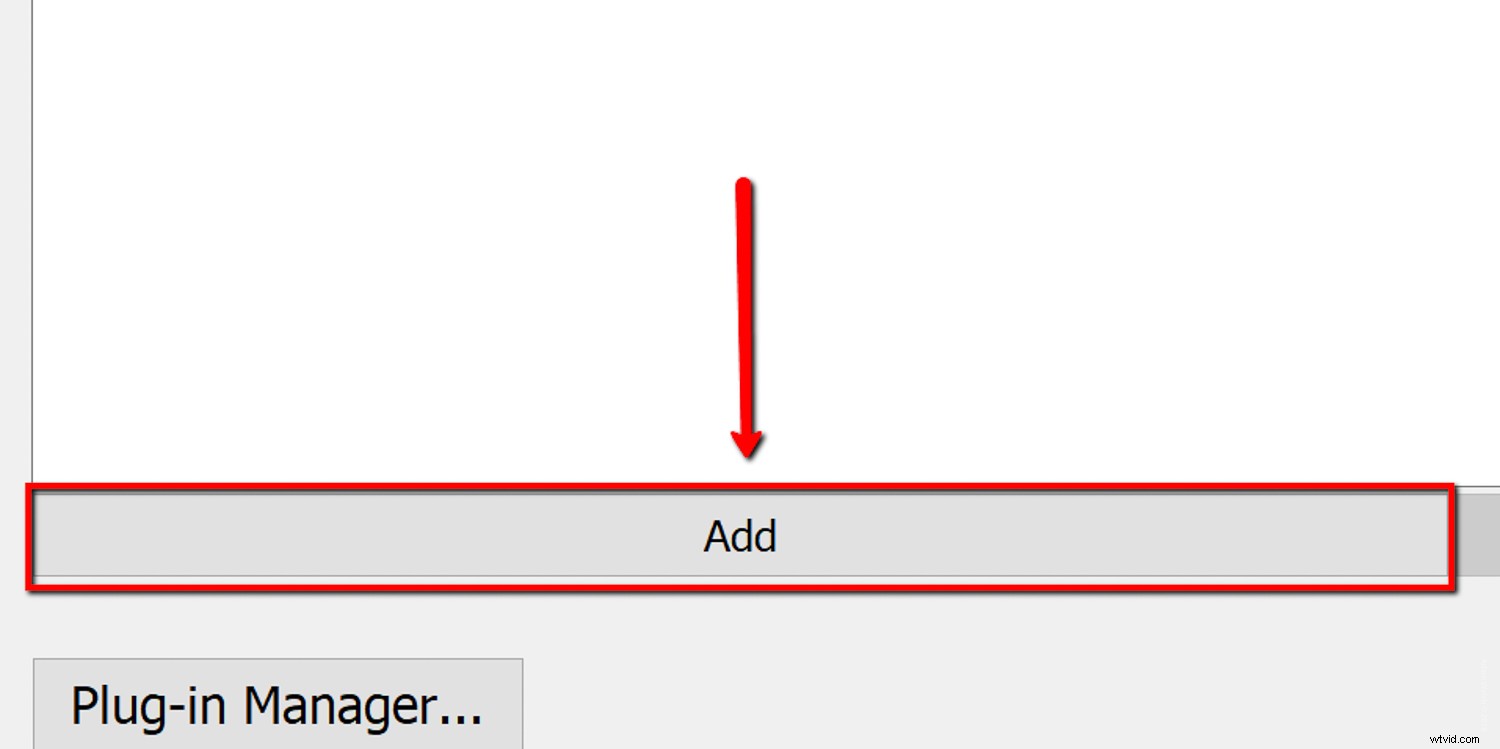
Next, choose a name and a folder for your export preset. If you want to create a new folder, select the ‘New Folder’ option from the drop-down.
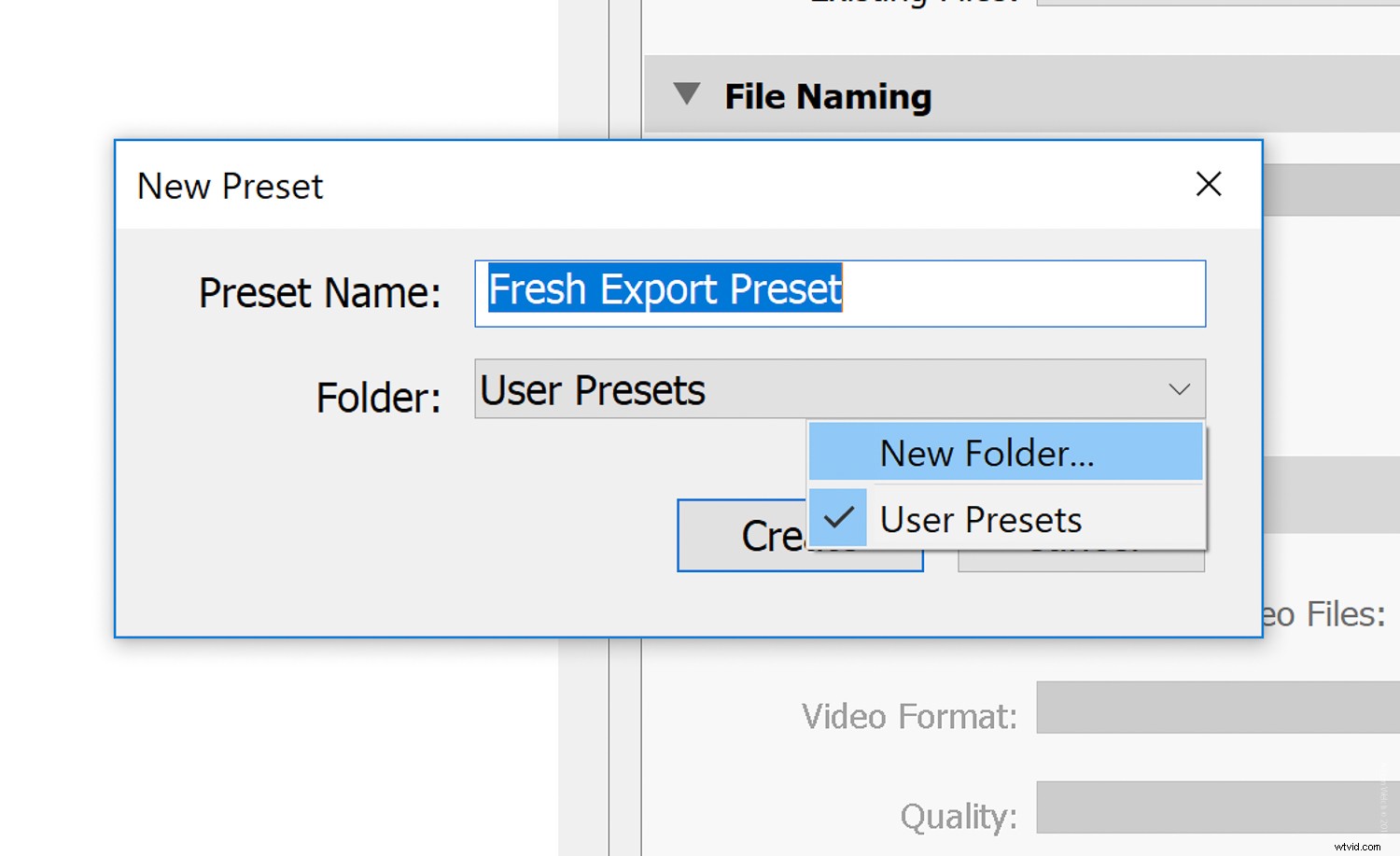
Congratulations. You’ve just created your first export preset. If you regularly work in Lightroom Classic CC you’ll fine them indispensable. And your mouse (and your fingers) will thank you.
And now, as promised…
“Knock knock.”
“Who’s there?”
“An interrupting cow”
“An interrupting cow w—”
“MOOOO!”
Thanks, folks. I’ll be here all week. Try the veal.
How to Apply an Export Preset
To use your export presets, simply select it from the list on the left. But don’t forget that all of your export presets are entirely editable.
Let’s say you want to tweak the preset you just made. To do this simply make your changes, and right-click on the preset and select “Update with Current Settings”.
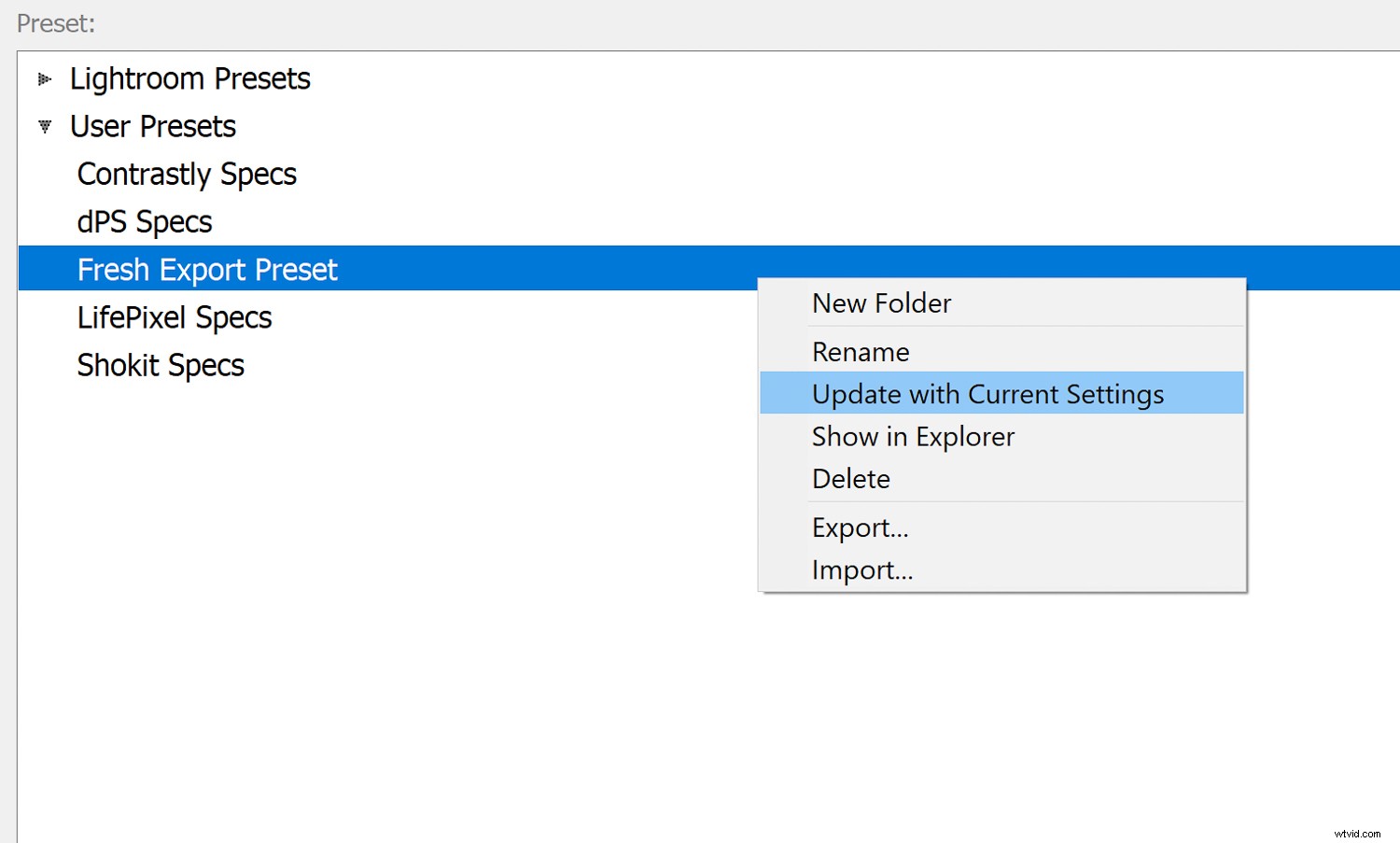
This will save your current export settings, overwriting the previous export preset settings.
Note: This won’t change the name of the preset. So to avoid any mixups for future exports you should save the changed settings as a new export preset.
Some Final Thoughts on Import and Export Presets
The question isn’t whether you should use import and export presets, but rather why on earth wouldn’t you use them? Your time is valuable, so why not work smarter instead of harder. Sure, creating import and export presets isn’t the most glamorous part of working in Lightroom. But the time and guesswork they’ll save you are definitely worth the effort.
If you don’t currently use these types of presets I hope this article gives you the kick you need to do yourself and your processing a huge favor.